
iOS 自繪畫板:三色畫筆與橡皮擦的實作
做一個能換色、能擦除的畫板,核心是把每一筆的座標序列存起來,然後在 drawRect 中重放。本文拆解 PaintView 的實作細節。
功能與結構
提供黑、紅、藍三種畫筆與一個橡皮擦模式,已在 iPhone 6.1 上驗證。專案中的 PaintView.m 就是畫板本體,把它與三個顏色按鈕一起放進 ViewController 的 view 上就構成主介面。
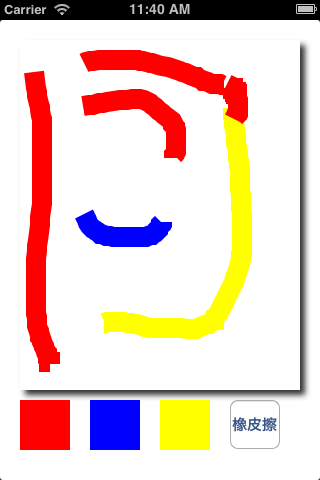
一、初始化:手勢與陰影
- (id)initWithFrame:(CGRect)frame {
    self = [super initWithFrame:frame];
    if (self) {
        self.layer.shadowColor = [UIColor blackColor].CGColor;
        self.layer.shadowOpacity = 0.8;
        self.layer.shadowOffset = CGSizeMake(5, 5);
        self.backgroundColor = [UIColor whiteColor];
        self.paintColor = [UIColor blackColor];

        linesArray = [[NSMutableArray alloc] init];

        UIPanGestureRecognizer *panGesture =
            [[UIPanGestureRecognizer alloc] initWithTarget:self action:@selector(panGesture:)];
        [self addGestureRecognizer:panGesture];
    }
    return self;
}
用 UIPanGestureRecognizer 而不是 touchesMoved:,是因為手勢辨識器能自動處理多點、取消等邊界情況,程式碼也乾淨得多。
二、資料模型:每一筆是一個字典
linesArray 的每個元素代表一筆,內部存兩個鍵:line 對應座標陣列(NSValue 包裝的 CGPoint),color 對應畫筆顏色。擦除則在該筆中額外塞入 eraseArray,記錄橡皮擦走過的點。
這個設計的好處是「可重放」:畫面永遠是資料的投影,不需要維護點陣圖,也支援後續做復原、重畫。
三、繪製
- (void)drawRect:(CGRect)rect {
    CGContextRef context = UIGraphicsGetCurrentContext();
    CGContextSetLineWidth(context, 20);

    for (NSDictionary *lineDic in linesArray) {
        UIColor *lineColor = [lineDic objectForKey:@"color"];
        CGContextSetStrokeColorWithColor(context, lineColor.CGColor);

        // 畫正常筆跡
        CGMutablePathRef paintPath = CGPathCreateMutable();
        NSArray *linePointArray = [lineDic objectForKey:@"line"];
        for (NSInteger i = 0; i < linePointArray.count; i++) {
            CGPoint point = [[linePointArray objectAtIndex:i] CGPointValue];
            if (i == 0) {
                CGPathMoveToPoint(paintPath, NULL, point.x, point.y);
            } else {
                CGPathAddLineToPoint(paintPath, NULL, point.x, point.y);
            }
        }
        CGContextAddPath(context, paintPath);
        CGContextStrokePath(context);

        // 畫擦除軌跡:用背景色覆蓋
        if ([lineDic objectForKey:@"eraseArray"]) {
            CGContextSetStrokeColorWithColor(context, [UIColor whiteColor].CGColor);
            CGMutablePathRef erasePath = CGPathCreateMutable();
            NSArray *eraseArray = [lineDic objectForKey:@"eraseArray"];
            for (NSInteger i = 0; i < eraseArray.count; i++) {
                CGPoint point = [[eraseArray objectAtIndex:i] CGPointValue];
                if (i == 0) {
                    CGPathMoveToPoint(erasePath, NULL, point.x, point.y);
                } else {
                    CGPathAddLineToPoint(erasePath, NULL, point.x, point.y);
                }
            }
            CGContextAddPath(context, erasePath);
            CGContextStrokePath(context);
        }
    }
}
注意橡皮擦的實作方式:並不是真的「刪除」像素,而是用白色畫上去。這在背景固定為白色時完全可行,實作也最簡單。
四、手勢處理
-(void)panGesture:(UIPanGestureRecognizer *)thePan {
    CGPoint touchPoint = [thePan locationInView:self];

    if (self.erase) {
        if (thePan.state == UIGestureRecognizerStateChanged) {
            for (NSMutableDictionary *lineDic in linesArray) {
                NSMutableArray *linePointArray = [lineDic objectForKey:@"line"];
                for (NSInteger i = 0; i < linePointArray.count; i++) {
                    CGPoint point = [[linePointArray objectAtIndex:i] CGPointValue];
                    // 判斷橡皮擦是否靠近這個點
                    if (powf(point.x - touchPoint.x, point.y - touchPoint.y) < 20) {
                        NSMutableArray *eraseArray = [lineDic objectForKey:@"eraseArray"]
                            ? [lineDic objectForKey:@"eraseArray"]
                            : [NSMutableArray array];
                        [eraseArray addObject:[NSValue valueWithCGPoint:touchPoint]];
                        [lineDic setObject:eraseArray forKey:@"eraseArray"];

                        [self setNeedsDisplayInRect:CGRectMake(touchPoint.x - 50, touchPoint.y - 50, 100, 100)];
                    }
                }
            }
        }
    } else {
        if (thePan.state == UIGestureRecognizerStateBegan) {
            // 開始新的一筆
            NSMutableArray *currentLineArray = [NSMutableArray arrayWithObject:[NSValue valueWithCGPoint:touchPoint]];
            NSMutableDictionary *lineDic = [NSMutableDictionary dictionaryWithObjectsAndKeys:
                                            currentLineArray, @"line", _paintColor, @"color", nil];
            [linesArray addObject:lineDic];
        } else if (thePan.state == UIGestureRecognizerStateChanged) {
            // 持續追加座標
            NSMutableDictionary *lineDic = [linesArray lastObject];
            NSMutableArray *currentLineArray = [lineDic objectForKey:@"line"];
            [currentLineArray addObject:[NSValue valueWithCGPoint:touchPoint]];
            [self setNeedsDisplayInRect:CGRectMake(touchPoint.x - 50, touchPoint.y - 50, 100, 100)];
        }
    }
}
三個狀態各司其職:Began 建立新筆、Changed 追加座標、Ended 什麼都不用做(資料已經存好了)。而 setNeedsDisplayInRect: 只重畫手指附近 100×100 的區域,比重畫整個 view 有效率得多。
五、可以更好的地方
這份實作在 iPhone 6.1 的環境下流暢,但放到今天有幾處值得調整。
橡皮擦的判斷有誤。程式碼中 powf 的第二個參數位置放錯了——powf 是次方運算,若要算距離應該用 sqrtf 或 powf 的第二參數固定為 2。目前這行實際上不會得到「距離」,只是碰巧在某些數值下仍能觸發。這正是為什麼擦除效果時好時壞。
白色覆蓋法的限制。若畫布有背景圖或漸層,擦除就會露出白色痕跡。要真正擦除,改用 CGContextSetBlendMode(context, kCGBlendModeClear) 並搭配 CGBitmapContext 的透明圖層會更恰當。
記憶體管理。範例是 MRC 風格,在今日的 ARC 專案中最後的 dealloc 與 release 都該移除;CGPath 這類 Core Graphics 物件則不受 ARC 管轄,仍須主動釋放(或用 CGPathRelease 對應)。範例中數次 CGPathCreateMutable 之後沒有跟著釋放,長時間作畫會累積記憶體。
最後,若只是要簽名或簡單塗鴉,直接用 PencilKit(iOS 13 起)會省下大量功夫,它自帶壓感、橡皮擦與復原重做;上述自繪方式則適合需要完全控制筆觸行為的場景。
- 上一篇文章: iOS 通訊錄開發:查詢、單值與多值屬性、聯絡人照片讀取
- 下一篇文章: iOS 整合 ZXing 條碼掃描:完整步驟與踩坑記錄