
iOS_12:UITableViewCell 的基本用法(紅樓夢資料範例)
編輯:iOS 開發綜合
UITableView 是 iOS 最常使用的元件之一。這篇以《紅樓夢》金陵十二位女子為題材,把客製化 Cell 的顯示、點擊彈窗與局部刷新一次做完整。
最終效果:
一、模型類
Girl.h
#import <Foundation/Foundation.h>

@interface Girl : NSObject
// UI 控件用 weak,字符串用 copy,其他对象用 strong
@property (nonatomic, copy) NSString *headImgName;  // 頭像圖片名
@property (nonatomic, copy) NSString *name;         // 姓名
@property (nonatomic, copy) NSString *verdict;      // 判詞

+ (Girl *)girlNamed:(NSString *)name
        headImgName:(NSString *)headImgName
            verdict:(NSString *)verdict;
@end
Girl.m
#import "Girl.h"

@implementation Girl

+ (Girl *)girlNamed:(NSString *)name
        headImgName:(NSString *)headImgName
            verdict:(NSString *)verdict {
    Girl *girl = [[Girl alloc] init];
    girl.name = name;
    girl.headImgName = headImgName;
    girl.verdict = verdict;
    return girl;
}

@end
二、準備假資料
@interface BeyondViewController ()
    <UITableViewDataSource, UITableViewDelegate, UIAlertViewDelegate>
{
    NSMutableArray *_array;
}
@end

@implementation BeyondViewController

- (void)viewDidLoad {
    [super viewDidLoad];
    _array = [NSMutableArray array];

    [_array addObject:[Girl girlNamed:@"林黛玉" headImgName:@"0.png"
                                verdict:@"可歎停機德,堪憐詠絮才。玉帶林中掛,金簪雪裡埋。"]];
    [_array addObject:[Girl girlNamed:@"薛寶釵" headImgName:@"1.png"
                                verdict:@"可歎停機德,堪憐詠絮才。玉帶林中掛,金簪雪裡埋。"]];
    [_array addObject:[Girl girlNamed:@"妙玉" headImgName:@"2.png"
                                verdict:@"欲潔何曾潔,雲空未必空。可憐金玉質,終陷淖泥中。"]];
    [_array addObject:[Girl girlNamed:@"史湘雲" headImgName:@"3.png"
                                verdict:@"富貴又何為?襁褓之間父母違。展眼吊斜輝,湘江水逝楚雲飛。"]];
    [_array addObject:[Girl girlNamed:@"探春" headImgName:@"4.png"
                                verdict:@"才自清明志自高,生於末世運偏消。清明涕泣江邊望,千裡東風一夢遙。"]];
    [_array addObject:[Girl girlNamed:@"惜春" headImgName:@"5.png"
                                verdict:@"堪破三春景不常,缁衣頓改昔年妝。可憐秀戶侯門女,獨臥青燈古佛旁。"]];
    [_array addObject:[Girl girlNamed:@"王熙鳳" headImgName:@"6.png"
                                verdict:@"凡鳥偏從末世來,都知愛慕此生才。一從二令三人木,哭向金陵事可哀。"]];
}
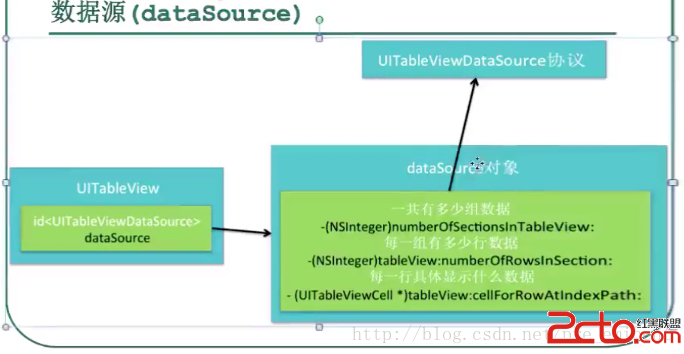
三、資料源方法
#pragma mark - UITableViewDataSource

// 分組數量,預設為 1
- (NSInteger)numberOfSectionsInTableView:(UITableView *)tableView {
    return 1;
}

- (NSInteger)tableView:(UITableView *)tableView numberOfRowsInSection:(NSInteger)section {
    return 7;
}

// 重點方法:每當有 cell 進入可視範圍就會呼叫
// 必須實作,否則會拋出 "dataSource must return a cell" 例外
- (UITableViewCell *)tableView:(UITableView *)tableView
         cellForRowAtIndexPath:(NSIndexPath *)indexPath {
    static NSString *cellID = @"Beyond";
    UITableViewCell *cell = [tableView dequeueReusableCellWithIdentifier:cellID];

    if (cell == nil) {
        // 四種樣式:
        // Default  — 左圖右文
        // Subtitle — 左圖,右上大字、右下小字
        // Value1   — 左圖、左大字、右小字
        // Value2   — 左小字、右大字
        cell = [[UITableViewCell alloc] initWithStyle:UITableViewCellStyleSubtitle
                                     reuseIdentifier:cellID];
    }

    Girl *girl = _array[indexPath.row];
    cell.imageView.image      = [UIImage imageNamed:girl.headImgName];
    cell.textLabel.text       = girl.name;
    cell.detailTextLabel.text = girl.verdict;

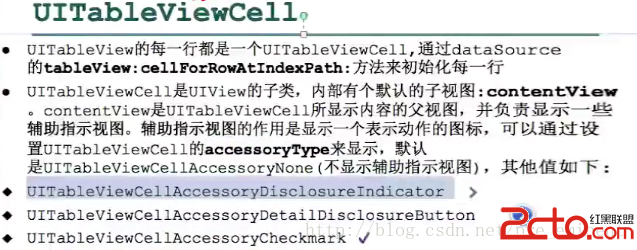
    // 右側附屬樣式可選:DisclosureIndicator / DetailButton / DetailDisclosureButton
    cell.accessoryType = UITableViewCellAccessoryDisclosureIndicator;

    return cell;
}
四、代理方法:高度與點擊
#pragma mark - UITableViewDelegate

- (CGFloat)tableView:(UITableView *)tableView heightForRowAtIndexPath:(NSIndexPath *)indexPath {
    return 93;
}

// 即將選中
- (NSIndexPath *)tableView:(UITableView *)tableView
    willSelectRowAtIndexPath:(NSIndexPath *)indexPath {
    return indexPath;   // 回傳 nil 即可禁止選中
}

- (void)tableView:(UITableView *)tableView didSelectRowAtIndexPath:(NSIndexPath *)indexPath {
    [tableView deselectRowAtIndexPath:indexPath animated:YES];

    Girl *girl = _array[indexPath.row];

    UIAlertView *alert = [[UIAlertView alloc] init];
    [alert initWithTitle:girl.name
                 message:girl.verdict
                delegate:self
       cancelButtonTitle:@"取消"
       otherButtonTitles:@"確定", nil];

    // 可選的輸入框樣式:
    // UIAlertViewStylePlainTextInput / SecureTextInput / LoginAndPasswordInput
    alert.alertViewStyle = UIAlertViewStylePlainTextInput;

    UITextField *textField = [alert textFieldAtIndex:0];
    textField.text = girl.name;
    // 關鍵技巧:用 tag 把行號帶進 delegate 方法
    textField.tag = indexPath.row;

    [alert show];
}

- (void)tableView:(UITableView *)tableView didDeselectRowAtIndexPath:(NSIndexPath *)indexPath {
    NSLog(@"取消選中第 %ld 列", (long)indexPath.row);
}
五、處理彈窗回呼與局部刷新
#pragma mark - UIAlertViewDelegate

- (void)alertView:(UIAlertView *)alertView clickedButtonAtIndex:(NSInteger)buttonIndex {
    // 0 為取消按鈕,1 起依 otherButtonTitles 順序
    if (buttonIndex == 0) {
        return;
    }

    if (buttonIndex == 1) {
        UITextField *textField = [alertView textFieldAtIndex:0];
        NSString *newName = textField.text;

        // 防呆:空字串不處理
        if ([newName isEqualToString:@""]) {
            return;
        }

        // 1. 先更新資料源
        NSInteger row = textField.tag;
        Girl *girl = _array[row];
        girl.name = newName;

        // 2. 再局部刷新。全表 reloadData 也可以,但局部更省資源
        NSIndexPath *indexPath = [NSIndexPath indexPathForRow:row inSection:0];
        [_tableView reloadRowsAtIndexPaths:@[indexPath]
                          withRowAnimation:UITableViewRowAnimationLeft];
    }
}

@end
附錄:Cell 的組成與樣式對照
不同 accessoryType 的呈現:
四種 cellStyle 的排版差異:
幾個容易忽略的細節
- Cell 內部還有一層
contentView,客製化時要注意它的 bounds,否則元件會被裁掉。 - 箭頭符號(Disclosure Indicator)只是視覺提示,點擊事件要自己在
didSelectRowAtIndexPath:中實作跳轉。 cellForRowAtIndexPath:會被頻繁呼叫,避免在裡面做重運算或同步 I/O。- 更新資料後優先使用
reloadRowsAtIndexPaths:而非reloadData,才能保留動畫與捲動位置。 UIAlertViewUIAlertController,並搭配文字輸入的 preferredStyle 與 action handler。
- 上一篇文章: iOS 學習筆記:Swift 自定義運算子實作
- 下一篇文章: iOS 學習筆記(3):進度條與等待動畫的啟動與停止