
iOS 控件實作:UITextView 多行輸入與鍵盤遮擋處理
編輯:iOS 相關資訊
前言
UITextView 可以在一個可捲動的區域中顯示與編輯多行文字,適合留言、回饋、備註這類需要較長輸入的場景。它天生支援捲動,也支援內嵌附件與多樣化排版。
案例一:最簡單的多行文字區
@synthesize myTextView;

- (void)viewDidLoad
{
    [super viewDidLoad];
    self.view.backgroundColor = [UIColor whiteColor];

    // 讓文字區填滿整個視圖
    myTextView = [[UITextView alloc] initWithFrame:self.view.bounds];
    myTextView.text = @"Some text here...";
    myTextView.font = [UIFont systemFontOfSize:16.0f];

    [self.view addSubview:myTextView];
}
案例二:處理鍵盤遮住輸入區
當文字變多、鍵盤彈出時,UITextView 的下半部會被遮住。解法是監聽鍵盤通知,動態調整 contentInset。
- (void)viewWillAppear:(BOOL)animated
{
    [super viewWillAppear:animated];

    [[NSNotificationCenter defaultCenter] addObserver:self
                                             selector:@selector(handleKeyboardDidShow:)
                                                 name:UIKeyboardDidShowNotification
                                               object:nil];
    [[NSNotificationCenter defaultCenter] addObserver:self
                                             selector:@selector(handleKeyboardWillHide:)
                                                 name:UIKeyboardWillHideNotification
                                               object:nil];

    self.view.backgroundColor = [UIColor whiteColor];
    myTextView = [[UITextView alloc] initWithFrame:self.view.bounds];
    myTextView.text = @"handleKeyboardWillHide ...(此處為大量重複文字用於示範捲動)";
    myTextView.font = [UIFont systemFontOfSize:16.0f];
    [self.view addSubview:myTextView];
}

- (void)handleKeyboardDidShow:(NSNotification *)paramNotification
{
    // userInfo 中可取得鍵盤最終的 frame
    NSValue *keyboardRectAsObject =
        [[paramNotification userInfo] objectForKey:UIKeyboardFrameEndUserInfoKey];
    CGRect keyboardRect;
    [keyboardRectAsObject getValue:&keyboardRect];

    // 在底部墊出與鍵盤等高的空間
    myTextView.contentInset = UIEdgeInsetsMake(0.0f, 0.0f, keyboardRect.size.height, 0.0f);
}

- (void)handleKeyboardWillHide:(NSNotification *)paramNotification
{
    self.myTextView.contentInset = UIEdgeInsetsZero;
}

// 視圖消失時務必移除觀察者,避免懸空指標
- (void)viewWillDisappear:(BOOL)animated
{
    [super viewWillDisappear:animated];
    [[NSNotificationCenter defaultCenter] removeObserver:self];
}
執行結果
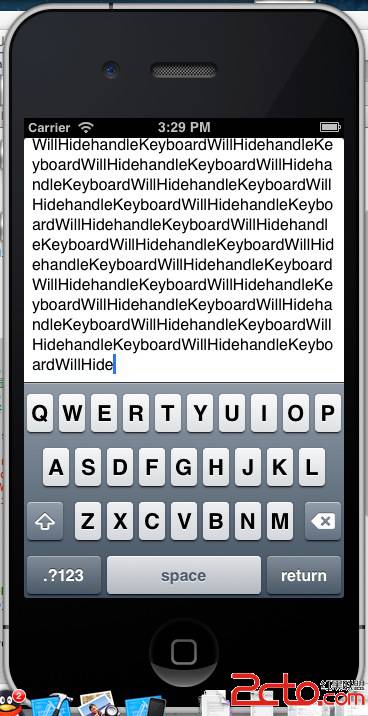
兩個容易出錯的地方
第一,觀察者一定要成對管理。在 viewWillAppear: 註冊就必須在 viewWillDisappear: 移除,否則畫面被反覆切換時會累積重複註冊,同一個通知被觸發多次。
第二,UITextView 預設沒有 placeholder。若要顯示提示文字,實作 textViewDidChange: 自行判斷空字串並切換提示 label,或是在 iOS 16 之後使用系統提供的 UITextView(placeholder) API。另外,鍵盤通知中的 frame 是螢幕座標系,若你的 textView 不在全螢幕容器中,直接用鍵盤高度當 contentInset 可能會多墊了一些空間,需要換算 yourself。