
iOS 中 UISearchDisplayController 搜尋效果的用法
在列表型應用中,搜尋功能幾乎是標配。UISearchDisplayController 讓你能輕鬆為 UITableView 加上搜尋欄與搜尋結果列表。本文將從建立專案到實作過濾邏輯,完整示範它的用法,並附上常見問題的解法。
建立搜尋介面
新建一個 Navigation-based Project,打開 .xib 檔,把一個 Search Bar and Search Display Controller 物件拖到 Table View 上方,並選中 File's Owner 開啟 Connections 面板。
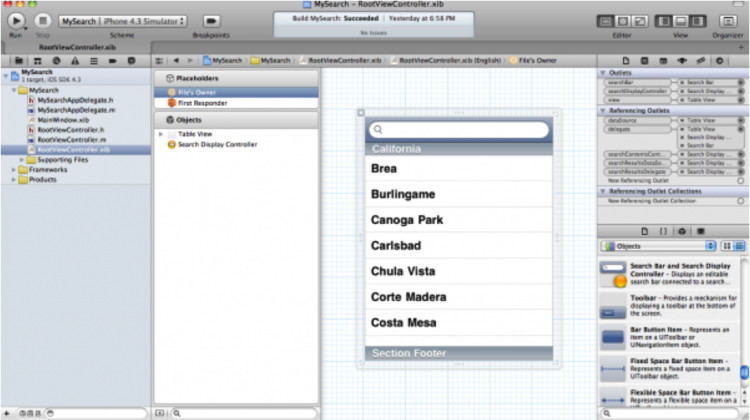
打開 Assistant Editor,按住 control 鍵,把 Search Display Controller 拖到 ViewController 的頭檔中,建立一個名為 searchDisplayController 的出口並連線。用同樣的方式為 Search Bar 建立連接。
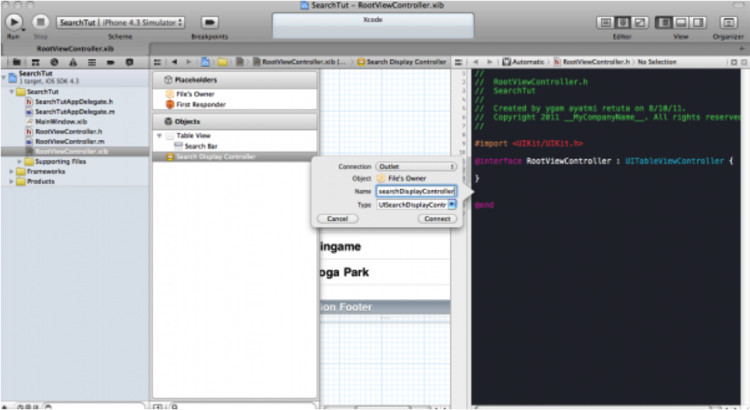
頭檔看起來會像這樣。這裡我們初始化了兩個陣列:一個作為原始資料源(allItems),一個用於保存搜尋結果(searchResults):
@interface RootViewController : UITableViewController {
    UISearchDisplayController *searchDisplayController;
    UISearchBar *searchBar;
    NSArray *allItems;
    NSArray *searchResults;
}
@property (nonatomic, retain) IBOutlet UISearchDisplayController *searchDisplayController;
@property (nonatomic, retain) IBOutlet UISearchBar *searchBar;
@property (nonatomic, copy) NSArray *allItems;
@property (nonatomic, copy) NSArray *searchResults;
@end
別忘了在 .m 檔中 synthesize 這些屬性。接著在 viewDidLoad 中構造資料源:
- (void)viewDidLoad {
    [super viewDidLoad];
    self.tableView.scrollEnabled = YES;

    NSArray *items = [[NSArray alloc] initWithObjects:
        @"Code Geass", @"Asura Cryin'", @"Voltes V", @"Mazinger Z", @"Daimos", nil];
    self.allItems = items;
    [items release];
    [self.tableView reloadData];
}
區分兩張列表的資料來源
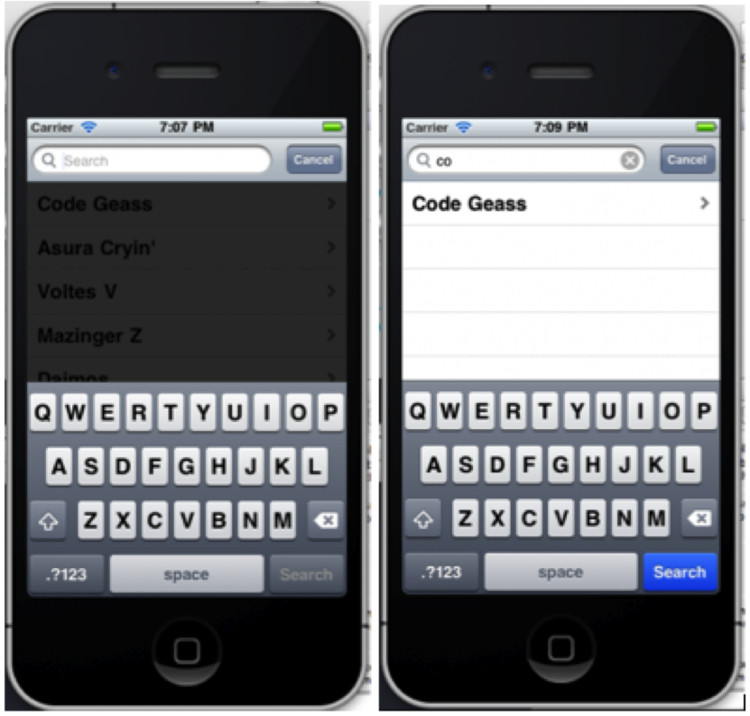
關鍵在於:UISearchDisplayController 會產生一張獨立的「搜尋結果列表」。因此在返回行數與配置 cell 時,都要先判斷當前的 tableView 究竟是哪一張:
- (NSInteger)tableView:(UITableView *)tableView numberOfRowsInSection:(NSInteger)section {
    if ([tableView isEqual:self.searchDisplayController.searchResultsTableView]) {
        return [self.searchResults count];
    } else {
        return [self.allItems count];
    }
}

- (UITableViewCell *)tableView:(UITableView *)tableView cellForRowAtIndexPath:(NSIndexPath *)indexPath {
    static NSString *CellIdentifier = @"Cell";
    UITableViewCell *cell = [tableView dequeueReusableCellWithIdentifier:CellIdentifier];
    if (cell == nil) {
        cell = [[[UITableViewCell alloc] initWithStyle:UITableViewCellStyleDefault
                                      reuseIdentifier:CellIdentifier] autorelease];
    }
    if ([tableView isEqual:self.searchDisplayController.searchResultsTableView]) {
        cell.textLabel.text = [self.searchResults objectAtIndex:indexPath.row];
    } else {
        cell.textLabel.text = [self.allItems objectAtIndex:indexPath.row];
    }
    return cell;
}
實作搜尋過濾邏輯
過濾的核心是用 NSPredicate 進行比對,把符合條件的結果存進 searchResults。contains[cd] 表示不分大小寫地包含匹配:
- (void)filterContentForSearchText:(NSString*)searchText scope:(NSString*)scope {
    NSPredicate *resultPredicate = [NSPredicate
        predicateWithFormat:@"SELF contains[cd] %@", searchText];
    self.searchResults = [self.allItems filteredArrayUsingPredicate:resultPredicate];
}
最後透過 UISearchDisplayController 的代理方法,在搜尋文字或範圍改變時觸發過濾:
- (BOOL)searchDisplayController:(UISearchDisplayController *)controller
        shouldReloadTableForSearchString:(NSString *)searchString {
    [self filterContentForSearchText:searchString scope:[[self.searchDisplayController.searchBar
        scopeButtonTitles] objectAtIndex:[self.searchDisplayController.searchBar selectedScopeButtonIndex]]];
    return YES;
}
附加:點擊搜尋出現黑條的解法
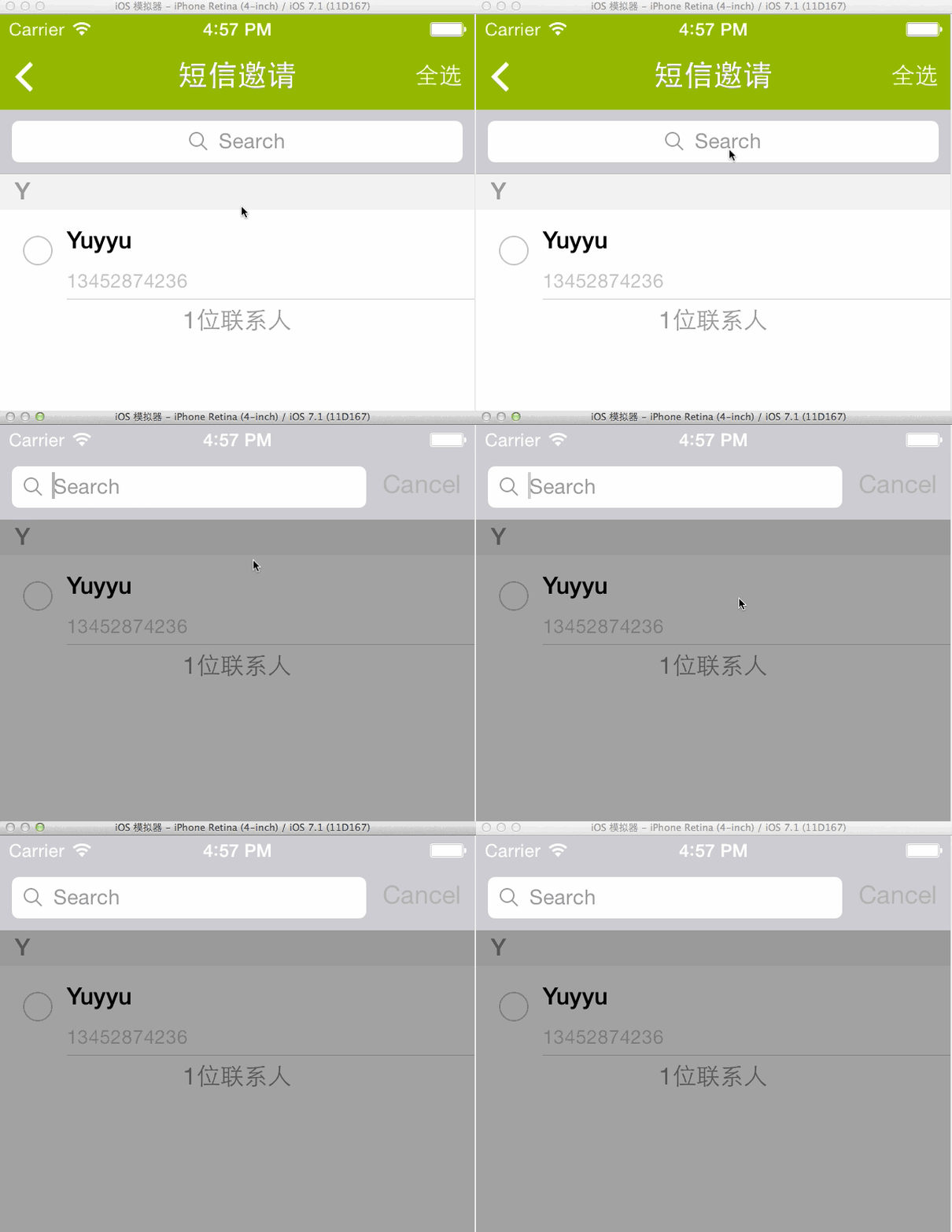
有時以 presentViewController 彈出帶有搜尋功能的頁面時,會發現頂部出現一條黑條。原因是 UINavigationController 的預設背景色為黑色,露出來了。
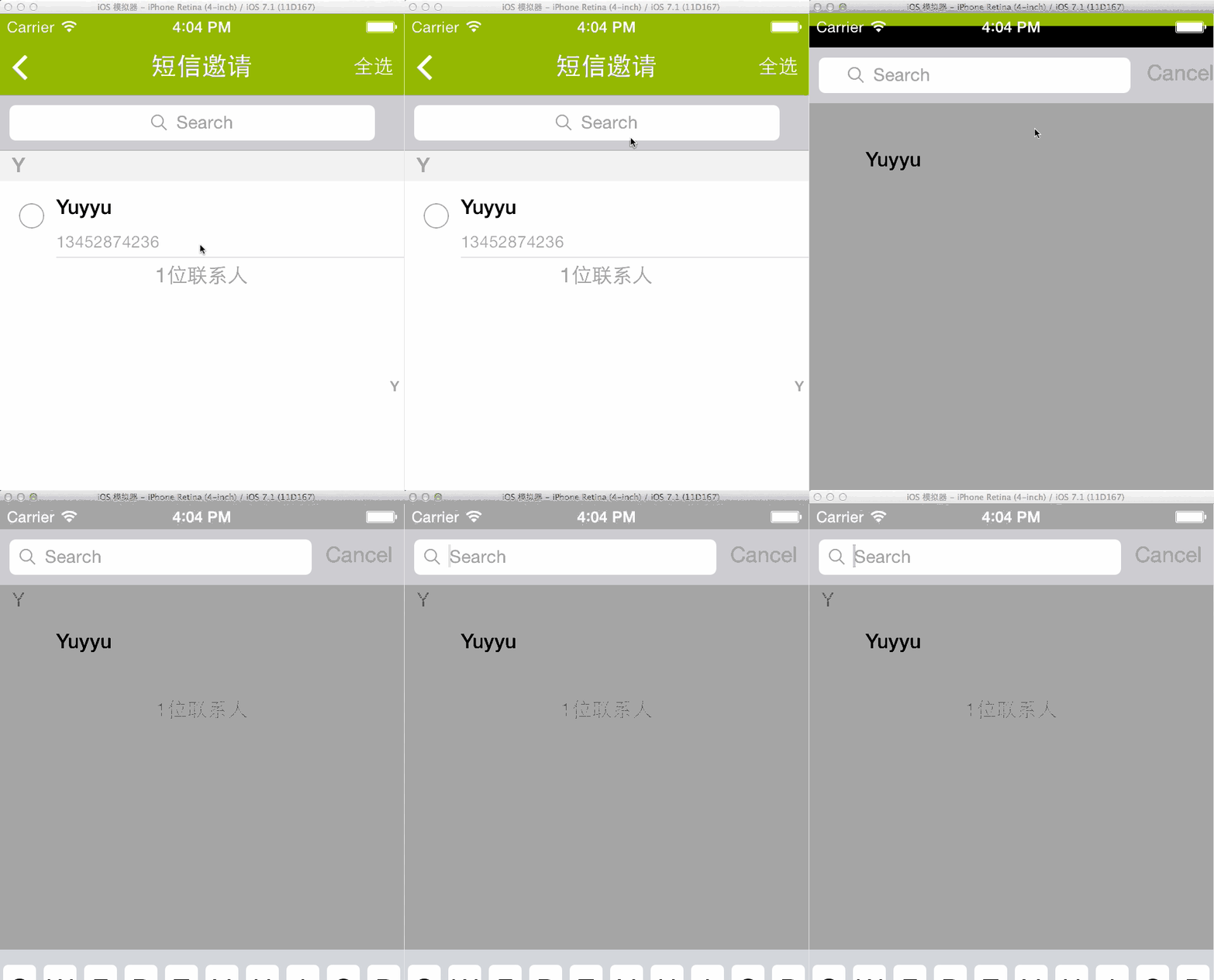
解法很簡單——把 navigation controller 的背景色改成與列表一致即可:
AddFriendViewController *addFriendVC = [[AddFriendViewController alloc] init];
UINavigationController *nav = [[UINavigationController alloc] initWithRootViewController:addFriendVC];
[nav.view setBackgroundColor:UIColorFromRGB(0xC6C6CB)];
[self presentViewController:nav animated:YES completion:nil];
透過以上步驟,你就能為列表應用加上流暢順手的搜尋體驗了。