
iOS 開發:自訂 UIRefreshControl 下拉刷新介面
編輯:iOS 7 技巧
系統預設的 UIRefreshControl 是一個轉圈菊花加一行描述文字,用久了難免單調。好消息是,我們可以直接塞入自己建立的視圖,做出動態圖片、逐字動畫等各種效果。本文示範一個文字跑馬燈風格的下拉刷新。
一、效果說明
(1)隨著手指下拉,自訂視圖的透明度從 0 慢慢浮現。
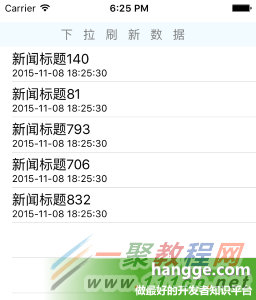
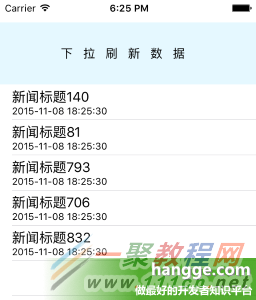
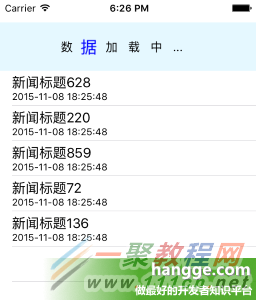
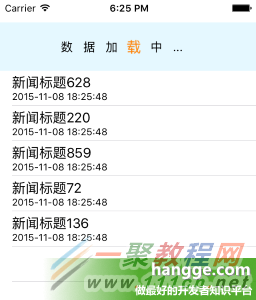
(2)進入刷新狀態後,「下拉刷新數據」六個字會依序放大並變色,形成跑馬燈效果。
二、用 xib 建立自訂視圖
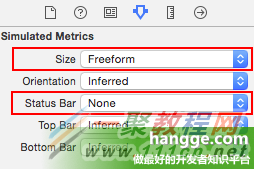
(1)新增一個 RefreshView.xib,並設定其屬性。
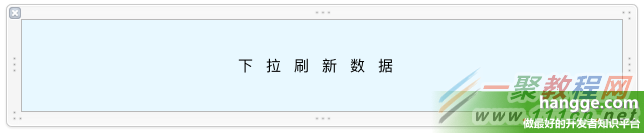
(2)在其中放入 6 個 Label 顯示描述文字。之所以要拆成 6 個,是因為每個字都要獨立播放動畫。
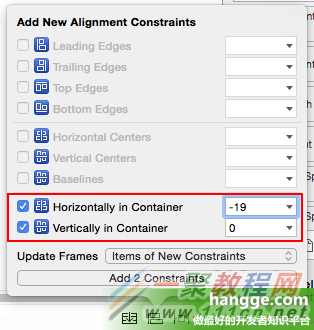
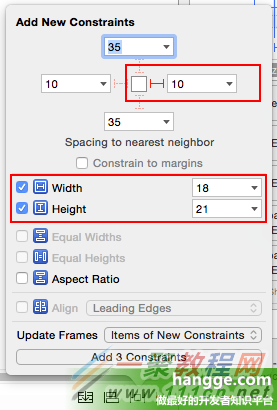
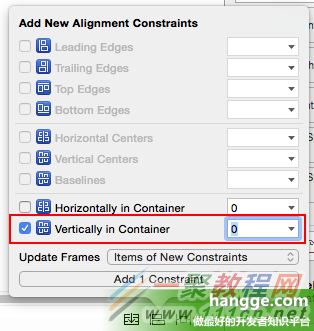
(3)分別為各 Label 加上約束。習慣做法是先把中間那個定位好,其他標籤再相對它排列。以第 3 個 Label(「刷」)為例:寬高固定、垂直居中、水平偏移 -19。
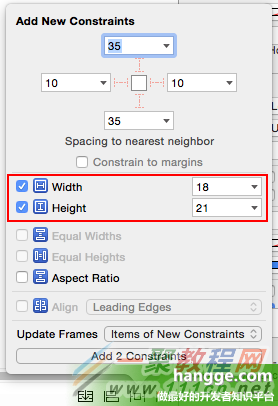
接著設定第 2 個 Label(「拉」):寬高固定、水平距右 10、垂直居中。其餘標籤依此類推,間距一律 10。
三、主要程式碼
(1)為了看清楚動畫效果,這裡用 NSTimer 模擬一次延遲 3 秒的網路請求。
(2)務必把 UIRefreshControl 的 backgroundColor 與 tintColor 都設成 UIColor.clearColor(),否則自訂視圖高度不會自動拉伸,會被固定住。
import UIKit

class ViewController: UIViewController,UITableViewDelegate,UITableViewDataSource {

    //新聞列表
    @IBOutlet weak var newsTableView: UITableView!

    //新聞數組集合
    var dataArray:[HanggeArticle] = [HanggeArticle]()

    //拉刷新控制器
    var refreshControl = UIRefreshControl()

    var customView: UIView!

    var labelsArray: Array<UILabel> = []

    var currentColorIndex = 0

    var currentLabelIndex = 0

    var timer: NSTimer!

    override func viewDidLoad() {
        super.viewDidLoad()

        //添加刷新
        refreshControl.addTarget(self, action: "refreshData",
            forControlEvents: UIControlEvents.ValueChanged)

        //背景色和tint顏色都要清除,保證自定義下拉視圖高度自適應
        refreshControl.backgroundColor = UIColor.clearColor()
        refreshControl.tintColor = UIColor.clearColor()

        newsTableView.addSubview(refreshControl)
        loadData()

        //加載自定義刷新界面
        loadCustomRefreshView()
    }

    //自定義刷新界面
    func loadCustomRefreshView() {
        let refreshContents = NSBundle.mainBundle().loadNibNamed("RefreshView",
            owner: self, options: nil)

        customView = refreshContents[0] as! UIView
        customView.frame = refreshControl.bounds

        customView.alpha = 0.0

        for var i=0; i<customView.subviews.count; ++i {
            labelsArray.append(customView.viewWithTag(i + 1) as! UILabel)
        }

        refreshControl.addSubview(customView)
    }

    //滾動視圖開始拖動
    func scrollViewWillBeginDragging(scrollView: UIScrollView) {
        if !refreshControl.refreshing {
            self.labelsArray[0].text = "下"
            self.labelsArray[1].text = "拉"
            self.labelsArray[2].text = "刷"
            self.labelsArray[3].text = "新"
            self.labelsArray[4].text = "數"
            self.labelsArray[5].text = "據"
        }
    }

    //視圖拖動
    func scrollViewDidScroll(scrollView: UIScrollView) {
        //加載界面透明度改變
        let sg = ( scrollView.contentOffset.y * -1 ) / 60.0
        customView.alpha = sg
    }

    // 刷新數據
    func refreshData() {
        self.labelsArray[0].text = "數"
        self.labelsArray[1].text = "據"
        self.labelsArray[2].text = "加"
        self.labelsArray[3].text = "載"
        self.labelsArray[4].text = "中"
        self.labelsArray[5].text = "..."

        //播放動畫
        playAnimateRefresh()

        //模擬加載數據
        timer = NSTimer.scheduledTimerWithTimeInterval(3.0, target: self,
            selector: "loadData", userInfo: nil, repeats: true)
    }

    //播放文字動畫
    func playAnimateRefresh() {
        //文字放大,變色動畫
        UIView.animateWithDuration(0.15, delay: 0.0,
            options: .CurveLinear, animations: { () -> Void in

                self.labelsArray[self.currentLabelIndex].transform =
                    CGAffineTransformMakeScale(1.5, 1.5)
                self.labelsArray[self.currentLabelIndex].textColor =
                    self.getNextColor()

            }, completion: { (finished) -> Void in

                //文字樣式還原動畫
                UIView.animateWithDuration(0.1, delay: 0.0,
                    options: .CurveLinear, animations: { () -> Void in

                        self.labelsArray[self.currentLabelIndex].transform =
                            CGAffineTransformIdentity
                        self.labelsArray[self.currentLabelIndex].textColor =
                            UIColor.blackColor()

                    }, completion: { (finished) -> Void in
                        ++self.currentLabelIndex

                        if self.currentLabelIndex == self.labelsArray.count - 1 {
                            self.currentLabelIndex = 0
                        }

                        //沒加載完則繼續播放動畫
                        if self.refreshControl.refreshing {
                            self.playAnimateRefresh()
                        }else{
                            self.currentLabelIndex = 0
                        }
                    })
            })
    }

    //計時器時間到,加載數據
    func loadData() {
        //移除老數據
        self.dataArray.removeAll()
        //隨機添加5條新數據(時間是當前時間)
        for _ in 0..<5 {
            let atricle = HanggeArticle(title: "新聞標題\(Int(arc4random()%1000))",
                createDate: NSDate())
            self.dataArray.append(atricle)
        }
        self.newsTableView.reloadData()
        self.refreshControl.endRefreshing()

        timer?.invalidate()
        timer = nil
    }

    // 返回記錄數
    func tableView(tableView: UITableView, numberOfRowsInSection section: Int) -> Int {
        return dataArray.count;
    }

    // 返回單元格內容
    func tableView(tableView: UITableView, cellForRowAtIndexPath indexPath: NSIndexPath)
        -> UITableViewCell {
            let cell = UITableViewCell(style: UITableViewCellStyle.Subtitle,
                reuseIdentifier: "myCell")

            //設置單元格標題
            let atricle: HanggeArticle = dataArray[indexPath.row] as HanggeArticle
            cell.textLabel?.text = atricle.title

            //設置單元格副標題
            let dateFormatter = NSDateFormatter()
            dateFormatter.dateFormat = "yyyy-MM-dd HH:mm:ss"
            let str = dateFormatter.stringFromDate(atricle.createDate)
            cell.detailTextLabel?.text = str

            return cell;
    }

    //獲取下一個顏色
    func getNextColor() -> UIColor {
        var colorsArray: Array<UIColor> = [UIColor.magentaColor(),
            UIColor.brownColor(), UIColor.yellowColor(), UIColor.redColor(),
            UIColor.greenColor(), UIColor.blueColor(), UIColor.orangeColor()]

        if currentColorIndex == colorsArray.count {
            currentColorIndex = 0
        }

        let returnColor = colorsArray[currentColorIndex]
        ++currentColorIndex

        return returnColor
    }

    override func didReceiveMemoryWarning() {
        super.didReceiveMemoryWarning()
    }
}

//新聞結構體
struct HanggeArticle {
    var title:String
    var createDate:NSDate
}
動畫串接的技巧是「遞迴呼叫」:每次動畫完成後檢查 refreshControl.refreshing 是否仍為 true,是就播放下一輪,否則把索引歸零收工。這樣就能讓跑馬燈持續到資料真正載入完成為止。
- 上一篇文章: iOS 開發:Swift 透過 AirPrint 實現無線列印
- 下一篇文章: Swift 下拉刷新時,依狀態顯示不同提示文字