
iOS 實作:為 UITableView 的每個 Section 加上頁眉與頁腳
編輯:iOS 相關資訊
前言
UITableView 的每個 Section 都可以各自配置頁眉與頁腳,無論是用來放分類標題、說明文字,還是嵌入自訂視圖,都能大幅改善資訊層次。實作方式有兩條路:單純的文字標題,或是完全自訂的 view。以下先示範最基礎的文字版本。
標頭檔
#import <UIKit/UIKit.h>

@interface ZYViewHeaderFooterController : UIViewController <UITableViewDelegate, UITableViewDataSource>

@property (nonatomic, strong) UITableView *myTableView;

@end
建立列表並實作資料來源
@synthesize myTableView;

- (void)viewDidLoad
{
    [super viewDidLoad];
    self.view.backgroundColor = [UIColor whiteColor];

    // UITableViewStylePlain 為平鋪樣式,UITableViewStyleGrouped 為分組樣式
    myTableView = [[UITableView alloc] initWithFrame:self.view.bounds
                                               style:UITableViewStyleGrouped];
    self.myTableView.delegate = self;
    myTableView.dataSource = self;
    // 確保 TableView 能隨父視圖正確縮放
    self.myTableView.autoresizingMask = UIViewAutoresizingFlexibleWidth | UIViewAutoresizingFlexibleHeight;
    [self.view addSubview:myTableView];
}

// 每個 Section 顯示幾列
- (NSInteger)tableView:(UITableView *)tableView numberOfRowsInSection:(NSInteger)section {
    return 3;
}

// 每一列的內容
- (UITableViewCell *)tableView:(UITableView *)tableView cellForRowAtIndexPath:(NSIndexPath *)indexPath {
    UITableViewCell *result = nil;
    if ([tableView isEqual:myTableView]) {
        static NSString *tableViewCellIdentifier = @"MyCells";
        // 以識別碼取得可重複使用的 cell
        result = [tableView dequeueReusableCellWithIdentifier:tableViewCellIdentifier];
        if (result == nil) {
            result = [[UITableViewCell alloc] initWithStyle:UITableViewCellStyleDefault
                                           reuseIdentifier:tableViewCellIdentifier];
        }
        // indexPath.section 是組別索引,indexPath.row 是列索引
        result.textLabel.text = [NSString stringWithFormat:@"Section %ld, Cell %ld",
                                 (long)indexPath.section, (long)indexPath.row];
    }
    return result;
}

// 設定 Section 的頁眉文字
- (NSString *)tableView:(UITableView *)tableView titleForHeaderInSection:(NSInteger)section {
    NSString *result = nil;
    if ([tableView isEqual:myTableView] && section == 0) {
        result = @"Section 0 Header";
    }
    return result;
}

// 設定 Section 的頁腳文字
- (NSString *)tableView:(UITableView *)tableView titleForFooterInSection:(NSInteger)section {
    NSString *result = nil;
    if ([tableView isEqual:myTableView] && section == 0) {
        result = @"Section 0 Footer";
    }
    return result;
}
執行結果
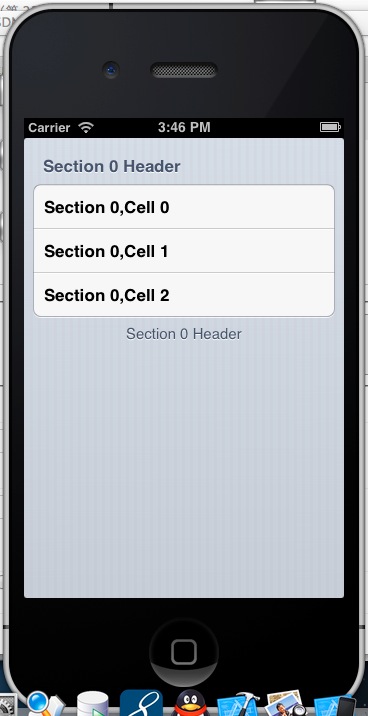
補充:需要自訂樣式時
titleForHeaderInSection: 只能放純文字,樣式受限。若要放圖片、多行說明或自訂排版,改用這兩個方法回傳 view:
- (UIView *)tableView:(UITableView *)tableView viewForHeaderInSection:(NSInteger)section;
- (CGFloat)tableView:(UITableView *)tableView heightForHeaderInSection:(NSInteger)section;
頁腳同樣有 viewForFooterInSection: 與 heightForFooterInSection:。使用自訂 view 時,記得 height 也要一併回傳,否則系統會以預設高度呈現,容易出現內容被裁切的情形。