
iOS 自訂日期選擇器實作示例
編輯:iOS 開發綜合
以下說明 iOS 自訂日期選擇器的用法,具體實作可參考最後的程式碼下載。
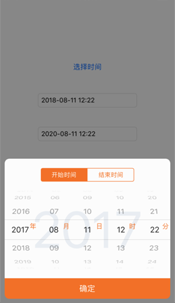
效果如下:
.h 檔解析
選擇日期選擇器樣式:
typedef enum{ DateStyleShowYearMonthDayHourMinute = 0, DateStyleShowMonthDayHourMinute, DateStyleShowYearMonthDay, DateStyleShowMonthDay, DateStyleShowHourMinute }XHDateStyle; //日期選擇器樣式 @property (nonatomic,assign)XHDateStyle datePickerStyle;
DateStyleShowYearMonthDayHourMinute:顯示年月日時分
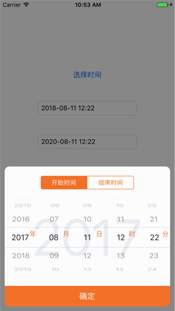
DateStyleShowMonthDayHourMinute:顯示月日時分(年份在底部顯示)

DateStyleShowYearMonthDay:顯示年月日
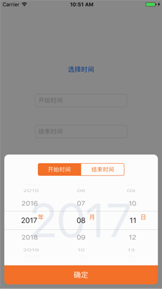
DateStyleShowMonthDay:顯示月日(年份在底部顯示)
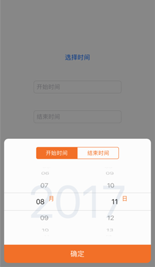
DateStyleShowHourMinute:顯示時分
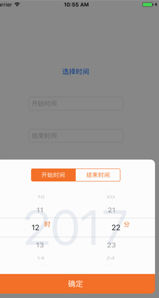
設置時間類型:
typedef enum{ DateTypeStartDate, DateTypeEndDate }XHDateType; //設置是時間類型 @property (nonatomic,assign)XHDateType dateType;
DateTypeStartDate:開始時間
DateTypeEndDate:結束時間
設置最大最小時間限制:
@property (nonatomic, retain) NSDate *maxLimitDate;//限制最大時間(沒有設置默認2049) @property (nonatomic, retain) NSDate *minLimitDate;//限制最小時間(沒有設置默認1970)
init 物件(completeBlock 是點擊確定後的回調,返回開始時間與結束時間):
-(instancetype)initWithCompleteBlock:(void(^)(NSDate *,NSDate *))completeBlock;
具體使用程式碼:
XHDatePickerView *datepicker = [[XHDatePickerView alloc] initWithCompleteBlock:^(NSDate *startDate,NSDate *endDate) { NSLog(@"\n開始時間: %@,結束時間:%@",startDate,endDate); self.startTimeText.text = [startDate stringWithFormat:@"yyyy-MM-dd HH:mm"]; self.endtimeText.text = [endDate stringWithFormat:@"yyyy-MM-dd HH:mm"]; }]; datepicker.datePickerStyle = DateStyleShowYearMonthDayHourMinute; datepicker.dateType = DateTypeStartDate; datepicker.minLimitDate = [NSDate date:@"2017-08-11 12:22" WithFormat:@"yyyy-MM-dd HH:mm"]; datepicker.maxLimitDate = [NSDate date:@"2020-12-12 12:12" WithFormat:@"yyyy-MM-dd HH:mm"]; [datepicker show];
注意:NSLog 列印的時間會與實際時間相差 8 小時,轉成字串後才會正確。這是因為 NSLog 對時間的格式化是按 GMT 時間轉換的,而 GMT 與北京時間相差 8 小時。
demo 下載:XHDatePicker_jb51.rar
以上就是本文的全部內容,希望對大家有所幫助。