
模仿 iPhone 通訊錄:為列表加上搜尋功能
編輯:iOS 開發綜合
本文模仿 iPhone 手機通訊錄,為原本已實現拼音排序的通訊錄加上搜尋功能。
原始介面如下:
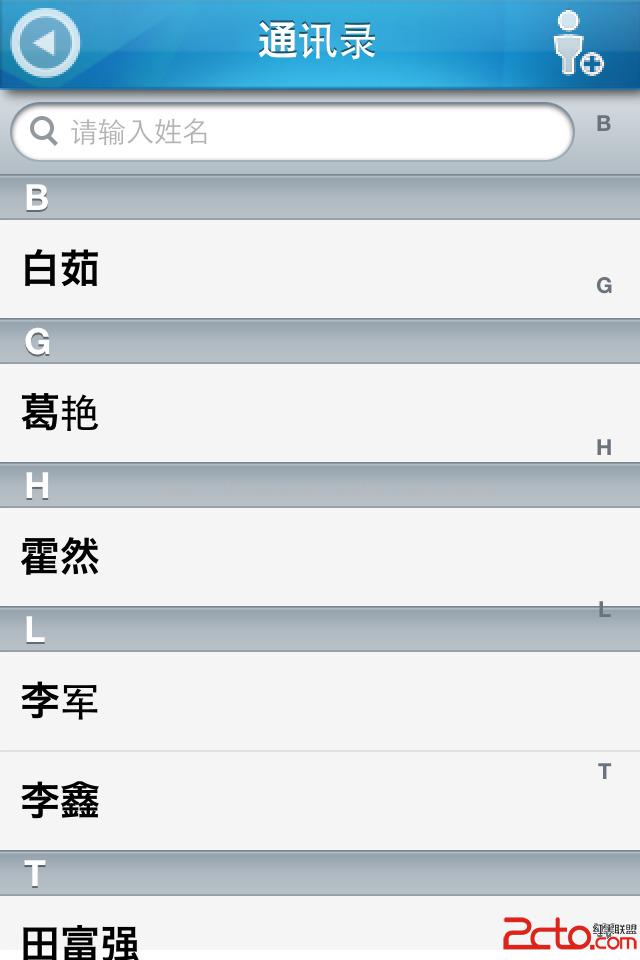
搜尋功能主要依賴 UISearchBar 與 UISearchDisplayController 來實現。
第一步:初始化
初始化 searchBar、searchDisplayController,以及用來顯示全部結果與搜尋結果的兩個陣列,並設定對應的 delegate。
@interface ComunicationViewController ()<UISearchBarDelegate, UISearchDisplayDelegate>
{
    UISearchDisplayController *searchDisplayController;
    UISearchBar *searchBar;
    NSArray *allItems;
    NSArray *searchResults;
}
searchBar = [[UISearchBar alloc] init];
searchBar.delegate = self;
searchBar.placeholder = @"請輸入姓名";
[searchBar setAutocapitalizationType:UITextAutocapitalizationTypeNone];
[searchBar sizeToFit];
comunicationTabelView.tableHeaderView = searchBar;

searchDisplayController = [[UISearchDisplayController alloc] initWithSearchBar:searchBar contentsController:self];
[searchDisplayController setDelegate:self];
[searchDisplayController setSearchResultsDataSource:self];
[searchDisplayController setSearchResultsDelegate:self];
第二步:撰寫過濾方法與兩個 delegate
- (void)filterContentForSearchText:(NSString*)searchText scope:(NSString*)scope
{
    NSPredicate *resultPredicate = [NSPredicate predicateWithFormat:@"SELF contains[cd] %@", searchText];
    searchResults = [[allItems valueForKey:@"RealName"] filteredArrayUsingPredicate:resultPredicate];
    [searchResults retain];
    NSLog(@"%@", searchResults);
}

#pragma mark - UISearchDisplayController delegate methods
- (BOOL)searchDisplayController:(UISearchDisplayController *)controller shouldReloadTableForSearchString:(NSString *)searchString
{
    [self filterContentForSearchText:searchString scope:[[self.searchDisplayController.searchBar scopeButtonTitles] objectAtIndex:[self.searchDisplayController.searchBar selectedScopeButtonIndex]]];
    return YES;
}

- (BOOL)searchDisplayController:(UISearchDisplayController *)controller shouldReloadTableForSearchScope:(NSInteger)searchOption
{
    [self filterContentForSearchText:[self.searchDisplayController.searchBar text] scope:[[self.searchDisplayController.searchBar scopeButtonTitles] objectAtIndex:searchOption]];
    return YES;
}
最關鍵的一步:在 TableView 資料來源中判斷
#pragma mark - comunicationTableView 代理方法
// section 中的 row 數
- (NSInteger)tableView:(UITableView *)tableView numberOfRowsInSection:(NSInteger)section
{
    if (tableView == searchDisplayController.searchResultsTableView) {
        return searchResults.count;
    } else {
        return [[numArr objectAtIndex:section] intValue];
    }
}

// 高度
- (CGFloat)tableView:(UITableView *)tableView heightForRowAtIndexPath:(NSIndexPath *)indexPath
{
    return 50;
}

// section 數
- (NSInteger)numberOfSectionsInTableView:(UITableView *)tableView
{
    if (tableView == searchDisplayController.searchResultsTableView) {
        return 1;
    } else {
        return ziMuArr.count;
    }
}

// section 的名稱
- (NSString *)tableView:(UITableView *)tableView titleForHeaderInSection:(NSInteger)section
{
    if (tableView == searchDisplayController.searchResultsTableView) {
        return nil;
    } else {
        return [ziMuArr objectAtIndex:section];
    }
}

- (NSArray *)sectionIndexTitlesForTableView:(UITableView *)tableView
{
    if (tableView == searchDisplayController.searchResultsTableView) {
        return nil;
    } else {
        return ziMuArr;
    }
}
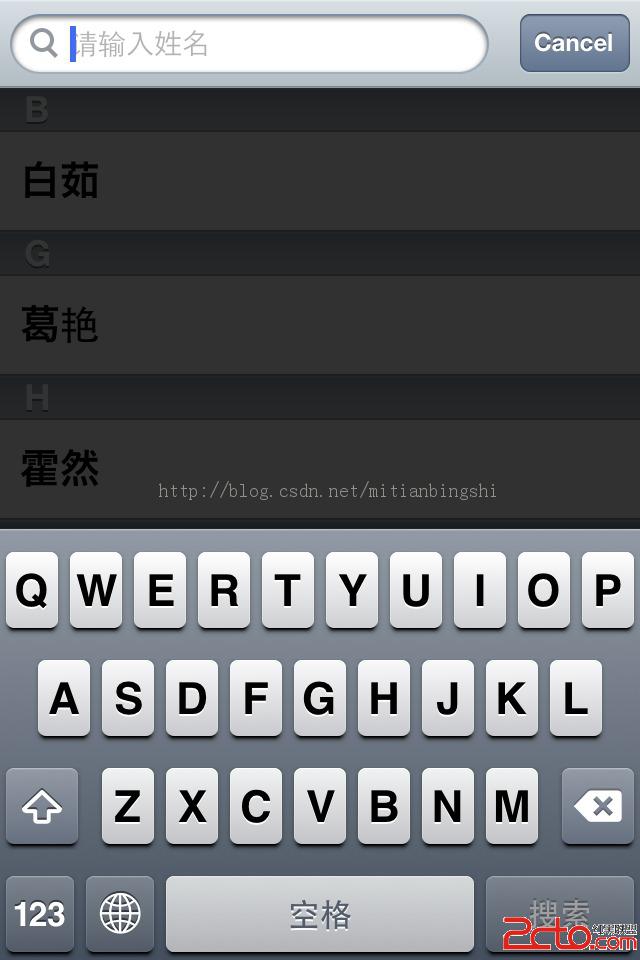
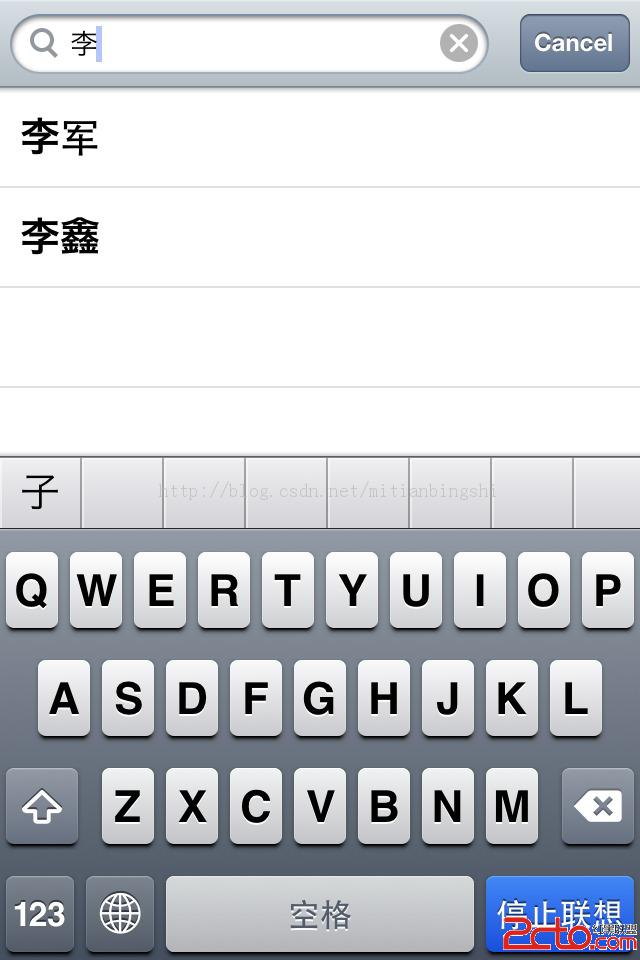
最後就實現了:
- 上一篇文章: iOS 中 NSParameterAssert 官方說明翻譯與解讀
- 下一篇文章: iOS 專案的目錄結構與開發流程