
iOS 文件共享:透過 iTunes 匯入檔案並列出既有檔案
這次要實作的功能是:讓使用者能透過 iTunes 把檔案匯入 App,並在 App 內預覽該檔案。這正是 PDF 閱讀器那類應用的基本能力——使用者自己帶書進來看。
原始碼下載:
https://github.com/colin1994/iTunesTest.git
效果預覽
圖 1. 實作前,iTunes 的檔案共享區是空的
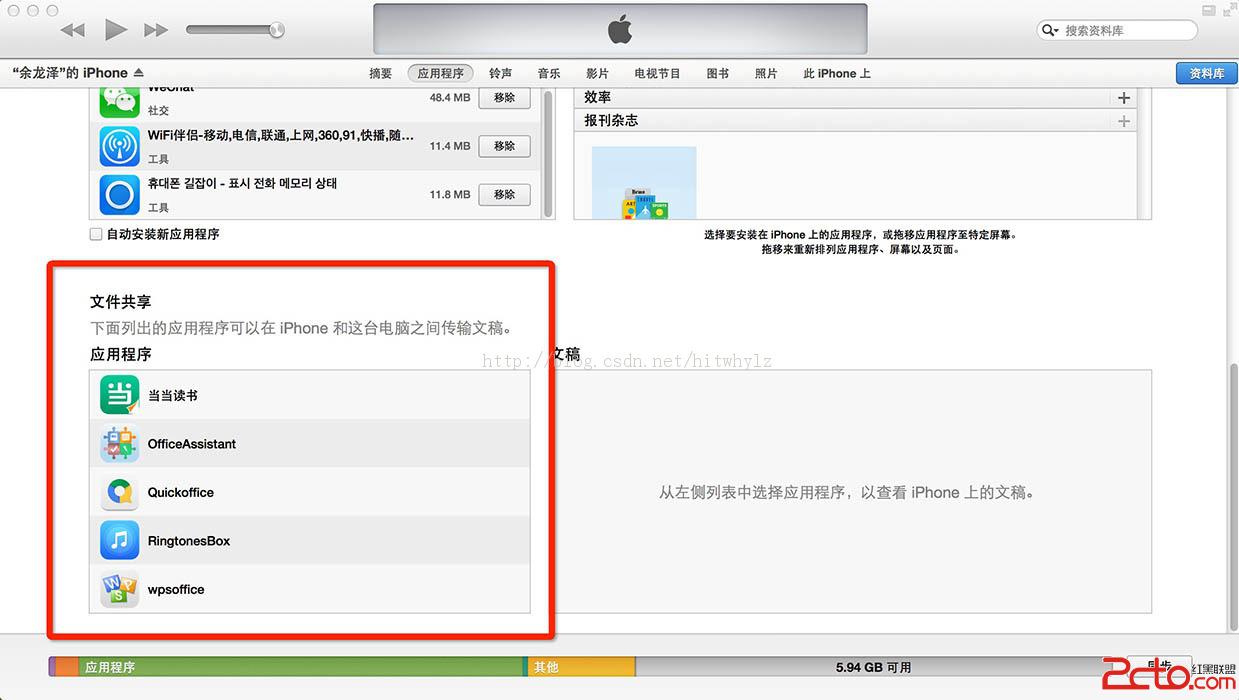
圖 2. 實作後,iTunes 可以看到 App 的文件目錄
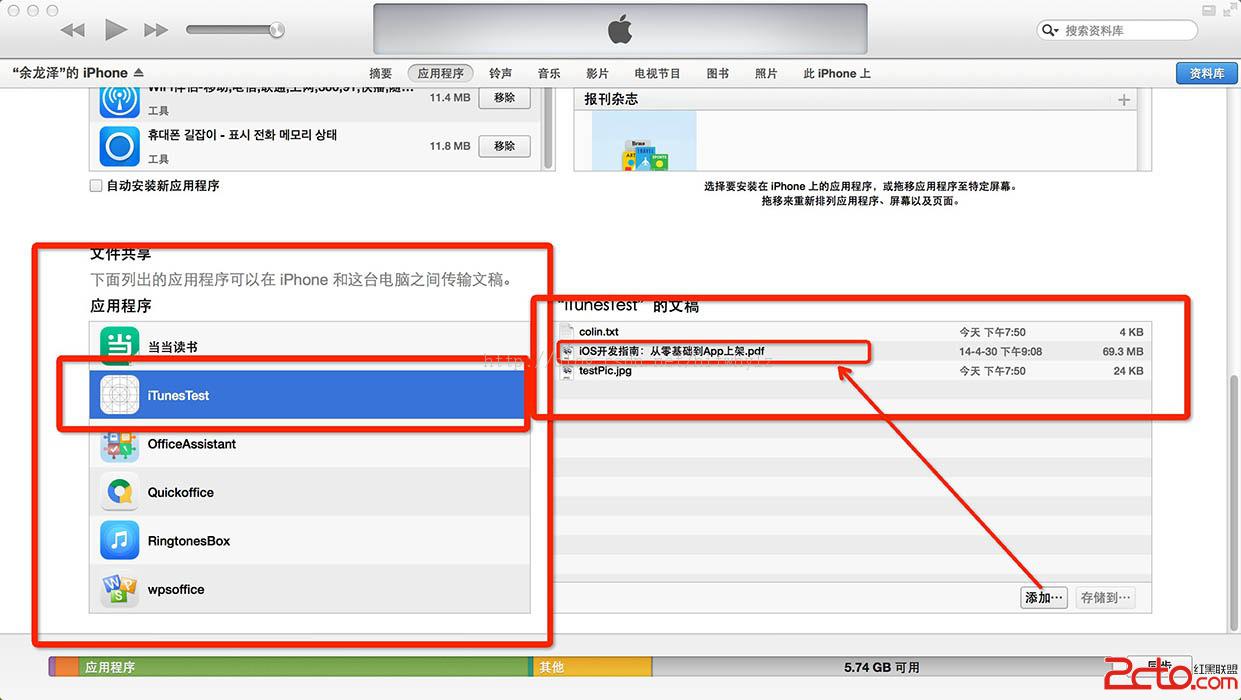
圖 3. 實作後的執行畫面
功能包含兩項:允許透過 iTunes 匯入檔案、列出沙盒中的所有檔案並可預覽。
步驟一:開啟檔案共享
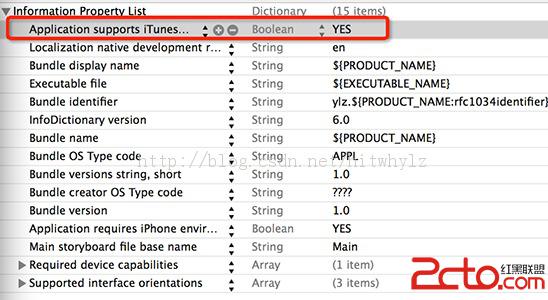
在 Info.plist 中新增 UIFileSharingEnabled 鍵,並將值設為 YES。這個設定會讓 App 的 Documents 目錄出現在 iTunes 的檔案共享清單中。
步驟二:程式碼
ViewController.h:
#import <UIKit/UIKit.h>

// step1. 導入 QuickLook 庫與標頭檔
#import <QuickLook/QuickLook.h>

// step2. 遵循所需協議
@interface ViewController : UIViewController <UITableViewDataSource,
                                          UITableViewDelegate,
                                          QLPreviewControllerDataSource,
                                          QLPreviewControllerDelegate,
                                          UIDocumentInteractionControllerDelegate> {
    // step3. 宣告列表
    IBOutlet UITableView *readTable;
}

// step4. 宣告變數
// UIDocumentInteractionController:文件交互控制器,提供管理與系統檔案互動的能力
// dirArray:儲存沙盒中的所有檔案名稱
@property (nonatomic, retain) NSMutableArray *dirArray;
@property (nonatomic, strong) UIDocumentInteractionController *docInteractionController;

@end
ViewController.m:
#import "ViewController.h"

@implementation ViewController

@synthesize dirArray;
@synthesize docInteractionController;

- (void)viewDidLoad {
    [super viewDidLoad];

    // step5. 先存一張圖片到 Documents,方便測試
    UIImage *image = [UIImage imageNamed:@"testPic.jpg"];
    NSData *jpgData = UIImageJPEGRepresentation(image, 0.8);
    NSArray *paths = NSSearchPathForDirectoriesInDomains(NSDocumentDirectory, NSUserDomainMask, YES);
    NSString *documentsPath = [paths objectAtIndex:0];
    NSString *filePath = [documentsPath stringByAppendingPathComponent:@"testPic.jpg"];
    [jpgData writeToFile:filePath atomically:YES];

    // step5. 再存一份 txt 檔
    char *saves = "Colin_csdn";
    NSData *data = [[NSData alloc] initWithBytes:saves length:10];
    filePath = [documentsPath stringByAppendingPathComponent:@"colin.txt"];
    [data writeToFile:filePath atomically:YES];

    // step6. 取得沙盒中的所有檔案
    NSFileManager *fileManager = [NSFileManager defaultManager];
    NSString *documentDir = [NSSearchPathForDirectoriesInDomains(NSDocumentDirectory, NSUserDomainMask, YES) objectAtIndex:0];
    NSError *error = nil;
    // fileList 包含該目錄下所有檔案與資料夾名稱
    NSArray *fileList = [fileManager contentsOfDirectoryAtPath:documentDir error:&error];

    self.dirArray = [[NSMutableArray alloc] init];
    for (NSString *file in fileList) {
        [self.dirArray addObject:file];
    }

    // step6. 刷新列表
    [readTable reloadData];
}

// step7. 用 URL 建立 UIDocumentInteractionController
- (void)setupDocumentControllerWithURL:(NSURL *)url {
    if (self.docInteractionController == nil) {
        self.docInteractionController = [UIDocumentInteractionController interactionControllerWithURL:url];
        self.docInteractionController.delegate = self;
    } else {
        self.docInteractionController.URL = url;
    }
}

#pragma mark - 列表操作

- (NSInteger)numberOfSectionsInTableView:(UITableView *)tableView {
    return 1;
}

- (UITableViewCell *)tableView:(UITableView *)tableView cellForRowAtIndexPath:(NSIndexPath *)indexPath {
    static NSString *CellName = @"CellName";
    UITableViewCell *cell = [tableView dequeueReusableCellWithIdentifier:CellName];
    if (cell == nil) {
        cell = [[UITableViewCell alloc] initWithStyle:UITableViewCellStyleDefault reuseIdentifier:CellName];
        cell.accessoryType = UITableViewCellAccessoryDisclosureIndicator;
    }

    NSString *documentDir = [NSSearchPathForDirectoriesInDomains(NSDocumentDirectory, NSUserDomainMask, YES) objectAtIndex:0];
    NSString *path = [documentDir stringByAppendingPathComponent:[self.dirArray objectAtIndex:indexPath.row]];
    NSURL *fileURL = [NSURL fileURLWithPath:path];

    [self setupDocumentControllerWithURL:fileURL];

    cell.textLabel.text = [self.dirArray objectAtIndex:indexPath.row];

    // 用 UIDocumentInteractionController 提供的圖示當作縮圖
    NSInteger iconCount = [self.docInteractionController.icons count];
    if (iconCount > 0) {
        cell.imageView.image = [self.docInteractionController.icons objectAtIndex:iconCount - 1];
    }

    return cell;
}

- (NSInteger)tableView:(UITableView *)tableView numberOfRowsInSection:(NSInteger)section {
    return [self.dirArray count];
}

- (void)tableView:(UITableView *)tableView didSelectRowAtIndexPath:(NSIndexPath *)indexPath {
    QLPreviewController *previewController = [[QLPreviewController alloc] init];
    previewController.dataSource = self;
    previewController.delegate = self;
    previewController.currentPreviewItemIndex = indexPath.row;
    [[self navigationController] pushViewController:previewController animated:YES];
}

#pragma mark - UIDocumentInteractionControllerDelegate

- (NSString *)applicationDocumentsDirectory {
    return [NSSearchPathForDirectoriesInDomains(NSDocumentDirectory, NSUserDomainMask, YES) lastObject];
}

- (UIViewController *)documentInteractionControllerViewControllerForPreview:(UIDocumentInteractionController *)interactionController {
    return self;
}

#pragma mark - QLPreviewControllerDataSource

- (NSInteger)numberOfPreviewItemsInPreviewController:(QLPreviewController *)previewController {
    return 1;
}

- (void)previewControllerDidDismiss:(QLPreviewController *)controller {
    // 預覽關閉時的後處理可寫在這裡
}

- (id <QLPreviewItem>)previewController:(QLPreviewController *)previewController previewItemAtIndex:(NSInteger)idx {
    NSIndexPath *selectedIndexPath = [readTable indexPathForSelectedRow];
    NSString *documentDir = [NSSearchPathForDirectoriesInDomains(NSDocumentDirectory, NSUserDomainMask, YES) objectAtIndex:0];
    NSString *path = [documentDir stringByAppendingPathComponent:[self.dirArray objectAtIndex:selectedIndexPath.row]];
    return [NSURL fileURLWithPath:path];
}

@end
實作上的補充
QuickLook 能預覽的格式有限,主要是 PDF、圖片、Office 文件、純文字與部分影音格式。若需要更完整的閱讀體驗(例如自動重排、進度記住、註記),還是要自行整合對應的渲染引擎。
另外,contentsOfDirectoryAtPath: 會把 Documents 下的資料夾也一起列出來,若直接送進 QLPreviewController 會失敗。實務上建議用 NSFileManager 的 fileExistsAtPath:isDirectory: 先過濾型別,或改用 enumeratorAtPath: 搭配 directoryEnumerator 屬性判斷。
最後提醒一個上架相關的細節:開啟 UIFileSharingEnabled 會讓使用者在 iTunes 中看到 App 的 Documents 目錄內容。若其中含有資料庫、暫存檔或快取,建議另外用 UIFileSharingEnabled 搭配存放位置的規劃,把使用者可見的檔案與內部資料分離,避免隱私問題在審核時被提出。
- 上一篇文章: iOS AudioToolbox:播放短音效與觸發震動
- 下一篇文章: iOS 應用資料儲存的五種常用方式