
iPad 開發入門:與 iPhone 的差異及特有 API
iPad 開發與 iPhone 最大的不同,在於螢幕尺寸適配與橫豎屏的處理。值得注意的是,Storyboard 中的 Size Class 橫豎屏設定並不支援 iPad 開發,需要另外處理。
一、取得裝置的旋轉狀態
在 iOS 8 及以後,系統不再強調「旋轉方向」,而是回歸到「旋轉後的螢幕尺寸」。
iOS 7 及以前的寫法(列舉值如下):
typedef enum {
    UIInterfaceOrientationUnknown = UIDeviceOrientationUnknown,
    UIInterfaceOrientationPortrait = UIDeviceOrientationPortrait,
    UIInterfaceOrientationPortraitUpsideDown = UIDeviceOrientationPortraitUpsideDown,
    UIInterfaceOrientationLandscapeLeft = UIDeviceOrientationLandscapeRight,
    UIInterfaceOrientationLandscapeRight = UIDeviceOrientationLandscapeLeft
} UIInterfaceOrientation;
- (void)willRotateToInterfaceOrientation:(UIInterfaceOrientation)toInterfaceOrientation
duration:(NSTimeInterval)duration {
NSLog(@"%s", __func__); // 即將旋轉
}
- (void)willAnimateRotationToInterfaceOrientation:(UIInterfaceOrientation)toInterfaceOrientation
duration:(NSTimeInterval)duration {
NSLog(@"%s", __func__); // 即將旋轉並執行動畫
}iOS 8 以後的寫法:螢幕只有尺寸之分,寬大於高就是橫屏,否則是豎屏。
// iPad 只有兩種尺寸:橫屏 1024×768、豎屏 768×1024
- (void)viewWillTransitionToSize:(CGSize)size
       withTransitionCoordinator:(id<UIViewControllerTransitionCoordinator>)coordinator {
    // 1. 判斷是否為橫屏
    BOOL isLandscape = size.width > size.height;

    // 2. 取得旋轉動畫的執行時間,讓自訂版面跟著一起動
    CGFloat duration = [coordinator transitionDuration];
    [UIView animateWithDuration:duration animations:^{
        // 在這裡調整自訂的版面配置
    }];
}
二、iPad 的 Modal 呈現樣式
透過 modalPresentationStyle 設定,常見有以下幾種:
UIModalPresentationFullScreen:全螢幕顯示(預設值)。
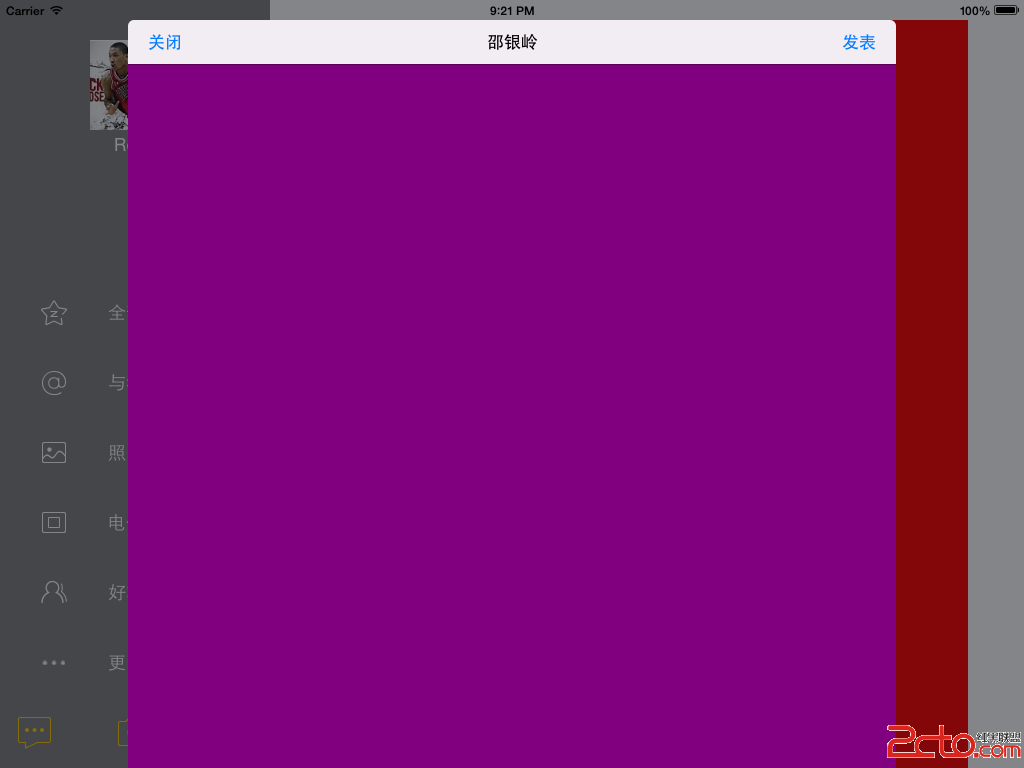
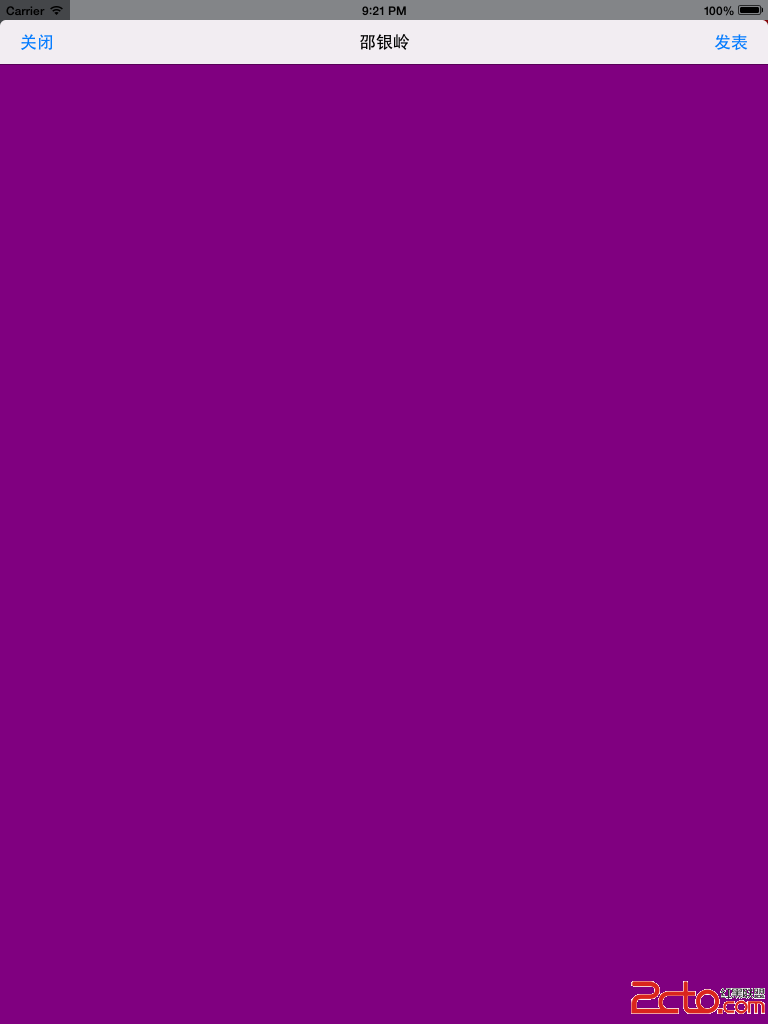
UIModalPresentationPageSheet:寬度為當前方向的螢幕寬(豎屏時為 768),高度填滿整個螢幕。
橫屏
豎屏
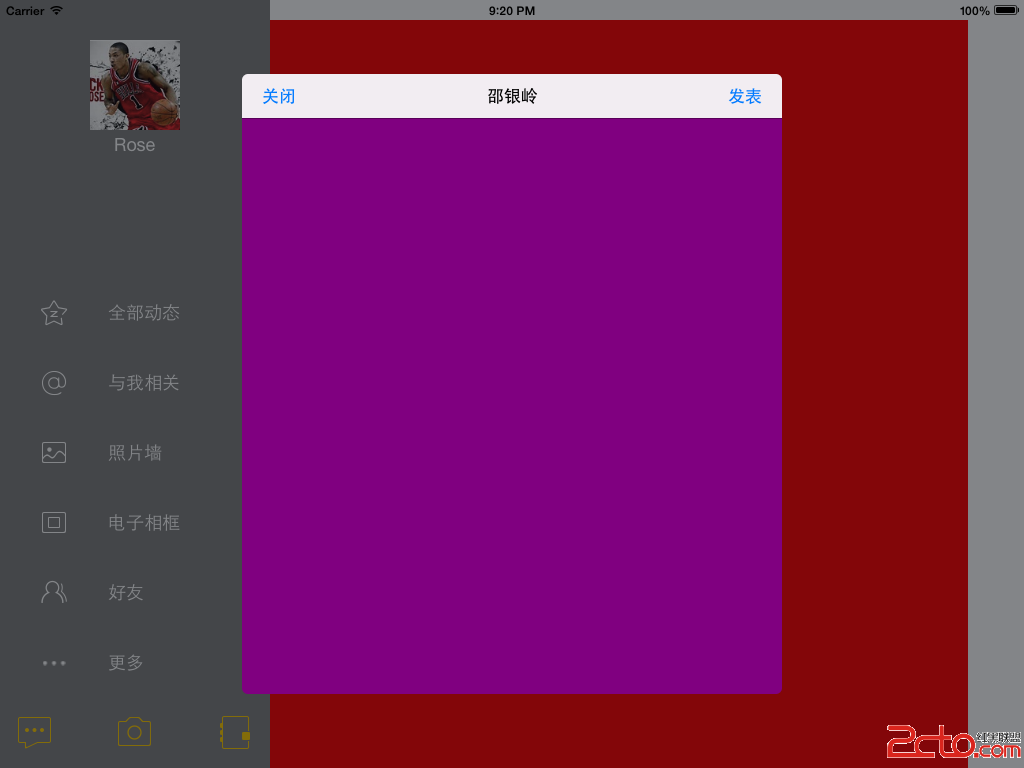
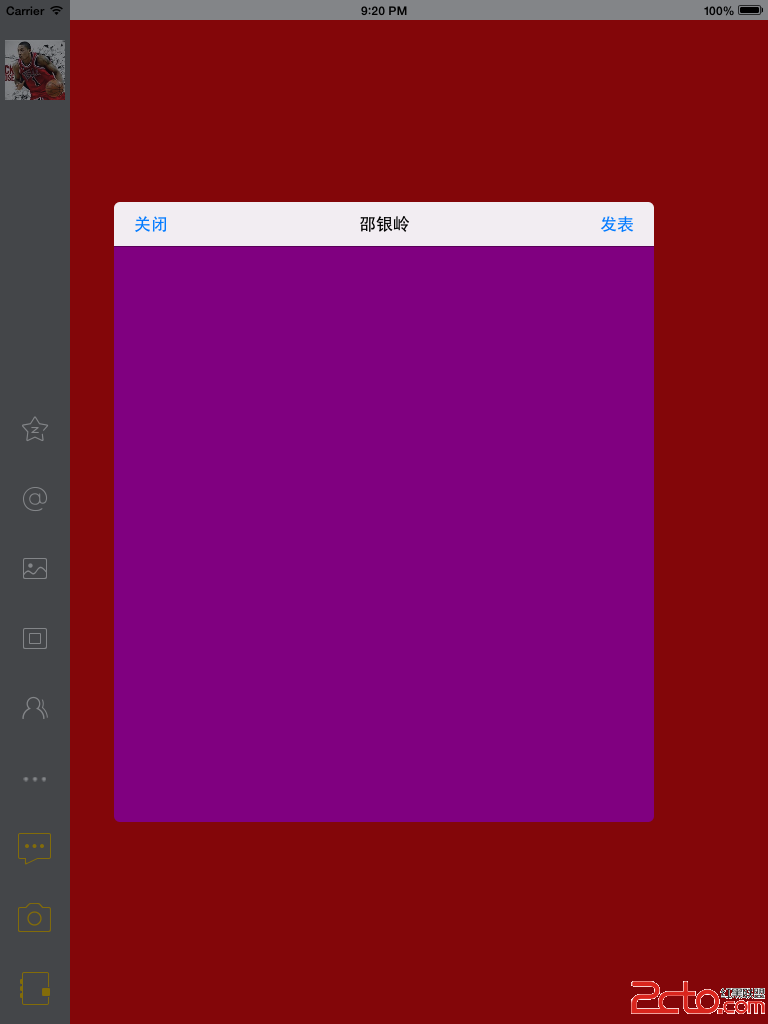
UIModalPresentationFormSheet:佔據螢幕中央的一小塊,這是 iPad 上最常被使用的樣式。
橫屏
豎屏
UIModalPresentationCurrentContext:跟隨父控制器的呈現樣式。
其他還有 UIModalPresentationPopover(iOS 8 之後的浮層樣式)、UIModalPresentationCustom、UIModalPresentationOverFullScreen、UIModalPresentationOverCurrentContext 與 UIModalPresentationNone。
而 modalTransitionStyle 則決定過場動畫,共四種:
UIModalTransitionStyleCoverVertical:從底部往上鑽(預設)
UIModalTransitionStyleFlipHorizontal:三維翻轉
UIModalTransitionStyleCrossDissolve:淡入淡出
UIModalTransitionStylePartialCurl:翻頁效果,僅顯示部分頁面(使用前提:呈現樣式必須是 FullScreen)
三、iPad 特有的 UIPopoverController
浮層是 iPad 上很有代表性的互動方式,以下說明兩個常見情境。
情境一:從導航列的 UIBarButtonItem 彈出
1. 設定內容控制器
請特別注意,UIPopoverController 並不繼承自 UIViewController,因此它本身不具備顯示內容的能力,必須透過下列方法指定內容:
- (id)initWithContentViewController:(UIViewController *)viewController;
- (void)setContentViewController:(UIViewController *)viewController animated:(BOOL)animated;
@property (nonatomic, retain) UIViewController *contentViewController;
2. 設定尺寸
預設是「內容控制器多大就顯示多大」,可透過 popover 的 popoverContentSize 或內容控制器內的 preferredContentSize 調整(contentSizeForViewInPopover 在 iOS 7 已廢棄)。
3. 指定彈出位置
- (void)presentPopoverFromBarButtonItem:(UIBarButtonItem *)item
               permittedArrowDirections:(UIPopoverArrowDirection)arrowDirections
                               animated:(BOOL)animated;
// item:圍繞哪個 bar button item 顯示
// arrowDirections:箭頭方向
// animated:是否以動畫呈現
情境二:從任意 view 上的按鈕彈出,且內容需要導航堆疊
- (void)presentPopoverFromRect:(CGRect)rect
                         inView:(UIView *)view
       permittedArrowDirections:(UIPopoverArrowDirection)arrowDirections
                       animated:(BOOL)animated;
// rect:指定箭頭所指區域的矩形範圍(位置與尺寸)
// view:rect 參數以此 view 的左上角為座標原點 (0, 0)
這樣做出來的 popover 內容可以有自己的邏輯結構,和一般控制器一樣能 push、pop 做多層導航。要關閉時:
[popover dismissPopoverAnimated:YES];四、iPad 特有的 UISplitViewController
分割檢視是 iPad 上最適合處理「列表 + 詳情」的元件,由兩個部分組成:
a. masterViewController(主要控制器)
負責展示主要的菜單或列表內容。
b. detailViewController(詳情控制器)
負責展示選中項目後的詳細內容。
在 iPhone 上兩者會自動切換成 push 堆疊,在 iPad 上則並排顯示。理解這個行為差異,就能用同一套程式碼同時支援兩種裝置。
補充提醒
UIPopoverController 在 iOS 9 之後已被標記為廢棄,官方建議改用 UIPopoverPresentationController:只要把 presentedViewController 的 modalPresentationStyle 設為 UIModalPresentationPopover,再設定 popoverPresentationController 的 sourceView、sourceRect 與 barButtonItem 即可,寫法與 iPhone 上的 modal 一致,程式碼也更容易共用。