
為什麼我不用 Storyboard:拋開 Interface Builder 的理由
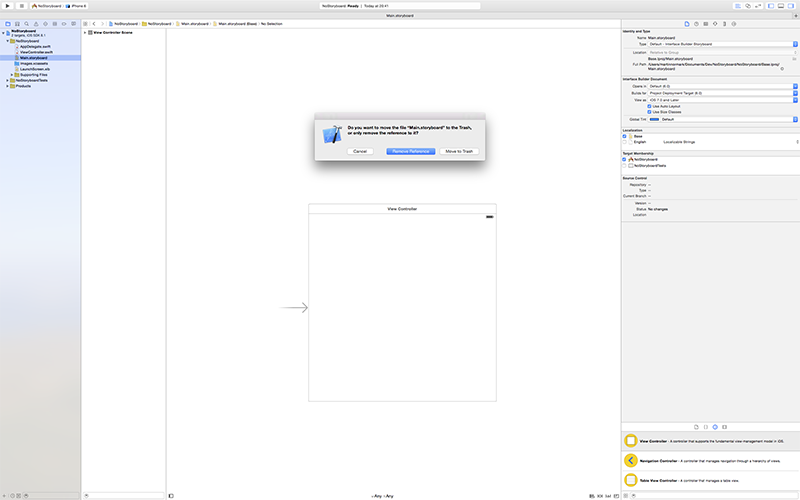
當我在 Xcode 建立一個新的 iOS 專案時——不管它是 iPhone 專用、iPad 專用還是 universal——我做的第一件事,就是把 Storyboard 刪掉。
而且和你想的不一樣,我並不是要用 XIB 取代 Storyboard。我完全不使用 Interface Builder。
Treehouse 論壇對此有過很不錯的討論,而我聽到的說法總是類似:Interface Builder 會鼓勵壞習慣。
因為我先前在 Windows 平台用 Visual Studio 開發過,我可以很有自信地說:Interface Builder 非常不好用,至少跟 VS 比起來是這樣。Visual Studio 之所以更優秀,原因之一在於它是標記式語言(XAML)——設計師也能上手,就像 HTML 之於 Web 一樣。
不管怎樣,回到 iOS。
使用 Interface Builder 最糟的地方,是它把「拆分視圖區塊」以及「從視圖控制器使用視圖」這兩件事的成本大幅推高了。結果就是長出一堆肥大的視圖控制器——那正是我們該避免的,而且維護起來簡直是噩夢。
就算你多做這些工,把部分 UI 抽成可重複使用的視圖,你在 Interface Builder 裡看到的也只是一塊塊白色方塊,裡面包著可重用視圖,卻無法直觀地看到內容。(譯註:據網友指出,較新版的 Xcode 已經能看到了。)
另一個問題是 outlets。合併時它們可能意外斷開連線,或者你在重用視圖時忘了接,App 就會 crash。
有人可能會說,面對多螢幕適配的問題,Auto Layout 搭配 IB 是個好解法。這一點我仍然不同意——首先,我認為在 IB 裡管理版面約束是一場噩夢:靠拖拽很難把視圖對到精確位置,元素會突然吸附到鄰近的視圖;而當你加入多個 box 時,它們的層級順序會被打亂,進而影響其他 box。
相對於此,GitHub 上有不少 Auto Layout 的擴充套件(Masonry、Snappy、PureLayout、Cartography),能幫你省下大量功夫。在把子視圖實例化到視圖控制器之後,你只需要重寫 updateConstraints 並設定約束,就能完成不同尺寸螢幕的適配。以下範例使用 PureLayout:
override func updateConstraints() {
    super.updateConstraints()

    self.buildStatusIndicatorView.autoPinEdgesToSuperviewEdgesWithInsets(UIEdgeInsetsZero, excludingEdge: ALEdge.Trailing)
    self.buildStatusIndicatorView.autoSetDimension(ALDimension.Width, toSize: 10)

    self.buildNumberLabel.autoPinEdgesToSuperviewEdgesWithInsets(UIEdgeInsets(top: 5, left: 15, bottom: 5, right: 5), excludingEdge: ALEdge.Bottom)
    self.buildNumberLabel.autoSetDimension(ALDimension.Height, toSize: 23)

    self.branchLabel.autoPinEdge(ALEdge.Top, toEdge: ALEdge.Top, ofView: self.contentView, withOffset: 10)
    self.branchLabel.autoPinEdge(ALEdge.Trailing, toEdge: ALEdge.Trailing, ofView: self.contentView, withOffset: -10)

    self.commitMessageLabel.autoPinEdge(ALEdge.Top, toEdge: ALEdge.Bottom, ofView: self.buildNumberLabel, withOffset: 10)
    self.commitMessageLabel.autoPinEdgeToSuperviewEdge(ALEdge.Leading, withInset: 15)
    self.commitMessageLabel.autoPinEdgeToSuperviewEdge(ALEdge.Bottom, withInset: 5)
    self.commitMessageLabel.autoConstrainAttribute(ALAttribute.Width, toAttribute: ALAttribute.Width, ofView: self.contentView, withOffset: -20)
}
至於 table view 需要計算每個 cell 的高度以達到依約束自動縮放,用程式碼來做反而直觀得多——特別是在 iOS 8 引入了 UITableViewAutomaticDimension 之後。
(本文為 CocoaChina 翻譯,轉載請註明出處。)