
iOS 驗證碼倒數計時按鈕實作:用 GCD Timer 每秒更新
編輯:iOS 7 技巧
幾乎每個 App 都有「發送簡訊驗證碼」的功能,而按下按鈕後那個「60 秒後可重新發送」的倒數,是使用者判斷系統是否正常最直接的一環。以下示範用 GCD 的 dispatch source timer 實作。
第一步:配置介面
在 storyboard 的 view controller 上拖入兩個元件:一個 UITextField 輸入驗證碼,一個 UIButton 作為發送鈕。
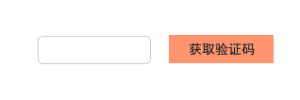
第二步:建立 outlet
@property (weak, nonatomic) IBOutlet UIButton *l_timeButton;
第三步:綁定點擊事件
- (void)viewDidLoad {
    [super viewDidLoad];
    [_l_timeButton addTarget:self action:@selector(startTime)
            forControlEvents:UIControlEventTouchUpInside];
}
第四步:實作倒數邏輯
- (void)startTime {
    __block int timeout = 30;   // 倒數秒數,可依需求調整

    dispatch_queue_t queue = dispatch_get_global_queue(DISPATCH_QUEUE_PRIORITY_DEFAULT, 0);
    dispatch_source_t _timer = dispatch_source_create(DISPATCH_SOURCE_TYPE_TIMER, 0, 0, queue);
    dispatch_source_set_timer(_timer, dispatch_walltime(NULL, 0), 1.0 * NSEC_PER_SEC, 0); // 每秒觸發

    dispatch_source_set_event_handler(_timer, ^{
        if (timeout <= 0) {
            // 倒數結束,關閉計時器並恢復按鈕
            dispatch_source_cancel(_timer);
            dispatch_async(dispatch_get_main_queue(), ^{
                [_l_timeButton setTitle:@"發送驗證碼" forState:UIControlStateNormal];
                _l_timeButton.userInteractionEnabled = YES;
            });
        } else {
            int seconds = timeout % 60;
            NSString *strTime = [NSString stringWithFormat:@"%.2d", seconds];
            dispatch_async(dispatch_get_main_queue(), ^{
                [UIView beginAnimations:nil context:nil];
                [UIView setAnimationDuration:1];
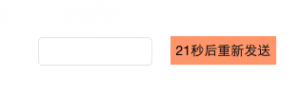
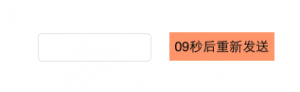
                [_l_timeButton setTitle:[NSString stringWithFormat:@"%@秒後重新發送", strTime]
                               forState:UIControlStateNormal];
                [UIView commitAnimations];
                _l_timeButton.userInteractionEnabled = NO;
            });
            timeout--;
        }
    });

    dispatch_resume(_timer);
}
運行結果如下:
幾個實務上必須補強的地方
1. 計時器要持有。範例中的 _timer 是區域變數,方法一結束就可能被回收。正式專案請宣告成 property 長期持有。
2. 記得 invalidate。在 view controller 消失(例如 viewDidDisappear 或 dealloc)時呼叫 dispatch_source_cancel,否則會出現畫面已關閉但計時器還在跑的洩漏。
3. UI 只能在主執行緒更新。這裡用 dispatch_async(dispatch_get_main_queue(), ...) 切回主執行緒,是必要的,直接從背景佇列改 UI 會導致未定義行為。
4. 真正發送簡訊的時機。按下按鈕時除了啟動倒數,也要同時呼叫你的 API;建議在 request 成功後才開始倒數,避免失敗了使用者卻得乾等一分鐘。
另一種常見寫法是改用 NSTimer 搭配 scheduledTimerWithTimeInterval,概念相同;GCD timer 的優勢在於精度較高、不受 run loop 模式影響。若想支援 App 切到背景後回來仍顯示正確剩餘秒數,則應改為記錄「截止時間戳」再用差值計算,而不是單純遞減計數。
- 上一篇文章: UIPickerView 實作省、市、區三級聯動選擇器
- 下一篇文章: iOS 開發:plist 檔案的讀取與寫入實戰