
實作教學:iOS 下 PDF 文件的瀏覽與塗鴉效果
編輯:iOS 相關教學
在 iOS 中顯示 PDF 並支援翻頁、塗鴉,是文件類應用的常見需求。本文比較兩種 PDF 瀏覽方案,並進一步示範如何加入塗鴉功能,讓使用者能在文件上手寫標註。
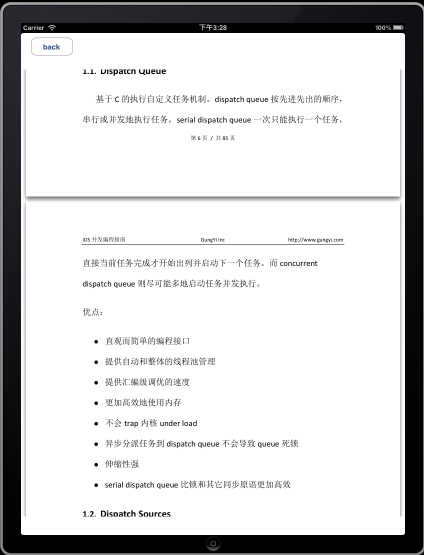
瀏覽 PDF 的方法一:利用 UIWebView
最簡單的方式是直接把 PDF 載入 UIWebView:
-(void)loadDocument:(NSString *)documentName inView:(UIWebView *)webView
{
    NSString *path = [[NSBundle mainBundle] pathForResource:documentName ofType:nil];
    NSURL *url = [NSURL fileURLWithPath:path];
    NSURLRequest *request = [NSURLRequest requestWithURL:url];
    [webView loadRequest:request];
}
優點:實現簡單。
缺點:(1)僅能瀏覽,拿不到任何回調;(2)固定直版拖動,想實現翻頁動畫效果就頗為受限。
瀏覽 PDF 的方法二:利用 CGContextDrawPDFPage
這個方法能解決 UIWebView 的缺點,代價是要多寫一些程式碼。先取得 PDF 文件參照並繪製指定頁面:
CGPDFDocumentRef GetPDFDocumentRef(NSString *filename)
{
    CFStringRef path;
    CFURLRef url;
    CGPDFDocumentRef document;
    size_t count;

    path = CFStringCreateWithCString(NULL, [filename UTF8String], kCFStringEncodingUTF8);
    url = CFURLCreateWithFileSystemPath(NULL, path, kCFURLPOSIXPathStyle, 0);
    CFRelease(path);
    document = CGPDFDocumentCreateWithURL(url);
    CFRelease(url);
    count = CGPDFDocumentGetNumberOfPages(document);
    if (count == 0) {
        printf("[%s] needs at least one page!\n", [filename UTF8String]);
        return NULL;
    } else {
        printf("[%ld] pages loaded in this PDF!\n", count);
    }
    return document;
}

void DisplayPDFPage(CGContextRef myContext, size_t pageNumber, NSString *filename)
{
    CGPDFDocumentRef document = GetPDFDocumentRef(filename);
    CGPDFPageRef page = CGPDFDocumentGetPage(document, pageNumber);
    CGContextDrawPDFPage(myContext, page);
    CGPDFDocumentRelease(document);
}
這樣顯示出來的 PDF 單頁會是倒立的,這是因為 Quartz 座標系與 UIView 座標系不同所致。調整座標系即可讓 PDF 正立:
CGContextRef context = UIGraphicsGetCurrentContext();
CGContextTranslateCTM(context, 80, self.frame.size.height - 60);
CGContextScaleCTM(context, 1, -1);
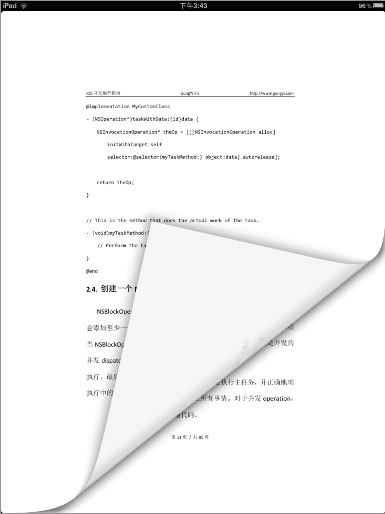
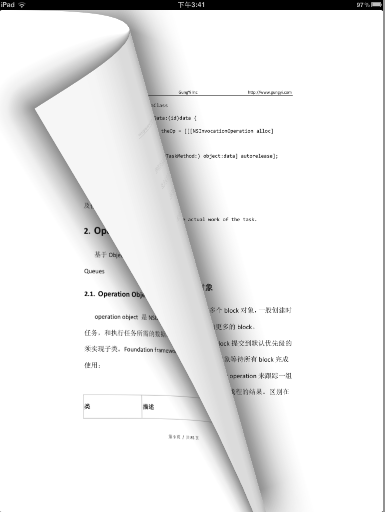
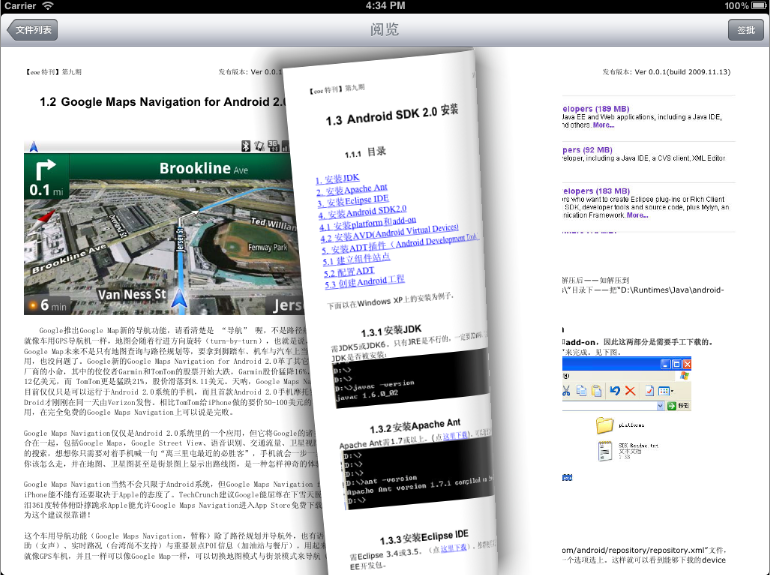
搭配 iOS 5 強大的 UIPageViewController,就能實現流暢的翻頁瀏覽:
- (PDFViewController *)viewControllerAtIndex:(NSUInteger)index
{
    if (([self.pagePDF count] == 0) || (index > [self.pagePDF count])) {
        return nil;
    }
    PDFViewController *dataViewController =
        [[PDFViewController alloc] initWithNibName:@"PDFViewController" bundle:nil];
    dataViewController.pdfview = [[PDFView alloc] initWithFrame:self.view.frame atPage:index];
    [dataViewController.view addSubview:dataViewController.pdfview];
    return dataViewController;
}

- (UIViewController *)pageViewController:(UIPageViewController *)pageViewController
     viewControllerBeforeViewController:(UIViewController *)viewController
{
    NSUInteger index = [self indexOfViewController:(PDFViewController *)viewController];
    if ((index == 0) || (index == NSNotFound)) {
        return nil;
    }
    index--;
    return [self viewControllerAtIndex:index];
}

- (UIViewController *)pageViewController:(UIPageViewController *)pageViewController
      viewControllerAfterViewController:(UIViewController *)viewController
{
    NSUInteger index = [self.indexOfViewController:(PDFViewController *)viewController];
    if (index == NSNotFound) {
        return nil;
    }
    index++;
    if (index == [self.pagePDF count]) {
        return nil;
    }
    return [self viewControllerAtIndex:index];
}
翻頁效果如下:
塗鴉效果
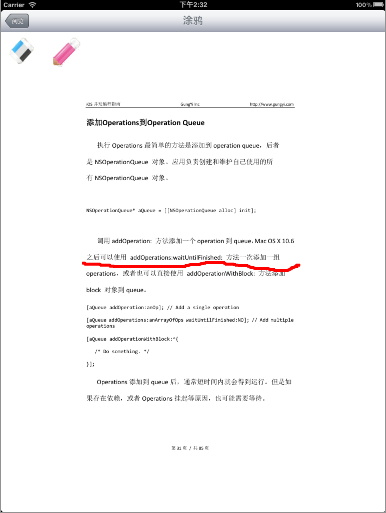
塗鴉功能主要涉及幾個技術點:
1. 多 context、分層畫畫——透過 drawLayer:inContext: 在獨立圖層上繪製筆跡。
2. 觸摸事件——重寫 touchesBegan、touchesMoved 等族方法捕捉手寫軌跡。
- (void)touchesBegan:(NSSet *)touches withEvent:(UIEvent *)event
- (void)touchesMoved:(NSSet *)touches withEvent:(UIEvent *)event
3. 初始化單頁 view 時傳入頁碼:
- (id)initWithFrame:(CGRect)frame onPage:(NSInteger)page
4. 畫軌跡方法——利用 CGPathMoveToPoint 與 CGPathAddLineToPoint 連接筆畫:
CG_EXTERN void CGPathMoveToPoint(CGMutablePathRef path,
    const CGAffineTransform *m, CGFloat x, CGFloat y)
CG_EXTERN void CGPathAddLineToPoint(CGMutablePathRef path,
    const CGAffineTransform *m, CGFloat x, CGFloat y)
塗鴉效果如下:
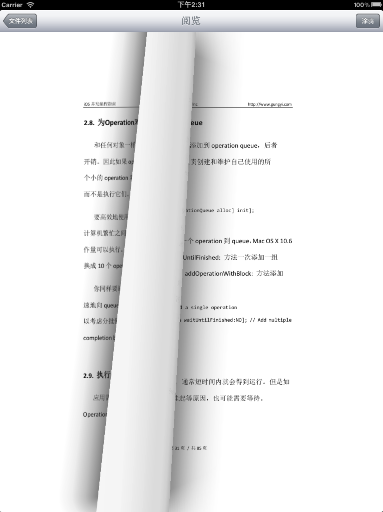

透過 CGContextDrawPDFPage 繪製頁面、UIPageViewController 實現翻頁,再搭配多圖層觸摸繪圖,就能打造功能完整的 PDF 閱讀與塗鴉應用。
- 上一篇文章: iOS 系統快取的開發基礎知識詳解
- 下一篇文章: iOS 開發中文件目錄的存取與管理基礎詳解