
搞懂 UINavigationController:NavigationBar、Item 與 ToolBar 的權責關係
用 UINavigationController 時最常見的困惑是:為什麼 self.navigationController.toolbar 設定項目沒有效果?答案藏在幾個容易混淆的權責界線裡。
一、NavigationBar 的四個要點
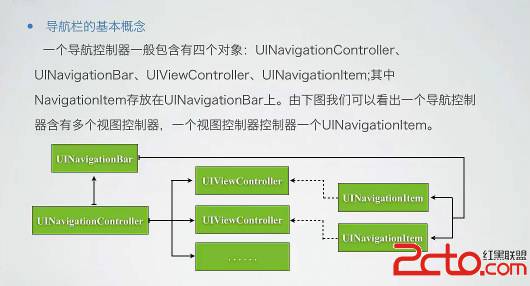
1. 一個導航控制器可以管理多個視圖控制器,形成堆疊結構。
2. UINavigationController 內含一個 UINavigationBar 與一個 UIToolbar。
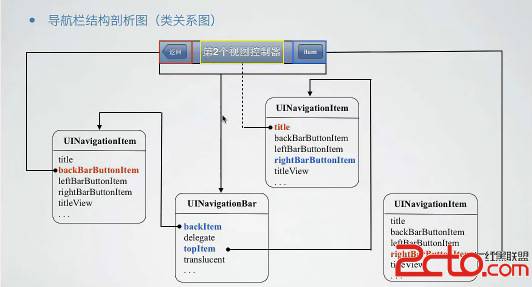
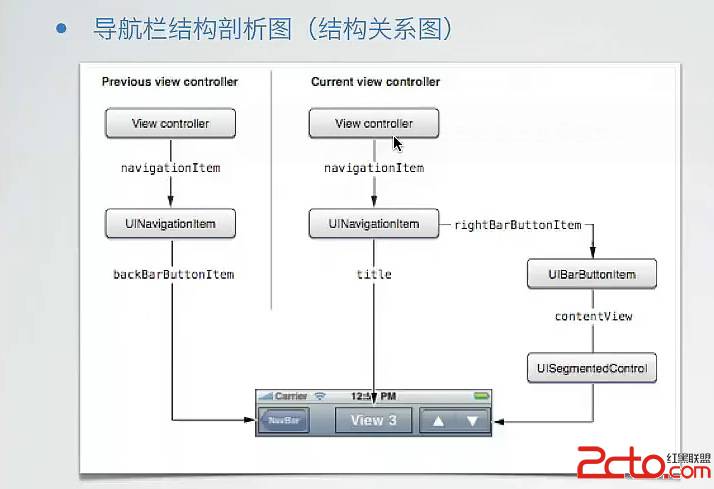
3. 導航列上的按鈕實際型別是 UINavigationItem,而且每一層只有一個。
4. 關鍵:UINavigationItem 不受 UINavigationBar 控制,也不由 UINavigationController 控制,而是由當前那一層視圖控制器持有。這解釋了為什麼切換頁面時標題與左右按鈕會跟著換——因為換的是該頁自己的 navigationItem。
二、ToolBar 同樣屬於當前視圖
一個 UINavigationController 只有一個 toolBar,而它的內容同樣由當前視圖決定,不是由導航控制器直接指派。這正是最常踩的坑。
三、建立各種類型的 BarButtonItem
UIBarButtonItem *addBar = [[UIBarButtonItem alloc] initWithBarButtonSystemItem:UIBarButtonSystemItemTrash
                                                                       target:self action:@selector(button)];
UIBarButtonItem *editBar = [[UIBarButtonItem alloc] initWithBarButtonSystemItem:UIBarButtonSystemItemEdit
                                                                        target:self action:@selector(button)];
UIBarButtonItem *saveBar = [[UIBarButtonItem alloc] initWithBarButtonSystemItem:UIBarButtonSystemItemSave
                                                                        target:self action:@selector(button)];
UIBarButtonItem *titleBar = [[UIBarButtonItem alloc] initWithTitle:@"titile"
                                                            style:UIBarButtonItemStyleBordered
                                                           target:self action:@selector(button)];
系統型別提供了不少現成圖示(Trash、Edit、Save、Done、Cancel 等),比自己切圖省事。若要用文字,則走 initWithTitle:style:target:action:。
四、用空白項目做間距
按鈕排列要好看,間距是關鍵。系統準備了兩種間距項目:
// 彈性空白:會平均分配剩餘空間,達到等距效果
UIBarButtonItem *filexBar = [[UIBarButtonItem alloc] initWithBarButtonSystemItem:UIBarButtonSystemItemFlexibleSpace
                                                                          target:self action:nil];

// 固定空白:寬度由你自己決定
UIBarButtonItem *fixBar = [[UIBarButtonItem alloc] initWithBarButtonSystemItem:UIBarButtonSystemItemFixedSpace
                                                                       target:self action:nil];
fixBar.width = 5;
FlexibleSpace 適合「左右兩端各一顆、中間自然拉開」的排版;FixedSpace 則用在需要精準控制的場合。
五、正確的設定方式
NSArray *itemArray = @[addBar, fixBar, editBar, filexBar, saveBar, filexBar, titleBar];

// 先讓工具列出現(預設是隱藏的)
[self.navigationController setToolbarHidden:NO animated:YES];

// 錯誤寫法:toolBar 不受導航控制器直接配置
// [self.navigationController.toolbar setItems:itemArray animated:YES];

// 正確寫法:由當前視圖決定自己的工具列項目
[self setToolbarItems:itemArray animated:YES];
觀念整理
把這件事想成「導航控制器提供舞臺,視圖控制器決定演出內容」:導航控制器擁有 bar 這個容器,但容器裡放什麼,由目前最上層的視圖控制器透過 navigationItem 與 setToolbarItems: 自己宣告。所以當你 push 到下一頁,新一頁若沒有設定自己的 items,工具列就會是空的——這不是 bug,而是設計如此。
實務上有兩個小技巧值得記住:一是若希望子頁面預設隱藏工具列,可在 push 前設定 hidesBottomBarWhenPushed;二是 bar button item 一旦被加入 toolbar 或 navigationItem,記憶體管理就交給對方,在 MRC 環境下配置完記得 release,ARC 下則不必理會。