
Xcode 7 UI 自動化測試詳解(附完整 Demo)
Xcode 7 UI 自動化測試詳解
作者:sunljz,授權本站轉載。
UI Tests 是什麼?有什麼用?
UI Tests 是 Xcode 7 提供的一套用於自動測試界面與交互的測試組件。你可以通過編寫代碼,或者直接錄製自己的操作過程並自動生成代碼,來實現自動點擊按鈕、自動輸入文本等操作。
它的價值在於回歸測試。專案越做越大、功能越來越多時,僅靠人工覆蓋所有用例會變得極其困難;每加一個新功能,舊功能還得重測一遍,大量時間消耗在重複勞動上。這些重複工作裡有相当一部分是可以自動完成的。
第一步:添加 UI Tests Target
新建專案時可以直接勾選 UI Tests 選項:
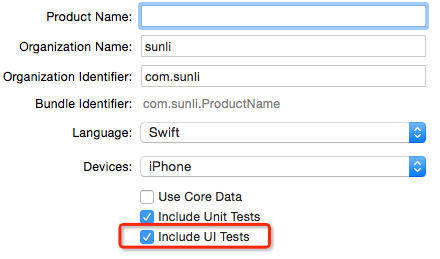
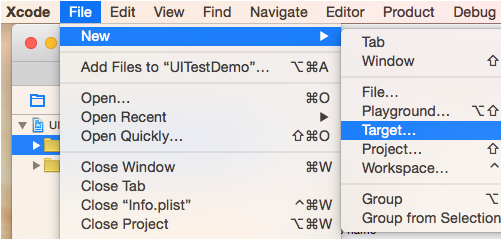
已有專案則手動添加 target:
在 Test 分類中選擇 Cocoa Touch UI Testing Bundle:
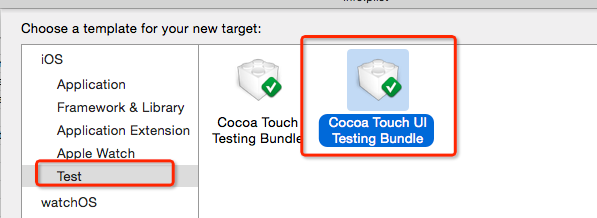
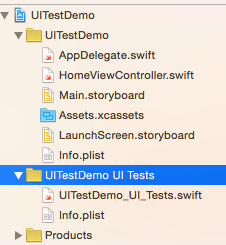
添加成功後,它在項目中的位置如下:
第二步:編寫測試代碼
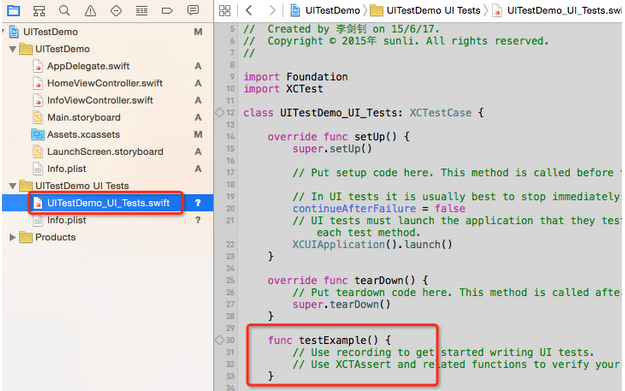
打開測試文件,在 testExample() 方法中編寫測試代碼;不知道從何下手時,可以參考 Xcode 自動生成的樣板。
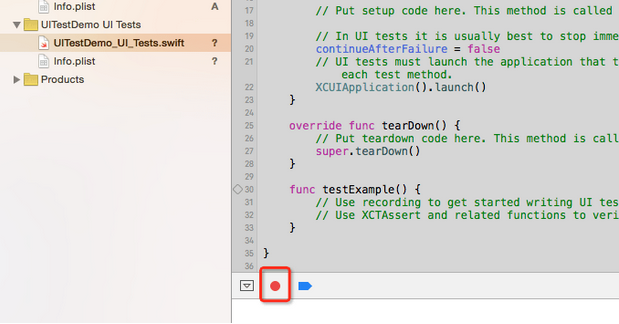
自動錄製:選中測試文件後點擊錄製按鈕,然後正常操作 App,Xcode 會把你的操作實時轉寫成測試代碼。
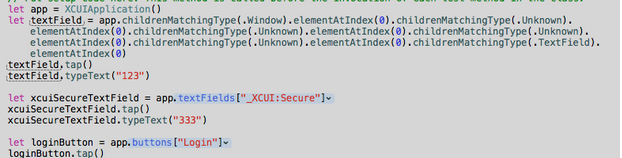
拿到自動生成的代碼後,可以仔細分析它的語法結構,之後就能自己手寫或修改測試了。
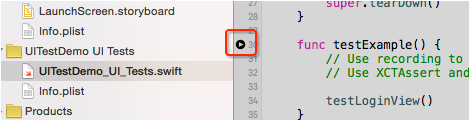
運行測試:點擊測試方法左側的播放按鈕,App 就會按腳本自動操作起來。
核心 API 速覽
XCUIApplication
繼承自 XCUIElement,掌管應用程序的狀態,主要方法有兩個:launch() 啟動程序,terminate() 終止程序。
XCUIElement
繼承 NSObject,實現 XCUIElementAttributes 與 XCUIElementTypeQueryProvider 協議,可以表示系統中的各種 UI 元素。
常用判斷與查詢方法:
exists:判斷元素是否存在。注意,對不存在的元素執行操作會拋出異常並中斷測試。descendantsMatchingType(type:):取某型別元素及其子類的集合。childrenMatchingType(type:):取某型別元素的集合,不含子類。
兩者的差別在於:只用系統自帶的 UIButton 時,childrenMatchingType 就夠了;如果還要匹配自定義的子類,就得用 descendantsMatchingType。
常用交互方法:
tap():點擊。doubleTap():雙擊。pressForDuration(duration:):長按一段時間,需要「等待」時很好用。swipeUp():實測無法響應 pan 手勢,可能是早期版本的問題。typeText(text:):用於 textField 與 textView 輸入文本,使用前需確保控件已獲得焦點,可先調用tap()。
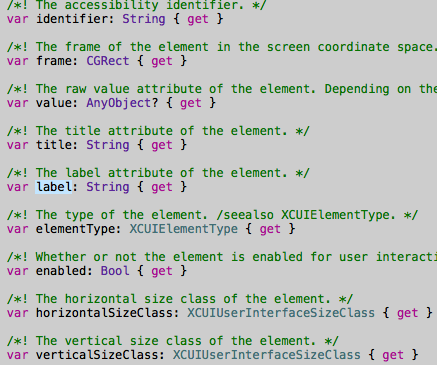
XCUIElementAttributes 協議包含部分 UIAccessibility 屬性,方便你查看當前元素的特徵。其中 identifier 可用於直接定位元素,不過它在 UITextField 上存在問題。
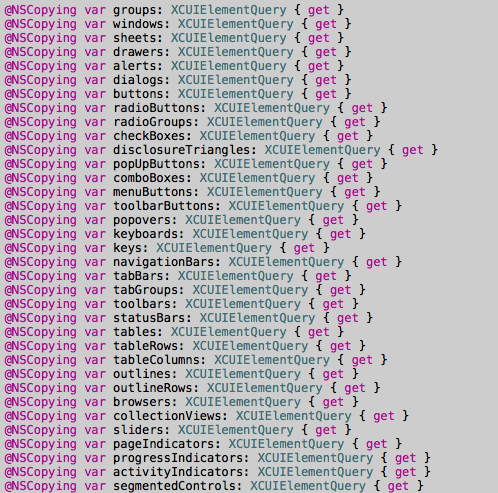
XCUIElementTypeQueryProvider 協議則列出了系統絕大部分 UI 控件型別,可透過訪問屬性取得對應的元素集合。
實戰 Demo
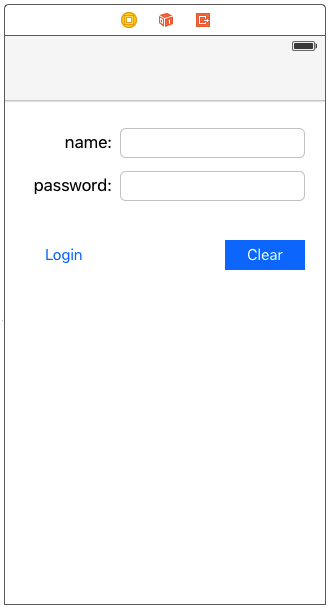
先做一個登入頁:
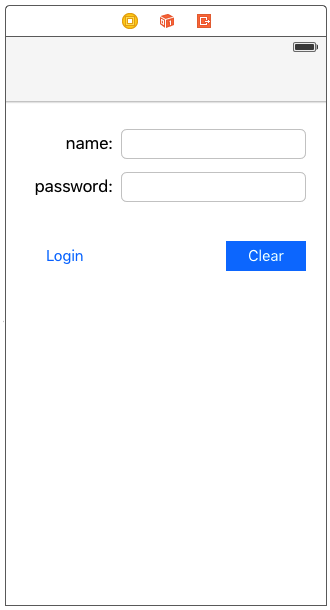
點擊 login 進行登入驗證,點擊 clear 清除輸入。登入成功後進入個人信息頁:
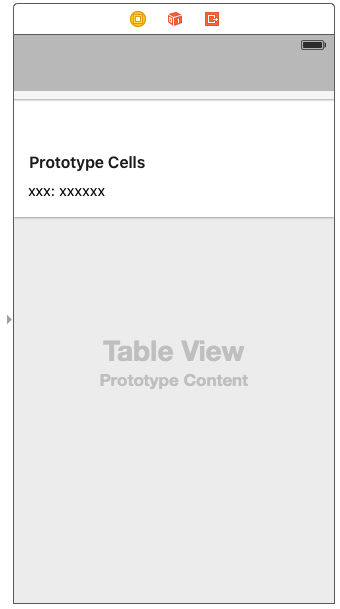
該頁可點擊 modify 修改資料、點擊 Message 查看消息。最後是消息列表頁:
登入頁測試
用例步驟:輸入錯誤帳號 → 驗證結果 → 關閉警告框 → 清除輸入 → 輸入正確帳號 → 驗證結果 → 進入個人信息頁。
func testLoginView() {
    let app = XCUIApplication()

    // UITextField 的 identifier 有問題,只能透過 label 遍歷元素來定位
    let nameField = self.getFieldWithLbl("nameField")
    if self.canOperateElement(nameField) {
        nameField!.tap()
        nameField!.typeText("xiaoming")
    }

    let psdField = self.getFieldWithLbl("psdField")
    if self.canOperateElement(psdField) {
        psdField!.tap()
        psdField!.typeText("1234321")
    }

    // 透過 UIButton 的預設 identifier 讀取按鈕
    let loginBtn = app.buttons["Login"]
    if self.canOperateElement(loginBtn) {
        loginBtn.tap()
    }

    // Demo 用延時模擬聯網請求
    let window = app.windows.elementAtIndex(0)
    if self.canOperateElement(window) {
        window.pressForDuration(3)
    }

    // alert 的 identifier 和 label 都取不到,只能靠數量判斷
    if app.alerts.count > 0 {
        app.alerts.collectionViews.buttons["確定"].tap()
        let clear = app.buttons["Clear"]
        if self.canOperateElement(clear) {
            clear.tap()
            if self.canOperateElement(nameField) {
                nameField!.tap()
                nameField!.typeText("sun")
            }
            if self.canOperateElement(psdField) {
                psdField!.tap()
                psdField!.typeText("111111")
            }
            if self.canOperateElement(loginBtn) {
                loginBtn.tap()
            }
            if self.canOperateElement(window) {
                window.pressForDuration(3)
            }
            self.loginSuccess()
        }
    } else {
        self.loginSuccess()
    }
}
兩個要特別注意的點:
- 元素不存在時,查詢仍可能返回一個物件,但這個物件不可操作。
- 當目標元素被鍵盤或 UIAlertView 遮擋時,執行
tap()會拋異常。
個人信息頁測試
用例步驟:修改性別 → 修改年齡 → 修改心情 → 保存。
func testInfo() {
    let app = XCUIApplication()
    let window = app.windows.elementAtIndex(0)
    if self.canOperateElement(window) {
        window.pressForDuration(2)   // 等待數據加載
    }

    let modifyBtn = app.buttons["modify"]
    modifyBtn.tap()

    app.switches["sex"].tap()

    let incrementButton = app.buttons["Increment"]
    incrementButton.tap()
    incrementButton.tap()
    incrementButton.tap()
    app.buttons["Decrement"].tap()

    let textView = app.textViews["feeling"]
    textView.tap()
    app.keys["Delete"].tap()
    app.keys["Delete"].tap()
    textView.typeText(" abc ")

    app.buttons["clearBtn"].tap()  // 點擊空白區域收起鍵盤

    modifyBtn.tap()                // 保存
    window.pressForDuration(2)

    app.buttons["message"].tap()
    window.pressForDuration(1)     // 等待 push 完成
    self.testMessage()
}
兩個注意點:textView 獲焦時無法指定光標位置;tap() 觸發位置是 view 的中心,因此當中心被遮擋時,需要換一個 view 來代替。
消息列表測試
func testMessage() {
    let app = XCUIApplication()
    let window = app.windows.elementAtIndex(0)
    if self.canOperateElement(window) {
        window.pressForDuration(2)
    }

    let table = app.tables
    table.childrenMatchingType(.Cell).elementAtIndex(8).tap()
    table.childrenMatchingType(.Cell).elementAtIndex(1).tap()
}
這裡的限制是:暫時無法取得 tableView 本身的元素指標。
總結
UI Tests 目前適合用來驗證基礎功能是否可用、是否存在崩潰風險。但它也明顯不夠成熟:編寫用例繁瑣,自動生成的代碼往往無法直接運行,能力單一,很多場景覆蓋不到,bug 也不少。期待正式版能修好這些問題並開放更多能力。
Demo 地址:https://github.com/sunljz/demo/tree/master/iOS9/UITestDemo,歡迎提出改進建議。