
iOS 控件入門:UIDatePicker 與 UIToolbar 的使用詳解
編輯:iOS 開發綜合
一、UIDatePicker 控件
UIDatePicker 是一個用來顯示時間的控件,如下圖:
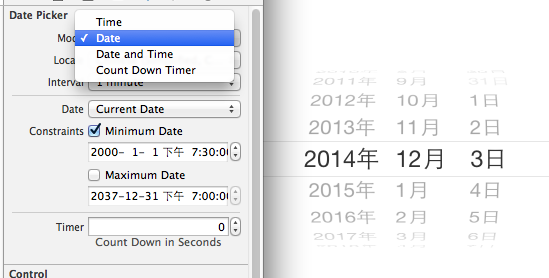
它有默認寬高,無需設置數據源和代理。想改成中文?可以:1)把模擬器改成中文環境;2)設置 locale 屬性選擇地區。時間有四種模式(在 datePickerMode 中設置),還支持自定義(custom),並可設置最小/最大時間。它最大的用處之一是充當自定義鍵盤——點擊文本框時彈出一個日期選擇器。
示例代碼:
#import "YYViewController.h"

@interface YYViewController ()
@property (strong, nonatomic) IBOutlet UITextField *textfield;
@end

@implementation YYViewController

- (void)viewDidLoad {
    [super viewDidLoad];

    // 1. 添加時間選擇器
    UIDatePicker *date = [[UIDatePicker alloc] init];
    [date setLocale:[NSLocale localeWithLocaleIdentifier:@"zh-CN"]]; // 只顯示中文
    date.datePickerMode = UIDatePickerModeDate;                     // 只顯示日期

    // 光標移到文本框時,彈出時間選擇器
    self.textfield.inputView = date;

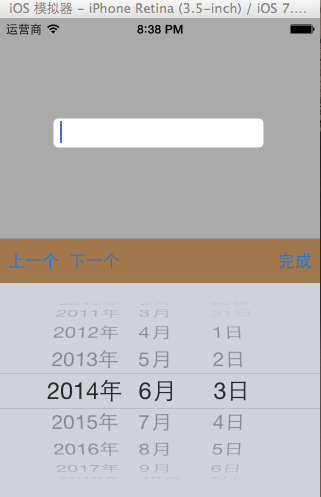
    // 2. 創建工具條作為鍵盤的輔助視圖
    UIToolbar *toolbar = [[UIToolbar alloc] init];
    toolbar.barTintColor = [UIColor brownColor];
    toolbar.frame = CGRectMake(0, 0, 320, 44);

    UIBarButtonItem *item0 = [[UIBarButtonItem alloc] initWithTitle:@"上一個" style:UIBarButtonItemStylePlain target:self action:@selector(click)];
    UIBarButtonItem *item1 = [[UIBarButtonItem alloc] initWithTitle:@"下一個" style:UIBarButtonItemStylePlain target:self action:@selector(click)];
    UIBarButtonItem *item2 = [[UIBarButtonItem alloc] initWithBarButtonSystemItem:UIBarButtonSystemItemFlexibleSpace target:nil action:nil];
    UIBarButtonItem *item3 = [[UIBarButtonItem alloc] initWithTitle:@"完成" style:UIBarButtonItemStylePlain target:self action:@selector(click)];

    toolbar.items = @[item0, item1, item2, item3];
    self.textfield.inputAccessoryView = toolbar; // 設置鍵盤的輔助視圖
}

-(void)click {
    NSLog(@"toolbar");
}
@end
效果如下:
二、UIToolbar
UIToolbar 上只能添加 UIBarButtonItem 子控件,其他子控件會被自動包裝成這種類型。上面的控件依次排開(可用空格分隔),並可指定樣式(如可拉伸的 flexible space),通常用來做工具欄。数组裡是什麼順序,就按什麼順序顯示。
先看看 UIBarButtonItem 的幾種初始化方法,從中也能看出它能被定義成什麼樣的東西:
- initWithTitle:            // 添加帶文字的 button
- initWithImage:            // 添加圖片 button
- initWithBarButtonSystemItem: // 添加系統預設 button,形狀大小固定
- initWithCustomView:       // 添加 button 以外的任意 View
其中 initWithBarButtonSystemItem 的系統枚舉非常豐富:
typedef enum {
    UIBarButtonSystemItemDone,
    UIBarButtonSystemItemCancel,
    UIBarButtonSystemItemEdit,
    UIBarButtonSystemItemSave,
    UIBarButtonSystemItemAdd,
    UIBarButtonSystemItemFlexibleSpace,
    UIBarButtonSystemItemFixedSpace,
    UIBarButtonSystemItemCompose,
    UIBarButtonSystemItemReply,
    UIBarButtonSystemItemAction,
    UIBarButtonSystemItemOrganize,
    UIBarButtonSystemItemBookmarks,
    UIBarButtonSystemItemSearch,
    UIBarButtonSystemItemRefresh,
    UIBarButtonSystemItemStop,
    UIBarButtonSystemItemCamera,
    UIBarButtonSystemItemTrash,
    UIBarButtonSystemItemPlay,
    UIBarButtonSystemItemPause,
    UIBarButtonSystemItemRewind,
    UIBarButtonSystemItemFastForward,
    UIBarButtonSystemItemUndo,
    UIBarButtonSystemItemRedo,
} UIBarButtonSystemItem;
而 initWithCustomView 是最自由、最有趣的一種,它的參數是一個 UIView,因此可以塞入各種控件。
在 UIToolbar 上添加 Title:
UIToolbar *myToolBar = [[UIToolbar alloc] initWithFrame:CGRectMake(0.0f, 0.0f, 320.0f, 44.0f)];
NSMutableArray *myToolBarItems = [NSMutableArray array];
[myToolBarItems addObject:[[[UIBarButtonItem alloc] initWithTitle:@"myTile" style:UIBarButtonItemStylePlain target:self action:@selector(action)] autorelease]];
[myToolBar setItems:myToolBarItems animated:YES];
添加 image:
[myToolBarItems addObject:[[[UIBarButtonItem alloc] initWithImage:[UIImage imageNamed:@"myImage.png"] style:UIBarButtonItemStylePlain target:self action:@selector(action)] autorelease]];
添加 SystemItem:
[myToolBarItems addObject:[[[UIBarButtonItem alloc] initWithBarButtonSystemItem:UIBarButtonSystemItemPlay target:self action:@selector(action)] autorelease]];
使用 initWithCustomView 添加各種自定義控件:
// A. 加一個開關 UISwitch
[myToolBarItems addObject:[[[UIBarButtonItem alloc] initWithCustomView:[[[UISwitch alloc] init] autorelease]] autorelease]];

// B. 加一個自定義 button
UIBarButtonItem *myButton = [[[UIBarButtonItem alloc] initWithTitle:@"myButton" style:UIBarButtonItemStyleBordered target:self action:@selector(action)] autorelease];
[myToolBarItems addObject:myButton];

// C. 加一個文本 Label
UILabel *myLabel = [[UILabel alloc] initWithFrame:CGRectMake(40.0f, 20.0f, 45.0f, 10.0f)];
myLabel.font = [UIFont systemFontOfSize:10];
UIBarButtonItem *labelItem = [[UIBarButtonItem alloc] initWithCustomView:myLabel];
[myToolBarItems addObject:labelItem];

// D. 加一個進度條 UIProgressView
UIProgressView *myProgress = [[UIProgressView alloc] initWithFrame:CGRectMake(65.0f, 20.0f, 90.0f, 10.0f)];
UIBarButtonItem *progressItem = [[UIBarButtonItem alloc] initWithCustomView:myProgress];
[myToolBarItems addObject:progressItem];
掌握以上幾種方式,你就能在 UIToolbar 上添加各種類型的 buttonItem 了。無論是做鍵盤的輔助工具欄,還是頁面的標題欄,都能遊刃有餘。