
iOS 頁面跳轉的幾種寫法與適用時機整理
編輯:iOS 開發綜合
畫面之間怎麼跳,是每個 iOS 新手都會遇到的問題。以下以「FirstViewController(FVC)點擊按鈕後前往 SecondViewController(SVC)」為例,把常見的五種做法與各自的取捨整理出來。
方式一:Storyboard 的 segue
按住 control 鍵把按鈕拖到目標場景,於彈出的視窗中選擇轉場樣式即可,完全不需要寫程式。
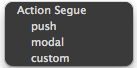
優點:操作直覺、沒有額外程式碼,跳轉關係在 storyboard 上一目了然。
缺點:場景一多,整體關係圖會變得難以閱讀;多人協作時也容易产生衝突,維護成本偏高。
方式二:UITabBarController
透過 addChildViewController 掛上子控制器:
 UITabBarController *tabbarVC = [[UITabBarController alloc] init];

 FirstViewController *FVC = [[FirstViewController alloc] init];
 FVC.tabBarItem.title = @"控制器1";
 FVC.tabBarItem.image = [UIImage imageNamed:@"first.png"];

 SecondViewController *SVC = [[SecondViewController alloc] init];
 SVC.tabBarItem.title = @"控制器2";
 SVC.tabBarItem.image = [UIImage imageNamed:@"new.png"];

 // 加入後會自動出現在 viewControllers 陣列中
 [tabbarVC addChildViewController:FVC];
 [tabbarVC addChildViewController:SVC];
優點:程式碼量少,結構清楚。
缺點:系統原生樣式較陽春,多數正式專案會自行客製標籤列。
方式三:UINavigationController
在 FVC 中推入下一頁:
[self.navigationController pushViewController:newC animated:YES];
在 SVC 中返回上一頁:
[self.navigationController popViewControllerAnimated:YES];
若經歷多層跳轉後想直接回到起點:
[self.navigationController popToRootViewControllerAnimated:YES];
方式四:Modal 呈現
在 FVC 中叫出:
[self presentViewController:SVC animated:YES completion:nil];
在 SVC 中關閉:
[self dismissViewControllerAnimated:YES completion:nil];
方式五:替換 UIWindow 的 rootViewController
直接換掉根控制器,常用於登入狀態切換這類「整頁替換」的情境。
該怎麼選
· Storyboard:適合個人開發的小型專案;團隊協作或規模較大時不建議。
· UITabBarController:原生樣式偏陽春,通常會另外客製。
· UINavigationController 與 Modal:目前多數 App 採用的主流方案,缺點不明顯。差別主要在於「這個畫面是否需要保留導覽列與返回機制」——需要就用 navigation,不需要就用 modal。
把這幾種方式都寫過一次,對畫面層級與生命週期會有更具體的體會,之後看到別人的專案結構也比較容易判斷對方為什麼這樣安排。
- 上一篇文章: 自製 iOS 密碼輸入框:像微信支付那樣的方格密碼鍵盤
- 下一篇文章: iOS 動畫實作:向右拉出的抽屜選單加上 3D 透視