
iOS 非同步下載圖片:從零打造自己的 SDWebImage 思路
編輯:iOS 開發綜合
在 UITableView 或 UICollectionView 裡從網路抓圖片塞進 cell,幾乎每個專案都會遇到。市面上已有不少成熟套件把下載與快取都封裝好了,但理解它背後在做什麼,並依自己的需求動手寫一次,價值完全不同。這篇筆記整理了一次實作過程。
基本思路
· cell 裡放一個 UIImageView
· cell 持有圖片網址,發起下載並註冊完成通知,在通知回呼中取回圖片並設定
· 下載管理類負責開啟下載、維護記憶體與檔案兩層快取,完成後發出通知
· 為了避開 cell 重用造成的圖片錯位,發起下載前先設佔位圖,並為 imageView 記錄一個 tag
整體架構
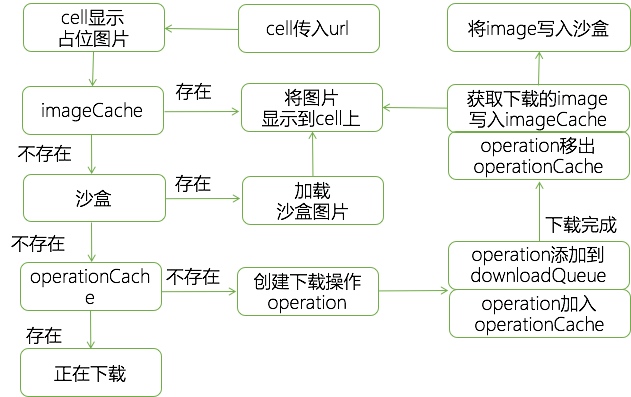
cell 的初始化與通知註冊
 @interface SQPhotoCell ()
 @property (strong, nonatomic) UIImageView *photoView;
 // tag 指向目前該顯示的網址,可過濾掉已滑出畫面的請求
 @property (strong, nonatomic) NSString *imageViewTag;
 @end

 - (id)initWithFrame:(CGRect)frame {
     self = [super initWithFrame:frame];
     if (self) {
         _photoView = [[UIImageView alloc] initWithFrame:CGRectZero];
         _photoView.userInteractionEnabled = YES;
         [self.contentView addSubview:_photoView];
         _imageViewTag = @"";
         [[NSNotificationCenter defaultCenter] addObserver:self
                                               selector:@selector(downloadCallback:)
                                                   name:NOTIFICATION_DOWNLOAD_CALLBACK
                                                 object:nil];
     }
     return self;
 }
收到通知後的處理
 - (void)downloadCallback:(NSNotification *)noti {
     NSDictionary *notiDic = noti.userInfo;
     NSString *urlStr = [notiDic objectForKey:@"urlStr"];
     UIImage *image = [notiDic objectForKey:@"image"];
     // 只有網址仍與自己相符時才更新,避免圖片錯位
     if ([self.imageViewTag isEqualToString:urlStr]) {
         self.photoView.image = image;
     }
 }
cell 發起下載
 - (void)setImageWithURL:(NSString *)urlStr placeholder:(UIImage *)placeholder {
     self.imageViewTag = urlStr;
     // 先放佔位圖,順便清掉重用前殘留的內容
     self.photoView.image = placeholder;
     if (urlStr) {
         SQWebImageManager *manager = [SQWebImageManager sharedManager];
         [manager downloadImageWithURLString:urlStr];
     }
     [self setNeedsDisplay];
 }
下載管理類
這裡是整個方案的核心,依序檢查記憶體快取、檔案快取、進行中的操作,最後才真的建立下載任務。
 - (void)downloadImageWithURLString:(NSString *)urlStr {
     // 1. 先查記憶體快取
     UIImage *cacheImage = [self.imageCache objectForKey:urlStr];
     if (cacheImage != nil) {
         [self postDownloadCompleteNotification:urlStr withImage:cacheImage];
         return;
     }

     // 2. 再查沙盒檔案快取
     NSString *cacheImagePath = [self cacheImagePathWithURLString:urlStr];
     cacheImage = [UIImage imageWithContentsOfFile:cacheImagePath];
     if (cacheImage != nil) {
         // 讀回記憶體,下次可直接命中
         [self.imageCache setObject:cacheImage forKey:urlStr];
         [self postDownloadCompleteNotification:urlStr withImage:cacheImage];
         return;
     }

     // 3. 檢查是否已有操作正在下載同一張圖
     if (self.operationCache[urlStr] != nil) {
         NSLog(@"有操作正在下載這張圖片");
         return;
     }

     SQDownloadOperation *downloadOperation =
         [SQDownloadOperation downloadOperationWithURLString:urlStr cacheImagePath:cacheImagePath];

     __weak typeof(downloadOperation) weakDownloadOperation = downloadOperation;
     downloadOperation.completionBlock = ^() {
         UIImage *image = [weakDownloadOperation getDownloadImage];
         // 從操作快取中移除自己
         [self.operationCache removeObjectForKey:urlStr];

         if (image != nil) {
             [self.imageCache setObject:image forKey:urlStr];
         } else {
             // 下載失敗時退回預設圖
             image = [UIImage imageNamed:@"default.jpg"];
         }
         // 切回主執行緒發通知,避免非同步更新 UI
         [[NSOperationQueue mainQueue] addOperationWithBlock:^{
             [self postDownloadCompleteNotification:urlStr withImage:image];
         }];
     };

     [self.downloadQueue addOperation:downloadOperation];
     [self.operationCache setObject:downloadOperation forKey:urlStr];
 }

 - (void)postDownloadCompleteNotification:(NSString *)urlStr withImage:(UIImage *)image {
     NSDictionary *dic = [NSDictionary dictionaryWithObjectsAndKeys:urlStr, @"urlStr", image, @"image", nil];
     [[NSNotificationCenter defaultCenter] postNotificationName:NOTIFICATION_DOWNLOAD_CALLBACK
                                                       object:nil
                                                     userInfo:dic];
 }
在控制器中使用
 - (UICollectionViewCell *)collectionView:(UICollectionView *)collectionView
                  cellForItemAtIndexPath:(NSIndexPath *)indexPath {
     SQPhotoCell *cell = (SQPhotoCell *)[collectionView dequeueReusableCellWithReuseIdentifier:reuseIdentifier
                                                                                 forIndexPath:indexPath];
     UIImage *placeholder = [UIImage imageNamed:@"gray.jpg"];
     NSString *imageUrl = @"https://www.taopic.com/uploads/allimg/110925/9117-11092509545328.jpg";
     [cell setImageWithURL:imageUrl placeholder:placeholder];
     return cell;
 }
一點心得
這套思路是參考 SDWebImage 整理的。原始碼雖然公開,相關文章也不少,但在自己還不太熟悉多執行緒的時候摸索,仍然花了不少時間。前期一直急著想赶快做出來,很多東西似懂非懂就往下寫;後來才慢慢體會到,慢一點把問題想清楚再動手,前期看似沒進度,越到後面越能感受到這種慢的好處。
- 上一篇文章: iOS 練手專案:做出朋友圈與搖一搖
- 下一篇文章: iOS 訊息推送完整流程:原理解析與證書配置實作