
iOS 點擊擴散動畫:CAKeyframe 加 UIBezierPath 做「咻咻」效果
編輯:iOS 開發綜合
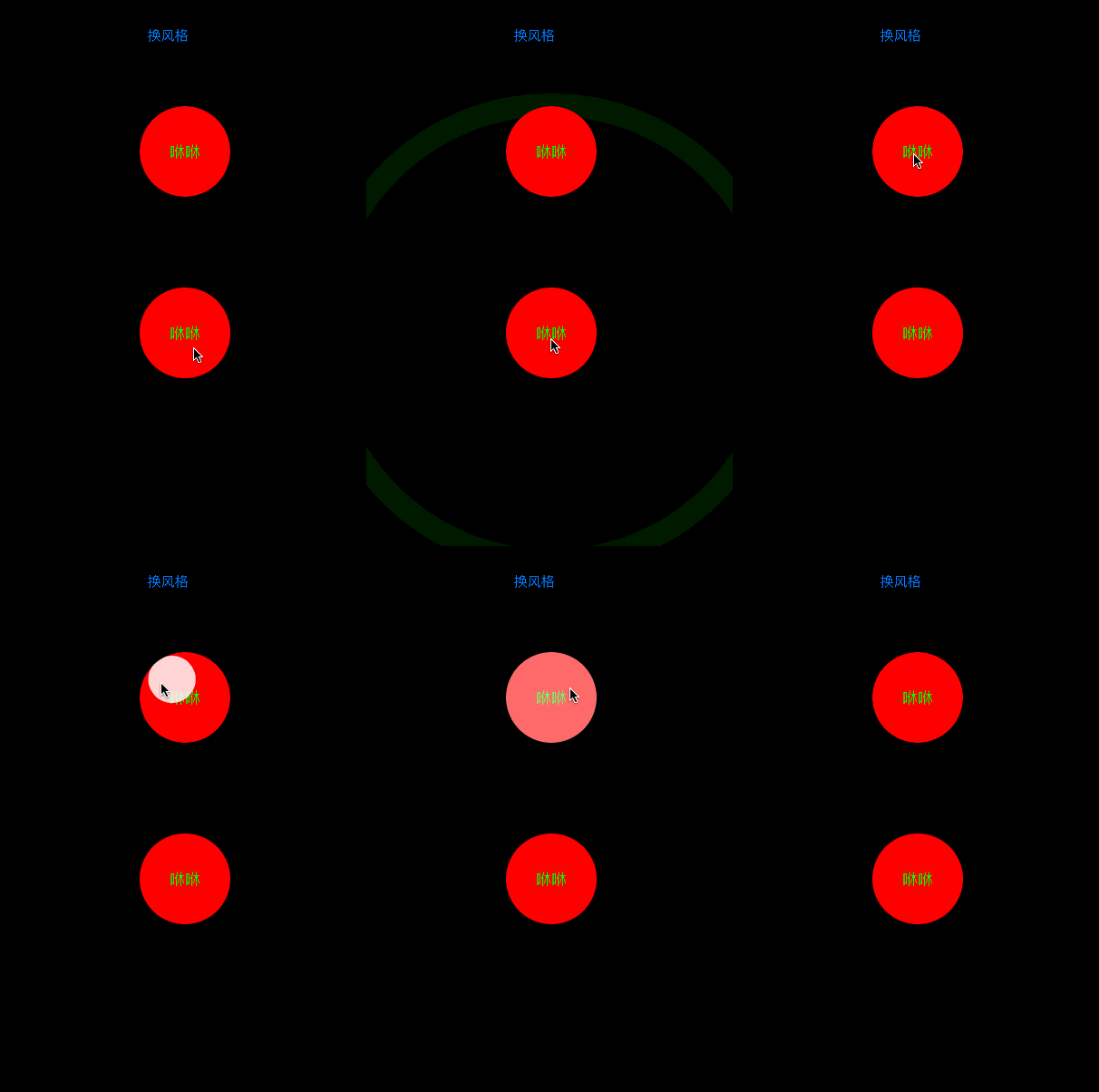
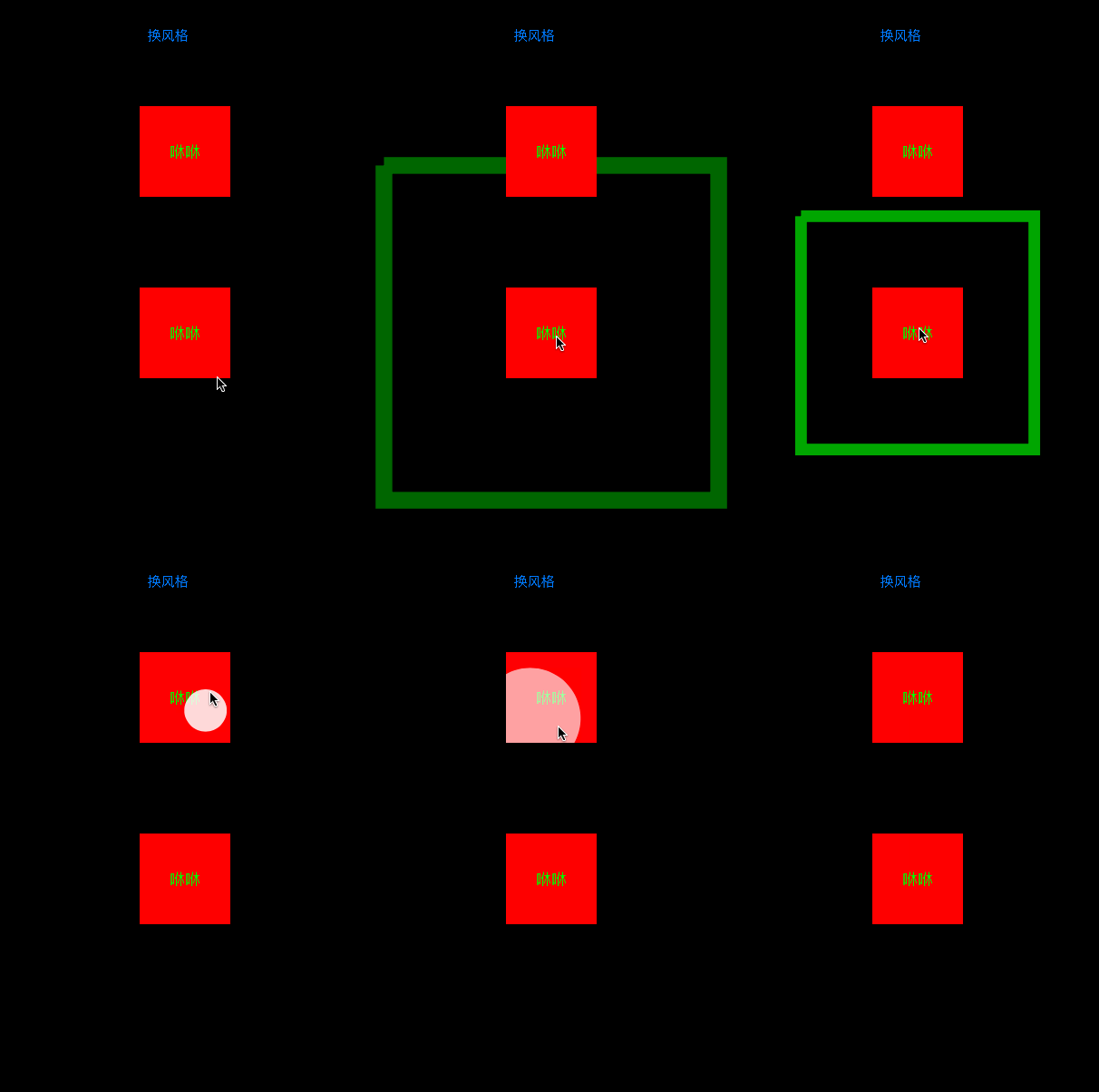
本文要的效果是點擊時從手指位置蕩開一圈漣漪,有圓形與方形、內擴與外擴共四種風格。
先看效果
思路拆解
四種風格其實只有兩個變數:動畫發生在 view 內側還是外側,以及形狀是圓是方。所以封裝一個自訂 View,用屬性對外暴露這兩個選擇即可。點擊要觸發動畫,得加手勢;動畫本身拆成兩段——比例由小變大、透明度由 1 到 0,剛好可以塞進同一個動畫組。剩下最麻煩的是形狀怎麼畫,這就交給 CAShapeLayer 加 UIBezierPath。
程式碼拆解
第一步:定義風格列舉與對外屬性
typedef NS_ENUM(NSUInteger, FlashButtonType) {
    DDFlashButtonInner = 0,   // 動畫在內部
    DDFlashButtonOuter = 1    // 動畫在外部
};

@property (strong, nonatomic) UIColor *flashColor;
@property (assign, nonatomic) FlashButtonType buttonType;

// 對外提供修改子視圖文字的方法,不必把 label 全暴露出來
- (void)setText:(NSString *)text withTextColor:(UIColor *)textColor;
第二步:初始化時掛上點擊手勢與文字標籤
- (instancetype)initWithFrame:(CGRect)frame {
    if (self = [super initWithFrame:frame]) {
        UITapGestureRecognizer *tap =
            [[UITapGestureRecognizer alloc] initWithTarget:self action:@selector(didTap:)];
        [self addGestureRecognizer:tap];

        self.textLabel = [[UILabel alloc] initWithFrame:self.bounds];
        self.textLabel.backgroundColor = [UIColor clearColor];
        self.textLabel.textAlignment = NSTextAlignmentCenter;
        [self addSubview:self.textLabel];

        self.backgroundColor = [UIColor cyanColor];
        self.buttonType = DDFlashButtonInner;   // 預設內擴
    }
    return self;
}
第三步:文字設定方法
- (void)setText:(NSString *)text withTextColor:(UIColor *)textColor {
    if (text)      { self.textLabel.text = text; }
    if (textColor) { self.textLabel.textColor = textColor; }
}
第四步:依風格決定是否裁剪
重寫 buttonType 的 setter,順便決定超出邊界的部分要不要切掉:
- (void)setButtonType:(FlashButtonType)buttonType {
    _buttonType = buttonType;
    // 內擴:動畫不能超出 view 範圍;外擴:允許溢出
    self.clipsToBounds = (buttonType == DDFlashButtonInner) ? YES : NO;
}
第五步:組出動畫
- (CAAnimationGroup *)createFlashAnimationWithScale:(CGFloat)scale
                                           duration:(CGFloat)duration {
    // 縮放動畫
    CABasicAnimation *scaleAnimation =
        [CABasicAnimation animationWithKeyPath:@"transform.scale"];
    scaleAnimation.fromValue = [NSValue valueWithCATransform3D:CATransform3DIdentity];
    scaleAnimation.toValue   = [NSValue valueWithCATransform3D:
                                CATransform3DMakeScale(scale, scale, 1)];

    // 淡出動畫
    CABasicAnimation *alphaAnimation =
        [CABasicAnimation animationWithKeyPath:@"opacity"];
    alphaAnimation.fromValue = @1;
    alphaAnimation.toValue   = @0;

    // 組成動畫組
    CAAnimationGroup *animation = [CAAnimationGroup new];
    animation.animations = @[scaleAnimation, alphaAnimation];
    // timingFunction 決定節奏:easeInEaseOut 就是先慢後快再慢
    animation.timingFunction = [CAMediaTimingFunction functionWithName:kCAMediaTimingFunctionEaseInEaseOut];
    animation.duration = duration;

    return animation;
}
第六步:畫出形狀層
- (CAShapeLayer *)createShapeWithPosition:(CGPoint)position
                                  radius:(CGFloat)radius {
    CAShapeLayer *shapeLayer = [CAShapeLayer layer];
    shapeLayer.path = [UIBezierPath bezierPathWithRoundedRect:
                       CGRectMake(0, 0, radius * 2, radius * 2)
                                              cornerRadius:radius].CGPath;
    shapeLayer.position = position;

    if (self.buttonType == DDFlashButtonInner) {
        // 內擴:實心填充,由中心往外放大
        shapeLayer.frame = CGRectMake(position.x - radius, position.y - radius,
                                      radius * 2, radius * 2);
        shapeLayer.lineWidth  = 1;
        shapeLayer.fillColor  = (self.flashColor ? self.flashColor.CGColor
                                                : [UIColor yellowColor].CGColor);
    } else {
        // 外擴:只畫描邊,形狀與 view 一致
        shapeLayer.frame = self.bounds;
        shapeLayer.lineWidth   = 5;
        shapeLayer.fillColor   = [UIColor clearColor].CGColor;
        shapeLayer.strokeColor = (self.flashColor ? self.flashColor.CGColor
                                                 : [UIColor purpleColor].CGColor);
    }
    // 必須設為 0,否則內擴時會看到一塊實心圖案停在畫面上
    shapeLayer.opacity = 0;

    return shapeLayer;
}
第七步:完成點擊事件
- (void)didTap:(UITapGestureRecognizer *)tapGesture {
    CGPoint tapLocation = [tapGesture locationInView:self];
    CAShapeLayer *shapeLayer = nil;
    CGFloat scale = 1.0f;

    CGFloat width  = self.bounds.size.width;
    CGFloat height = self.bounds.size.height;

    if (self.buttonType == DDFlashButtonInner) {
        // 以點擊點為圓心畫一個半徑 1 的小圓,放大到能蓋滿整個 view
        CGFloat biggerEdge = (width > height) ? width : height;
        CGFloat radius = 1;
        scale = biggerEdge / radius + 0.5;
        shapeLayer = [self createShapeWithPosition:CGPointMake(tapLocation.x, tapLocation.y)
                                           radius:radius];
    } else {
        // 外擴:形狀與 view 相同,位置在中心,放大 5.5 倍
        scale = 5.5f;
        shapeLayer = [self createShapeWithPosition:CGPointMake(width / 2, height / 2)
                                           radius:self.layer.cornerRadius];
    }

    [self.layer addSublayer:shapeLayer];
    [shapeLayer addAnimation:[self createFlashAnimationWithScale:scale duration:1.0f]
                      forKey:nil];
}
使用時在 viewController 裡建立這個自訂 View,傳入想要的風格與顏色就完成了。
原文作者:簡書,連結:https://www.jianshu.com/p/c187c7005ce1