
iOS 開發中清除快取功能的完整實作
前言
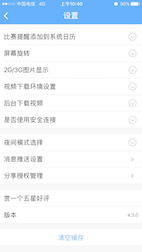
行動應用處理網路資源時通常都會做離線快取,其中最典型的就是圖片快取,SDWebImage 更是這塊的常見選擇。但快取會佔用使用者手機的儲存空間,因此「清除快取」幾乎成了資訊、購物、閱讀類 App 的必備功能。
清除快取的入口通常就在設定頁的某一個 Cell,於是我們可以把它整包封裝到一個自訂 Cell 裡。
使用前提:本文會用到第三方庫,請先安裝 SDWebImage 與 SVProgressHUD。
1. 建立自訂 Cell
新增 GYLClearCacheCell,覆寫 initWithStyle:reuseIdentifier:,先放好文字與一個轉圈的載入視圖:
- (instancetype)initWithStyle:(UITableViewCellStyle)style reuseIdentifier:(NSString *)reuseIdentifier { if (self = [super initWithStyle:style reuseIdentifier:reuseIdentifier]) { // 設置加載視圖 UIActivityIndicatorView *loadingView = [[UIActivityIndicatorView alloc] initWithActivityIndicatorStyle:UIActivityIndicatorViewStyleGray]; [loadingView startAnimating]; self.accessoryView = loadingView; //設置文字 self.textLabel.text = @"清楚緩存"; self.detailTextLabel.text = @"正在計算"; } return self; }
2. 計算快取大小
要算的內容有兩塊:SDWebImage 管理的快取,以及自訂資料夾中的檔案(影片、音訊等)。
unsigned long long size = [NSSearchPathForDirectoriesInDomains(NSCachesDirectory, NSUserDomainMask, YES).lastObject stringByAppendingPathComponent:@"CustomFile"].fileSize; //fileSize是封裝在Category中的。 size += [SDImageCache sharedImageCache].getSize; //CustomFile + SDWebImage 緩存 //設置文件大小格式 NSString sizeText = nil; if (size >= pow(10, 9)) { sizeText = [NSString stringWithFormat:@"%.2fGB", size / pow(10, 9)]; }else if (size >= pow(10, 6)) { sizeText = [NSString stringWithFormat:@"%.2fMB", size / pow(10, 6)]; }else if (size >= pow(10, 3)) { sizeText = [NSString stringWithFormat:@"%.2fKB", size / pow(10, 3)]; }else { sizeText = [NSString stringWithFormat:@"%zdB", size]; }
這裡有個關鍵:上述計算若放在主線程,當快取檔案很大時會卡住介面。因此必須把整段計算丟到子線程執行。
3. 加上點擊手勢
要監聽 Cell 點擊,可以用 delegate,也可以用手勢。既然目標是把功能完全封裝在 Cell 內部,這裡改用手勢。計算完成後切回主線程更新 UI 並掛上手勢:
//計算完成後,回到主線程繼續處理,顯示文件大小,除去加載視圖,顯示箭頭,添加點擊事件 dispatch_async(dispatch_get_main_queue(), ^{ self.detailTextLabel.text = [NSString stringWithFormat:@"%@",sizeText]; self.accessoryView = nil; self.accessoryType = UITableViewCellAccessoryDisclosureIndicator; [self addGestureRecognizer:[[UITapGestureRecognizer alloc] initWithTarget:self action:@selector(clearCacheClick)]]; });
4. 清除快取
清除同樣分兩部分:先清 SDWebImage,再清自訂檔案。
- (void)clearCacheClick { [SVProgressHUD showWithStatus:@"正在清除緩存···"]; [SVProgressHUD setDefaultMaskType:SVProgressHUDMaskTypeBlack]; [[SDImageCache sharedImageCache] clearDiskOnCompletion:^{ dispatch_async(dispatch_get_global_queue(0, 0), ^{ NSFileManager *mgr = [NSFileManager defaultManager]; [mgr removeItemAtPath:GYLCustomFile error:nil]; [mgr createDirectoryAtPath:GYLCustomFile withIntermediateDirectories:YES attributes:nil error:nil]; dispatch_async(dispatch_get_main_queue(), ^{ [SVProgressHUD dismiss]; // 設置文字 self.detailTextLabel.text = nil; }); }); }]; }
注意:SDWebImage 的清除是在子線程進行的,刪除自訂檔案同樣耗時,因此也該放在子線程。為了避免兩邊互相干擾,把自訂檔案的刪除排在 SDWebImage 完成之後,最後再切回主線程收尾。
5. 幾個實務細節
a. 計算期間應該禁止點擊 Cell。如果同時實作了 didSelectRowAtIndexPath,手勢監聽會與它衝突,因此計算階段要先關掉互動。
b. userInteractionEnabled = NO 要設在文字之後,否則 textLabel 會顯示成灰色。
c. 若計算還沒結束使用者就按返回,自訂 Cell 並不會被銷毀,剩下的程式碼仍會跑完(可用 dealloc 驗證)。這種情況改用 weak 引用的 self 就能避免問題。
d. 當設定頁的 Cell 數量較多,計算途中清除快取那格可能捲出視線之外,載入動畫會被系統停掉,捲回來就看不到轉圈了。解法有兩個:在 Cell 的 dataSource 委派方法中重新啟動動畫,或把啟動邏輯封進 layoutSubviews。
6. 成果
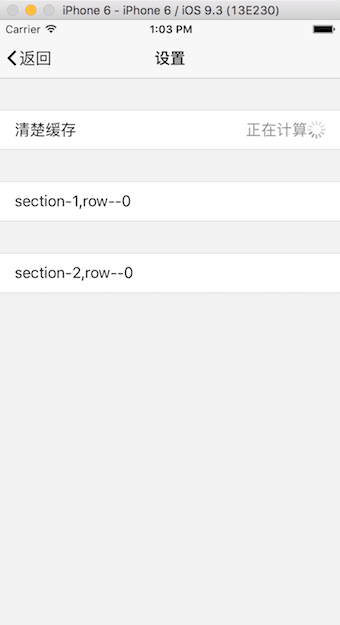
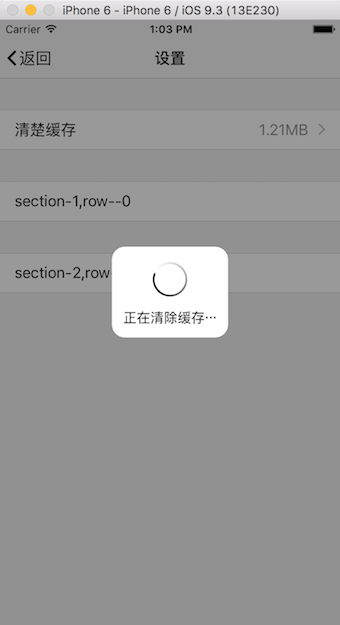
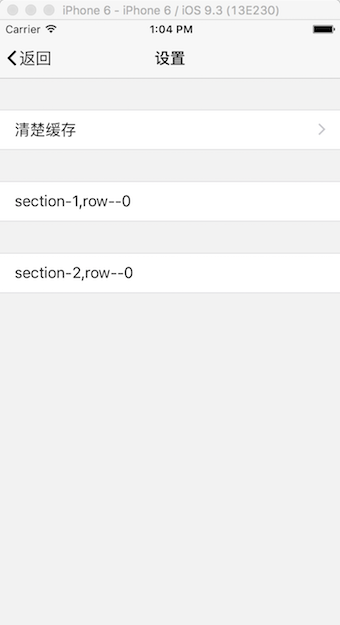
總結
這個功能看起來簡單,但細節不少:計算與清除都要走子線程、UI 更新必須回主線程、手勢與 delegate 衝突、以及 Cell 重用導致的動畫中斷。把這些都處理好,封裝出來的效果才會穩。以上就是本文的全部內容,若有疑問歡迎留言交流。
- 上一篇文章: iOS 中修改 UITextField 占位符顏色的三種做法
- 下一篇文章: 詳解 iOS 中 Button 的狀態切換與點擊事件處理