IOS實現輸入驗證碼、密碼按位分割(二)
編輯:IOS開發綜合
本文提供了實現IOS實現輸入驗證碼、密碼按位分割的一種思路,分享給大家供大家參考,希望與大家共同交流。
一、實現思路
1、思路描述
- 自定義一個view,繼承自UIView
- 在view中添加子控件textField,backgroundImageView,label
- 將驗證碼/密碼的內容繪制到label的指定區域(計算得到),所以label要自定義,在drawRect方法中繪制驗證碼
- 使用一個屬性secureTextEntry,來控制顯示驗證碼(顯示真實的數字)或密碼(顯示圓點)
2、視圖中的子控件
- textField:只負責彈出鍵盤,獲取鍵盤輸入的數據;不用於演示鍵盤輸入的內容,實際是隱藏的
- backgroundImageView:顯示實現分割效果的背景圖片
- label:顯示驗證碼或密碼的內容
3、控件之間的關系
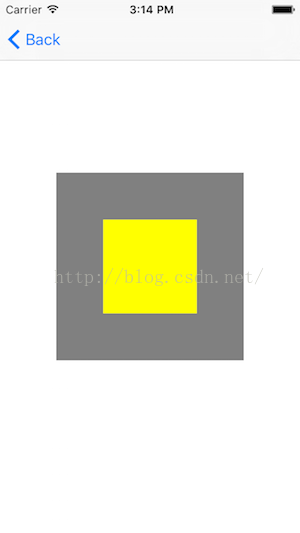
如圖:
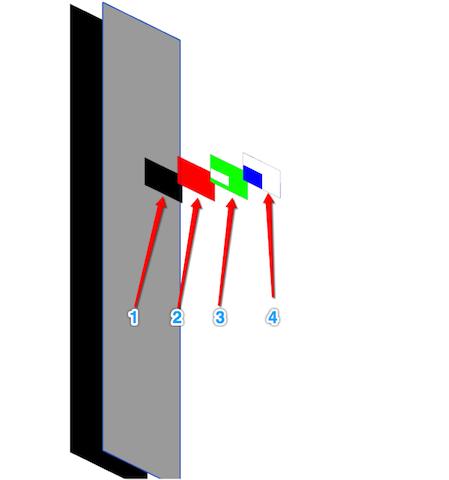
- 編號“1”:父視圖(vertificationCodeInputView)
- 編號“2”:子視圖(textField)
- 編號“3”:子視圖(backgroundImageView)
- 編號“4”:子視圖(label)
- 圖片來源於Xcode的調試工具
層級關系
- label用於顯示驗證碼的內容,必須在最上邊
- backgroundImageView顯示背景圖片,所以必須在label的後邊,且可以顯示出來
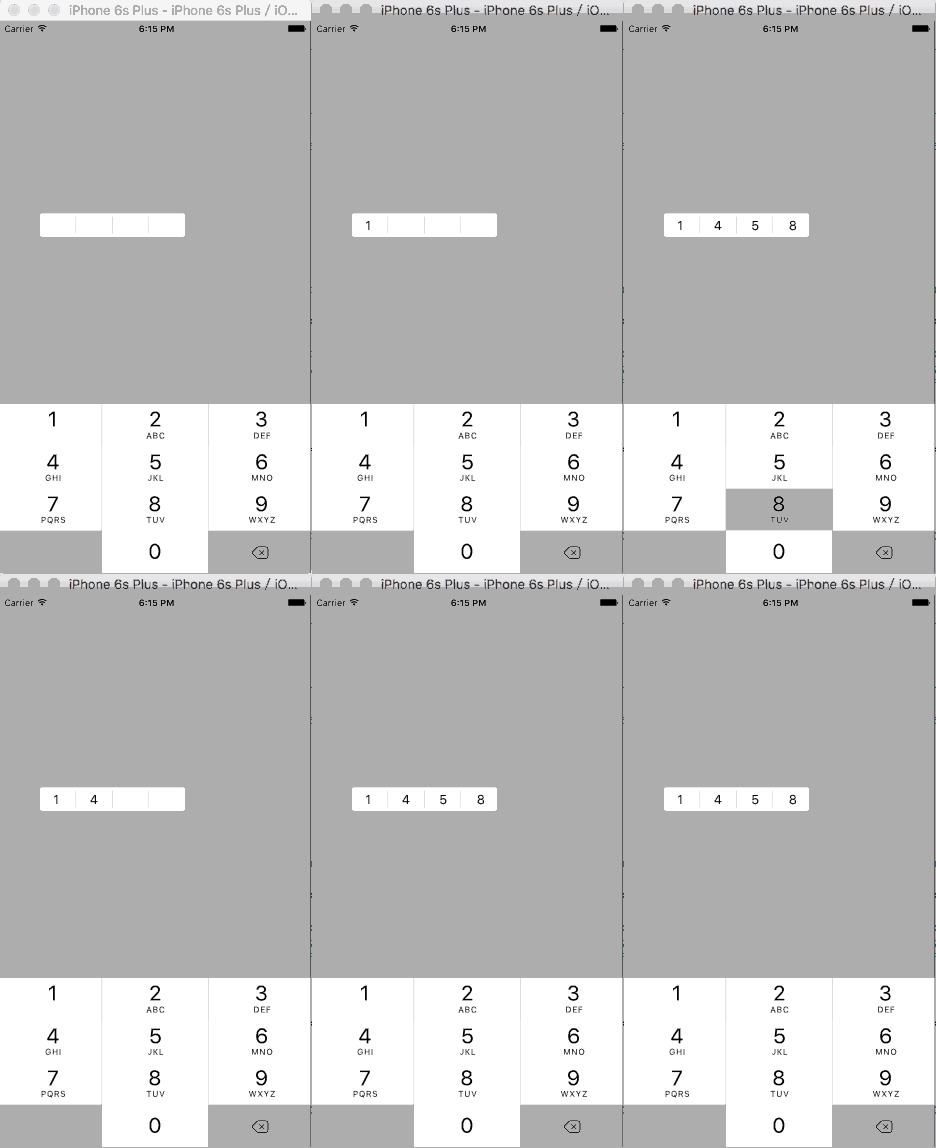
二、實現效果
密碼輸入效果
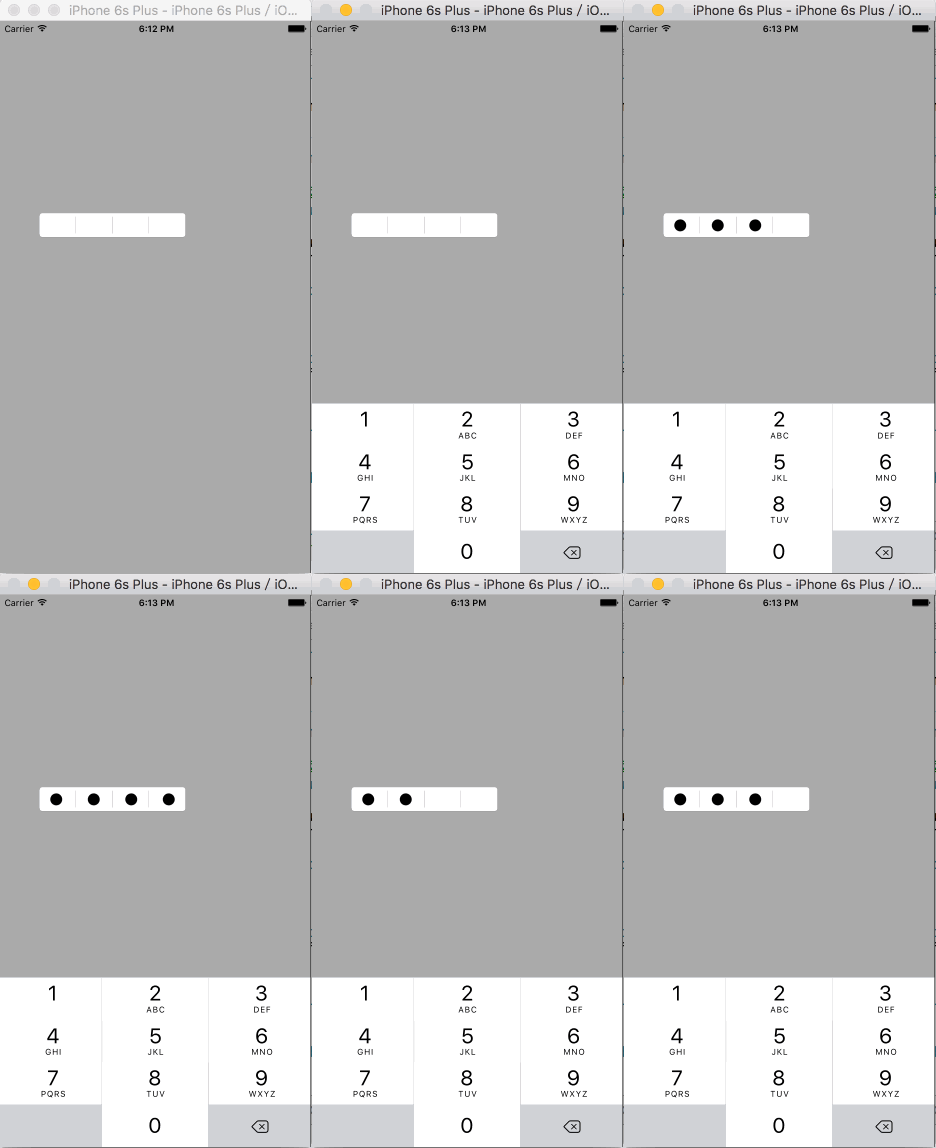
驗證碼輸入效果
三、實現步驟
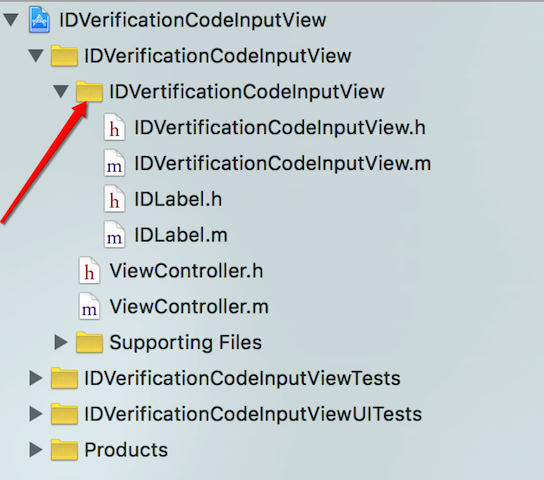
代碼結構
如圖:
1、IDVertificationCodeInputView(編號“1”視圖)的的屬性
公有屬性(vertificationCodeInputView的相關屬性)
@interface IDVertificationCodeInputView : UIView
/**背景圖片*/
@property (nonatomic, copy) NSString *backgroudImageName;
/**驗證碼/密碼的位數*/
@property (nonatomic, assign) NSInteger numberOfVertificationCode;
/**控制驗證碼/密碼是否密文顯示*/
@property (nonatomic, assign) bool secureTextEntry;
/**驗證碼/密碼內容,可以通過該屬性拿到驗證碼/密碼輸入框中驗證碼/密碼的內容*/
@property (nonatomic, copy) NSString *vertificationCode;
@end
私有屬性(vertificationCodeInputView的子控件)
@interface IDVertificationCodeInputView () <UITextFieldDelegate>
/**用於獲取鍵盤輸入的內容,實際不顯示*/
@property (nonatomic, strong) UITextField *textField;
/**驗證碼/密碼輸入框的背景圖片*/
@property (nonatomic, strong) UIImageView *backgroundImageView;
/**實際用於顯示驗證碼/密碼的label*/
@property (nonatomic, strong) IDLabel *label;
@end
2、IDLabel(編號“4”視圖)的屬性
公有屬性
@interface IDLabel : UILabel
/**驗證碼/密碼的位數*/
@property (nonatomic, assign) NSInteger numberOfVertificationCode;
/**控制驗證碼/密碼是否密文顯示*/
@property (nonatomic, assign) bool secureTextEntry;
@end
3、業務邏輯
vertificationCodeInputView的初始化
- 設置驗證碼/密碼的默認位數(4位),添加textField和label
- (instancetype)initWithFrame:(CGRect)frame {
  if (self = [super initWithFrame:frame]) {
    // 設置透明背景色,保證vertificationCodeInputView顯示的frame為backgroundImageView的frame
    self.backgroundColor = [UIColor clearColor];
    // 設置驗證碼/密碼的位數默認為四位
    self.numberOfVertificationCode = 4;
    /* 調出鍵盤的textField */
    self.textField = [[UITextField alloc] initWithFrame:self.bounds];
    // 隱藏textField,通過點擊IDVertificationCodeInputView使其成為第一響應者,來彈出鍵盤
    self.textField.hidden = YES;
    self.textField.keyboardType = UIKeyboardTypeNumberPad;
    self.textField.delegate = self;
    // 將textField放到最後邊
    [self insertSubview:self.textField atIndex:0];
    /* 添加用於顯示驗證碼/密碼的label */
    self.label = [[IDLabel alloc] initWithFrame:self.bounds];
    self.label.numberOfVertificationCode = self.numberOfVertificationCode;
    self.label.secureTextEntry = self.secureTextEntry;
    self.label.font = self.textField.font;
    [self addSubview:self.label];
  }
  return self;
}
- 若設置了背景圖片,需要將backgroundImageView添加進vertificationCodeInputView
- (void)setBackgroudImageName:(NSString *)backgroudImageName {
  _backgroudImageName = backgroudImageName;
  // 若用戶設置了背景圖片,則添加背景圖片
  self.backgroundImageView = [[UIImageView alloc] initWithFrame:self.bounds];
  self.backgroundImageView.image = [UIImage imageNamed:self.backgroudImageName];
  // 將背景圖片插入到label的後邊,避免遮擋驗證碼/密碼的顯示
  [self insertSubview:self.backgroundImageView belowSubview:self.label];
}
- 若設置了驗證碼/密碼的位數,和是否密文顯示,則需要保持label中相應屬性與vertificationCodeInputView中一致
- (void)setNumberOfVertificationCode:(NSInteger)numberOfVertificationCode {
  _numberOfVertificationCode = numberOfVertificationCode;
  // 保持label的驗證碼/密碼位數與IDVertificationCodeInputView一致,此時label一定已經被創建
  self.label.numberOfVertificationCode = _numberOfVertificationCode;
}
- (void)setSecureTextEntry:(bool)secureTextEntry {
  _secureTextEntry = secureTextEntry;
  self.label.secureTextEntry = _secureTextEntry;
}
4、彈出鍵盤,並接收鍵盤輸入的字符
彈出鍵盤
- (void)touchesBegan:(NSSet<UITouch *> *)touches withEvent:(UIEvent *)event {
  [self.textField becomeFirstResponder];
}
接收鍵盤輸入的字符
- (BOOL)textField:(UITextField *)textField shouldChangeCharactersInRange:(NSRange)range replacementString:(NSString *)string {
  // 判斷是不是“刪除”字符
  if (string.length != 0) {// 不是“刪除”字符
    // 判斷驗證碼/密碼的位數是否達到預定的位數
    if (textField.text.length < self.numberOfVertificationCode) {
      self.label.text = [textField.text stringByAppendingString:string];
      self.vertificationCode = self.label.text;
      return YES;
    } else {
      return NO;
    }
  } else { // 是“刪除”字符
    self.label.text = [textField.text substringToIndex:textField.text.length - 1];
    self.vertificationCode = self.label.text;
    return YES;
  }
}
5、繪制驗證碼/密碼(IDLabel)
手動調用drawRect方法
//重寫setText方法,當text改變時手動調用drawRect方法,將text的內容按指定的格式繪制到label上
- (void)setText:(NSString *)text {
  [super setText:text];
  // 手動調用drawRect方法
  [self setNeedsDisplay];
}
繪制驗證碼/密碼
// 按照指定的格式繪制驗證碼/密碼
- (void)drawRect:(CGRect)rect {
  //計算每位驗證碼/密碼的所在區域的寬和高
  float width = rect.size.width / (float)self.numberOfVertificationCode;;
  float height = rect.size.height;
  // 將每位驗證碼/密碼繪制到指定區域
  for (int i = 0; i < self.text.length; i++) {
    // 計算每位驗證碼/密碼的繪制區域
    CGRect tempRect = CGRectMake(i * width, 0, width, height);
    if (self.secureTextEntry) { // 密碼,顯示圓點
      UIImage *dotImage = [UIImage imageNamed:@"dot"];
      // 計算圓點的繪制區域
      CGPoint securityDotDrawStartPoint = CGPointMake(width * i + (width - dotImage.size.width) / 2.0, (tempRect.size.height - dotImage.size.height) / 2.0);
      // 繪制圓點
      [dotImage drawAtPoint:securityDotDrawStartPoint];
    } else { // 驗證碼,顯示數字
      // 遍歷驗證碼/密碼的每個字符
      NSString *charecterString = [NSString stringWithFormat:@"%c", [self.text characterAtIndex:i]];
      // 設置驗證碼/密碼的現實屬性
      NSMutableDictionary *attributes = [[NSMutableDictionary alloc] init];
      attributes[NSFontAttributeName] = self.font;
      // 計算每位驗證碼/密碼的繪制起點(為了使驗證碼/密碼位於tempRect的中部,不應該從tempRect的重點開始繪制)
      // 計算每位驗證碼/密碼的在指定樣式下的size
      CGSize characterSize = [charecterString sizeWithAttributes:attributes];
      CGPoint vertificationCodeDrawStartPoint = CGPointMake(width * i + (width - characterSize.width) / 2.0, (tempRect.size.height - characterSize.height) / 2.0);
      // 繪制驗證碼/密碼
      [charecterString drawAtPoint:vertificationCodeDrawStartPoint withAttributes:attributes];
    }
  }
}
6、使用示例
在控制器中創建,並設置vertificationCodeInputView相關屬性
- (void)viewDidLoad {
  [super viewDidLoad];
  self.view.backgroundColor = [UIColor lightGrayColor];
  self.vertificationCodeInputView = [[IDVertificationCodeInputView alloc] initWithFrame:CGRectMake(50, 250, 200, 45)];
  self.vertificationCodeInputView.backgroudImageName = @"1";
  // 驗證碼(顯示數字)
  self.vertificationCodeInputView.secureTextEntry = NO;
  //self.vertificationCodeInputView.secureTextEntry = YES;
  [self.view addSubview:self.vertificationCodeInputView];
}
點擊屏幕,打印驗證碼的內容
- (void)touchesBegan:(NSSet<UITouch *> *)touches withEvent:(UIEvent *)event {
  NSLog(@"%@", self.vertificationCodeInputView.vertificationCode);
}
以上就是本文的全部內容,希望對大家的學習有所幫助。
相關文章
+