
iOS項目開發實戰——Swift實現多個TableView的側滑與切換
編輯:IOS開發綜合
在Android中我們常常使用ListView來表示列表,來顯示類似的呈現列表樣式的結果。來到iOS中,這種控件稱之為TableView。這裡我們將會通過使用ScrollView和TableView結合的方式來實現可以側滑顯示的列表,這將會大大提高用戶體驗。先看一下實現效果:
 。
。
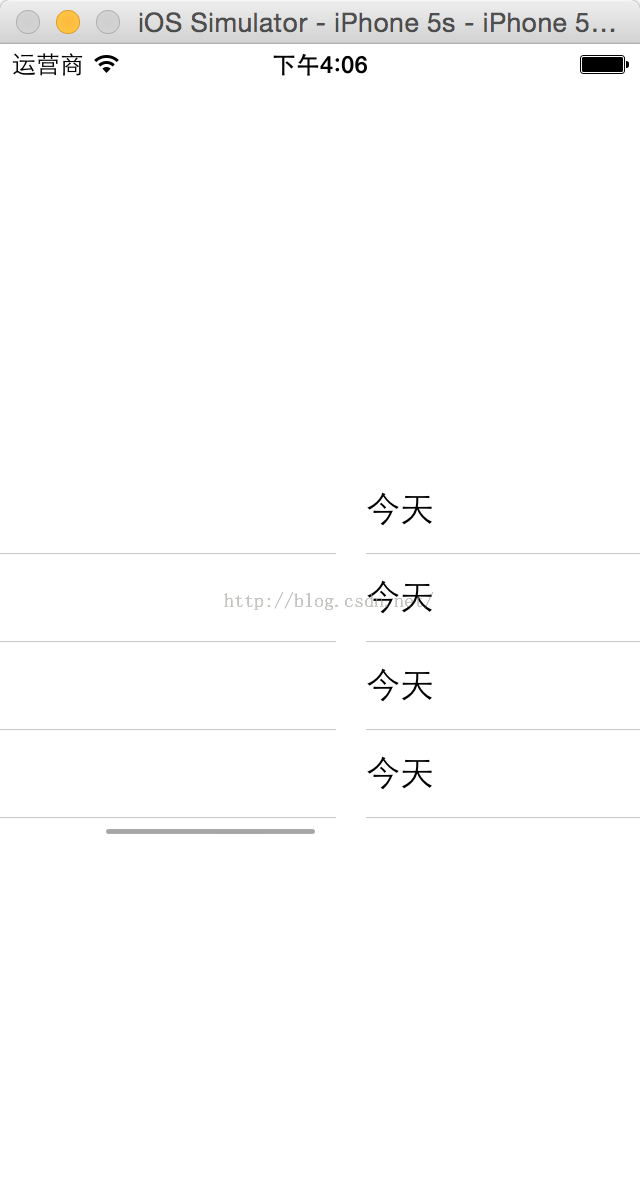 。
。
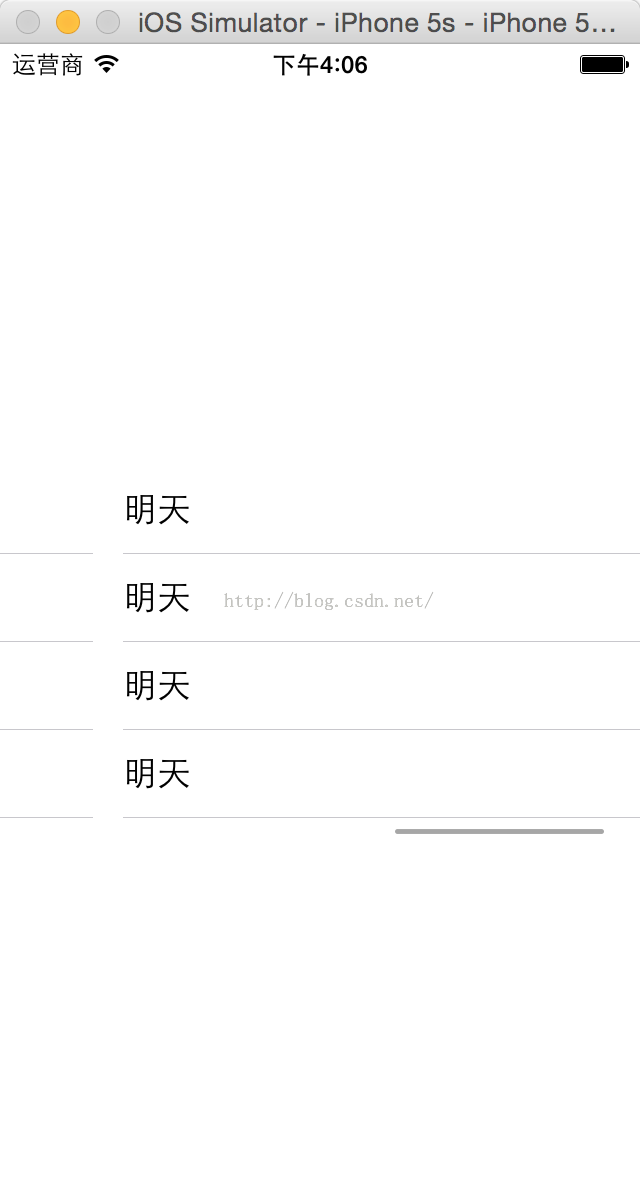 。
。
具體實現步驟如下:
(1)創建一個iOS項目,Language選擇Swift,然後在Main.storyboard中拖入一個ScrollView,即滾動控件,界面設計如圖:
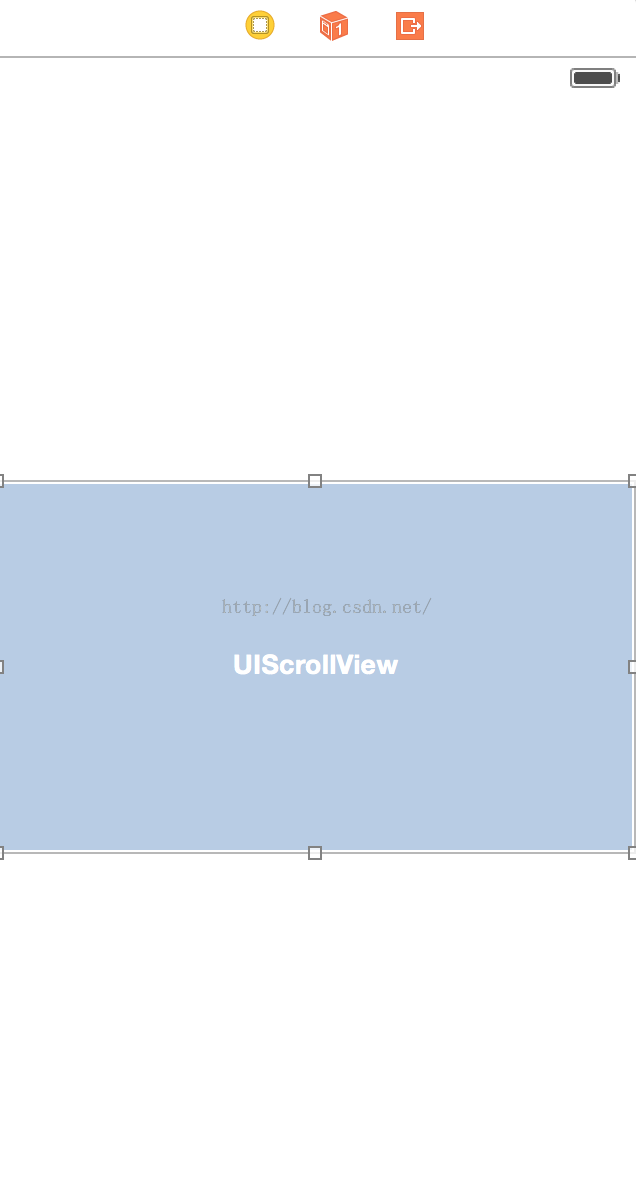 。
。
(2)然後拖動控件綁定到代碼中:
@IBOutlet weak var dynamicScrollView: UIScrollView!
(3)我將會在一個ScrollView中實現三個TableView,三個列表可以通過手指的左右滑動進行切換,一些變量定義如下:
    var tableView11:UITableView = UITableView()
    var tableView22:UITableView = UITableView()
    var tableView33:UITableView = UITableView()

    var cell1 = UITableViewCell()
    var cell2 = UITableViewCell()
    var cell3 = UITableViewCell()
(4)然後在viewDidLoad()中設置委托和數據源,同時該類要實現以下接口:UIScrollViewDelegate,UITableViewDelegate,UITableViewDataSource
    override func viewDidLoad() {
        super.viewDidLoad()

        tableView11.delegate = self
        tableView11.dataSource = self

        tableView22.delegate = self
        tableView22.dataSource = self

        tableView33.delegate = self
        tableView33.dataSource = self

        dynamicScroll()
        initCustomTableView()
    }
(5)實現dynamicScroll()方法,該方法是對ScrollView控件的滾動進行控制,同時把三個TableView加入到ScrollView中:
    func dynamicScroll(){  //動態信息的滾動;
        let tableW:CGFloat = self.dynamicScrollView.frame.size.width;
        let tableH:CGFloat = self.dynamicScrollView.frame.size.height;
        var tableY:CGFloat = 0;
        var totalCount:NSInteger = 3;//只有三列;

            var tableView1:UITableView = UITableView();
            var tableView2:UITableView = UITableView();
            var tableView3:UITableView = UITableView();

            tableView11.frame = CGRectMake(CGFloat(0) * tableW, tableY, tableW, tableH);
            tableView22.frame = CGRectMake(CGFloat(1) * tableW, tableY, tableW, tableH);
            tableView33.frame = CGRectMake(CGFloat(2) * tableW, tableY, tableW, tableH);

            dynamicScrollView.addSubview(tableView11);
            dynamicScrollView.addSubview(tableView22);
            dynamicScrollView.addSubview(tableView33);

        let contentW:CGFloat = tableW * CGFloat(totalCount);//這個表示整個ScrollView的長度;
        dynamicScrollView.contentSize = CGSizeMake(contentW, 0);
        dynamicScrollView.pagingEnabled = true;
        dynamicScrollView.delegate = self;

    }
(6)實現initCustomTableView()方法,該方法是對TableView的中的Cell設置ID號,用來標識不同的TableView :
    func  initCustomTableView(){    //初始化動態信息中的TableView

        tableView11.registerClass(UITableViewCell.self, forCellReuseIdentifier:cell1)
        tableView22.registerClass(UITableViewCell.self, forCellReuseIdentifier:cell2)
        tableView33.registerClass(UITableViewCell.self, forCellReuseIdentifier:cell3)
    }
(7)最後實現UITableViewDataSource中的兩個必須實現的方法,是對三個TableView的數據源將進行設置:需要顯示的內容可以在這裡進行添加:
    func tableView(tableView: UITableView, numberOfRowsInSection section: Int) -> Int{

        return 5  //返回TableView的Cell數量,可以動態設置;
    }

    func tableView(tableView: UITableView, cellForRowAtIndexPath indexPath: NSIndexPath) -> UITableViewCell{

        var cell = UITableViewCell()

        switch tableView {

        case tableView11:
            cell1 = tableView11.dequeueReusableCellWithIdentifier(cell1) as! UITableViewCell
            cell1.textLabel!.text = String(format:昨天)
            cell = cell1
            break

        case tableView22:
            cell2 = tableView22.dequeueReusableCellWithIdentifier(cell2) as! UITableViewCell
            cell2.textLabel!.text = String(format:今天)
            cell = cell2

            break

        case tableView33:
            cell3 = tableView33.dequeueReusableCellWithIdentifier(cell3) as! UITableViewCell
            cell3.textLabel!.text = String(format:明天)
            cell = cell3

            break

        default:
            break
        }

       return cell
    }
(8)最後運行程序,就可以實現本文開頭的多個TableView在ScrollView中通過側滑就可以切換的效果,雖然屏幕大小有限,我們可以通過視圖的切換顯示豐富的內容。
在iOS的開發中,TableView和ScrollView是兩個最為常用,使用最為靈活的控件,必須要好好掌握。



相關文章
+