
iOS 開發實戰:UIPickerView 選擇器控件用法
編輯:iOS 開發綜合
UIPickerView(選擇器)是一個出鏡率相當高的控件,作用類似於 HTML 中的下拉選單 Select。要使用它,必須實作 UIPickerViewDataSource 與 UIPickerViewDelegate 兩個協議。本文就帶大家一起動手實作。
一、關鍵程式碼
.h 檔:
#import <UIKit/UIKit.h>

//需要實作 UIPickerViewDataSource、UIPickerViewDelegate 協議
@interface ZYViewController : UIViewController<UIPickerViewDataSource,UIPickerViewDelegate>

@property(nonatomic,strong) UIPickerView *myPicker;

@end
.m 檔:
@implementation ZYViewController

@synthesize myPicker;

- (void)viewDidLoad
{
    [super viewDidLoad];
    self.view.backgroundColor = [UIColor whiteColor];

    self.myPicker = [[UIPickerView alloc] init];
    self.myPicker.dataSource = self;
    self.myPicker.center = self.view.center;
    self.myPicker.delegate = self;
    self.myPicker.showsSelectionIndicator = YES;//顯示選取指示條
    [self.view addSubview:self.myPicker];
}

//返回列數(組件數量)
- (NSInteger)numberOfComponentsInPickerView:(UIPickerView *)pickerView{
    NSInteger result = 0;
    if([pickerView isEqual:self.myPicker]){
        result = 1;
    }
    return result;
}

//每個組件的行數
- (NSInteger)pickerView:(UIPickerView *)pickerView numberOfRowsInComponent:(NSInteger)component{
    NSInteger result = 0;
    if ([pickerView isEqual:self.myPicker]) {
        result = 10;
    }
    return result;
}

//每個組件每一行的標題
- (NSString *)pickerView:(UIPickerView *)pickerView titleForRow:(NSInteger)row forComponent:(NSInteger)component{
    NSString *result = nil;
    if ([pickerView isEqual:self.myPicker]) {
        result = [NSString stringWithFormat:@"Row %ld",(long)row+1];
    }
    return result;
}

//選取時觸發的事件
- (void)pickerView:(UIPickerView *)pickerView didSelectRow:(NSInteger)row inComponent:(NSInteger)component
{
    NSLog(@"result: You selected Row%ld",(long)row+1);
}
二、運行結果
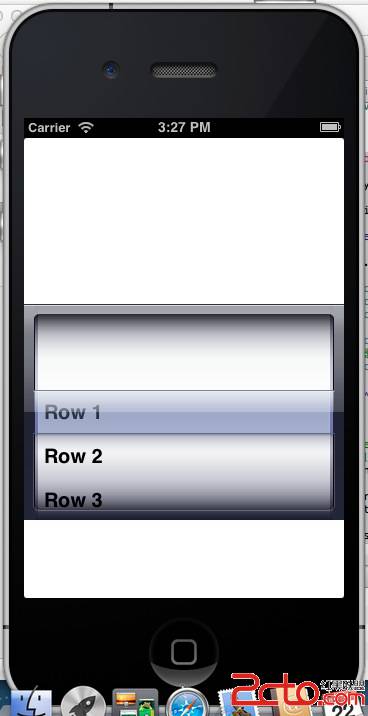
當選擇某個選項時,控制台會輸出對應的訊息:
2013-04-22 15:27:21.163 UIPickerViewTest[649:c07] result: You selected Row1
2013-04-22 15:31:49.433 UIPickerViewTest[649:c07] result: You selected Row2
2013-04-22 15:31:51.327 UIPickerViewTest[649:c07] result: You selected Row4
透過實作這幾個方法,就能輕鬆打造自訂的選擇器介面。
- 上一篇文章: iOS 開發實戰:UIDatePicker 日期與時間選擇器
- 下一篇文章: iOS 開發實戰:UISwitch 開關控件的基本用法