
iOS 開發之 Auto Layout 入門
隨著 iPhone 6 與 iOS 8 的到來,畫面適配變得更複雜了。最近把 Auto Layout 重新學了一遍,在此整理分享。
什麼是 Auto Layout
Auto Layout 是 iOS 6 之後引入的全新佈局特性,目的是彌補 Autoresizing 在佈局上的不足,並讓介面在面對更多尺寸時能更好地適應。
為什麼要用它
Auto Layout 能解決不同螢幕(iPhone 4、iPhone 5、iPad……)之間的適配問題。
iPhone 4 時代開發者只需要適配一種尺寸,相比 Android 的相對佈局,iOS 最常用的做法是絕對佈局 —— 把座標與尺寸寫死即可。後來 iPhone 5 出現,兩種尺寸並存,適配就成了新課題。蘋果其實很早就提供了 Autoresizing 技術,但它確實有所不足,因此在 iOS 6 之後推出 Auto Layout,以適應更廣的佈局場景。
iPhone 5 因為寬度與 iPhone 4 一致,即使用不上這些技術也不麻煩(我在之前也只用到 Autoresizing)。但當螢幕尺寸越來越多、適配越來越複雜時,Auto Layout 能幫上大忙,此外也能處理橫豎屏切換與 iPad 適配。
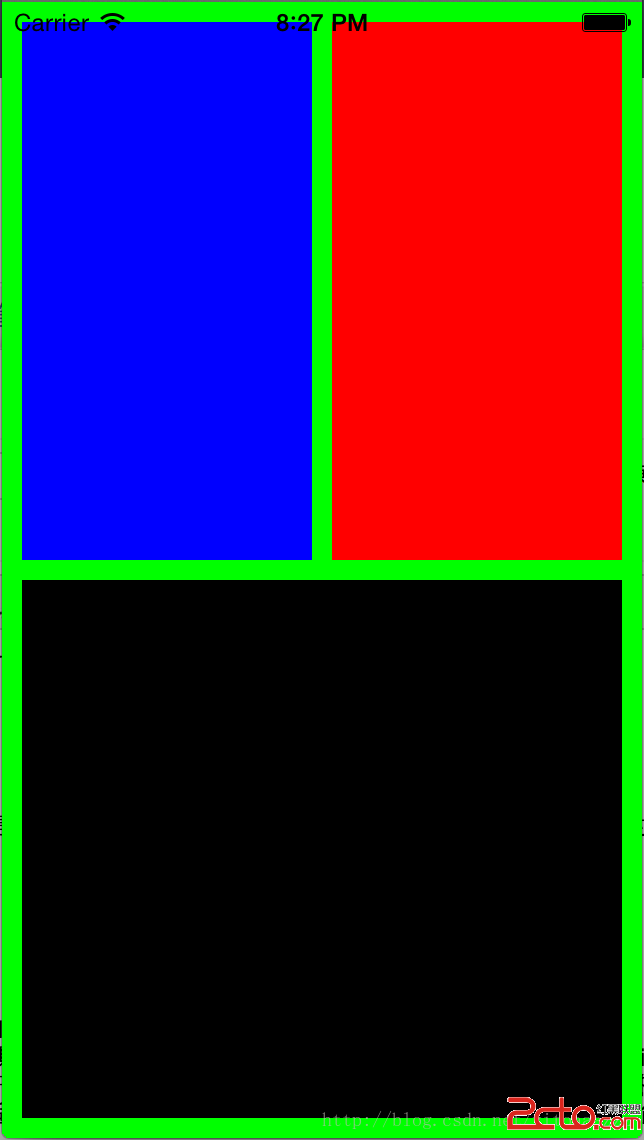
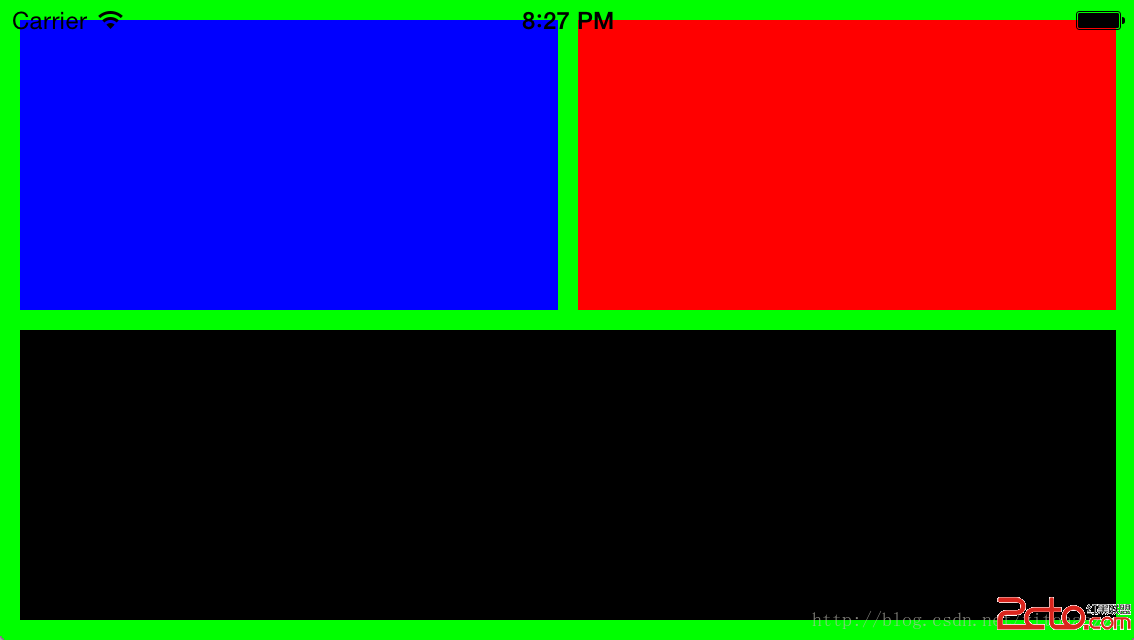
下面是本文範例在橫豎屏切換下的效果:
基本概念
Auto Layout 的核心是約束(constraint):透過對 view 的大小、以及 view 彼此之間的關係下約束,讓系統自行算出尺寸與座標。
Visual Format Language(VFL):一種用字串形象描述約束的語法規則。
Auto Layout 上手門檻偏高,一開始容易摸不著頭緒,但熟悉 VFL 的寫法之後就會感受到它的便利。
在程式碼中使用
- (void)viewDidLoad {
    [super viewDidLoad];
    self.view.backgroundColor = [UIColor greenColor];

    UIView *viewTopLeft  = [[UIView alloc] init];
    UIView *viewTopRight = [[UIView alloc] init];
    UIView *viewBottom   = [[UIView alloc] init];

    [viewTopLeft setBackgroundColor:[UIColor blueColor]];
    [viewTopRight setBackgroundColor:[UIColor redColor]];
    [viewBottom setBackgroundColor:[UIColor blackColor]];

    // 加上約束之前,必須先把 view 加入 superview
    [self.view addSubview:viewTopRight];
    [self.view addSubview:viewTopLeft];
    [self.view addSubview:viewBottom];

    // 要使用 Auto Layout 的控件,必須關閉 autoresizing 轉換
    [viewTopLeft setTranslatesAutoresizingMaskIntoConstraints:NO];
    [viewTopRight setTranslatesAutoresizingMaskIntoConstraints:NO];
    [viewBottom setTranslatesAutoresizingMaskIntoConstraints:NO];

#if 1
    // dict 與 metrics 是 VFL 中「名稱 ↔ 物件」與「名稱 ↔ 數值」的映射
    NSDictionary *dict = NSDictionaryOfVariableBindings(viewTopLeft, viewTopRight, viewBottom);
    // 等價於:
    // NSDictionary *dict = @{@"viewTopLeft": viewTopLeft, @"viewTopRight": viewTopRight, @"viewBottom": viewBottom};
    // 名稱不一定要與變數名一致
    NSDictionary *metrics = @{@"pad": @10};

    // 水平關係(H:,"|" 代表 superview,"-" 是連接符表示間距,也可省略表示無間距)
    // 自然語言描述:superview 左邊界間隔 pad 是 viewTopLeft(寬度等於 viewTopRight),
    // 再間隔預設距離是 viewTopRight,再間隔 10 是 superview 右邊界
    NSString *vfl0 = @"H:|-pad-[viewTopLeft(==viewTopRight)]-[viewTopRight]-10-|";
    NSString *vfl1 = @"|[viewBottom]|";

    // 垂直關係(V:)
    NSString *vfl2 = @"V:|-[viewTopLeft(==viewBottom)]-[viewBottom]-pad-|";
    NSString *vfl3 = @"V:|-[viewTopRight]-[viewBottom]-pad-|";

    [self.view addConstraints:[NSLayoutConstraint constraintsWithVisualFormat:vfl0 options:0 metrics:metrics views:dict]];
    [self.view addConstraints:[NSLayoutConstraint constraintsWithVisualFormat:vfl1 options:0 metrics:metrics views:dict]];
    [self.view addConstraints:[NSLayoutConstraint constraintsWithVisualFormat:vfl2 options:0 metrics:metrics views:dict]];
    [self.view addConstraints:[NSLayoutConstraint constraintsWithVisualFormat:vfl3 options:0 metrics:metrics views:dict]];
#else
    // viewTopLeft 的 leading 與 superview 的 leading 對齊
    [self.view addConstraint:[NSLayoutConstraint constraintWithItem:self.view attribute:NSLayoutAttributeLeading relatedBy:NSLayoutRelationEqual toItem:viewTopLeft attribute:NSLayoutAttributeLeading multiplier:1 constant:-10]];
    // viewTopLeft 的 top 與 superview 的 top 對齊
    [self.view addConstraint:[NSLayoutConstraint constraintWithItem:self.view attribute:NSLayoutAttributeTop relatedBy:NSLayoutRelationEqual toItem:viewTopLeft attribute:NSLayoutAttributeTop multiplier:1 constant:-10]];
    // viewTopRight 的 top 與 viewTopLeft 的 top 對齊
    [self.view addConstraint:[NSLayoutConstraint constraintWithItem:viewTopRight attribute:NSLayoutAttributeTop relatedBy:NSLayoutRelationEqual toItem:viewTopLeft attribute:NSLayoutAttributeTop multiplier:1 constant:0]];
    // viewTopRight 的 leading 對齊 viewTopLeft 的 trailing
    [self.view addConstraint:[NSLayoutConstraint constraintWithItem:viewTopRight attribute:NSLayoutAttributeLeading relatedBy:NSLayoutRelationEqual toItem:viewTopLeft attribute:NSLayoutAttributeTrailing multiplier:1 constant:10]];
    // viewTopRight 的 trailing 與 superview 右側對齊
    [self.view addConstraint:[NSLayoutConstraint constraintWithItem:viewTopRight attribute:NSLayoutAttributeTrailing relatedBy:NSLayoutRelationEqual toItem:self.view attribute:NSLayoutAttributeTrailing multiplier:1 constant:-10]];
    // 寬度與 viewTopLeft 相等
    [self.view addConstraint:[NSLayoutConstraint constraintWithItem:viewTopRight attribute:NSLayoutAttributeWidth relatedBy:NSLayoutRelationEqual toItem:viewTopLeft attribute:NSLayoutAttributeWidth multiplier:1 constant:0]];
    // 高度與 viewTopLeft 相等
    [self.view addConstraint:[NSLayoutConstraint constraintWithItem:viewTopLeft attribute:NSLayoutAttributeHeight relatedBy:NSLayoutRelationEqual toItem:viewTopRight attribute:NSLayoutAttributeHeight multiplier:1 constant:0]];
    // viewBottom 的 top 對齊 viewTopRight 的 bottom
    [self.view addConstraint:[NSLayoutConstraint constraintWithItem:viewBottom attribute:NSLayoutAttributeTop relatedBy:NSLayoutRelationEqual toItem:viewTopRight attribute:NSLayoutAttributeBottom multiplier:1 constant:10]];
    // viewBottom 的 bottom 與 superview 對齊
    [self.view addConstraint:[NSLayoutConstraint constraintWithItem:viewBottom attribute:NSLayoutAttributeBottom relatedBy:NSLayoutRelationEqual toItem:self.view attribute:NSLayoutAttributeBottom multiplier:1 constant:-10]];
    // viewBottom 的 leading 與 viewTopLeft 對齊
    [self.view addConstraint:[NSLayoutConstraint constraintWithItem:viewBottom attribute:NSLayoutAttributeLeading relatedBy:NSLayoutRelationEqual toItem:viewTopLeft attribute:NSLayoutAttributeLeading multiplier:1 constant:0]];
    // 高度與 viewTopLeft 相等
    [self.view addConstraint:[NSLayoutConstraint constraintWithItem:viewBottom attribute:NSLayoutAttributeHeight relatedBy:NSLayoutRelationEqual toItem:viewTopLeft attribute:NSLayoutAttributeHeight multiplier:1 constant:0]];
    // 寬度等於 superview 寬度減 20
    [self.view addConstraint:[NSLayoutConstraint constraintWithItem:viewBottom attribute:NSLayoutAttributeWidth relatedBy:NSLayoutRelationEqual toItem:self.view attribute:NSLayoutAttributeWidth multiplier:1 constant:-20]];
#endif

    [self.view setNeedsUpdateConstraints];
    [self.view updateConstraintsIfNeeded];
}
幾個注意點
1. 約束系統必須有已知基準。約束是靠已知量去推導未知量,上面 self.view 的尺寸是給定的。如果 superview 的尺寸不固定,就必須給定某個 subview 的尺寸,否則方程組無解,Auto Layout 只能自行挑一個約束破壞,畫面就會出現警告與錯位。
2. 約束要加在他們共同的 superview 上。兩個 view 之間的關係,應該 addConstraint 到它們的父視圖;如果其中一個就是 superview,加到它身上即可。
3. 盡量避免約束衝突。雖然可以設定優先級,但衝突的約束很容易導致不可預期的結果,除錯成本遠高於一開始就把關係想清楚。
4. VFL 表達尺寸關係時只有相等、小於、大於三種。它沒辦法像 NSLayoutConstraint 那樣直接指定兩個 view 的比例(multiplier),所以實務上兩種方式要混用。
在 xib 中使用
以我的感覺,在 xib 裡拉約束還不如寫程式碼直觀。原理與程式碼完全相同,這裡就不多贅述。
參考資料
Auto Layout Guide
ios8 來了,螢幕更大,準備好使用 iOS Auto Layout 了嗎?
Autolayout 及 VFL 經驗分享
- 上一篇文章: iOS 音頻播放(五):AudioQueue 深入解析
- 下一篇文章: iOS 使用 GDataXML-HTML 生成 XML 文件