
用自訂 UIView 動態產生 UITableViewCell:告別 cellForRow 裡的手工排版
編輯:iOS 開發綜合
專案裡如果有大量「標籤:內容」這種樣式的 cell,每次都手寫 frame 計算實在很痛苦。既然每個 cell 的結構都一樣,只是文字長度不同,那就把排版邏輯封裝到一個自訂 UIView 裡,讓 cellForRow 回歸乾淨。
設計思路
每一列由若干組「標籤 + 內容」構成。標籤欄寬度固定,內容欄佔據剩下的空間;一列的高度取兩者中較高的那個。逐列往下累計高度,最上方與最下方各留一點間距,最後在最底部畫一條分隔線。
一、CommonTableViewCellView.h
#import <UIKit/UIKit.h>

// 傳遞參數自動排版 UITableViewCell,樣式:label:Value
@interface CommonTableViewCellView : UIView
{
    UIColor *_cellViewColor;   // cell 顏色(保留項)
    CGFloat _labelSpace;       // label 寬度(保留項)
    CGFloat _viewHeight;
}

@property (nonatomic, retain) UIColor *cellViewColor;
@property (nonatomic, assign) CGFloat labelSpace;
@property (nonatomic, assign) CGFloat viewHeight;

- (id)initWithFrame:(CGRect)frame
           keyArray:(NSArray*)keyArray
         valueArray:(NSArray*)valueArray;
@end
二、CommonTableViewCellView.m
#import "CommonTableViewCellView.h"

#define topBottomSpace_     10.0f
#define labelSpace_        100.0f
#define leftSpace_          20.0f
#define rightSpace_          5.0f
#define contentHeightSpace_ 20.0f
#define contentWidthSpace_  (self.frame.size.width - labelSpace_ - leftSpace_ - rightSpace_)

@implementation CommonTableViewCellView
@synthesize cellViewColor = _cellViewColor;
@synthesize labelSpace    = _labelSpace;
@synthesize viewHeight    = _viewHeight;

-(void)dealloc
{
    self.cellViewColor = nil;
    [super dealloc];
}

- (id)initWithFrame:(CGRect)frame
           keyArray:(NSArray*)keyArray
         valueArray:(NSArray*)valueArray
{
    self = [super initWithFrame:frame];
    if (self) {
        self.labelSpace    = labelSpace_;
        self.cellViewColor = [UIColor clearColor];
        self.viewHeight    = topBottomSpace_;

        int count = keyArray.count > valueArray.count ? keyArray.count : valueArray.count;

        for (int i = 0; i < count; i++) {
            self.viewHeight = [self rectUIView:self.viewHeight
                                    labelText:[keyArray objectAtIndex:i]
                                         text:[valueArray objectAtIndex:i]];
        }
        self.viewHeight += topBottomSpace_;

        // 底部橫向分隔線
        UIImageView *imgView_H = [[UIImageView alloc]
            initWithFrame:CGRectMake(0, self.viewHeight - 1, self.frame.size.width, 1)];
        imgView_H.backgroundColor = [UIColor colorWithRed:221/255.0f
                                                    green:221/255.0f
                                                     blue:221/255.0f
                                                    alpha:1.0];
        [self addSubview:imgView_H];
        [imgView_H release];

        // 撐開高度
        [self setFrame:CGRectMake(0, frame.origin.y, self.frame.size.width, self.viewHeight)];
    }
    return self;
}

// 依文字內容重算所需高度
-(CGFloat)resizeViewHeight:(NSString *)text width:(CGFloat)width height:(CGFloat)height
{
    CGSize constraint = CGSizeMake(width, 2000.0f);
    CGSize size = [text sizeWithFont:[UIFont systemFontOfSize:13.0f]
                   constrainedToSize:constraint
                       lineBreakMode:UILineBreakModeWordWrap];
    return size.height > height ? size.height : height;
}

// 產生一列
-(CGFloat)rectUIView:(CGFloat)height
           labelText:(NSString*)labelText
                text:(NSString*)text
{
    CGFloat textValueHeight  = [self resizeViewHeight:text
                                                width:contentWidthSpace_
                                               height:contentHeightSpace_];
    CGFloat labelTextHeight  = [self resizeViewHeight:labelText
                                                width:self.labelSpace
                                               height:contentHeightSpace_];
    CGFloat cellHeight = textValueHeight > labelTextHeight ? textValueHeight : labelTextHeight;

    UILabel *label = [self rectUILabel:labelText
                                  rect:CGRectMake(leftSpace_, height, self.labelSpace, cellHeight)];
    [self addSubview:label];

    UILabel *textValueLabel = [self rectUILabel:text
                                          rect:CGRectMake(self.labelSpace + leftSpace_, height,
                                                          contentWidthSpace_, cellHeight)];
    [self addSubview:textValueLabel];

    return height + cellHeight;
}

// 產生一個 label
- (UILabel *)rectUILabel:(NSString *)text rect:(CGRect)rect
{
    UILabel *label = [[UILabel alloc] initWithFrame:rect];
    label.backgroundColor = self.cellViewColor;
    label.textAlignment   = UITextAlignmentLeft;
    label.lineBreakMode   = UILineBreakModeWordWrap;
    label.numberOfLines   = 0;
    label.font            = [UIFont systemFontOfSize:13.0];
    label.text            = text;
    return [label autorelease];
}
@end
三、在 UIViewController 中使用
- (CGFloat)tableView:(UITableView *)tableView heightForRowAtIndexPath:(NSIndexPath *)indexPath
{
    UITableViewCell *cell = [self tableView:tableView cellForRowAtIndexPath:indexPath];
    return cell.frame.size.height;
}

- (UITableViewCell *)tableView:(UITableView *)tableView cellForRowAtIndexPath:(NSIndexPath *)indexPath
{
    static NSString *CellIdentifier = @"Cell";
    UITableViewCell *cell = [tableView dequeueReusableCellWithIdentifier:CellIdentifier];

    if (cell == nil) {
        cell = [[[UITableViewCell alloc] initWithStyle:UITableViewCellStyleDefault
                                      reuseIdentifier:CellIdentifier] autorelease];

        UIView *view = [[[UIView alloc] init] autorelease];
        CGFloat viewHeight = 0.0f;

        for (int i = 0; i < 5; i++) {
            NSMutableArray *keyArray = [NSMutableArray arrayWithObjects:
                @"文字介紹1:", @"文字介紹2:", @"知道你過得不好 我也就安心了3:", nil];
            NSMutableArray *valueArray = [NSMutableArray arrayWithObjects:
                [NSString stringWithFormat:@"隨機數據%d", arc4random_uniform(100)],
                [NSString stringWithFormat:@"生活就像一盒巧克力 你永遠不知道你會得到什麼%d",
                 arc4random_uniform(100)],
                [NSString stringWithFormat:@"隨機數據%d", arc4random_uniform(100)], nil];

            CommonTableViewCellView *cellView = [[[CommonTableViewCellView alloc]
                initWithFrame:CGRectMake(0, viewHeight, self.view.frame.size.width, 0)
                     keyArray:keyArray
                   valueArray:valueArray] autorelease];

            viewHeight += cellView.viewHeight;
            [view addSubview:cellView];
        }

        [view setFrame:CGRectMake(0, 0, self.view.frame.size.width, viewHeight)];
        cell.accessoryView = view;
        [cell setFrame:CGRectMake(0, 0, self.view.frame.size.width, viewHeight)];
        cell.selectionStyle = UITableViewCellSelectionStyleNone;
    }
    return cell;
}
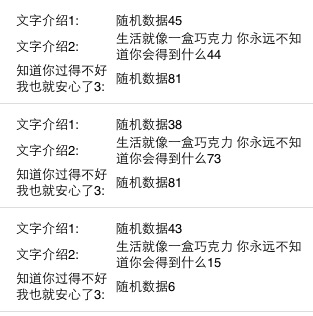
四、成果
這份範例的改進空間
這個寫法在當時很實用,但有幾個地方值得注意:
- cell 完全沒有重用。範例把內容寫在
if (cell == nil)裡,代表每個 index path 都建立全新 cell,長列表會嚴重浪費記憶體。正解是把資料存進 data source,在 if 區塊外每次都更新 view 的內容。 - heightForRow 中回頭呼叫 cellForRow 是反模式。它會導致排版計算執行兩次。應把高度計算獨立成一個純函式,或提前算好存進陣列。
- sizeWithFont: 已廢棄。改用
boundingRectWithSize:options:attributes:context:。 - 今天更推薦 Self-Sizing Cells。iOS 8 起只要給予正確的 Auto Layout 約束,並實作
estimatedRowHeight,UITableView 就會自動計算行高,這整套手算高度的程式碼都可以刪掉。若內容是固定的「標籤:值」列表,靜態的 prototype cell 搭配 tag 或 outlet 集合會更好維護。