
CoreLocation:在 iOS 中取得位置資訊
編輯:iOS 開發綜合
在 iOS 系統中,CoreLocation 可以取得使用者目前的位置以及裝置的移動資訊,是地圖、導航、打卡類應用的基礎。
基本步驟
導入 CoreLocation → 讓 ViewController 遵循 CLLocationManagerDelegate 協議 → 實作 didUpdateLocations、didUpdateToLocation 等代理方法 → 呼叫 CLLocationManager 的 startUpdatingLocation 開始定位。當然,裝置本身的定位服務必須先開啟。
ViewController 實作
import UIKit
import CoreLocation

class ViewController: UIViewController, CLLocationManagerDelegate {

    @IBOutlet weak var latitudeLabel: UILabel!
    @IBOutlet weak var longitudeLabel: UILabel!

    let locationManager: CLLocationManager = CLLocationManager()
    var currentLocation: CLLocation!

    override func viewDidLoad() {
        super.viewDidLoad()
        locationManager.delegate = self
        locationManager.desiredAccuracy = kCLLocationAccuracyBest
        locationManager.distanceFilter = kCLLocationAccuracyKilometer
    }

    override func viewWillAppear(animated: Bool) {
        locationManager.startUpdatingLocation()
        println("start location")
    }

    override func viewWillDisappear(animated: Bool) {
        locationManager.stopUpdatingLocation()
        println("stop location")
    }

    func locationManager(manager: CLLocationManager!, didUpdateLocations locations: [AnyObject]!) {
        println("didUpdateLocations")
        currentLocation = locations.last as! CLLocation
        latitudeLabel.text = "\(currentLocation.coordinate.latitude)"
        longitudeLabel.text = "\(currentLocation.coordinate.longitude)"
    }

    func locationManager(manager: CLLocationManager!, didUpdateToLocation newLocation: CLLocation!,
                         fromLocation oldLocation: CLLocation!) {
        println("didUpdateToLocation")
    }

    func locationManager(manager: CLLocationManager!, didFailWithError error: NSError!) {
        println("didFailWithError")
    }
}
模擬器定位設定
使用 iPhone 模擬器時,一開始往往只看到印出「start location」,代理方法遲遲不觸發。原因在於模擬器預設把定位關閉了,需要手動打開。
1. 打開定位除錯選項,這裡選擇 Apple Cities 作為預設位置:
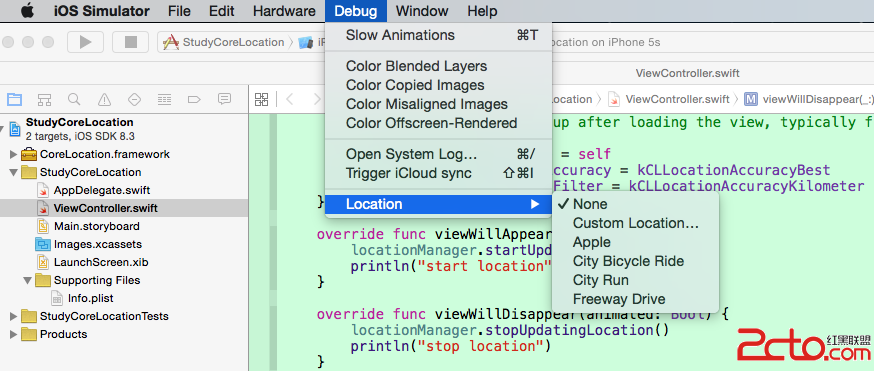
2. 設定模擬器中的 Settings → Privacy → Location,把定位選項設為 Always:
3. 回到 App 畫面,就能看到經緯度資訊了:


4. 也可以自行挑選模擬位置,例如選擇 Hong Kong:
5. 接著就能看到對應模擬位置的經緯度:

6. 若要測試特定座標,也可以自行輸入經緯度:

實務上還有一點要注意:didUpdateLocations 會持續被呼叫,如果只需要一次定位結果,取得座標後就該立刻 stopUpdatingLocation,否則會白白消耗電力。CoreLocation 的基本用法大致就是這些,更進階的地理編碼與區域監聽以后再补充。
- 上一篇文章: iOS 開發:響應者鏈與觸摸事件處理
- 下一篇文章: iOS 錄音實作:限制錄音時間為 30 秒