
精選開源推薦(6.17):鍵盤細節封裝、長文本 ActionSheet 與仿網易翻頁導航
鍵盤細節處理,流暢、簡潔、復用性高(作者:ycctime)
第一次發代碼,有不妥之處還請大神指教。本封裝包含鍵盤處理(解決了輸入多行文字時高度不穩定的 bug)以及支持多線程的 CoreData 封裝。只需一句 self.keyBoard = [[LYKeyBoardView alloc] initDelegate:self superView:self.view];,你就能擁有一個功能完整的鍵盤。設計目標是下載後能直接放進你的工程使用,不需要做太多修改。
測試環境:Xcode 6.2,iOS 6.0 以上

用 tableview 解決長文字、多選項的 ActionSheet(作者:frank_xiong)
系統自帶的 UIActionSheet 在選項多、文字長的場景下非常吃力,這個封裝改用 tableview 承載選項,初始化方式幾乎與系統一致:
- (id)initWithTitle:(NSString *)title
            delegate:(id)delegate
   cancelButtonTitle:(NSString *)cancelButtonTitle
      otherButtonTitles:(NSString *)otherButtonTitles, ... {
    if (self = [super initWithFrame:[UIScreen mainScreen].bounds]) {
        _title = title;
        _delegate = delegate;
        _cancelButtonTitle = cancelButtonTitle;
        _otherButtonArray = [NSMutableArray array];

        va_list args;
        va_start(args, otherButtonTitles);
        if (otherButtonTitles) {
            [_otherButtonArray addObject:otherButtonTitles];
            while (1) {
                NSString *otherButtonTitle = va_arg(args, NSString *);
                if (otherButtonTitle == nil) {
                    break;
                } else {
                    [_otherButtonArray addObject:otherButtonTitle];
                }
            }
        }
        va_end(args);

        self.backgroundColor = [UIColor clearColor];

        UITapGestureRecognizer *tapGestureRecognizer =
            [[UITapGestureRecognizer alloc] initWithTarget:self action:@selector(hide)];
        _backgroundView = [[UIView alloc] initWithFrame:self.frame];
        _backgroundView.alpha = 0;
        _backgroundView.backgroundColor = [UIColor blackColor];
        [_backgroundView addGestureRecognizer:tapGestureRecognizer];
        [self addSubview:_backgroundView];

        [self initContentView];
    }
    return self;
}
測試環境:Xcode 6.2,iOS 6.0 以上

瀑布流 Demo(註釋完善)(作者:707088481)
基於 UICollectionView 的瀑布流實現,註釋寫得很細,適合直接拿來學。
測試環境:Xcode 6.2,iOS 6.0 以上

YKPageView —— 仿網易首頁翻頁導航效果(作者:威小威)
菜單欄標題的字體與顏色都支持動畫過渡(要讓顏色動畫生效,顏色必須帶 RGB 分量,比如用 RGBA 創建)。
使用方法刻意模仿了 UITableView 的代理模式,因此上手方式非常相似,實現相應代理方法即可。
DataSource:
// 用來獲取 PageCell
- (WKPageCell *)pageView:(WKPageView *)pageView cellForIndex:(NSInteger)index;

// 用來設置 menu 上的標題,以 NSString 形式並用 NSArray 封裝
// 其 count 即為 PageView 的頁數
- (NSArray *)menuItemsForMenuViewInPageView:(WKPageView *)pageView;
Delegate:
/**
 *  設置 menuView 的高度,默認為 30
 *  @param pageView 當前翻頁視圖
 *  @param menuView 頂部菜單視圖
 *  @return menuView 的高度
 */
- (CGFloat)pageView:(WKPageView *)pageView heightForMenuView:(WKMenuView *)menuView;

/**
 *  設置 menuView 的背景顏色
 *  默認:[UIColor colorWithRed:172.0/255.0 green:165.0/255.0 blue:162.0/255.0 alpha:1.0]
 *  @return UIColor
 */
- (UIColor *)backgroundColorOfMenuViewInPageView:(WKPageView *)pageView;

/**
 *  設置菜單欄標題顏色
 *  若要實現動畫,必須創建自 RGBA,或使用帶 RGB 分量的 UIColor(如 redColor);
 *  例如 grayColor 這類不方便插值的顏色則不行
 *  @param state WKMenuItemTitleColorStateNormal(未選中)/ WKMenuItemTitleColorStateSelected(選中)
 *  @return UIColor(RGBA)
 */
- (UIColor *)titleColorOfMenuItemInPageView:(WKPageView *)pageView
                                  withState:(WKMenuItemTitleColorState)state;

/**
 *  設置菜單欄標題字體大小(需大於零)
 *  @param state WKMenuItemTitleSizeStateNormal(未選中)/ WKMenuItemTitleSizeStateSelected(選中)
 *  @return 標題字體大小
 */
- (CGFloat)titleSizeOfMenuItemInPageView:(WKPageView *)pageView
                               withState:(WKMenuItemTitleSizeState)state;

/**
 *  設置菜單欄內部 item 的寬度,默認寬度為 60
 *  @param index WKMenuItem 的序號,可根據序號定制
 *  @return item 的寬度
 */
- (CGFloat)pageView:(WKPageView *)pageView widthForMenuItemAtIndex:(NSInteger)index;
測試環境:Xcode 6.2,iOS 6.0 以上

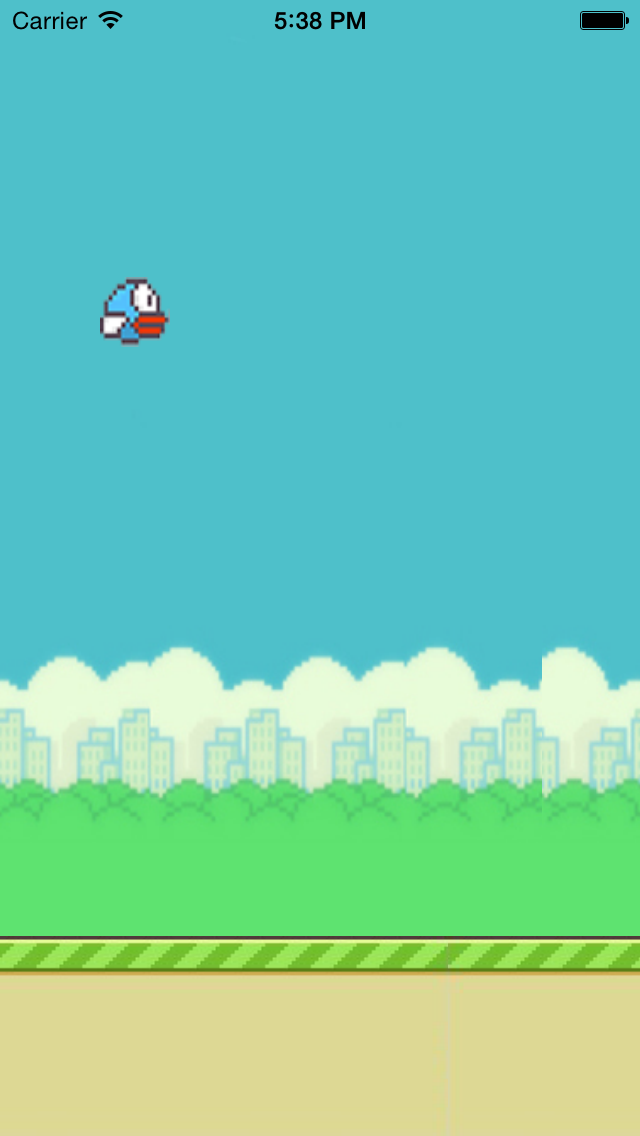
Swift 版 FlappyBird(作者:3334066)
為了練手 Swift,把以前寫過的小遊戲用新語言重做了一遍。
測試環境:Xcode 6.2,iOS 8.0 以上
- 上一篇文章: 從零到入職:10 步成為一名真正的 iOS 開發者
- 下一篇文章: UIStackView 官方文檔翻譯:iOS 9 新增的布局利器全解析