iOS 源碼精選(01.05):自適應邊界的散開按鈕、Swift 仿斗魚 TV、四種布局的 ImageTextButton
編輯:iOS 開發基礎
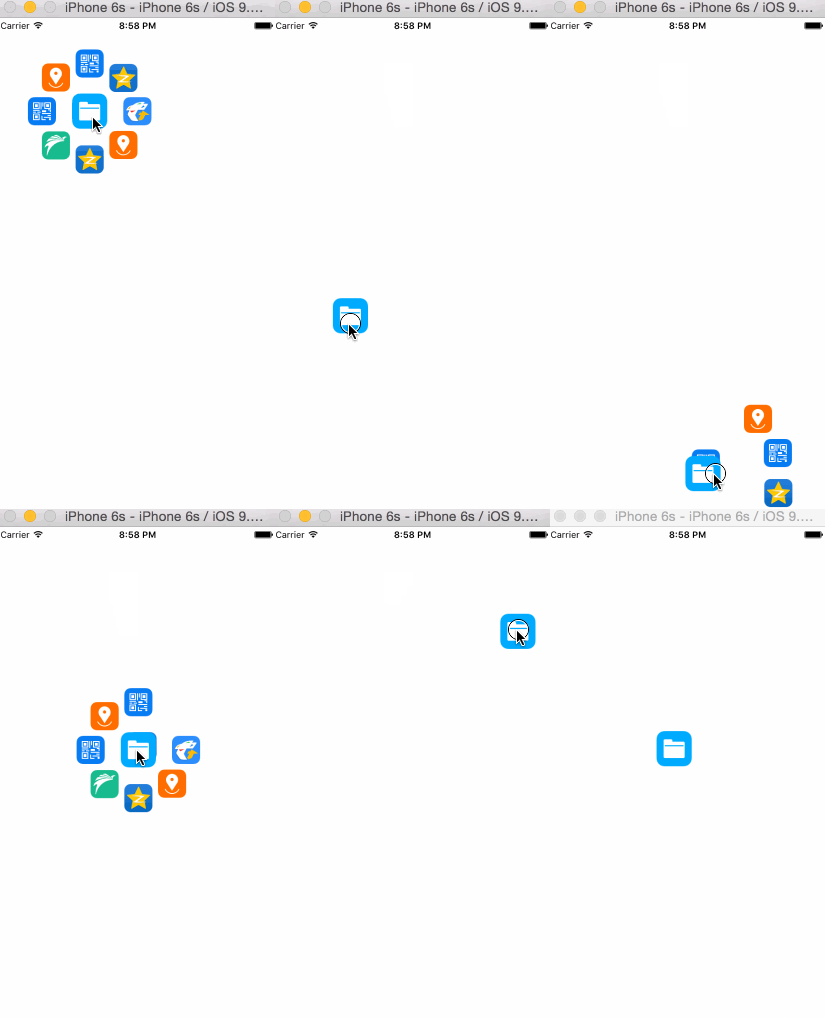
自適應邊界的散開按鈕
上傳者:SnowCheng
作者說是無聊時寫的,接口已經留好,主要方法也都加了註釋,大家有用就拿去。
這類「散開式菜單按鈕」(也叫 radial menu)的關鍵在於角度分配:子按鈕在半圓或整圓上等角分布,半徑可配置,動畫用延遲遞增的方式製造依次彈出的錯落感。
Swift 仿斗魚 TV
上傳者:靜聽雨落
感謝 chenqi777 提供的源碼和接口。
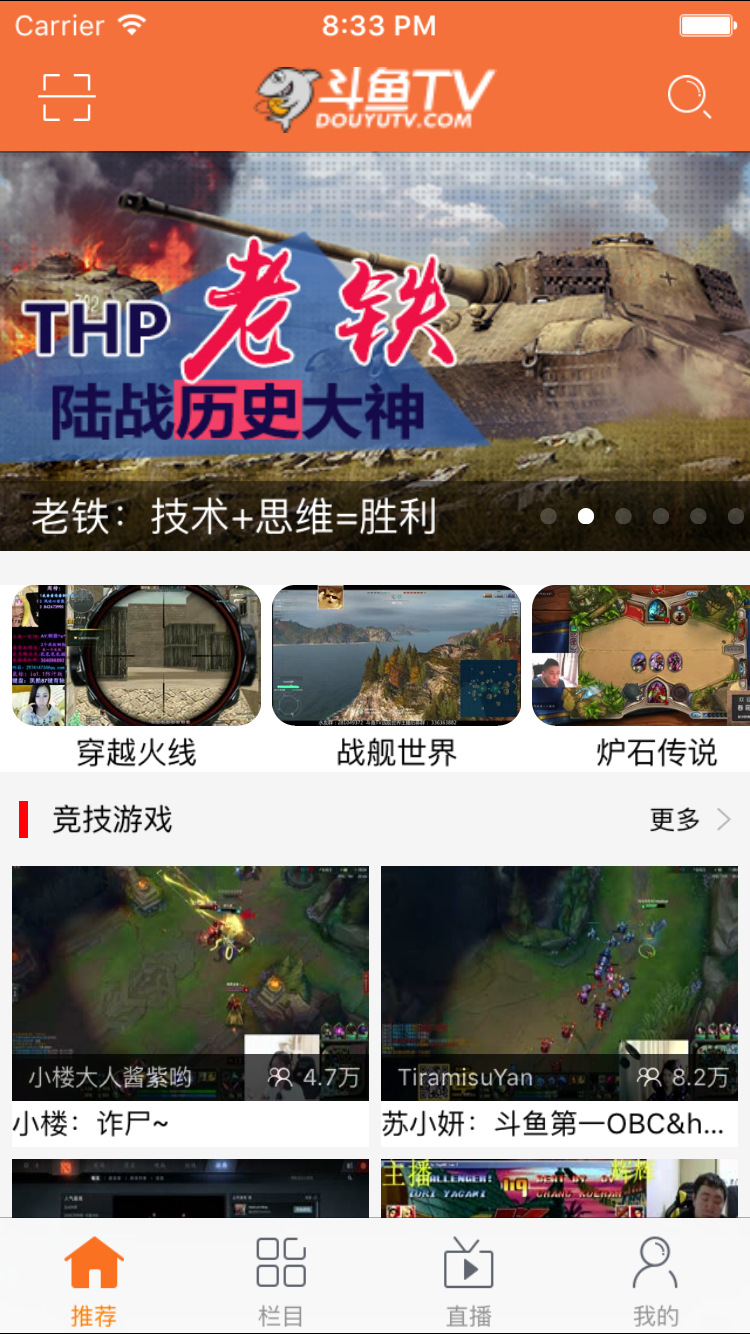
作者在學習 Swift 的路上看到這份代碼,於是試著用 Swift 重寫了一遍。項目主體基於 UICollectionView,涉及自定義布局、cell 復用與數據分區展示,是練習 Swift 寫列表頁不錯的題材。
ImageTextButton
上傳者:jonrencxr
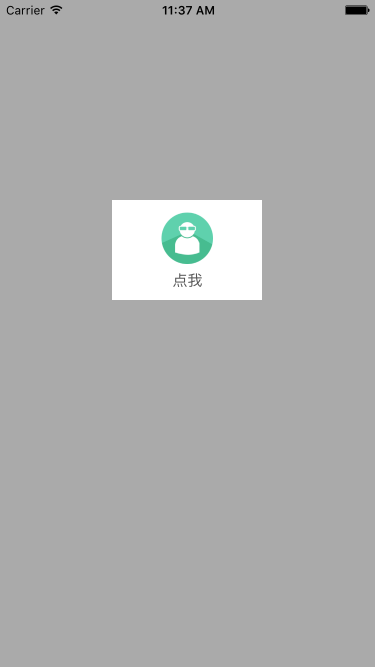
ImageTextButton 是繼承自 UIButton 的按鈕,同時包含圖片和文字,內置四種常見布局類型。只需設置 UIButtonTitleWithImageAlignment 屬性,就能實現常用的圖文並排效果,容易擴展。以後不必再為了這種效果去自定義 view、拼湊 imageView + label + button。
實現手段也很樸素:利用 UIButton 固有的 UIEdgeInsets 屬性調整圖片與文字的相對位置,從而達到圖文並排的效果。
使用方法:
1. 在需要用到的地方引入頭文件:
#import "ImageTextButton.h"
定義按鈕屬性:
@property (nonatomic, strong) ImageTextButton *imgTextButton;
2. 直接調用:
self.imgTextButton = [[ImageTextButton alloc] initWithFrame:CGRectMake((self.view.frame.size.width - 150) / 2, 200, 150, 100)
                                                       image:[UIImage imageNamed:@"buttonImg.png"]
                                                       title:@"點我"];
// self.imgTextButton.imgTextDistance = 10;  // 可修改圖片與標題的間距,默認為 5
self.imgTextButton.buttonTitleWithImageAlignment = UIButtonTitleWithImageAlignmentUp;
[self.imgTextButton addTarget:self action:@selector(changeValue:) forControlEvents:UIControlEventTouchUpInside];
[self.view addSubview:self.imgTextButton];