
MobileProject:Objective-C 常見功能開源專案完整介紹
一、專案簡介
MobileProject 是一個以 MVC 模式搭建的開源功能集合,使用 Objective-C 撰寫。它的目標是解決新專案在啟動階段反覆開發常見功能模組的問題。
專案在結構上做了明確劃分,各模組職責清楚,並整合了常用的第三方套件、巨集定義與工具類別。專案持續更新維護,功能點也會不斷補充;程式碼支援 iOS 7 以後版本。
二、專案框架
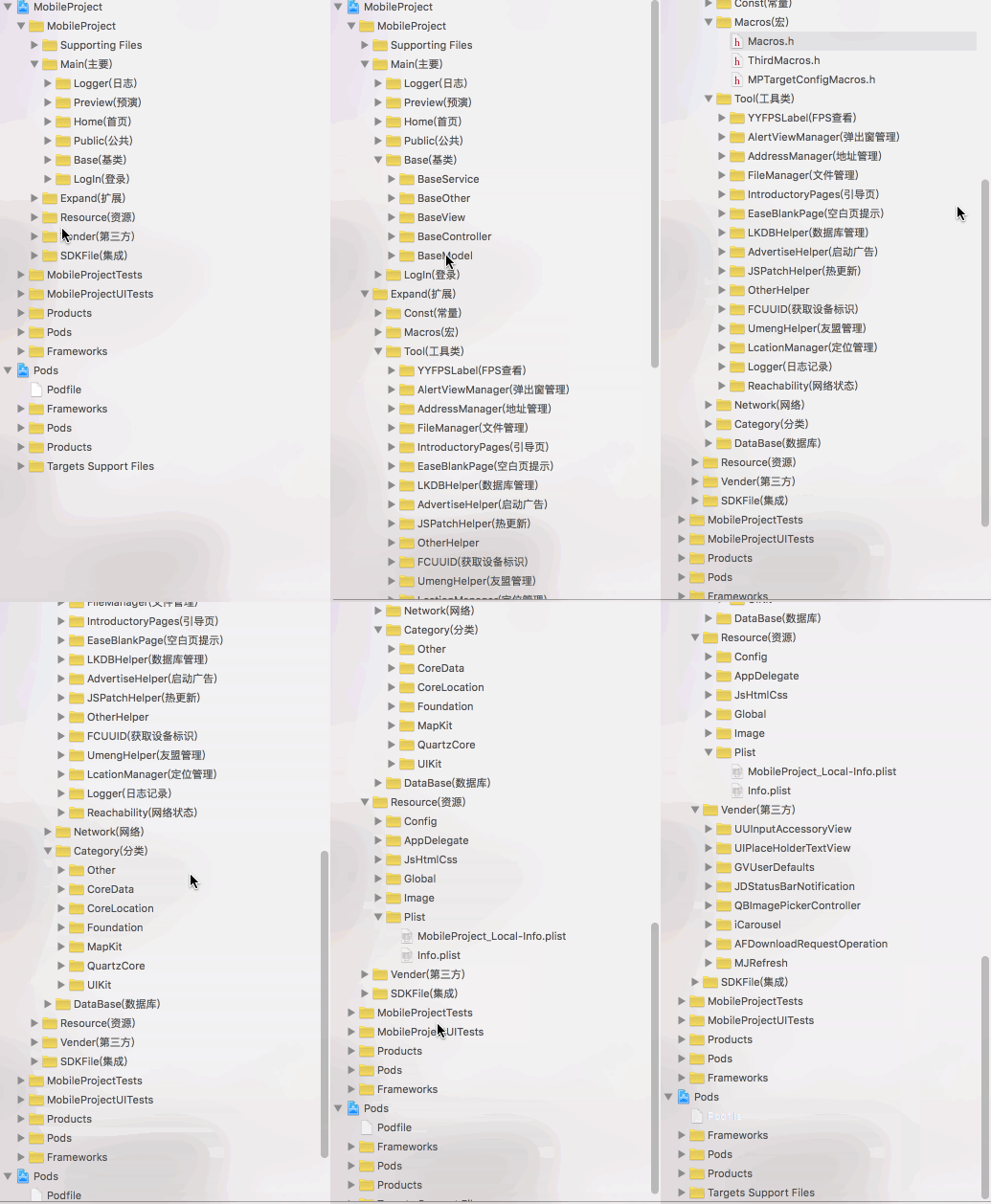
三、功能點介紹
1. JSPatch 熱更新
熱更新是線上 App 的常見需求,MobileProject 裡實作了一個完整範例,並封裝成工具類別,包含 JS 檔的下載、快取與執行流程,也做了請求頻率的控制。
+ (void)HSDevaluateScript {
    // 從本地讀取已下載的 JS 檔
    NSURL *p = FilePath;

    // 判斷檔案是否存在
    NSString *curFilePath = [p.path stringByAppendingString:
        [NSString stringWithFormat:@"/%@", jsPatchJsFileName]];
    if (![[NSFileManager defaultManager] fileExistsAtPath:curFilePath]) {
        return;
    }

    // 讀取內容
    NSString *js = [NSString stringWithContentsOfFile:curFilePath
                                            encoding:NSUTF8StringEncoding
                                               error:nil];

    if (js.length > 0) {
        // 服務端應對 JS 內容加密,此處解密以增加安全性
        // 啟動引擎並執行
        [JPEngine startEngine];
        [JPEngine evaluateScript:js];
    }
}

+ (void)loadJSPatch {
    // 控制請求頻率:這裡定義為一小時才請求一次,避免過於頻繁
    NSDate *myNowDate = [NSDate date];
    if (!BBUserDefault.MBJsPatchTime) {
        BBUserDefault.MBJsPatchTime = myNowDate;
    }
    if ([myNowDate timeIntervalSinceDate:BBUserDefault.MBJsPatchTime] < 3600) {
        return;
    }
    BBUserDefault.MBJsPatchTime = myNowDate;

    // 以 AFNetworking 下載服務端的 JS 檔
    NSURLSessionConfiguration *configuration = [NSURLSessionConfiguration defaultSessionConfiguration];
    AFURLSessionManager *manager = [[AFURLSessionManager alloc] initWithSessionConfiguration:configuration];
    NSURL *URL = [NSURL URLWithString:kJSPatchServerPath];
    NSURLRequest *request = [NSURLRequest requestWithURL:URL];

    NSURLSessionDownloadTask *downloadTask = [manager
        downloadTaskWithRequest:request
                       progress:nil
                    destination:^NSURL *(NSURL *targetPath, NSURLResponse *response) {
            NSHTTPURLResponse *httpResponse = (NSHTTPURLResponse *)response;
            if (httpResponse.statusCode == 200) {
                NSURL *documentsDirectoryURL = FilePath;
                // 儲存到 Library/Caches
                return [documentsDirectoryURL URLByAppendingPathComponent:jsPatchJsFileName];
            }
            return nil;
        }
              completionHandler:^(NSURLResponse *response, NSURL *filePath, NSError *error) {
            NSLog(@"下載完成 to: %@", filePath);
        }];

    [downloadTask resume];
}
完整用法可下載原始碼查看。
2. LKDB 實體映射資料庫
開發中經常需要與資料庫打交道。LKDB 是一個把實體物件映射成資料庫表、並支援在實體層級做增刪改查的套件,同時也保留直接下 SQL 的能力,足以應付日常需求。
+ (LKDBHelper *)getUsingLKDBHelper {
    static LKDBHelper *db;
    static dispatch_once_t onceToken;
    dispatch_once(&onceToken, ^{
        NSString *sqlitePath = [MPLKDBHelper downloadPath];
        NSString *dbpath = [sqlitePath stringByAppendingPathComponent:@"MPData.db"];
        NSLog(@"當前創建數據庫地址路徑:%@", dbpath);
        db = [[LKDBHelper alloc] initWithDBPath:dbpath];
    });
    return db;
}

+ (NSString *)downloadPath {
    NSString *documentPath = [NSSearchPathForDirectoriesInDomains(NSDocumentDirectory, NSUserDomainMask, YES) firstObject];
    NSString *downloadPath = [documentPath stringByAppendingPathComponent:@"DataBase"];
    return downloadPath;
}
3. 百度地圖與定位
專案中包含一個百度地圖的車行路線範例,並自訂了大頭針與彈出視窗樣式。同時也示範了定位功能,以及一個實用的細節處理:針對手機系統語言不同的情況,強制先轉為中文取得城市名稱,再還原使用者原本的語言設定,避免因語言差異導致城市名稱不一致。
// 百度地圖定位
[[MPLocationManager shareInstance] startBMKLocationWithReg:^(BMKUserLocation *loction, NSError *error) {
    if (error) {
        DDLogError(@"定位失敗,失敗原因:%@", error);
    } else {
        DDLogError(@"定位信息:%f,%f", loction.location.coordinate.latitude,
                   loction.location.coordinate.longitude);

        CLGeocoder *geocoder = [[CLGeocoder alloc] init];
        [geocoder reverseGeocodeLocation:loction.location completionHandler:^(
                NSArray * _Nullable placemarks, NSError * _Nullable error) {

            // 處理手機語言,取得中文城市名稱
            NSMutableArray *userDefaultLanguages =
                [[NSUserDefaults standardUserDefaults] objectForKey:@"AppleLanguages"];
            NSString *currentLanguage = [userDefaultLanguages objectAtIndex:0];

            // 若非中文,先強制轉為中文,取得後再還原
            if (![currentLanguage isEqualToString:@"zh-Hans"] &&
                ![currentLanguage isEqualToString:@"zh-Hans-CN"]) {
                // iOS 9 前後的語言標識不同
                if (isIOS9) {
                    [[NSUserDefaults standardUserDefaults] setObject:@[@"zh-Hans-CN"] forKey:@"AppleLanguages"];
                } else {
                    [[NSUserDefaults standardUserDefaults] setObject:@[@"zh-Hans"] forKey:@"AppleLanguages"];
                }
            }

            if (placemarks.count > 0) {
                CLPlacemark *placemark = [placemarks objectAtIndex:0];
                // 直轄市無法從 locality 取得,需改取 administrativeArea
                NSString *city = placemark.locality;
                if (!city) {
                    city = placemark.administrativeArea;
                }
                NSLog(@"百度當前城市:[%@]", city);

                // 城市名取出後立即還原為使用者預設語言
                [[NSUserDefaults standardUserDefaults] setObject:userDefaultLanguages forKey:@"AppleLanguages"];
            }
        }];
    }
}];
這段程式碼有個值得學的技巧:利用 locality 是否為空來判斷直轄市,因為四大直轄市的行政層級設計讓 locality 取不到值,只能改抓 administrativeArea。
4. 二維碼掃描
以 LBXScan 為基礎封裝,涵蓋掃描與從相簿選圖辨識兩種路徑(LBXScan 本身也支援條碼)。樣式可高度自訂:
- (LBXScanViewStyle *)qqLBXScanViewStyle {
    LBXScanViewStyle *style = [[LBXScanViewStyle alloc] init];

    // 掃碼框中心上移,預設為螢幕中心
    style.centerUpOffset = 44;

    // 四角樣式:外掛式
    style.photoframeAngleStyle = LBXScanViewPhotoframeAngleStyle_Outer;
    style.photoframeLineW  = 6;    // 線條寬度
    style.photoframeAngleW = 24;   // 角寬
    style.photoframeAngleH = 24;   // 角高

    // 動畫:線條上下移動
    style.anmiationStyle = LBXScanViewAnimationStyle_LineMove;
    style.animationImage = [UIImage imageNamed:@"qrcode_scan_light_green"];

    return style;
}

- (void)scanResultWithArray:(NSArray *)array {
    if (array.count < 1) {
        [self popAlertMsgWithScanResult:nil];
        return;
    }

    // 實測可同時識別 2 個二維碼,但不能同時識別二維碼與條碼
    for (LBXScanResult *result in array) {
        NSLog(@"scanResult:%@", result.strScanned);
    }

    LBXScanResult *scanResult = array[0];
    NSString *strResult = scanResult.strScanned;
    self.scanImage = scanResult.imgScanned;

    if (!strResult) {
        [self popAlertMsgWithScanResult:nil];
        return;
    }

    [MBProgressHUD showSuccess:[NSString stringWithFormat:@"掃碼的內容為:%@", strResult] ToView:nil];
}
5. 照片上傳與進度顯示
照片上傳幾乎是每個 App 的必備模組。這裡做了比較完整的整理,包含選圖、拍照、瀏覽大圖、取得 GPS、檔名、拍攝時間、上傳前的方向校正與壓縮,以及另一種帶扇形進度條的上傳效果。
+ (instancetype)imageWithAssetURL:(NSURL *)assetURL isUploadProcess:(BOOL)isUploadProcess {
    MPImageItemModel *imageItem = [[MPImageItemModel alloc] init];
    imageItem.uploadState = MPImageUploadStateInit;
    imageItem.assetURL = assetURL;

    MPWeakSelf(self);

    void (^selectAsset)(ALAsset *) = ^(ALAsset *asset) {
        if (asset) {
            UIImage *highQualityImage = [imageCompressHelper fullScreenImageALAsset:asset];
            UIImage *thumbnailImage = [UIImage imageWithCGImage:[asset thumbnail]];

            MPStrongSelf(self);
            [self imageInfoWithALAsset:asset imageItem:imageItem];

            dispatch_async(dispatch_get_main_queue(), ^{
                imageItem.image = [imageCompressHelper compressedImageToLimitSizeOfKB:100 image:highQualityImage];
                imageItem.thumbnailImage = thumbnailImage;

                if (isUploadProcess) {
                    [MPFileManager writeUploadDataWithName:imageItem.photoName andImage:imageItem.image];
                }
            });
        }
    };

    ALAssetsLibrary *assetsLibrary = [[ALAssetsLibrary alloc] init];
    [assetsLibrary assetForURL:assetURL resultBlock:^(ALAsset *asset) {
        if (asset) {
            selectAsset(asset);
        } else {
            // 從 iCloud 照片串流中回退尋找
            [assetsLibrary enumerateGroupsWithTypes:ALAssetsGroupPhotoStream usingBlock:^(
                    ALAssetsGroup *group, BOOL *stop) {
                [group enumerateAssetsUsingBlock:^(ALAsset *result, NSUInteger index, BOOL *stopG) {
                    if ([result.defaultRepresentation.url isEqual:assetURL]) {
                        selectAsset(result);
                        *stop = YES;
                        *stopG = YES;
                    }
                }];
            } failureBlock:^(NSError *error) {
                NSLog(@"讀取圖片失敗");
            }];
        }
    } failureBlock:^(NSError *error) {
        NSLog(@"讀取圖片失敗");
    }];

    return imageItem;
}
6. 字體與機型適配
目前 iPhone 機型越來越多,若設計只提供一種尺寸的效果圖,就要靠比例換算讓字體與間距在不同螢幕上等比縮放。專案定義了幾個巨集,以 iPhone 5 的 320×568 為基準:
// 以 320 / 568 為基準(若效果圖來自其他機型,請依實際情況修改)
#define kScreenWidthRatio  (Main_Screen_Width  / 320.0)
#define kScreenHeightRatio (Main_Screen_Height / 568.0)

#define AdaptedWidth(x)     ceilf((x) * kScreenWidthRatio)
#define AdaptedHeight(x)    ceilf((x) * kScreenHeightRatio)
#define AdaptedFontSize(R)  CHINESE_SYSTEM(AdaptedWidth(R))

- (void)LayoutLayoutCell {
    if (!self.myDateLabel) {
        self.myDateLabel = [[UILabel alloc] init];
        self.myDateLabel.font = AdaptedFontSize(13);
        self.myDateLabel.textColor = [UIColor blackColor];
        [self.contentView addSubview:self.myDateLabel];

        [self.myDateLabel mas_makeConstraints:^(MASConstraintMaker *make) {
            make.top.mas_equalTo(AdaptedHeight(KTopSpace));
            make.left.mas_equalTo(KLeftSpace);
            make.right.mas_equalTo(-KLeftSpace);
            make.height.mas_equalTo(AdaptedHeight(15));
        }];
    }

    if (!self.myTextLabel) {
        self.myTextLabel = [[UILabel alloc] init];
        self.myTextLabel.font = AdaptedFontSize(KTextLabelFontSize);
        self.myTextLabel.textColor = [UIColor grayColor];
        self.myTextLabel.numberOfLines = 0;
        [self.myTextLabel sizeToFit];
        [self.contentView addSubview:self.myTextLabel];

        [self.myTextLabel mas_makeConstraints:^(MASConstraintMaker *make) {
            make.top.mas_equalTo(self.myDateLabel.bottom).offset(AdaptedHeight(KTopSpace));
            make.left.mas_equalTo(KLeftSpace);
            make.right.mas_equalTo(-KLeftSpace);
        }];
    }
}
如果你的效果圖基準機型不同,只要改上面那兩個比例值的分母即可。
7. 日誌記錄
專案使用 CocoaLumberjack 做日誌記錄,並在設定頁內建兩個展示頁可查看記錄內容;詳細錯誤頁還提供郵件寄送功能,可直接把錯誤資訊寄給開發人員,解決上線後 BUG 收集困難的問題。同時依不同環境設定記錄等級,並在 console 中啟用有色字體提示。
- (void)configureLogging {
    // 啟用 XcodeColors 以顯示色彩(不設這個環境變數則無效)
    setenv("XcodeColors", "YES", 0);

    [DDLog addLogger:[DDASLLogger sharedInstance]];
    [DDLog addLogger:[DDTTYLogger sharedInstance]];
    [DDLog addLogger:self.fileLogger];

    [[DDTTYLogger sharedInstance] setColorsEnabled:YES];
    [[DDTTYLogger sharedInstance] setForegroundColor:[UIColor blueColor]   backgroundColor:nil forFlag:DDLogFlagInfo];
    [[DDTTYLogger sharedInstance] setForegroundColor:[UIColor purpleColor] backgroundColor:nil forFlag:DDLogFlagDebug];
    [[DDTTYLogger sharedInstance] setForegroundColor:[UIColor redColor]    backgroundColor:nil forFlag:DDLogFlagError];
    [[DDTTYLogger sharedInstance] setForegroundColor:[UIColor greenColor]  backgroundColor:nil forFlag:DDLogFlagVerbose];

    MPLoggerFormatter *formatter = [[MPLoggerFormatter alloc] init];
    [[DDTTYLogger sharedInstance] setLogFormatter:formatter];
}

- (DDFileLogger *)fileLogger {
    if (!_fileLogger) {
        DDFileLogger *fileLogger = [[DDFileLogger alloc] init];
        fileLogger.rollingFrequency = 60 * 60 * 24;   // 每 24 小時切檔
        fileLogger.logFileManager.maximumNumberOfLogFiles = 7;
        _fileLogger = fileLogger;
    }
    return _fileLogger;
}
8. 列表空白頁提示
列表無資料或網路請求失敗時,需要有明確提示。專案引入了一個空白頁效果,基本能滿足日常需求:
- (void)loadMyTableData {
    __weak typeof(self) weakSelf = self;

    [self.myTableView reloadData];
    [self.myTableView.mj_header endRefreshing];

    [self.view configBlankPage:EaseBlankPageTypeView
                       hasData:self.dataArray.count
                      hasError:(self.dataArray.count > 0)
             reloadButtonBlock:^(id sender) {
        [MBProgressHUD showInfo:@"重新加載的數據" ToView:self.view];
        [weakSelf.myTableView.mj_header beginRefreshing];
    }];
}
這是一個 UIView 的分類,可依專案需求自行調整文案與樣式。
9. 自訂彈出視窗
UIAlertView 在 iOS 7 與 iOS 8 之後外觀有差異,專案中常有「模擬系統樣式」的需求。這裡封裝了一個自訂彈窗,並額外提供帶 UITextView 的版本:
WJYAlertInputTextView *myInputView = [[WJYAlertInputTextView alloc]
    initPagesViewWithTitle:@"消息內容"
            leftButtonTitle:@"取消"
           rightButtonTitle:@"確定"
            placeholderText:@"請輸入正確的訂單號"];

__weak typeof(self) weakSelf = self;

myInputView.leftBlock = ^(NSString *text) {
    NSLog(@"當前值:%@", text);
    [weakSelf.alertView dismissWithCompletion:nil];
};

myInputView.rightBlock = ^(NSString *text) {
    if (text.length == 0) {
        // 注意:ToView 要傳 alertView,否則 HUD 會被蓋住
        [MBProgressHUD showError:@"內容沒有輸入" ToView:weakSelf.alertView];
        return;
    }
    weakSelf.alertView.window.windowLevel = UIWindowLevelStatusBar + 1;
    [MBProgressHUD showAutoMessage:[NSString stringWithFormat:@"當前內容為:%@", text]];
    [weakSelf.alertView dismissWithCompletion:nil];
};

_alertView = [[WJYAlertView alloc] initWithCustomView:myInputView dismissWhenTouchedBackground:NO];
[_alertView show];
10. 其他模組
- 引導頁封裝:傳入一組圖片即可產生引導頁。
- 啟動廣告封裝:同樣傳入圖片組即可,圖片從服務端下載並快存於本地。
- 友盟統計工具類:封裝統計與頁面記錄程式碼,結合 runtime 實現自動化記錄。
- 裝置唯一標識:iOS 已無法取得 IDFA 以外的唯一碼,專案引入套件取得 UUID,達到近似效果。
- 省市區三級聯動:從本地讀取行政區資料,支援綁定預設值。
- 友盟第三方登入與分享。
- MBProgressHUD 擴充:定義常見提示樣式,見 MBProgressHUD+MP 類。
- CYLTabBarController 整合:四個底部 Tab,含未讀提醒與點擊事件。
- 個推訊息推送整合(需修改 ThirdMacros.h 中的對應 key,並換成自家的推送憑證)。
- FLEX 整合:僅在測試版本啟用。FLEX 是 Flipboard 釋出的 App 內除錯工具,不需外接 LLDB 即可在執行中的 App 裡檢視與修改各項狀態。
- UITableViewCell 倒數計時:範例因無後端介面,時間以本地為準;正式專案應由服務端提供。
- WebViewJavascriptBridge 整合:用於 H5 互動,並對官方範例加了註解。
四、總結
以上是專案中主要的封裝與範例模組。此外還有網路層、巨集定義、分類擴充、各類小型工具類與常用第三方套件,可下載原始碼直接查看。專案仍在持續完善,架構與程式碼品質也會不斷優化。
原始碼位址:https://github.com/wujunyang/MobileProject
如果覺得有幫助,歡迎給個 star。若你有空閒時間也歡迎一起完善,我會持續更新功能。
使用提醒
這份專案整理於 Objective-C 仍為主流的時期,因此大量使用 ALAssetsLibrary、UIAlertView 等已被取代的 API,小鹿角 MRC 時代的寫法也仍可見。若要在新專案中使用,建議把它當作「功能清單與實作思路參考」,實際落地時替換為 Photos.framework、WKWebView 與現行推薦的套件版本。另外,熱更新功能涉及 App Store 審核規範,動態下發可變更應用行為的程式碼可能被拒,導入前請先評估合規風險。
- 上一篇文章: 面試時如何優雅地談論 Objective-C
- 下一篇文章: 用 xcconfig 檔配置 iOS App 多環境變數