
iOS 繪畫入門:UIBezierPath 詳解
UIBezierPath 是 UIKit 中用來建立路徑並進行繪圖的重要工具。它可以描述直線、曲線、矩形、橢圓、圓角矩形與圓弧等圖形,再透過 stroke 或 fill 將路徑渲染出來。對於自訂視圖、圖表、圖示與動畫效果來說,UIBezierPath 都是相當實用的基礎 API。
概述
使用 UIBezierPath 時,通常先在 drawRect 方法中建立路徑,設定線寬、顏色與樣式,最後呼叫 stroke 或 fill 完成繪製。它本質上是對 Core Graphics 中 CGPathRef 的 Objective-C 封裝,因此也能與 Core Graphics 的繪圖體系搭配使用。
- (void)drawRect:(CGRect)rect {
    // Drawing code
}
常見初始化方式
UIBezierPath 提供多種便利初始化方法,可以快速建立常見圖形。例如:
UIBezierPath *path = [UIBezierPath bezierPathWithRect:CGRectMake(20, 20, 200, 100)];
這會建立一個矩形路徑。若要建立橢圓,可以使用:
UIBezierPath *path = [UIBezierPath bezierPathWithOvalInRect:CGRectMake(20, 20, 200, 100)];
若要建立圓角矩形,可以使用:
UIBezierPath *path = [UIBezierPath bezierPathWithRoundedRect:CGRectMake(20, 20, 200, 100) cornerRadius:30];
如果需要指定哪些角要圓角,也可以使用 byRoundingCorners 與 cornerRadii 參數。若要建立圓弧,則可使用:
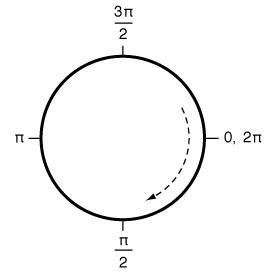
UIBezierPath *path = [UIBezierPath bezierPathWithArcCenter:CGPointMake(100, 100) radius:50 startAngle:0 endAngle:M_PI clockwise:YES];
在 iOS 的座標系統中,原點位於左上角,因此理解角度與方向時,需要特別注意順時針與逆時針的設定。
建立自訂路徑
除了便利初始化方法,也可以透過 moveToPoint、addLineToPoint、addArcWithCenter 等方法逐步建立路徑。例如:
UIBezierPath *path = [UIBezierPath bezierPath];
[path moveToPoint:CGPointMake(20, 20)];
[path addLineToPoint:CGPointMake(100, 20)];
若要加入圓弧,可以呼叫 addArcWithCenter,並指定圓心、半徑、起始角度、結束角度與方向。
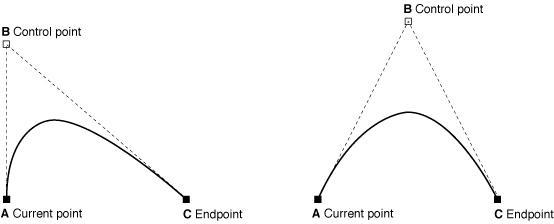
二次貝塞爾曲線可使用 addQuadCurveToPoint,它需要一個終點與一個控制點:
[path addQuadCurveToPoint:CGPointMake(100, 20) controlPoint:CGPointMake(100, 60)];
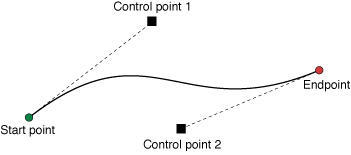
三次貝塞爾曲線則使用 addCurveToPoint,需要兩個控制點:
[path addCurveToPoint:CGPointMake(100, 20) controlPoint1:CGPointMake(30, 60) controlPoint2:CGPointMake(100, 100)];
路徑資訊與操作
建立路徑後,可以查詢一些基本資訊,例如 isEmpty、bounds 與 currentPoint。isEmpty 可判斷路徑是否沒有任何點;bounds 會回傳包含所有路徑點的最小矩形;currentPoint 則代表目前路徑的當前位置。
常見操作包括 closePath、removeAllPoints、appendPath 與 bezierPathByReversingPath。closePath 會用直線閉合起點與終點;removeAllPoints 會清空所有點;appendPath 可把另一個路徑附加到目前路徑;bezierPathByReversingPath 則會回傳一個方向相反的新路徑。
繪圖與樣式
完成路徑後,可以透過 fill 填滿封閉區域,或透過 stroke 沿著路徑畫線。若需要指定混合模式與透明度,也可以使用 fillWithBlendMode 與 strokeWithBlendMode。
常見繪圖屬性包括 lineWidth、lineCapStyle、lineJoinStyle,以及填充與描邊顏色。lineCapStyle 控制線段端點樣式,lineJoinStyle 控制線段連接處樣式。
此外,還可以透過 applyTransform 對整個路徑進行二維形變,例如平移、縮放或旋轉。這個操作會直接影響路徑中的所有點。
範例:今日頭條下拉刷新效果
可以把多個矩形、線段與路徑組合成一個簡單的圖示效果。例如先建立一個圓角矩形作為背景,再建立多條線段作為文字線條,最後透過 transform 調整整體位置與縮放。
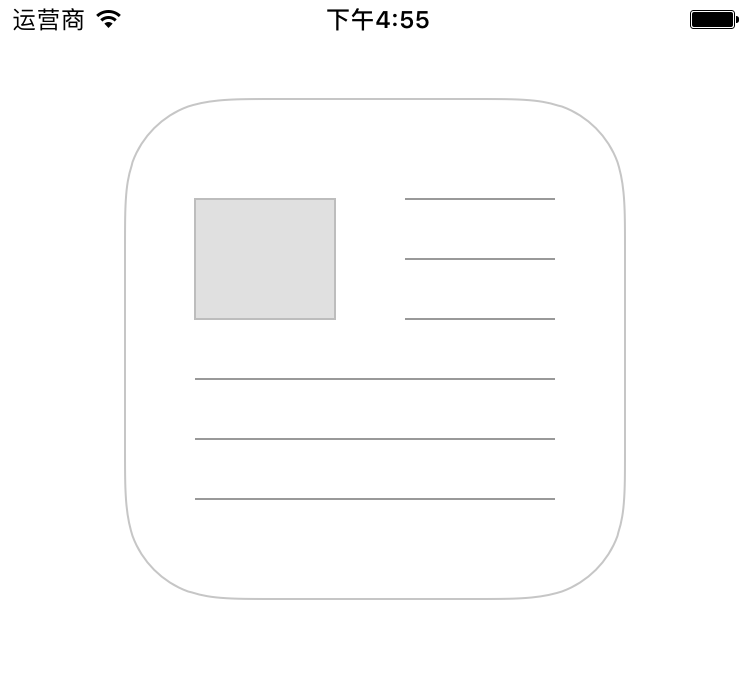
這個練習能幫助開發者熟悉 UIBezierPath 的基本流程:建立路徑、設定樣式、套用變形、最後 stroke 或 fill。只要掌握這些步驟,就能進一步實作更複雜的圖表、進度條與自訂動畫。
- 上一篇文章: iOS 直播實用教學:從推流到拉流
- 下一篇文章: 從 ViewController 的關鍵流程切入,透視「流程建模」這套編程思維