視頻特效制作:如何給視頻添加邊框、水印、動畫以及3D效果
本文內容來自raywenderlich的這篇文章的翻譯:AVFoundation Tutorial: Adding Overlays and Animations to Videos
這是我當年做視頻大量參考的文章。寫得非常好,建議看完我的這篇去看原文。
第一節:給視頻添加邊框
今天第一節先講解如何為一個視頻添加邊框和動畫,首先說明的是,這種邊框和動畫並不能直接修改視頻的某一幀給他增加邊框或者產生動畫效果,這種動畫更像是給視頻的上面加一個calayer,然後控制這個layer產生動畫效果。因為具體到某一幀的這種操作不是iphone應該做的他也做不到。
我們先來看一張圖,了解一下給video增加動畫的原理。
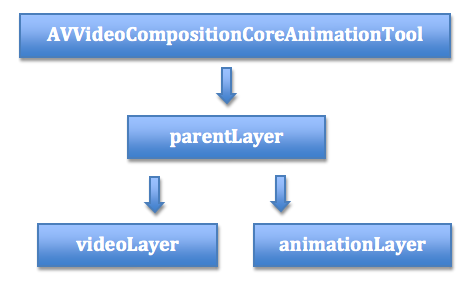
動畫層的原理
你可以看到videoLayer這個東西,其實這個layer就是負責顯示我們的視頻,和他同級的是一個叫animationLayer的東西,我們能夠掌控並且玩出花樣的其實是這個叫animationLayer的東西,因為這個animationLayer可以由我們自己創建。
這裡看一個圖
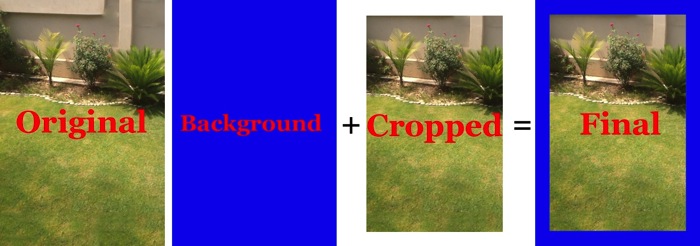
動畫層的原理
這是原文中添加邊框的效果。大家可以思考下原理是什麼?
其實很簡單,和我們videoLayer同級別的layer叫animationLayer(就是上圖的background),他們共同有個父類叫做parentLayer,那麼增加邊框無非是把animationLayer這個layer找個邊框的圖片,然後把他放到videoLayer的下面,然後把videoLayer(crop也就是裁剪)的尺寸控制到剛好能顯示animationLayer的四邊,這樣,不就成了帶邊框的效果麼。
我找了一張帶邊框的圖片。

帶邊框的圖片
我們這時候創建一個CALayer,然後呢把這個layer的內容設置為圖片內容。內容如下。
CALayer *backgroundLayer = [CALayer layer];
[backgroundLayer setContents:(id)[borderImage CGImage]];
backgroundLayer.frame = CGRectMake(0, 0, size.width, size.height);
[backgroundLayer setMasksToBounds:YES];
我們創建好了背景layer,那麼需要創建videoLayer了,這時候設置calayer的frame需要注意,這時候你為了讓videoLayer能夠顯示background layer的四邊,所以需要這麼設置。
 CALayer *videoLayer = [CALayer layer];
videoLayer.frame = CGRectMake(_widthBar.value, _widthBar.value,
                            size.width-(_widthBar.value*2), size.height-(_widthBar.value*2));
_widthBar.value就是我們邊框的寬度,所以這句話的意思就是設置videoLayer的frame使其能夠正確顯示background layer的四邊。
這時候,我們設置好了背景layer和videolayer那麼怎麼讓系統知道,從而在編輯video的時候用到這些設置呢。需要使用這個方法。
 [parentLayer addSublayer:backgroundLayer];
   [parentLayer addSublayer:videoLayer];
  composition.animationTool = [AVVideoCompositionCoreAnimationTool
                           videoCompositionCoreAnimationToolWithPostProcessingAsVideoLayer:videoLayer inLayer:parentLayer];
這裡的composition就是AVMutableVideoComposition,如果不知道是什麼東西,看上一篇blog。 這裡主要是告訴系統我們的layer層是parentLayer,在parentLayer裡負責video顯示的使我們的videoLayer。
其實你看到這裡可以打開demo,找到這個類,然後修改一下parentLayer添加backgroundLayer和videoLayer的順序,看看是什麼情況。或者自己找幾張圖片,創建幾個layer,把calayer的內容設置為圖片,然後加到parentLayer裡,看看有什麼變化,總之需要自己多嘗試。
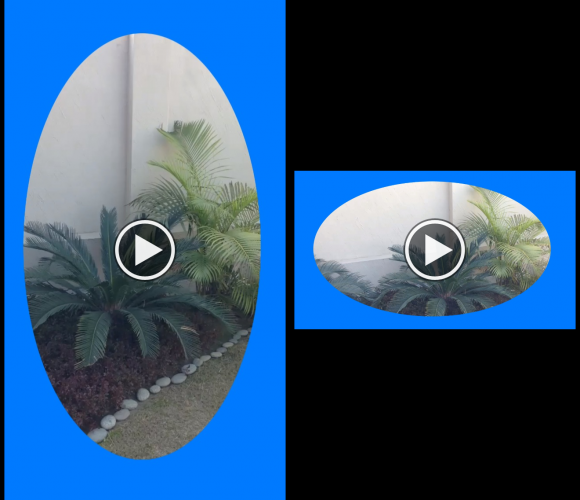
這種是怎麼做的呢?
這種又是怎麼做的呢?自己思考下。
第二節,如何給視頻添加水印
其實看完第一部分,添加水印的步驟已經呼之欲出,無非就是把我們自己建的水印放在一個layer上,然後把這個layer添加到videolayer的上面不就行了麼。代碼如下,注意注釋內容。
// 1 - 這個layer就是用來顯示水印的。
CATextLayer *subtitle1Text = [[CATextLayer alloc] init];
[subtitle1Text setFont:@"Helvetica-Bold"];
[subtitle1Text setFontSize:36];
[subtitle1Text setFrame:CGRectMake(0, 0, size.width, 100)];
[subtitle1Text setString:_subTitle1.text];
[subtitle1Text setAlignmentMode:kCAAlignmentCenter];
[subtitle1Text setForegroundColor:[[UIColor whiteColor] CGColor]];
// 2 - The usual overlay
CALayer *overlayLayer = [CALayer layer];
[overlayLayer addSublayer:subtitle1Text];
overlayLayer.frame = CGRectMake(0, 0, size.width, size.height);
[overlayLayer setMasksToBounds:YES];
CALayer *parentLayer = [CALayer layer];
CALayer *videoLayer = [CALayer layer];
parentLayer.frame = CGRectMake(0, 0, size.width, size.height);
videoLayer.frame = CGRectMake(0, 0, size.width, size.height);
// 這裡看出區別了吧,我們把overlayLayer放在了videolayer的上面,所以水印總是顯示在視頻之上的。
[parentLayer addSublayer:videoLayer];
[parentLayer addSublayer:overlayLayer];
composition.animationTool = [AVVideoCompositionCoreAnimationTool
                             videoCompositionCoreAnimationToolWithPostProcessingAsVideoLayer:videoLayer inLayer:parentLayer];
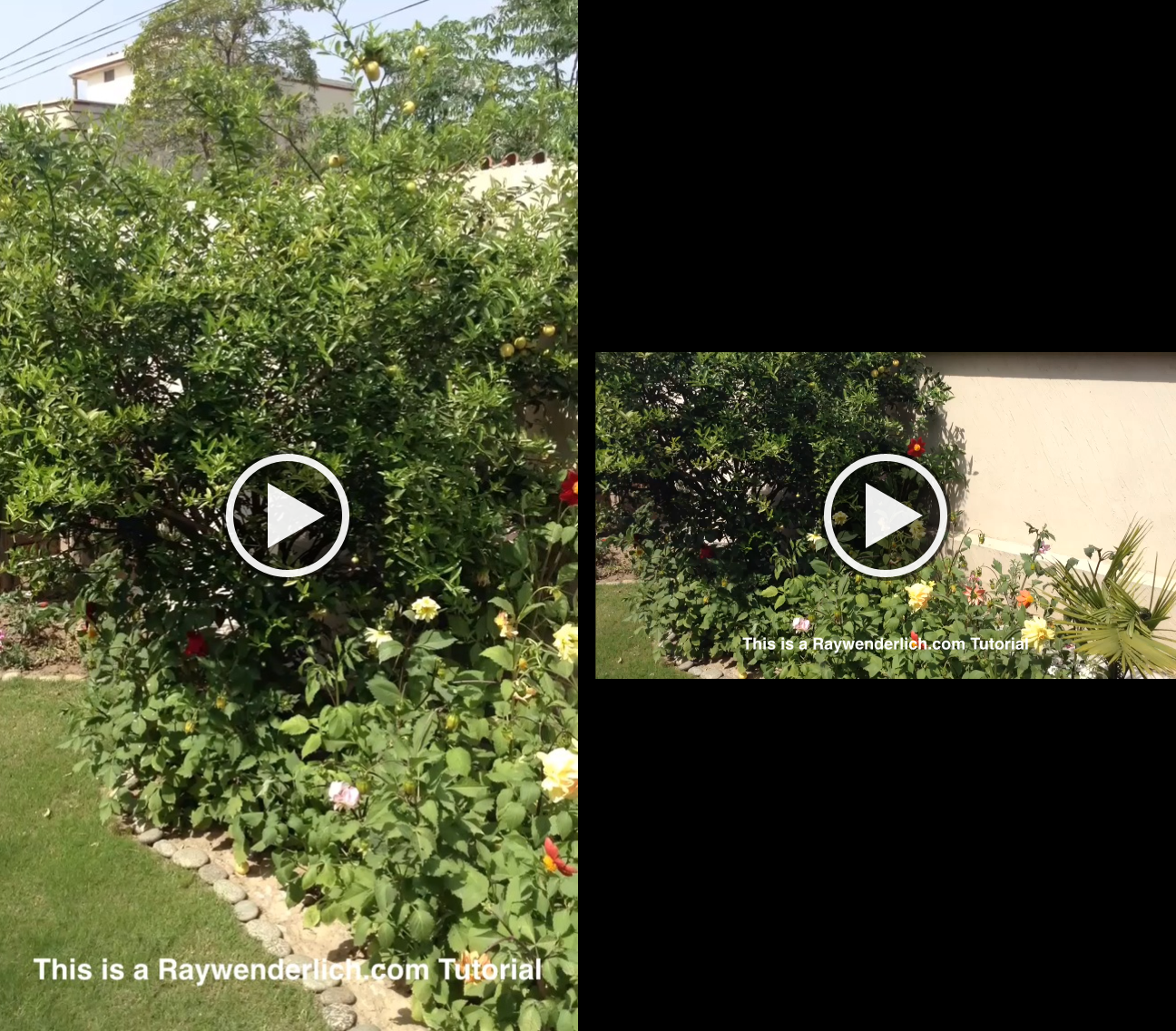
水印內容
第三節:如何給視頻添加動畫
原理不想贅述,一切花樣都在我們自己創建的layer上,因為我們用的是layer,所以自然可以使用基於CoreAnimation的動畫來使我們的layer動起來。
// 1
UIImage *animationImage = [UIImage imageNamed:@"star.png"];;
CALayer *overlayLayer1 = [CALayer layer];
[overlayLayer1 setContents:(id)[animationImage CGImage]];
overlayLayer1.frame = CGRectMake(size.width/2-64, size.height/2 + 200, 128, 128);
[overlayLayer1 setMasksToBounds:YES];
CALayer *overlayLayer2 = [CALayer layer];
[overlayLayer2 setContents:(id)[animationImage CGImage]];
overlayLayer2.frame = CGRectMake(size.width/2-64, size.height/2 - 200, 128, 128);
[overlayLayer2 setMasksToBounds:YES];
// 2 - Rotate
if (_animationSelectSegment.selectedSegmentIndex == 0) {
CABasicAnimation *animation =
[CABasicAnimation animationWithKeyPath:@"transform.rotation"];
animation.duration=2.0;
animation.repeatCount=5;
animation.autoreverses=YES;
// rotate from 0 to 360
animation.fromValue=[NSNumber numberWithFloat:0.0];
animation.toValue=[NSNumber numberWithFloat:(2.0 * M_PI)];
animation.beginTime = AVCoreAnimationBeginTimeAtZero;
[overlayLayer1 addAnimation:animation forKey:@"rotation"];
animation = [CABasicAnimation animationWithKeyPath:@"transform.rotation"];
animation.duration=2.0;
animation.repeatCount=5;
animation.autoreverses=YES;
// rotate from 0 to 360
animation.fromValue=[NSNumber numberWithFloat:0.0];
animation.toValue=[NSNumber numberWithFloat:(2.0 * M_PI)];
animation.beginTime = AVCoreAnimationBeginTimeAtZero;
[overlayLayer2 addAnimation:animation forKey:@"rotation"];
// 3 - Fade
} else if(_animationSelectSegment.selectedSegmentIndex == 1) {
CABasicAnimation *animation
=[CABasicAnimation animationWithKeyPath:@"opacity"];
animation.duration=3.0;
animation.repeatCount=5;
animation.autoreverses=YES;
// animate from fully visible to invisible
animation.fromValue=[NSNumber numberWithFloat:1.0];
animation.toValue=[NSNumber numberWithFloat:0.0];
animation.beginTime = AVCoreAnimationBeginTimeAtZero;
[overlayLayer1 addAnimation:animation forKey:@"animateOpacity"];
animation=[CABasicAnimation animationWithKeyPath:@"opacity"];
animation.duration=3.0;
animation.repeatCount=5;
animation.autoreverses=YES;
// animate from invisible to fully visible
animation.fromValue=[NSNumber numberWithFloat:1.0];
animation.toValue=[NSNumber numberWithFloat:0.0];
animation.beginTime = AVCoreAnimationBeginTimeAtZero;
[overlayLayer2 addAnimation:animation forKey:@"animateOpacity"];
  // 4 - Twinkle
} else if(_animationSelectSegment.selectedSegmentIndex == 2) {
CABasicAnimation *animation =
[CABasicAnimation animationWithKeyPath:@"transform.scale"];
animation.duration=0.5;
animation.repeatCount=10;
animation.autoreverses=YES;
// animate from half size to full size
animation.fromValue=[NSNumber numberWithFloat:0.5];
animation.toValue=[NSNumber numberWithFloat:1.0];
animation.beginTime = AVCoreAnimationBeginTimeAtZero;
[overlayLayer1 addAnimation:animation forKey:@"scale"];
animation = [CABasicAnimation animationWithKeyPath:@"transform.scale"];
animation.duration=1.0;
animation.repeatCount=5;
animation.autoreverses=YES;
// animate from half size to full size
animation.fromValue=[NSNumber numberWithFloat:0.5];
animation.toValue=[NSNumber numberWithFloat:1.0];
animation.beginTime = AVCoreAnimationBeginTimeAtZero;
[overlayLayer2 addAnimation:animation forKey:@"scale"];
}
// 5
CALayer *parentLayer = [CALayer layer];
CALayer *videoLayer = [CALayer layer];
parentLayer.frame = CGRectMake(0, 0, size.width, size.height);
videoLayer.frame = CGRectMake(0, 0, size.width, size.height);
[parentLayer addSublayer:videoLayer];
[parentLayer addSublayer:overlayLayer1];
[parentLayer addSublayer:overlayLayer2];
composition.animationTool = [AVVideoCompositionCoreAnimationTool
                           videoCompositionCoreAnimationToolWithPostProcessingAsVideoLayer:videoLayer inLayer:parentLayer];
}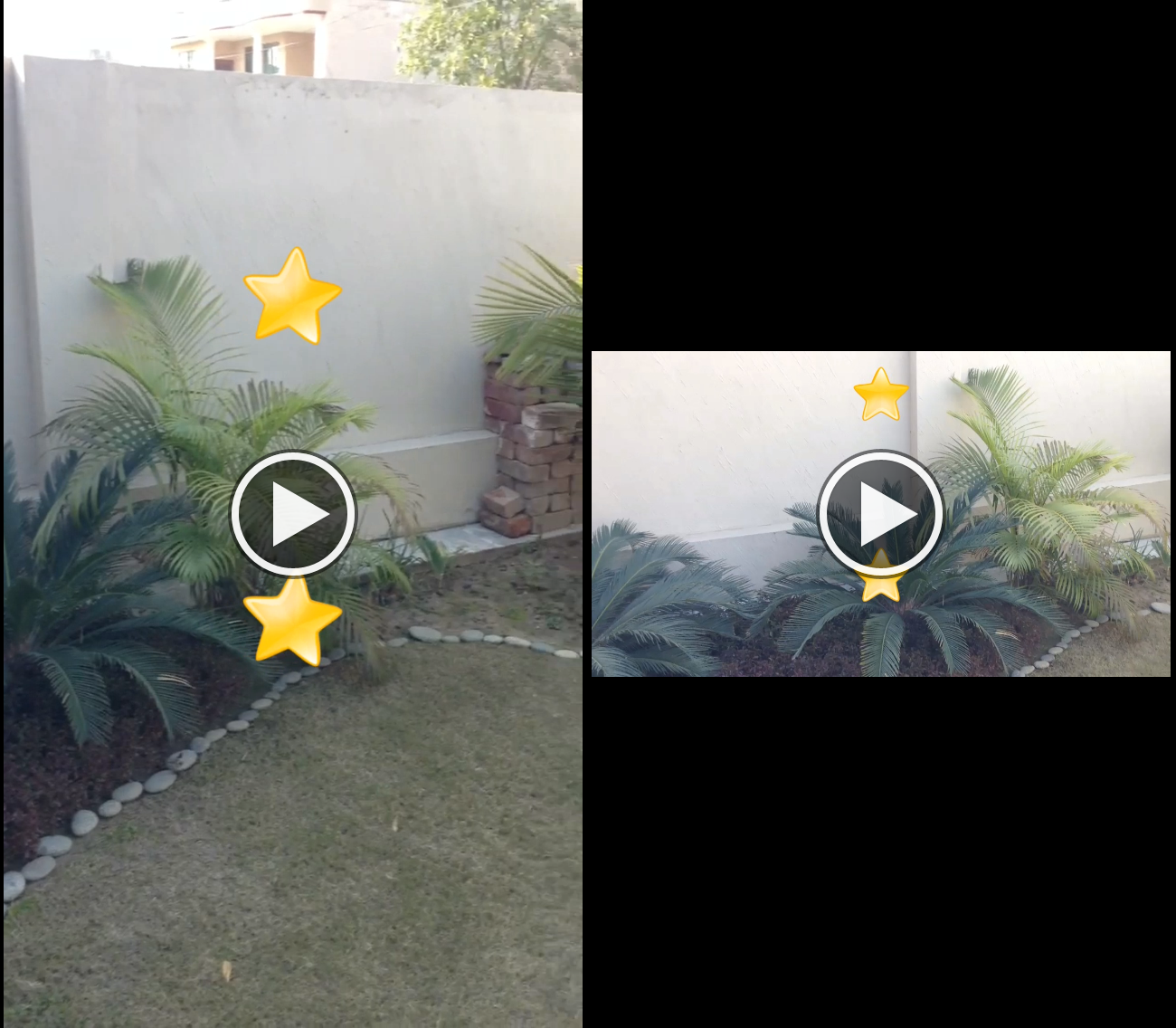
動畫效果
第四節:如何給我們的視頻layer做出3D效果
3D效果
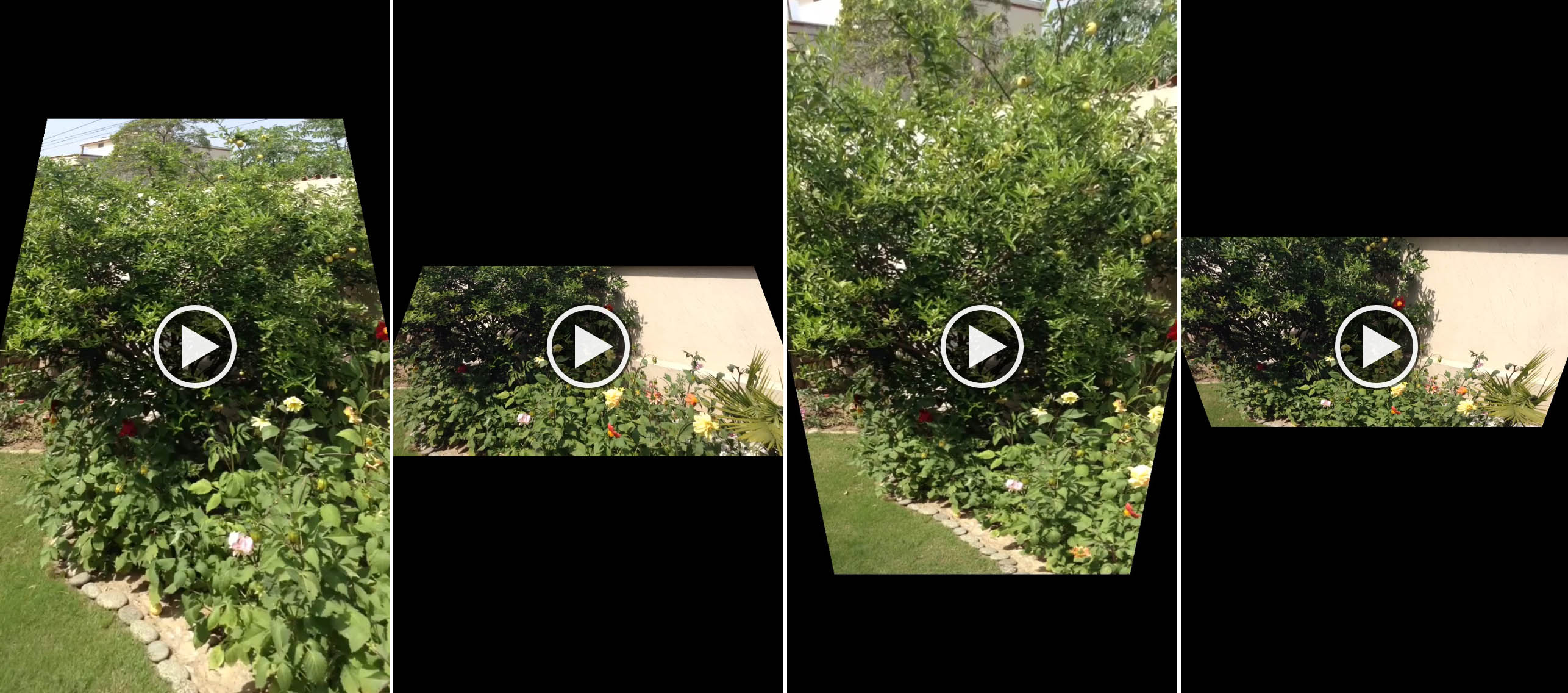
上面的所有效果都是在我們的animatinLayer上做文章的,要知道videoLayer他本質上也是個CALayer,那麼其實普通layer能做的事他也一樣能做。代碼如下。
// 1 - Layer setup
CALayer *parentLayer = [CALayer layer];
CALayer *videoLayer = [CALayer layer];
parentLayer.frame = CGRectMake(0, 0, size.width, size.height);
videoLayer.frame = CGRectMake(0, 0, size.width, size.height);
[parentLayer addSublayer:videoLayer];
// 2 - Set up the transform
CATransform3D identityTransform = CATransform3DIdentity;
// 3 - 具體設置可以看demo
if (_tiltSegment.selectedSegmentIndex == 0) {
    identityTransform.m34 = 1.0 / 1000; // greater the denominator lesser will be the transformation
} else if (_tiltSegment.selectedSegmentIndex == 1) {
    identityTransform.m34 = 1.0 / -1000; // lesser the denominator lesser will be the transformation
}
// 4 - 給我們的video層做rotation
videoLayer.transform = CATransform3DRotate(identityTransform, M_PI/6.0, 1.0f, 0.0f, 0.0f);
// 5 - Composition
composition.animationTool = [AVVideoCompositionCoreAnimationTool
                             videoCompositionCoreAnimationToolWithPostProcessingAsVideoLayer:videoLayer inLayer:parentLayer];
上面的代碼很容易懂,就是給我們的video層做rotation,其實你可以改改demo裡的數據,試試makescale,maketranslate之類的transform。
第五節:如何做出視頻推進效果
具體內容看我的DEMO。
前4節DEMO地址:http://cdn2.raywenderlich.com/wp-content/uploads/2013/05/VideoEditing-Final2.zip
視頻推進DEMO 地址:https://github.com/pingguo-zangqilong/VideoPushDemo
視頻推進demo使用的時候直接點合成,不用選擇視頻。
- 上一頁:低保真原型初級指南
- 下一頁:覺知性,Apple Watch的殺手級特性
- 手把手教你完成微信藐視頻iOS代碼完成
- 淺析iOS中視頻播放的幾種計劃
- iOS中讀取照片庫及保留圖片或視頻到照片庫的要點解析
- 詳解iOS運用中播放當地視頻和拔取當地音頻的組件用法
- 制止iPhone Safari video標簽視頻主動全屏的方法
- iOS開發之獲取零碎相冊中的圖片與視頻教程(內帶url轉換)
- [iOS 項目視頻] iOS視頻大全
- iOS 學習筆記(一) 視頻引導頁的制造
- 全球首個Apicloud 視頻緊縮模塊正式上線
- iOS超全開源框架、項目和學習材料匯總(4)數據庫、緩存處置、圖像閱讀、攝像照相視頻音頻篇
- iOS實現視頻和圖片的上傳思路
- 蘋果iphone手機開啟並設置視頻的隱藏字幕技巧[多圖]
- iphone6 plus單手模式使用視頻演示[圖]
- 怎麼辨別真假iphone6s iphone6s辨別真偽視頻詳解[圖]
- 臉控直播視頻如何分享到朋友圈?臉控直播app怎麼分享給好友?[多圖]