分分鐘解決iOS開發中App啟動廣告的功能

投稿文章,作者:Bison(微博)
前不久有朋友需要一個啟動廣告的功能,我說網上有挺多的,他說,看的不是很理想。想讓我寫一個,於是乎,抽空寫了一個,代碼通俗易懂,簡單的封裝了一下,各種事件用block回調的,有倆種樣式的廣告,一種是全屏廣告,另一種是下面露logo的,類似網頁新聞的啟動廣告。依賴SDWebImage主要用來下載網絡的廣告圖片,一般項目裡面網絡圖片都用的這個框架,所以在此不做過多的闡述。下面讓我們來看看我封裝的過程,對於新手來說,可以學習一下這種封裝的思想。
1.首先建一個繼承View的LBLaunchImageAdView.h文件,代碼如下:
//  LBLaunchImageAdView.h
//  LBLaunchImageAd
//  Created by gold on 16/6/8.
//  Copyright  2016年 Bison. All rights reserved.
typedef enum {
    FullScreenAdType = 1,//全屏的廣告
    LogoAdType = 0,//帶logo的廣告
}AdType;
#import
#import "UIImageView+WebCache.h"
#define mainHeight      [[UIScreen mainScreen] bounds].size.height
#define mainWidth       [[UIScreen mainScreen] bounds].size.width
typedef void (^LBClick) (NSInteger tag);
@interface LBLaunchImageAdView : UIView
@property (strong, nonatomic) UIImageView *aDImgView;
@property (strong, nonatomic) UIWindow *window;
@property (assign, nonatomic) NSInteger adTime; //倒計時總時長,默認6秒
@property (strong, nonatomic) UIButton *skipBtn;
@property (nonatomic, copy)LBClick clickBlock;
- (instancetype)initWithWindow:(UIWindow *)window andType:(NSInteger)type andImgUrl:(NSString *)url;
@end
裡面主要重寫了init方法,init方法方便我們在調用封裝的類初始化時傳遞一些參數,在此,我只傳遞了三個必要的參數,其他參數都用@property屬性來調配,達到自己想要的效果,再有就是一個block的回調函數,主要處理各種事件。下面我們看看.m文件裡面實現的部分
//  LBLaunchImageAdView.m
//  LBLaunchImageAd
//  Created by gold on 16/6/8.
//  Copyright 2016年 Bison. All rights reserved.
#import "LBLaunchImageAdView.h"
@interface LBLaunchImageAdView()
{
    NSTimer *countDownTimer;
}
@property (strong, nonatomic) NSString *isClick;
@property (assign, nonatomic) NSInteger secondsCountDown; //倒計時總時長
@end
@implementation LBLaunchImageAdView
- (instancetype)initWithWindow:(UIWindow *)window andType:(NSInteger)type andImgUrl:(NSString *)url
{
    self = [super init];
    if (self) {
        self.window = window;
        _secondsCountDown = 0;
        [window makeKeyAndVisible];
        //獲取啟動圖片
        CGSize viewSize = window.bounds.size;
        //橫屏請設置成 @"Landscape"
        NSString *viewOrientation = @"Portrait";
        NSString *launchImageName = nil;
        NSArray* imagesDict = [[[NSBundle mainBundle] infoDictionary] valueForKey:@"UILaunchImages"];
        for (NSDictionary* dict in imagesDict)
        {
            CGSize imageSize = CGSizeFromString(dict[@"UILaunchImageSize"]);
            if (CGSizeEqualToSize(imageSize, viewSize) && [viewOrientation isEqualToString:dict[@"UILaunchImageOrientation"]])
            {
                launchImageName = dict[@"UILaunchImageName"];
            }
        }
        UIImage * launchImage = [UIImage imageNamed:launchImageName];
        self.backgroundColor = [UIColor colorWithPatternImage:launchImage];
        self.frame = CGRectMake(0, 0, mainWidth, mainHeight);
        if (type == FullScreenAdType) {
            self.aDImgView = [[UIImageView alloc]initWithFrame:CGRectMake(0, 0, mainWidth, mainHeight)];
        }else{
            self.aDImgView = [[UIImageView alloc]initWithFrame:CGRectMake(0, 0, mainWidth, mainHeight - mainWidth/3)];
        }
        self.skipBtn = [UIButton buttonWithType:UIButtonTypeCustom];
        self.skipBtn.frame = CGRectMake(mainWidth - 70, 20, 60, 30);
        self.skipBtn.backgroundColor = [UIColor brownColor];
        self.skipBtn.titleLabel.font = [UIFont systemFontOfSize:14];
        [self.skipBtn addTarget:self action:@selector(skipBtnClick) forControlEvents:UIControlEventTouchUpInside];
        [self.aDImgView addSubview:self.skipBtn];
        UIBezierPath *maskPath = [UIBezierPath bezierPathWithRoundedRect:self.skipBtn.bounds byRoundingCorners:UIRectCornerBottomRight | UIRectCornerTopRight cornerRadii:CGSizeMake(15, 15)];
        CAShapeLayer *maskLayer = [[CAShapeLayer alloc] init];
        maskLayer.frame = self.skipBtn.bounds;
        maskLayer.path = maskPath.CGPath;
        self.skipBtn.layer.mask = maskLayer;
        SDWebImageManager *manager = [SDWebImageManager sharedManager];
        [manager downloadImageWithURL:[NSURL URLWithString:url] options:0 progress:^(NSInteger receivedSize, NSInteger expectedSize) {
        } completed:^(UIImage *image, NSError *error, SDImageCacheType cacheType, BOOL finished, NSURL *imageURL) {
            if (image) {
                 [self.aDImgView setImage:[self imageCompressForWidth:image targetWidth:mainWidth]];
            }
        }];
        self.aDImgView.tag = 1101;
        self.aDImgView.backgroundColor = [UIColor redColor];
        [self addSubview:self.aDImgView];
        UITapGestureRecognizer *tap = [[UITapGestureRecognizer alloc]initWithTarget:self action:@selector(activiTap:)];
        // 允許用戶交互
        self.aDImgView.userInteractionEnabled = YES;
        [self.aDImgView addGestureRecognizer:tap];
        CABasicAnimation *opacityAnimation = [CABasicAnimation animationWithKeyPath:@"opacity"];
        opacityAnimation.duration = 0.8;
        opacityAnimation.fromValue = [NSNumber numberWithFloat:0.0];
        opacityAnimation.toValue = [NSNumber numberWithFloat:0.8];
        opacityAnimation.timingFunction = [CAMediaTimingFunction functionWithName:kCAMediaTimingFunctionEaseIn];
        [self.aDImgView.layer addAnimation:opacityAnimation forKey:@"animateOpacity"];
        countDownTimer = [NSTimer scheduledTimerWithTimeInterval:1 target:self selector:@selector(onTimer) userInfo:nil repeats:YES];
        [self.window addSubview:self];
    }
    return self;
}
#pragma mark - 點擊廣告
- (void)activiTap:(UITapGestureRecognizer*)recognizer{
    _isClick = @"1";
    [self startcloseAnimation];
}
#pragma mark - 開啟關閉動畫
- (void)startcloseAnimation{
    CABasicAnimation *opacityAnimation = [CABasicAnimation animationWithKeyPath:@"opacity"];
    opacityAnimation.duration = 0.5;
    opacityAnimation.fromValue = [NSNumber numberWithFloat:1.0];
    opacityAnimation.toValue = [NSNumber numberWithFloat:0.3];
    opacityAnimation.removedOnCompletion = NO;
    opacityAnimation.fillMode = kCAFillModeForwards;
    [self.aDImgView.layer addAnimation:opacityAnimation forKey:@"animateOpacity"];
    [NSTimer scheduledTimerWithTimeInterval:opacityAnimation.duration
                                     target:self
                                   selector:@selector(closeAddImgAnimation)
                                   userInfo:nil
                                    repeats:NO];
}
- (void)skipBtnClick{
    _isClick = @"2";
    [self startcloseAnimation];
}
#pragma mark - 關閉動畫完成時處理事件
-(void)closeAddImgAnimation
{
    [countDownTimer invalidate];
    countDownTimer = nil;
    self.hidden = YES;
    self.aDImgView.hidden = YES;
    self.hidden = YES;
    if ([_isClick integerValue] == 1) {
        if (self.clickBlock) {//點擊廣告
            self.clickBlock(1100);
        }
    }else if([_isClick integerValue] == 2){
        if (self.clickBlock) {//點擊跳過
            self.clickBlock(1101);
        }
    }else{
        if (self.clickBlock) {//點擊跳過
            self.clickBlock(1102);
        }
    }
}
- (void)onTimer {
    if (_adTime == 0) {
        _adTime = 6;
    }
    if (_secondsCountDown < _adTime) {
        _secondsCountDown++;
        [self.skipBtn setTitle:[NSString stringWithFormat:@"%ld | 跳過",_secondsCountDown] forState:UIControlStateNormal];
    }else{
        [countDownTimer invalidate];
        countDownTimer = nil;
        [self startcloseAnimation];
    }
}
#pragma mark - 指定寬度按比例縮放
- (UIImage *)imageCompressForWidth:(UIImage *)sourceImage targetWidth:(CGFloat)defineWidth {
    UIImage *newImage = nil;
    CGSize imageSize = sourceImage.size;
    CGFloat width = imageSize.width;
    CGFloat height = imageSize.height;
    CGFloat targetWidth = defineWidth;
    CGFloat targetHeight = height / (width / targetWidth);
    CGSize size = CGSizeMake(targetWidth, targetHeight);
    CGFloat scaleFactor = 0.0;
    CGFloat scaledWidth = targetWidth;
    CGFloat scaledHeight = targetHeight;
    CGPoint thumbnailPoint = CGPointMake(0.0, 0.0);
    if(CGSizeEqualToSize(imageSize, size) == NO){
        CGFloat widthFactor = targetWidth / width;
        CGFloat heightFactor = targetHeight / height;
        if(widthFactor > heightFactor){
            scaleFactor = widthFactor;
        }
        else{
            scaleFactor = heightFactor;
        }
        scaledWidth = width * scaleFactor;
        scaledHeight = height * scaleFactor;
        if(widthFactor > heightFactor){
            thumbnailPoint.y = (targetHeight - scaledHeight) * 0.5;
        }else if(widthFactor < heightFactor){
            thumbnailPoint.x = (targetWidth - scaledWidth) * 0.5;
        }
    }
    //    UIGraphicsBeginImageContext(size);
    UIGraphicsBeginImageContextWithOptions(size, NO, [UIScreen mainScreen].scale);
    CGRect thumbnailRect = CGRectZero;
    thumbnailRect.origin = thumbnailPoint;
    thumbnailRect.size.width = scaledWidth;
    thumbnailRect.size.height = scaledHeight;
    [sourceImage drawInRect:thumbnailRect];
    newImage = UIGraphicsGetImageFromCurrentImageContext();
    if(newImage == nil){
        NSLog(@"scale image fail");
    }
    UIGraphicsEndImageContext();
    return newImage;
}
@end
UI部分由於沒有什麼需要重用的地方,所以沒有再另外抽取出來方法,全部放在init方法裡面,顯得有點臃腫。UI部分在此不做過多的闡述,裡邊主要運用了一個漸變的動畫,利用CABasicAnimation中的opacity,有興趣的朋友可以看看源碼, 再有就是一個圖片重構的方法,防止圖片變形。
下面我們說下怎麼集成我封裝的這個功能吧,挺簡單的,首先來看看代碼:
- (BOOL)application:(UIApplication *)application didFinishLaunchingWithOptions:(NSDictionary *)launchOptions {
    /* FullScreenAdType 全屏廣告
     * LogoAdType 帶logo的廣告類似網易廣告,值得注意的是啟動圖片必須帶logo圖
     * ImgUrl  圖片url
     */
    LBLaunchImageAdView * adView = [[LBLaunchImageAdView alloc]initWithWindow:self.window andType:LogoAdType andImgUrl:@"http://www.uisheji.com/wp-content/uploads/2013/04/19/app-design-uisheji-ui-icon20121_55.jpg"];
    //各種回調
    adView.clickBlock = ^(NSInteger tag){
        switch (tag) {
            case 1100:{
                NSLog(@"點擊廣告回調");
                TestViewController *vc = [[TestViewController alloc]init];
                vc.view.backgroundColor = [UIColor whiteColor];
                [self.window.rootViewController presentViewController:vc animated:YES completion:^{
                }];
            }
                break;
            case 1101:
                NSLog(@"點擊跳過回調");
                break;
            case 1102:
                NSLog(@"倒計時完成後的回調");
                break;
            default:
                break;
        }
    };
    return YES;
}
首先在AppDelegate.m導入頭文件#import "LBLaunchImageAdView.h",然後在didFinishLaunchingWithOptions方法裡面初始化一下,最後就是一些點擊的回調事件了。到此,講解完畢,最後丟上效果圖和下載地址。
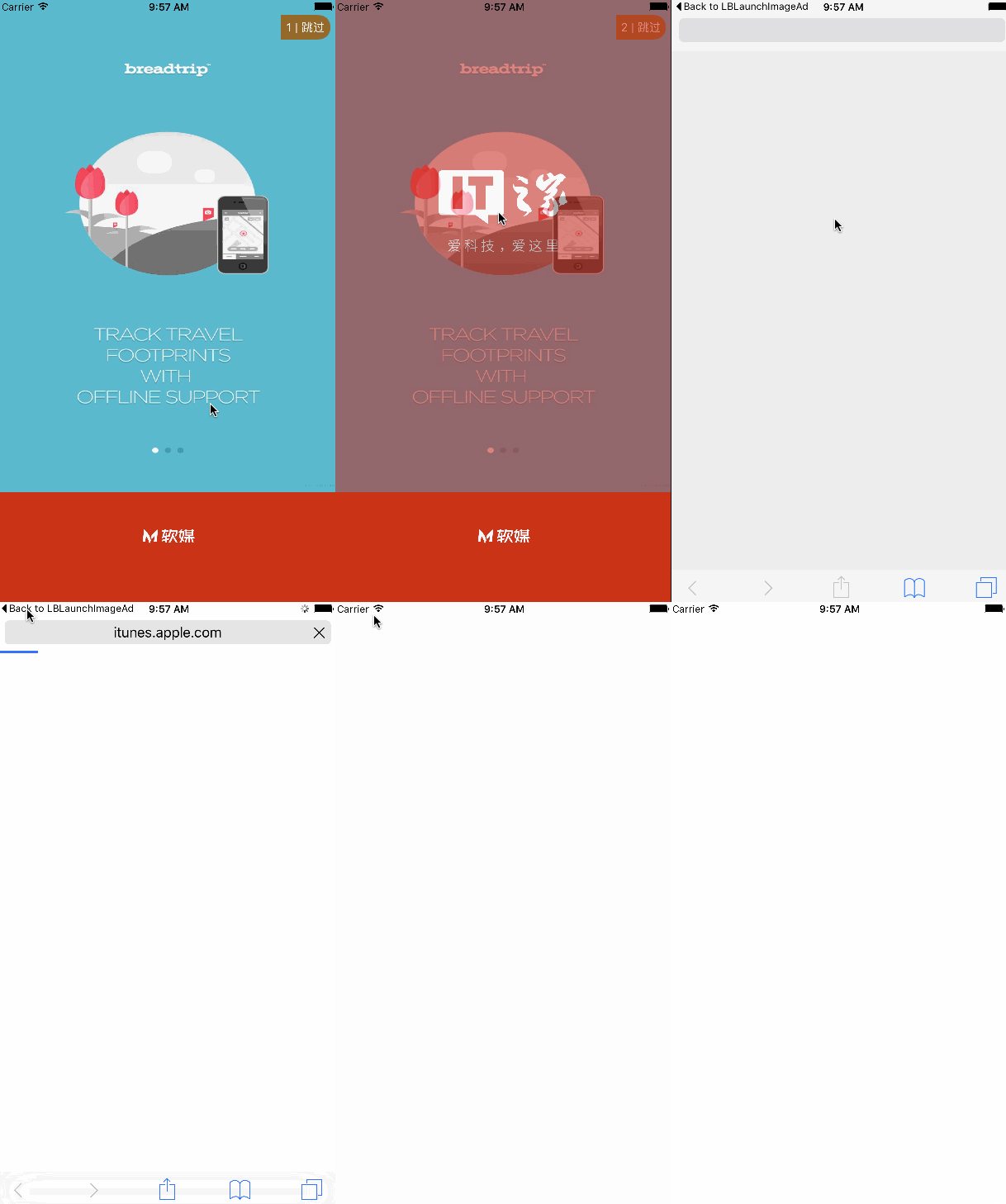
下載地址:https://github.com/AllLuckly/LBLaunchImageAd
如對你有幫助,請不要吝惜你的star和喜歡哦!
版權歸@Bison所有 如需轉載請保留原文超鏈接地址,否則後果自負!

- iOS完成時間顯示幾分鐘前,幾小時前以及剛剛的辦法示例
- 10分鐘看完蘋果WWDC2016:iOS10接地氣
- 蘋果iOS10開發者預覽版Beta4上手視頻:三分鐘看完所有改動
- 5分鐘iOS9.3.2正式版快速體驗:解決惱人問題的小更新
- 1分鐘辨識iPhone5配件是否真假
- Heard記錄5分鐘以前聲音
- 10分鐘讓你輕輕松松給米柚系統
- 幾十分鐘讓iPhone 6變成粉紅色
- 一分鐘教你如何把iphone手機變成無線鼠標
- 幾分鐘為iPhone5c換上新屏幕
- iPhone鬧鐘為什麼是九分鐘提醒一次
- 必須在60分鐘內修改iPhone解鎖密碼怎麼辦?
- 教你1分鐘檢查iPhone是否被掉包零配件
- 教你四招!1分鐘快速辨別iPhone耳機真假
- 技巧:手機貼膜 自己動手10分鐘完美搞定