一行代碼集成今日頭條效果
導讀
下面這個效果(多視圖滑動點擊切換)在很多App都有用到.
我相信大家都寫過很多遍了,網上也有大量的Demo,設計思路,大致差不多,代碼繁雜程度不禁吐槽.
筆者自己對這個視圖效果進行了封裝,幾次優化後,目前代碼,精簡美觀,接口簡單.
外界只需要調用一個接口,就能輕松實現這個效果.
使用方法和系統的tabbarController相似,只需要給HYTabbarView添加對應控制器即可.
github源碼分享:https://github.com/HelloYeah/HYTabbarView
大家checkout時順手點個星星,與人為樂,自得其樂.
HYTabbarView效果圖如下
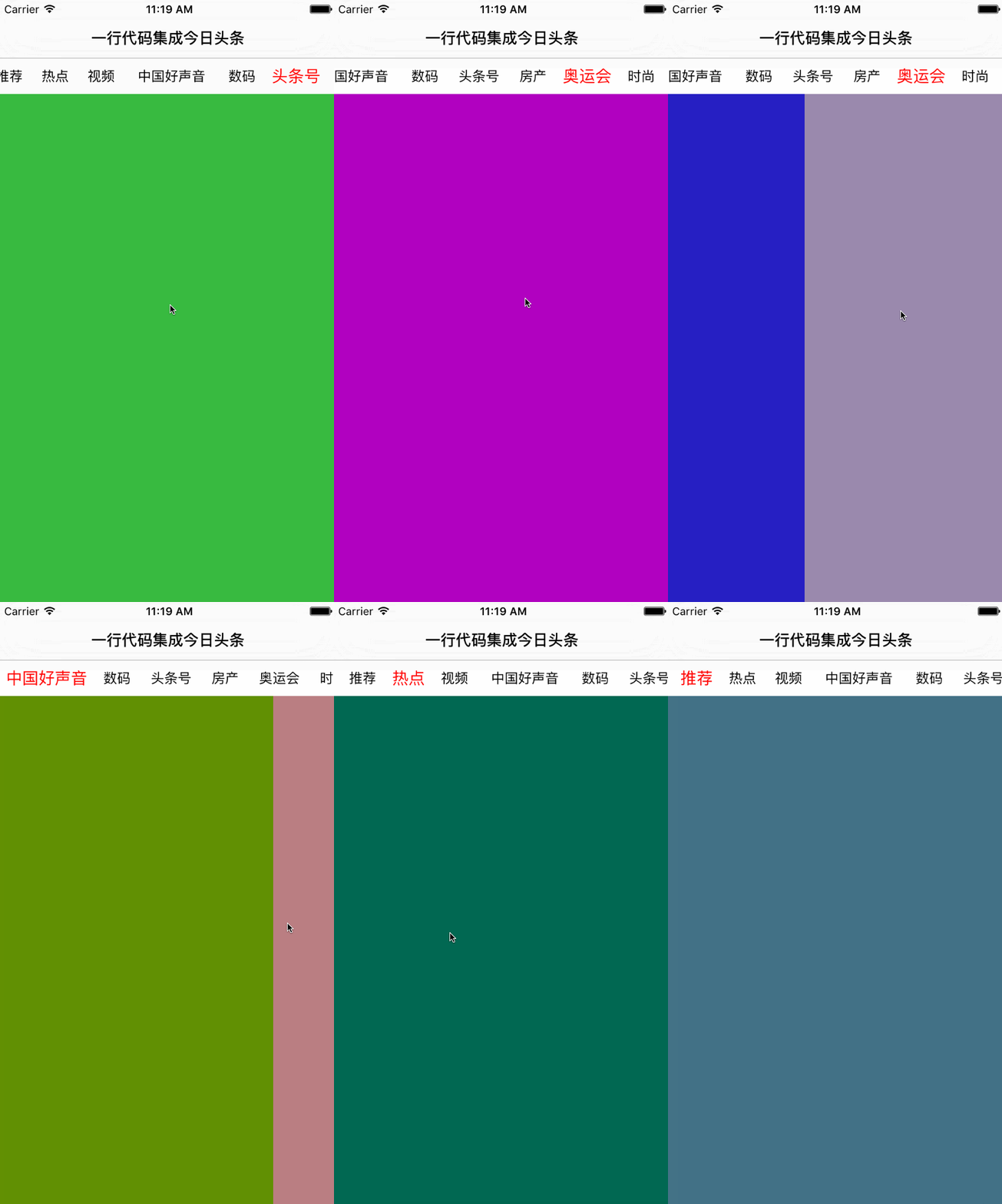
HYTabbarView可靈活配置UI界面
static CGFloat const topBarItemMargin = 15; ///標題之間的間距
static CGFloat const topBarHeight = 40; //頂部標簽條的高度
實現思路詳解
界面分析:分為上下部分,頂部UIScrollView,底部UICollectionView.再實現兩部分的聯動即可實現 (底部視圖相對復雜,占用內存大,底部用UICollectionView實現會比用UIScrollView性能好很多)
每一個標題對應一個View視圖,View視圖交由相應的控制器來管理,代碼結構十分清晰.做到不同View上的業務邏輯高聚合.也不會產生耦合性
上下兩部分的聯動,這裡是同過KVO實現的,監聽當前的selectedIndex,底部視圖滾動時,修改selectedIndex的值.在KVO監聽的回調方法裡讓標題居中.
-其他細節相對簡單,大家不看代碼都知道如何處理,比如:點擊頂部標題,設置按鈕選中,切換到對應的CollectionCell等
代碼片段:
1.外界傳個控制器和一個標題,添加一個欄目
//外界傳個控制器,添加一個欄目
- (void)addSubItemWithViewController:(UIViewController *)viewController{

    UIButton * btn = [UIButton buttonWithType:UIButtonTypeCustom];
    [self.tabbar addSubview:btn];
    [self setupBtn:btn withTitle:viewController.title];
    [btn addTarget:self action:@selector(itemSelected:) forControlEvents:UIControlEventTouchUpInside];
    [self.subViewControllers addObject:viewController];
}
2.KVO監聽當前選中View的序號值
//viewDidLoad中添加觀察者
[self addObserver:self forKeyPath:@"selectedIndex" options:NSKeyValueObservingOptionOld |NSKeyValueObservingOptionNew context:@"scrollToNextItem"];
//讓標題按鈕居中算法
- (void)observeValueForKeyPath:(NSString *)keyPath ofObject:(id)object change:(NSDictionary *)change context:(void *)context
{
    if (context == @"scrollToNextItem") {
        //設置按鈕選中
        [self itemSelectedIndex:self.selectedIndex];
        UIButton * btn = self.titles[self.selectedIndex];
        // 計算偏移量
        CGFloat offsetX = btn.center.x - HYScreenW * 0.5;
        if (offsetX < 0) offsetX = 0;
        // 獲取最大滾動范圍
        CGFloat maxOffsetX = self.tabbar.contentSize.width - HYScreenW;
        if (offsetX > maxOffsetX) offsetX = maxOffsetX;
        // 滾動標題滾動條
        [self.tabbar setContentOffset:CGPointMake(offsetX, 0) animated:YES];
    }
}
3.點擊按鈕,滾動視圖,字體放大動畫
- (void)itemSelectedIndex:(NSInteger)index{

    UIButton * preSelectedBtn = self.titles[_preSelectedIndex];
    preSelectedBtn.selected = NO;
    _selectedIndex = index;
    _preSelectedIndex = _selectedIndex;
    UIButton * selectedBtn = self.titles[index];
    selectedBtn.selected = YES;
    [UIView animateWithDuration:0.25 animations:^{
        preSelectedBtn.titleLabel.font = [UIFont systemFontOfSize:15];
        selectedBtn.titleLabel.font = [UIFont systemFontOfSize:18];
    }];
}
控制器代碼如下
使用方法類似系統的UITabbarController,外界只需直接傳入控制器.
- (void)viewDidLoad {

   [super viewDidLoad];
   [self.view addSubview:self.tabbarView];
}
//懶加載
- (HYTabbarView *)tabbarView{

    if (!_tabbarView) {
        _tabbarView = ({

            HYTabbarView * tabbar = [[HYTabbarView alloc]initWithFrame:CGRectMake(0, 64, [UIScreen mainScreen].bounds.size.width, [UIScreen mainScreen].bounds.size.height - 64)];

            //傳入九個控制器,每個控制器分別管理對應的視圖
            UIViewController * vc0 = [[UIViewController alloc]init];
            vc0.title = @"推薦";
            [tabbar addSubItemWithViewController:vc0];

            UIViewController * vc1 = [[UIViewController alloc]init];
            vc1.title = @"熱點";
            [tabbar addSubItemWithViewController:vc1];

            UIViewController * vc2 = [[UIViewController alloc]init];
            vc2.title = @"視頻";
            [tabbar addSubItemWithViewController:vc2];

            UIViewController * vc3 = [[UIViewController alloc]init];
            vc3.title = @"中國好聲音";
            [tabbar addSubItemWithViewController:vc3];

            UIViewController * vc4 = [[UIViewController alloc]init];
            vc4.title = @"數碼";
            [tabbar addSubItemWithViewController:vc4];

            UIViewController * vc5 = [[UIViewController alloc]init];
            vc5.title = @"頭條號";
            [tabbar addSubItemWithViewController:vc5];

            UIViewController * vc6 = [[UIViewController alloc]init];
            vc6.title = @"房產";
            [tabbar addSubItemWithViewController:vc6];

            UIViewController * vc7 = [[UIViewController alloc]init];
            vc7.title = @"奧運會";
            [tabbar addSubItemWithViewController:vc7];

            UIViewController * vc8 = [[UIViewController alloc]init];
            vc8.title = @"時尚";
            [tabbar addSubItemWithViewController:vc8];
            tabbar;
        });
    }
    return _tabbarView;
}
文章來自 yeliang_new的投稿