
iOS 核心動畫與 UIView 動畫詳解
我們看到很多 App 帶有絢麗的特效、別出心裁的控件設計,在很大程度上提升了使用者體驗,在增加實用性的同時,也賦予了 App 無限的生命力。這些華麗的效果,很多都是基於 iOS 的核心動畫原理實現的。本文介紹 iOS 開發中最基本的動畫效果實作,只有掌握了基本屬性,才能繪製出更華麗的效果。
一、概念擴充
1、核心動畫:
Core Animation 是一組非常強大的動畫處理 API,用它往往能事半功倍地做出非常炫麗的動畫效果。Core Animation 可用於 Mac OS X 和 iOS 平台,在 iOS 平台中動畫效果會略少一些。此外,iOS 開發中實現動畫的方式也不只有核心動畫一種,後面會介紹 UIView 的幾種動畫。
2、執行和建立動畫的過程:
(1)Core Animation 的動畫執行過程都在後台操作,不會阻塞主執行緒。要注意的是,Core Animation 是直接作用在 CALayer 上的,並非 UIView,所以 CALayer 是核心動畫的基礎。
(2)關於框架:iOS 7 以後,不再需要匯入 QuartzCore.framework 框架和主標頭檔 <QuartzCore/QuartzCore.h>。
(3)基本的建立動畫流程:
- 建立動畫物件;
- 設定動畫屬性;
- 把動畫物件加入到某個 CALayer 物件上;
- 需要停止動畫時,可呼叫 remove 方法移除動畫。
3、動畫類型:
- 屬性動畫:設定某個屬性的值,即可實現屬性動畫。
- 基本動畫(CABasicAnimation):設定某個屬性從某個值到另一個值。
- 關鍵幀動畫(CAKeyframeAnimation):設定某個屬性按關鍵值改變的順序,從一個值到另一個值再到下一個值。
- 組動畫(CAAnimationGroup):把所有其他動畫加入到組裡,即可按加入順序依序執行。
- 轉場動畫(CATransition):從一個場景轉換到另一個場景,系統已經實作好了,按需求直接呼叫即可。
4、本質與繼承關係:
(1)本質:在後台移動圖層中的內容,執行完畢後圖層本身的位置並沒有發生變化。
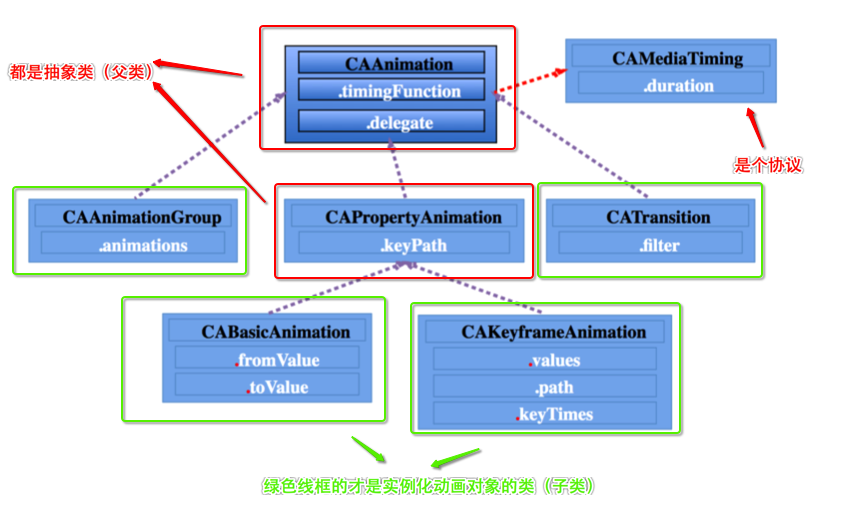
(2)所有的動畫都繼承自 CAAnimation。
二、CAAnimation
1、定義:所有動畫物件的父類,負責控制動畫的持續時間和速度,是個抽象類,不能直接使用,應使用它具體的子類。
2、屬性解析(很多屬性都來自 CAMediaTiming 協定):
- duration:動畫的持續時間,預設 0.25s
- repeatCount:動畫的重複次數
- repeatDuration:動畫的重複時間
- removedOnCompletion:預設為 YES,代表動畫執行完畢後就從圖層上移除,圖形會恢復到動畫執行前的狀態。若想讓圖層保持動畫執行後的狀態,則設為 NO,同時還要將 fillMode 設為 kCAFillModeForwards
- fillMode:決定當前物件在非 active 時間段的行為,比如動畫開始之前、動畫結束之後
- beginTime:可用來設定動畫延遲執行的時間,若想延遲 2s,就設為 CACurrentMediaTime()+2,CACurrentMediaTime() 為圖層的當前時間
- timingFunction:速度控制函式,控制動畫運行的節奏
3、隱式代理:delegate
(1)CAAnimation 有一個 id 類型的 delegate 屬性,但此屬性沒有遵守任何協定,本身也沒有任何代理協定。
(2)實作代理方法:注意,這裡的兩個方法是在 NSObject 擴展中宣告的,所以本身就是 NSObject 的方法,每一個類都能實作。
- 監聽動畫開始 -(void)animationDidStart:(CAAnimation *)anim
- 監聽動畫結束 - (void)animationDidStop:(CAAnimation *)anim finished:(BOOL)flag;
(3)給 CAAnimation 的 delegate 賦值(說明誰來代理)、重寫代理方法,就能實現「隱式」代理。
三、CAPropertyAnimation
1、定義:是 CAAnimation 的子類,也是個抽象類,要想建立動畫物件,應使用它的兩個子類:CABasicAnimation 和 CAKeyframeAnimation。
2、屬性解析:
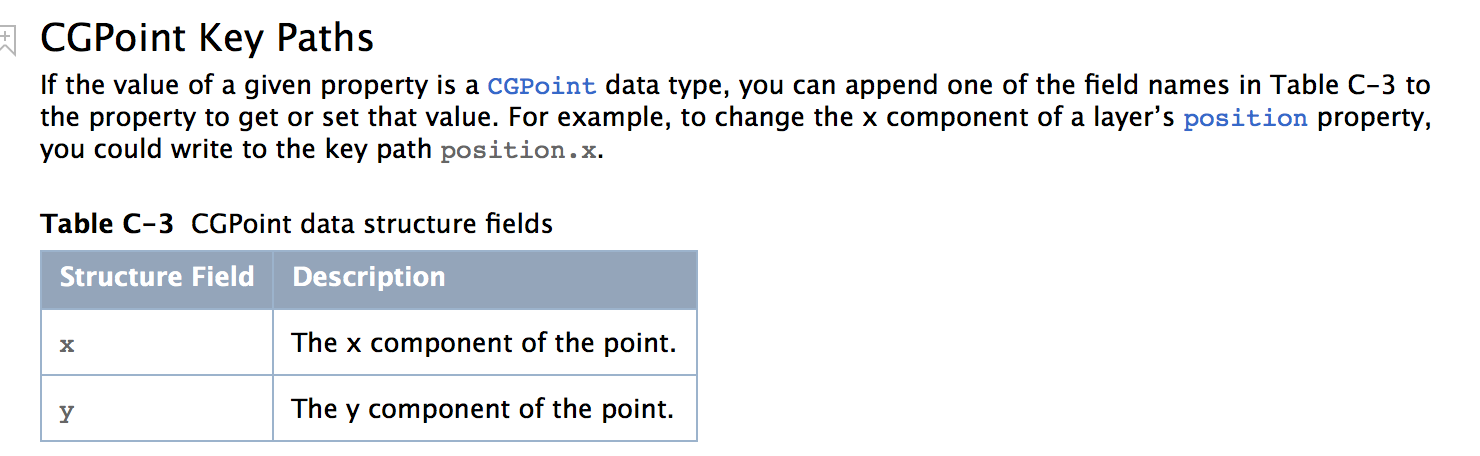
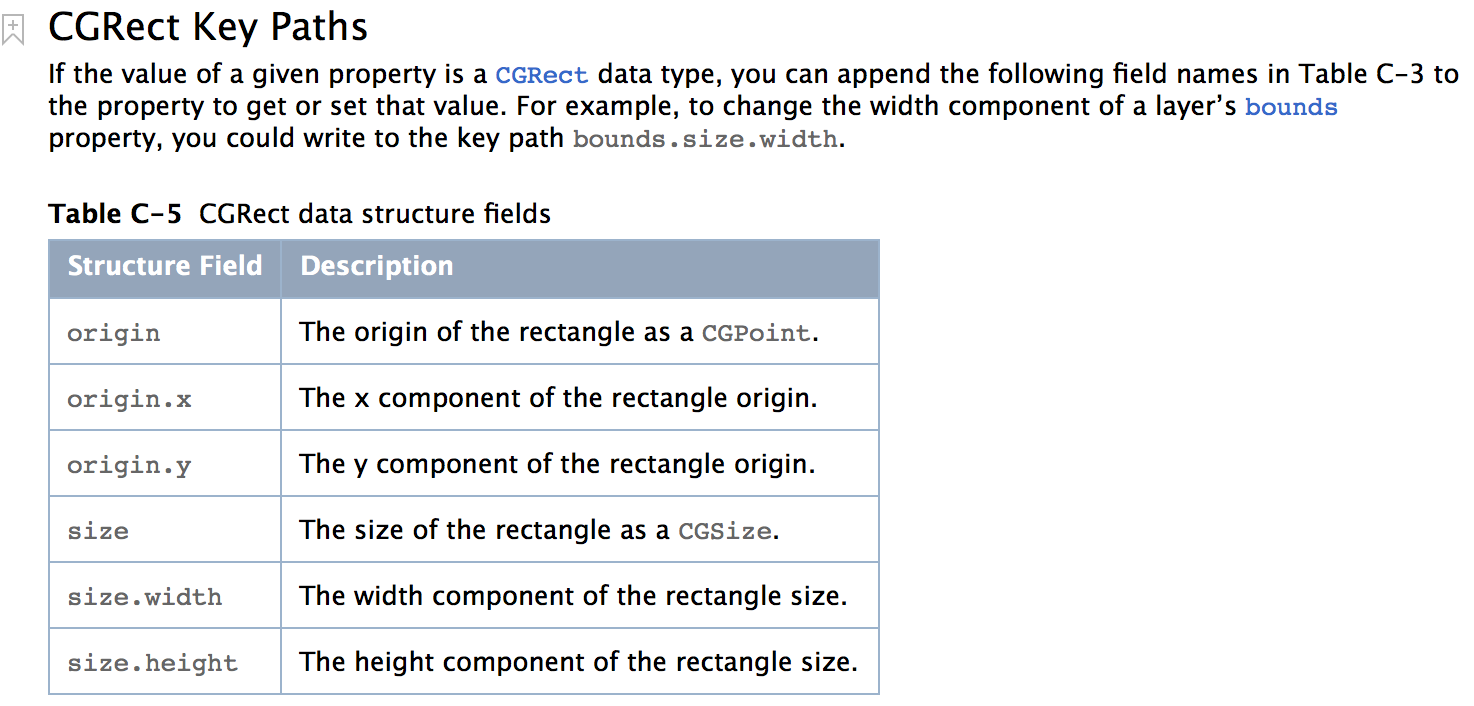
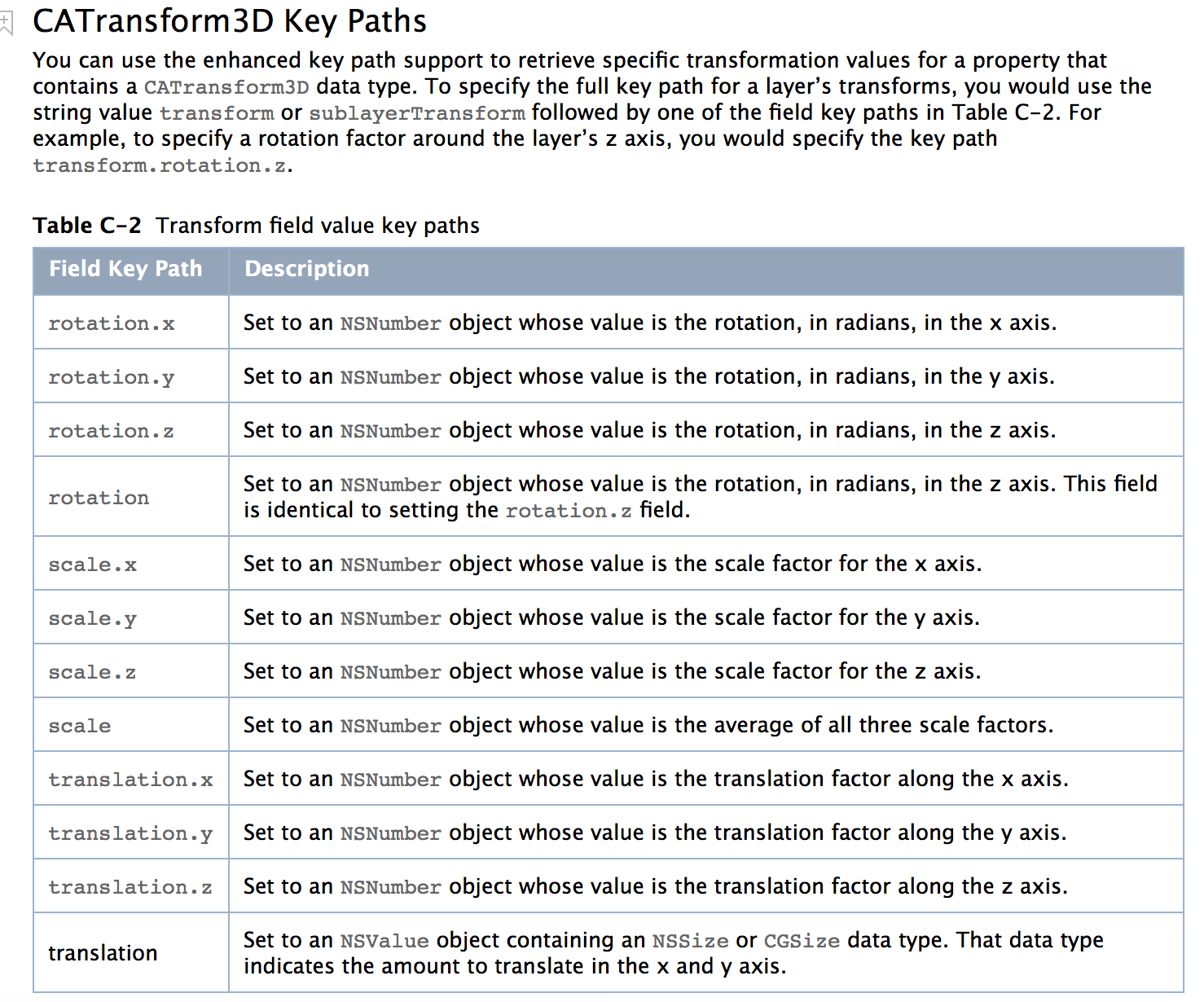
- keyPath:將 CALayer 的一個屬性名稱作為 keyPath(NSString 類型),並對 CALayer 這個屬性的值進行修改,達到相應的動畫效果。比如指定 @"position" 為 keyPath,就修改 CALayer 的 position 屬性的值,以達到平移的動畫效果。下面三張圖是官方給出的 keyPath:
(1)圖 1:position 屬性 —— CGPoint 類型
(2)圖 2:frame 和 bounds 屬性 —— CGRect 類型
(3)圖 3:transform 屬性 —— CATransform3D 類型
四、CABasicAnimation 基本動畫
1、定義:基本動畫,是 CAPropertyAnimation 的子類,透過設定 keyPath 與兩個值之間的變化實現動畫。
2、屬性解析:
- fromValue:keyPath 相應屬性的初始值
- toValue:keyPath 相應屬性的結束值
隨著動畫的進行,在長度為 duration 的持續時間內,keyPath 相應屬性的值會從 fromValue 漸漸變為 toValue。如果 fillMode=kCAFillModeForwards 且 removedOnCompletion=NO,那麼動畫執行完畢後,圖層會保持顯示動畫執行後的狀態;但實質上,圖層的屬性值仍是動畫執行前的初始值,並沒有真正被改變。比如 CALayer 的 position 初始值為 (0,0),fromValue 為 (10,10),toValue 為 (100,100),雖然動畫執行完畢後圖層保持在 (100,100) 這個位置,但實質上圖層的 position 還是 (0,0)。
3、程式碼案例:
以下給出一個基本動畫和關鍵幀動畫的基本設定案例。效果:
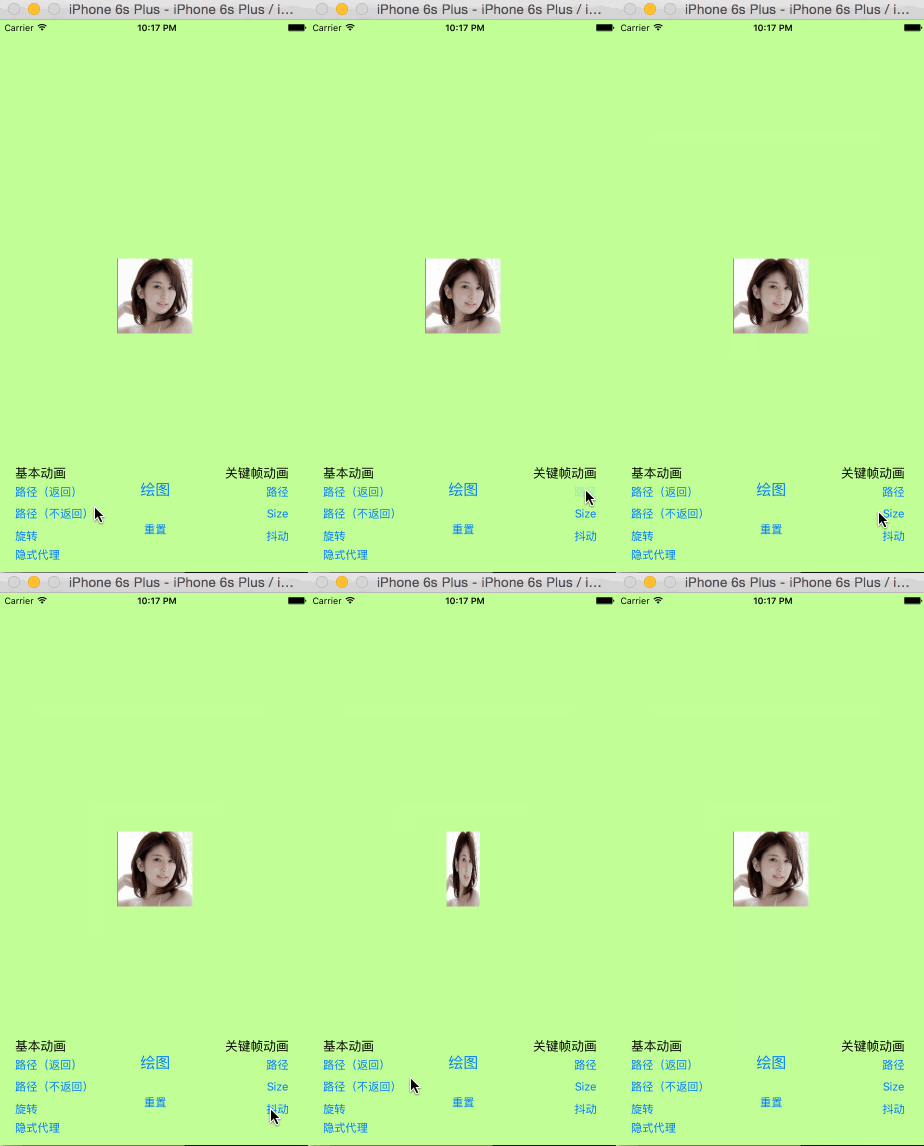
#pragma mark - 基本動畫:按路徑移動(默認返回原位) - (IBAction)moveAtPathBack:(UIButton *)sender { //設置keyPath 為:transform.translation.x CABasicAnimation * animation = [CABasicAnimation animationWithKeyPath:@"transform.translation.x"]; //起始值 animation.fromValue= @(150); //到達值 animation.toValue = @(-150); animation.duration=1; //要添加到layer [self.button.layer addAnimation:animation forKey:nil]; } #pragma mark - 基本動畫:按路徑移動(不返回原位) - (IBAction)moveAtPath:(id)sender { //設置keyPath 為:transform.translation.x CABasicAnimation * animation = [CABasicAnimation animationWithKeyPath:@"transform.translation.x"]; animation.fromValue= @(150); animation.toValue = @(-150); animation.duration=1; //不回到原位置,但是控件的“真身”還在原位 animation.removedOnCompletion=NO; //保持的狀態 animation.fillMode=kCAFillModeForwards; [self.button.layer addAnimation:animation forKey:nil]; } #pragma mark - 基本動畫:旋轉 - (IBAction)rotate:(UIButton *)sender { //設置keyPath 為:transform.rotation.y CABasicAnimation * animation = [CABasicAnimation animationWithKeyPath:@"transform.rotation.y"]; //轉一周 NSNumber * num = @(M_PI*2); animation.toValue=num; animation.removedOnCompletion=NO; animation.fillMode=kCAFillModeForwards; //轉了3秒 animation.duration=3; //重復次數無限大 animation.repeatCount=CGFLOAT_MAX; [self.button.layer addAnimation:animation forKey:nil]; }
五、CAKeyframeAnimation 關鍵幀動畫
1、定義:關鍵幀動畫,也是 CAPropertyAnimation 的子類,透過設定 keyPath 與多個值之間的變化實現動畫。
2、屬性解析:
- values:就是上述的 NSArray 物件,裡面的元素稱為「關鍵幀」(keyframe)。動畫物件會在指定的時間(duration)內,依序顯示 values 陣列中的每一個關鍵幀。
- path:可以設定一個 CGPathRef/CGMutablePathRef,讓層跟著路徑移動。path 只對 CALayer 的 anchorPoint 和 position 起作用;如果設定了 path,那麼 values 將被忽略。
- keyTimes:可以為對應的關鍵幀指定對應的時間點,取值範圍為 0 到 1.0,keyTimes 中的每一個時間值都對應 values 中的每一幀。當 keyTimes 沒有設定時,各個關鍵幀的時間是平分的。
3、與 CABasicAnimation 的區別:CABasicAnimation 只能從一個數值(fromValue)變到另一個數值(toValue),而 CAKeyframeAnimation 會用一個 NSArray 保存這些數值。CABasicAnimation 可看做是最多只有 2 個關鍵幀的 CAKeyframeAnimation。
4、程式碼案例:
#pragma mark - 關鍵幀:按方形路徑移動 - (IBAction)keyPathPath:(UIButton *)sender { //設置keyPath 為:position CAKeyframeAnimation * animation = [CAKeyframeAnimation animationWithKeyPath:@"position"]; //設置5個值 NSValue * v1 = [NSValue valueWithCGPoint:CGPointMake(100, 200)]; NSValue * v2 = [NSValue valueWithCGPoint:CGPointMake(100, 400)]; NSValue * v3 =[NSValue valueWithCGPoint:CGPointMake(300, 400)]; NSValue * v4 = [NSValue valueWithCGPoint:CGPointMake(300, 200)]; NSValue * v5 = [NSValue valueWithCGPoint:CGPointMake(100, 200)]; //加入“值”數組 animation.values=@[v1,v2,v3,v4,v5]; animation.duration=2; animation.repeatCount=CGFLOAT_MAX; animation.removedOnCompletion=NO; animation.fillMode=kCAFillModeForwards; [self.button.layer addAnimation:animation forKey:nil]; } #pragma mark - 關鍵幀:size變化 - (IBAction)keyPathSize:(id)sender { //設置keyPath 為:bounds.size CAKeyframeAnimation * animation = [CAKeyframeAnimation animationWithKeyPath:@"bounds.size"]; //設置三個值 NSValue * v0 = [NSValue valueWithCGSize:CGSizeMake(100, 100)]; NSValue * v1 = [NSValue valueWithCGSize:CGSizeMake(200, 200)]; NSValue * v2 = [NSValue valueWithCGSize:CGSizeMake(100, 100)]; animation.values=@[v0,v1,v2]; animation.duration=0.5; animation.repeatCount=CGFLOAT_MAX; animation.removedOnCompletion=NO; animation.fillMode=kCAFillModeForwards; [self.button.layer addAnimation:animation forKey:nil]; } #pragma mark - 關鍵幀:抖動 - (IBAction)keyPathShake:(id)sender { //設置keyPath 為:transform.rotation.z CAKeyframeAnimation * animation = [CAKeyframeAnimation animationWithKeyPath:@"transform.rotation.z"]; //設置兩個角度值 NSNumber * n1 = @(-M_PI_4/3); NSNumber * n2 = @(M_PI_4/3); //再三個值之間進行改變 animation.values=@[n1,n2,n1,]; animation.repeatCount=CGFLOAT_MAX; animation.duration=0.15; animation.removedOnCompletion=NO; animation.fillMode=kCAFillModeForwards; [self.button.layer addAnimation:animation forKey:nil]; }
六、CAAnimationGroup 組動畫
1、定義:組動畫是 CAAnimation 的子類,可以保存一組動畫物件,將 CAAnimationGroup 物件加入層後,組中所有動畫物件可以同時並發運行。
2、屬性解析:
- animations:用來保存一組動畫物件的 NSArray。
- 預設情況下,一組動畫物件是同時運行的,也可以透過設定動畫物件的 beginTime 屬性來更改動畫的開始時間。
3、程式碼案例(給出一個組動畫和轉場動畫的基本設定案例):
效果:
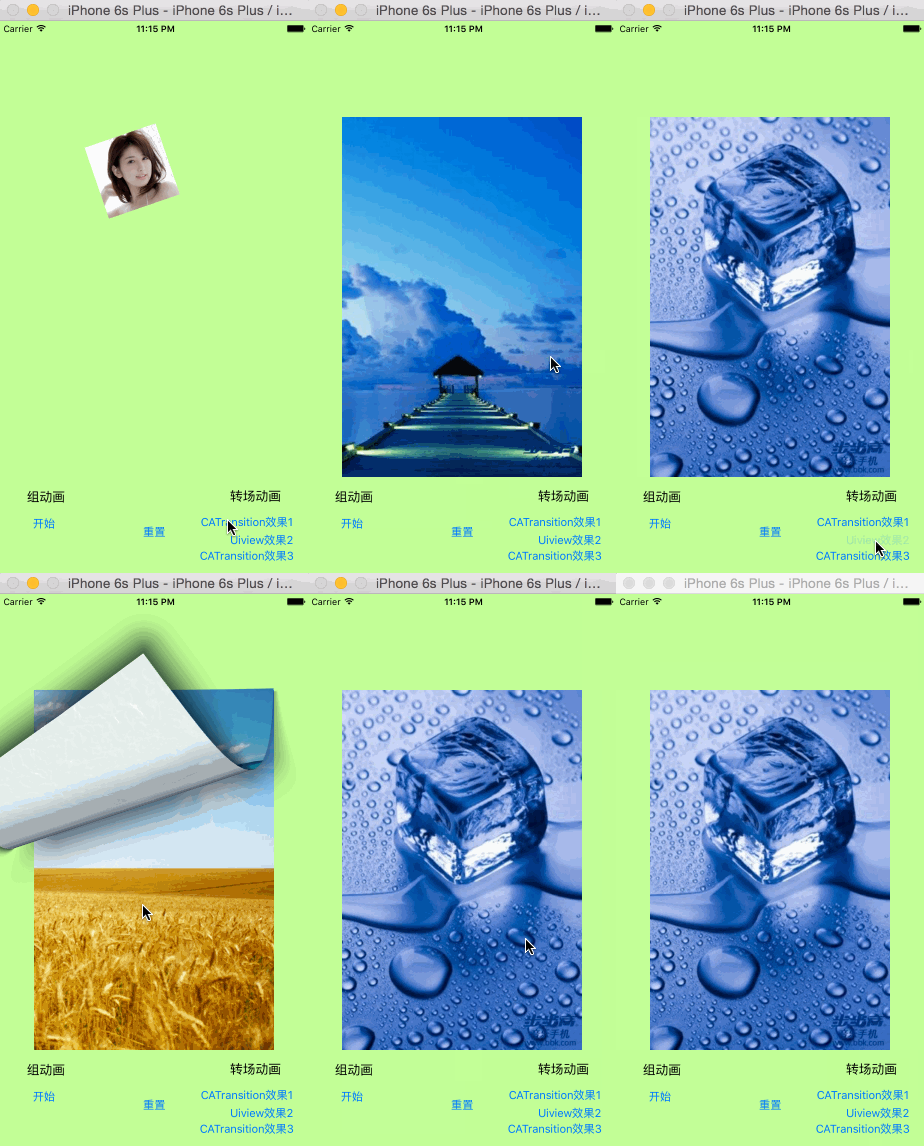
#pragma mark - 組動畫 - (IBAction)groupAnimation:(UIButton *)sender { [self makeView:nil]; //動畫1:移動 CAKeyframeAnimation * animation1 = [CAKeyframeAnimation animationWithKeyPath:@"position"]; NSValue * v1 = [NSValue valueWithCGPoint:CGPointMake(100, 200)]; NSValue * v2 = [NSValue valueWithCGPoint:CGPointMake(100, 400)]; NSValue * v3 = [NSValue valueWithCGPoint:CGPointMake(300, 400)]; NSValue * v4 = [NSValue valueWithCGPoint:CGPointMake(300, 200)]; NSValue * v5 = [NSValue valueWithCGPoint:CGPointMake(100, 200)]; animation1.values=@[v1,v2,v3,v4,v5]; animation1.repeatCount=CGFLOAT_MAX; animation1.removedOnCompletion=NO; animation1.fillMode=kCAFillModeForwards; //動畫2 : CAKeyframeAnimation * animation2 = [CAKeyframeAnimation animationWithKeyPath:@"transform.rotation.z"]; NSNumber * n1 = @(-M_PI_4/2); NSNumber * n2 = @(M_PI_4/2); animation2.values=@[n1,n2,n1,]; animation2.repeatCount=CGFLOAT_MAX; animation2.duration=0.15; animation2.removedOnCompletion=NO; animation2.fillMode=kCAFillModeForwards; //創建組動畫 CAAnimationGroup * animation = [CAAnimationGroup animation]; animation.animations=@[animation1,animation2]; animation.duration=2; animation.repeatCount=CGFLOAT_MAX; //將組動畫加入到layer就可以了,各個動畫並發執行 [self.button.layer addAnimation:animation forKey:nil]; }
七、CATransition 轉場動畫
1、定義:轉場動畫是 CAAnimation 的子類,用於做頁面跳轉時的轉場動畫,能夠為層提供移出螢幕和移入螢幕的動畫效果。UINavigationController 就是透過 CATransition 實現了將控制器的視圖推入螢幕的動畫效果。這些動畫效果系統已經寫好,我們只要設定一些屬性即可。
2、屬性解析:
- type:動畫過渡類型
- subtype:動畫過渡方向
- startProgress:動畫起點(在整體動畫的百分比)
- endProgress:動畫終點(在整體動畫的百分比)
3、程式碼案例(這裡把下面的 UIView 動畫一起實作,方便比較):
#pragma mark - 轉場動畫 -(void)makeImage { //生成一個測試轉場動畫的視圖 UIImageView * imageView = [[UIImageView alloc]initWithImage:[UIImage imageNamed:@"1"]]; imageView.center =self.view.center; self.imageView=imageView; [self.view addSubview: imageView]; //創建手勢識別器,用來響應屏幕滑動 UISwipeGestureRecognizer * swipeLeft = [[UISwipeGestureRecognizer alloc]initWithTarget:self action:@selector(swipeImage:)]; UISwipeGestureRecognizer * swipeRight =[[UISwipeGestureRecognizer alloc]initWithTarget:self action:@selector(swipeImage:)]; //添加識別器屬性 swipeLeft.direction = UISwipeGestureRecognizerDirectionLeft; swipeRight.direction = UISwipeGestureRecognizerDirectionRight; //添加到視圖 [self.view addGestureRecognizer:swipeLeft]; [self.view addGestureRecognizer:swipeRight]; } #pragma mark - 滑動屏幕響應事件 -(void)swipeImage:(UISwipeGestureRecognizer *)rec { //判斷滑動方向 //向左滑動 if (rec.direction==UISwipeGestureRecognizerDirectionLeft) { self.index++; //圖片可以循環播放 if (self.index==6) { self.index=1; } } //向右滑動 else{ self.index--; if (self.index==0) { self.index=5; } } #pragma mark - 方式一,使用過CATransition實現轉場(漸變消失) //這裡的changeStyle只是點擊按鈕的判斷 if (self.changeStyle==1) { //創建動畫 CATransition * animation = [CATransition animation]; //前一張消失 animation.type = kCATransitionFade; //將動畫添加到控件layer,控件屬性變化時(圖片更換)將采用設定動畫 [self.imageView.layer addAnimation:animation forKey:nil]; } #pragma mark - 方式二 ,使用UIView(block)實現轉場(向左拖:左右旋轉+ 向右拖:上下翻頁) else if(self.changeStyle==2) { //如果向左滑動,向左旋轉顯示 if (rec.direction==UISwipeGestureRecognizerDirectionLeft) { [UIView transitionWithView:self.imageView duration:1 options:UIViewAnimationOptionTransitionFlipFromRight animations:^{ //block裡面是控件的屬性變化,這裡和CATransition實現不同 UIImage * image = [UIImage imageNamed:[NSString stringWithFormat:@"%ld",self.index]]; self.imageView.image=image; } completion:nil]; } //如果向右滑動,子頁面向下推出 else{ [UIView transitionWithView:self.imageView duration:1 options:UIViewAnimationOptionTransitionCurlUp animations:^{ UIImage * image = [UIImage imageNamed:[NSString stringWithFormat:@"%ld",self.index]]; self.imageView.image=image; } completion:nil]; } } #pragma mark - 方式三,使用過CATransition實現轉場(向左滑:向左退出 + 向右滑:向下推出) else{ CATransition * animation = [CATransition animation]; //如果向右滑動,子頁面從左推出 if (rec.direction == UISwipeGestureRecognizerDirectionRight) { animation.subtype = kCATransitionFromBottom; } //如果向右滑動,子頁面從下推出 else{ animation.subtype = kCATransitionFromRight; } animation.type = kCATransitionPush; [self.imageView.layer addAnimation:animation forKey:nil]; } UIImage * image = [UIImage imageNamed:[NSString stringWithFormat:@"%ld",self.index]]; //這是添加了動畫的控件,屬性改變時按照我們設定的有動畫效果 self.imageView.image=image; }
八、UIView block 動畫(也可實現轉場動畫)
1、定義:UIKit 框架直接將動畫整合到 UIView 類中,當內部的一些屬性發生改變時,UIView 將為這些改變提供動畫支援。
2、UIView 動畫的幾種類別:
(1)三種 block 方式實現:所謂 block 方式,就是把改變視圖屬性的程式碼寫在 block 中來實現動畫。
- + (void)animateWithDuration:(NSTimeInterval)duration delay:(NSTimeInterval)delay options:(UIViewAnimationOptions)options animations:(void (^)(void))animations completion:(void (^)(BOOL finished))completion
參數解析:duration 為動畫的持續時間;delay 為動畫延遲 delay 秒後開始;options 為動畫的節奏控制;animations 是把改變視圖屬性的程式碼放在這個 block 中;completion 是動畫結束後會自動呼叫的 block。
- + (void)transitionWithView:(UIView *)view duration:(NSTimeInterval)duration options:(UIViewAnimationOptions)options animations:(void (^)(void))animations completion:(void (^)(BOOL finished))completion
參數解析:duration 為動畫的持續時間;view 為需要進行轉場動畫的視圖;options 為轉場動畫的類型;animations 是把改變視圖屬性的程式碼放在這個 block 中;completion 是動畫結束後會自動呼叫的 block。
- + (void)transitionFromView:(UIView *)fromView toView:(UIView *)toView duration:(NSTimeInterval)duration options:(UIViewAnimationOptions)options completion:(void (^)(BOOL finished))completion
這個方法呼叫完畢後,相當於執行了下面兩句程式碼:
// 加入 toView 到父視圖
[fromView.superview addSubview:toView];
// 把 fromView 從父視圖中移除
[fromView.superview removeFromSuperview];
參數解析:duration 為動畫的持續時間;options 為轉場動畫的類型;animations 是把改變視圖屬性的程式碼放在這個 block 中;completion 是動畫結束後會自動呼叫的 block。
(2)首尾式動畫等(下文單獨介紹)。
九、UIView 首尾式動畫
1、定義:UIView 的另一種實現動畫方式。
2、執行方式:執行動畫所需的工作由 UIView 類自動完成,但仍要在希望執行動畫時通知視圖,為此需要把改變屬性的程式碼放在 [UIView beginAnimations:nil context:nil] 和 [UIView commitAnimations] 之間,俗稱首尾式動畫。
3、常見方法解析:
- + (void)setAnimationDelegate:(id)delegate:設定動畫代理物件,當動畫開始或結束時會發訊息給代理物件
- + (void)setAnimationWillStartSelector:(SEL)selector:當動畫即將開始時,執行 delegate 物件的 selector,並把 beginAnimations:context: 中傳入的參數傳進 selector
- + (void)setAnimationDidStopSelector:(SEL)selector:當動畫結束時,執行 delegate 物件的 selector,並把 beginAnimations:context: 中傳入的參數傳進 selector
- + (void)setAnimationDuration:(NSTimeInterval)duration:動畫的持續時間,以秒為單位
- + (void)setAnimationDelay:(NSTimeInterval)delay:動畫延遲 delay 秒後再開始
- + (void)setAnimationStartDate:(NSDate *)startDate:動畫的開始時間,預設為 now
- + (void)setAnimationCurve:(UIViewAnimationCurve)curve:動畫的節奏控制
- + (void)setAnimationRepeatCount:(float)repeatCount:動畫的重複次數
- + (void)setAnimationRepeatAutoreverses:(BOOL)repeatAutoreverses:如果設為 YES,代表動畫每次重複執行的效果會跟上一次相反
- + (void)setAnimationTransition:(UIViewAnimationTransition)transition forView:(UIView *)view cache:(BOOL)cache:設定視圖 view 的過渡效果,transition 指定過渡類型,cache 設為 YES 代表使用視圖緩存,效能較好
十、UIImageView 的幀動畫
1、定義:UIImageView 可以讓一系列圖片在特定的時間內按順序顯示。
2、屬性解析:
- animationImages:要顯示的圖片(一個裝著 UIImage 的 NSArray)
- animationDuration:完整地顯示一次 animationImages 中所有圖片所需的時間
- animationRepeatCount:動畫的執行次數(預設為 0,代表無限循環)
3、方法解析:
- - (void)startAnimating; 開始動畫
- - (void)stopAnimating; 停止動畫
- - (BOOL)isAnimating; 是否正在運行動畫
十一、UIActivityIndicatorView 轉輪動畫
1、定義:是一個旋轉進度輪,可以用來告知使用者有一個操作正在進行中,一般用 initWithActivityIndicatorStyle 初始化。
2、方法解析:
- - (void)startAnimating; 開始動畫
- - (void)stopAnimating; 停止動畫
- - (BOOL)isAnimating; 是否正在運行動畫
- UIActivityIndicatorViewStyle 有 3 個值可供選擇:UIActivityIndicatorViewStyleWhiteLarge(大型白色指示器)、UIActivityIndicatorViewStyleWhite(標準尺寸白色指示器)、UIActivityIndicatorViewStyleGray(灰色指示器,用於白色背景)。
總結:一款優秀的 App 離不開良好的使用者體驗。在現在使用者越來越挑剔、設計模式越來越成熟泛濫的情況下,第一時間抓住使用者的眼球,自然會獲得更高的成功率。此外,界面的多元化也帶來了許多其他的使用功能,在賞心悅目的同時,也增加了 App 的功能擴展。所以,在膜拜大神們華麗設計的同時,自己也不妨嘗試給自己的設計加點花樣——有了畫筆,剩下的就靠自己了。
- 上一篇文章: iOS 邊練邊學:介紹布局的三種方法
- 下一篇文章: 城市選擇之自訂搜索框