
用 UIActionSheet 實作「清空圖片緩存」確認提示
編輯:iOS 技巧大全
在 iOS 早期版本中,UIActionSheet 是最常用的底部動作選單元件,特別適合放在「刪除資料」「清空緩存」這類需要使用者二次確認的場景。本文以一個「點擊畫面任意處即彈出清空圖片緩存確認框」的小範例,說明它的基本用法。
最終效果
使用者用手指觸碰畫面上的任何位置,畫面底部就會滑出一個動作表,標題為「確定要清空圖片緩存?」,並提供「確定」與「取消」兩個選項。
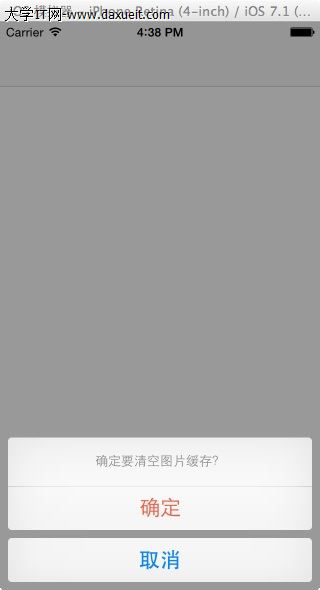
關鍵程式碼
這個範例刻意把觸發條件寫在 touchesBegan:withEvent: 裡,這樣就不必額外配置任何按鈕,只要點擊視圖就能喚出動作表:
// 點擊畫面任意處,彈出 UIActionSheet
- (void)touchesBegan:(NSSet *)touches withEvent:(UIEvent *)event
{
    UIActionSheet *sheet = [[UIActionSheet alloc] initWithTitle:@"確定要清空圖片緩存?"
                                                      delegate:self
                                             cancelButtonTitle:@"取消"
                                        destructiveButtonTitle:@"確定"
                                             otherButtonTitles:nil, nil];
    [sheet showInView:self.view];
}
初始化參數怎麼看
initWithTitle:delegate:cancelButtonTitle:destructiveButtonTitle:otherButtonTitles: 這幾個參數各有分工:
- title:顯示在選單最上方的說明文字,用來告訴使用者「即將發生什麼事」。
- delegate:接收使用者點選結果的物件,通常就是當前的視圖控制器。
- cancelButtonTitle:取消按鈕,永遠放在最下方,也是使用者最熟悉的安全出口。
- destructiveButtonTitle:破壞性操作按鈕,系統會用紅色標示,提醒這一步不可逆。
- otherButtonTitles:其餘的中立選項,可傳入多個,最後以
nil結束。
別忘了實作 delegate
光是彈出選單還不夠,真正「清空緩存」的動作要寫在回呼方法裡。讓類別遵循 UIActionSheetDelegate 協定,並實作:
- (void)actionSheet:(UIActionSheet *)actionSheet clickedButtonAtIndex:(NSInteger)buttonIndex
{
    if (buttonIndex == actionSheet.cancelButtonIndex) {
        return; // 使用者按了取消
    }
    if (buttonIndex == actionSheet.destructiveButtonIndex) {
        // 在這裡執行清除快取的邏輯
    }
}
小提醒
使用 destructiveButtonIndex 與 cancelButtonIndex 這兩個唯讀屬性來判斷,比硬寫數字索引安全得多,因為即使日後調整了選單項目順序,判斷邏輯也不會出錯。另外要留意,這套 API 從 iOS 8 起已被 UIAlertController 取代,新專案建議改用 UIAlertControllerStyleActionSheet;此範例保留下來,主要是為了說明舊專案維護時常見的寫法。
- 上一篇文章: UIViewController 生命週期全解析:各方法呼叫時機與實務用途
- 下一篇文章: NSTimer 排程與重複執行任務的完整做法