
iTunes 更新時跳「iPhone 軟體更新伺服器不可連接」怎麼解
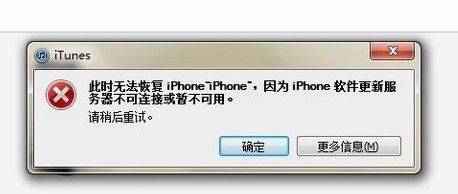
不少使用者透過 iTunes 更新 iOS 韌體時,會被「iPhone 軟體更新伺服器不可連接或暫時無法使用」的錯誤訊息擋住。這個問題多半和 iTunes 連線到 Apple 更新伺服器的路徑有關,網路上累積了不少可行的解法,以下整理幾種常見且有效的處理方式。
方法一:先開啟 Apple 的支援頁面
用瀏覽器打開 https://support.apple.com/kb/TS1814?viewlocale=en_US,讓這個頁面保持開啟不要關掉,然後重新啟動一次 iTunes,多數情況下問題就自然排除了。
方法二:檢查並清理 hosts 檔
Windows 使用者請開啟 C:\Windows\System32\drivers\etc,找到名為 hosts 的檔案,用記事本打開,找到類似下面這一行並刪除:
74.208.10.249 gs.apple.com
如果刪掉之後還是沒改善,可以把網址後面的 gs.apple.com 改成 phobos.apple.com 或 albert.apple.com 再試。
方法三:查詢你所在地區的實際 IP
從「開始」選單的搜尋或執行欄輸入 cmd 開啟命令列,輸入 nslookup gs.apple.com,就會得到你所在區域連到 gs.apple.com 時實際使用的 IP(訊息中標示為紅色的那一組),把它記下來。
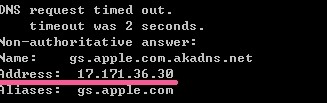
接著(Windows XP 為例)開啟 C:\Windows\System32\drivers\etc,用記事本或 WordPad 打開 hosts 檔,把 74.208.10.24 gs.apple.com 換成你剛剛記下的 IP;如果檔案裡本來就沒有這一行,直接在最後空行補上,例如 17.171.36.30 gs.apple.com,存檔後關閉,再開 iTunes 即可。
方法四:確認相關 Windows 服務有沒有啟動
檢查電腦上的 Messenger、Telnet、Terminal Services 這三個服務是否處於啟用狀態。在「我的電腦」上按右鍵選擇「管理」,依序進入「服務」,把這三項開啟。
方法五:勾選「自動偵測設定」
Windows XP 使用者:從「開始」選單開啟控制台,進入「網際網路選項」,切到「連線」分頁,點「LAN 設定」,勾選「自動偵測設定」。
Windows Vista/7 使用者:從「開始」選單開啟控制台,選「網路和網際網路」→「網際網路選項」(或切換成「傳統檢視」後直接開啟網際網路選項),同樣切到「連線」分頁,點「LAN 設定」,勾選「自動偵測設定」。
兩個視窗都按「確定」後,重新開啟 iTunes 並連接 iPhone、iPad 或 iPod,再進行更新或回復。
方法六:直接改寫 hosts 檔內容
開啟 C:\WINDOWS\system32\drivers\etc,找到 hosts 檔,把內容替換成以下這份微軟預設的範本:
# Copyright (c) 1993-1999 Microsoft Corp.
#
# This is a sample HOSTS file used by Microsoft TCP/IP for Windows.
#
# This file contains the mappings of IP addresses to host names. Each entry should be kept on an individual line. The IP address should be placed in the first column followed by the corresponding host name. The IP address and the host name should be separated by at least one space.
#
# Additionally, comments (such as these) may be inserted on individual lines or following the machine name denoted by a '#' symbol.
#
# For example:
# 102.54.94.97 rhino.acme.com # source server
# 38.25.63.10 x.acme.com # x client host
127.0.0.1 localhost
以上幾種方式由簡到繁,建議依序嘗試;通常前面兩三招就足以解決大部分的狀況。
- 上一篇文章: iMessage 換帳號怎麼做?登出與重新登入完整教學
- 下一篇文章: iPhone 5 螢幕直紋怎麼測?進階檢測新方法分享