
UISegmentedControl 控件用法:做出類單選的分段選擇器
編輯:iOS 相關資訊
UISegmentedControl 的行為近似單選按鈕群組,提供一排互斥的選項讓使用者切換。設定畫面、篩選類別、切換列表模式,都很適合用。
基本用法
先在標頭檔宣告屬性:
#import <UIKit/UIKit.h>

@interface ZYViewController : UIViewController
@property(nonatomic, strong) UISegmentedControl *mySegmentedControl;
@end
接著在實作檔中建立、樣式化並掛上事件:
@synthesize mySegmentedControl;

- (void)viewDidLoad {
    [super viewDidLoad];
    self.view.backgroundColor = [UIColor whiteColor];

    // 初始化內容陣列,元素可以是文字,也可以是 UIImage
    NSArray *segments = [[NSArray alloc] initWithObjects:@"iPhone",
                         [UIImage imageNamed:@"ipad.png"],
                         @"iPod", @"iMac", nil];
    // 若全部使用文字:
    // NSArray *segments = [[NSArray alloc] initWithObjects:@"iPhone", @"iPad", @"iPod", @"iMac", nil];

    // 構造 mySegmentedControl 的外形
    self.mySegmentedControl = [[UISegmentedControl alloc] initWithItems:segments];

    CGRect segmentedFrame = self.mySegmentedControl.frame;
    segmentedFrame.size.height = 64.0f;
    segmentedFrame.size.width  = 300.0f;
    self.mySegmentedControl.frame = segmentedFrame;
    self.mySegmentedControl.center = self.view.center;

    self.mySegmentedControl.segmentedControlStyle = UISegmentedControlStyleBar; // 修改樣式
    self.mySegmentedControl.momentary = YES;  // 選完之後立刻回到未選取狀態

    [self.mySegmentedControl addTarget:self
                                action:@selector(segmentChanged:)
                      forControlEvents:UIControlEventValueChanged];

    [self.view addSubview:self.mySegmentedControl];
}

-(void)segmentChanged:(UISegmentedControl *)paramSender {
    if ([paramSender isEqual:self.mySegmentedControl]) {
        // 獲得索引位置
        NSInteger selectedSegmentIndex = [paramSender selectedSegmentIndex];
        // 獲得對應索引位置的文字
        NSString *selectedSegmentText = [paramSender titleForSegmentAtIndex:selectedSegmentIndex];
        NSLog(@"Segment %ld with %@ text is selected",
              (long)selectedSegmentIndex, selectedSegmentText);
    }
}
兩個值得留意的設定:segmentedControlStyle 決定外觀風格;momentary 設為 YES 時,點下去不會維持高亮,適合用來做成「動作按鈕」而非「狀態切換」。
運行結果
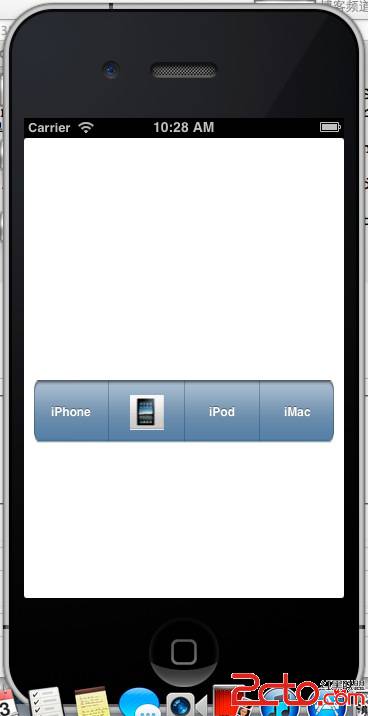
點擊各個選項後,控制台輸出如下:
2015-07-23 10:30:00.543 UISegmentedControllerTest[985:c07] Segment 0 with iPhone text is selected
2015-07-23 10:30:01.045 UISegmentedControllerTest[985:c07] Segment 1 with (null) text is selected
2015-07-23 10:30:01.501 UISegmentedControllerTest[985:c07] Segment 2 with iPod text is selected
2015-07-23 10:30:01.862 UISegmentedControllerTest[985:c07] Segment 3 with iMac text is selected
第二列顯示 (null) 是因為該段使用的是圖片而非文字,這時改用 imageForSegmentAtIndex: 就能取得對應的 UIImage。這也是混用文字與圖片時最常踩到的小坑。