iOS8推送消息的快速回復處理
編輯:關於IOS
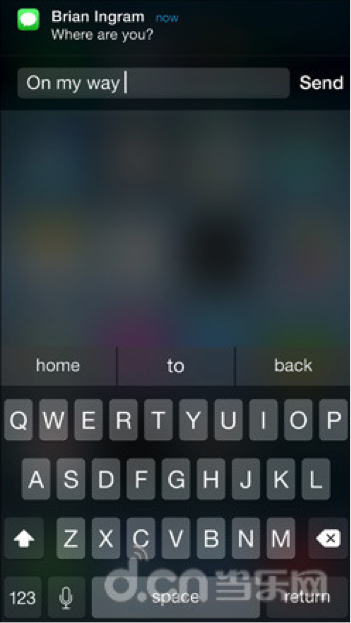
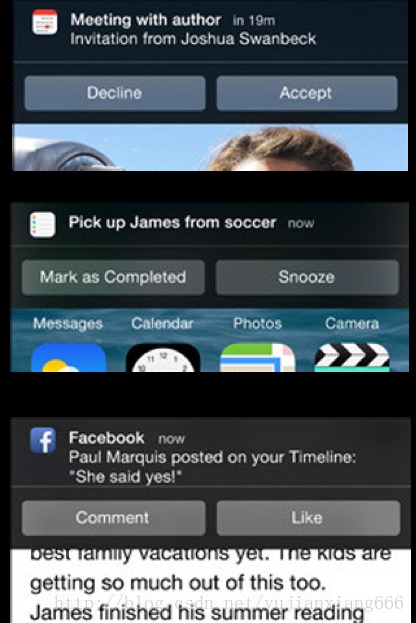
iOS8擁有了全新的通知中心,有全新的通知機制。當屏幕頂部收到推送時只需要往下拉,就能看到快速操作界面,並不需要進入該應用才能操作。在鎖屏界面,對於推送項目也可以快速處理。基本上就是讓用戶盡量在不離開當前頁面的前提下處理推送信息,再次提高處理效率。
能夠進行直接互動的短信、郵件、日歷、提醒,第三方應用,可以讓你不用進入程序就能進行快捷操作,並專注於手中正在做的事情。
在通知橫幅快速回復信息,不用進入短信程序; 可直接拒絕或接受郵件邀請; 可對提醒進行標記為完成或推遲; 當第三方應用更新接口後便可直接對應用進行快速操作。
最近研究了下iOS8的官方文檔,對這項功能進行了鑽研,基本上效果已經出來。因為遠程消息推送比較繁瑣,需要後台支持,所以我用本地推送來代替的,基本上它們要調用的代理方法類似。長話短說,下面我就說下基本的流程:
1.創建消息上面要添加的動作(按鈕的形式顯示出來)
view sourceprint?
01.UIMutableUserNotificationAction *action = [[UIMutableUserNotificationAction alloc] init];
02.action.identifier = @"action";//按鈕的標示
03.action.title=@"Accept";//按鈕的標題
04.action.activationMode = UIUserNotificationActivationModeForeground;//當點擊的時候啟動程序
05.// action.authenticationRequired = YES;
06.// action.destructive = YES;
07.
08.UIMutableUserNotificationAction *action2 = [[UIMutableUserNotificationAction alloc] init]; //第二按鈕
09.action2.identifier = @"action2";
10.action2.title=@"Reject";
11.action2.activationMode = UIUserNotificationActivationModeBackground;//當點擊的時候不啟動程序,在後台處理
12.action.authenticationRequired = YES;//需要解鎖才能處理,如果action.activationMode = UIUserNotificationActivationModeForeground;則這個屬性被忽略;
13.action.destructive = YES;
2.創建動作(按鈕)的類別集合
view sourceprint?1.UIMutableUserNotificationCategory *categorys = [[UIMutableUserNotificationCategory alloc] init];
2.categorys.identifier = @"alert";//這組動作的唯一標示
3.[categorys setActions:@[action,action2] forContext:(UIUserNotificationActionContextMinimal)];
3.創建UIUserNotificationSettings,並設置消息的顯示類類型
view sourceprint?1.UIUserNotificationSettings *uns = [UIUserNotificationSettings settingsForTypes:(UIUserNotificationTypeAlert|UIUserNotificationTypeBadge|UIUserNotificationTypeSound) categories:[NSSet setWithObjects:categorys, nil]];
4.注冊推送
view sourceprint?1.[[UIApplication sharedApplication] registerForRemoteNotifications];
2.[[UIApplication sharedApplication] registerUserNotificationSettings:uns];
5.發起本地推送消息
view sourceprint?01.UILocalNotification *notification = [[UILocalNotification alloc] init];
02.notification.fireDate=[NSDate dateWithTimeIntervalSinceNow:5];
03.notification.timeZone=[NSTimeZone defaultTimeZone];
04.notification.alertBody=@"測試推送的快捷回復";
05.notification.category = @"alert";
06.[[UIApplication sharedApplication] scheduleLocalNotification:notification];
07.
08.//用這兩個方法判斷是否注冊成功
09.// NSLog(@"currentUserNotificationSettings = %@",[[UIApplication sharedApplication] currentUserNotificationSettings]);
10.//[[UIApplication sharedApplication] isRegisteredForRemoteNotifications];
6.在AppDelegate.m裡面對結果進行處理
view sourceprint?01.//本地推送通知
02.-(void)application:(UIApplication *)application didRegisterUserNotificationSettings:(UIUserNotificationSettings *)notificationSettings
03.{
04.//成功注冊registerUserNotificationSettings:後,回調的方法
05.NSLog(@"%@",notificationSettings);
06.}
07.
08.-(void)application:(UIApplication *)application didReceiveLocalNotification:(UILocalNotification *)notification
09.{
10.//收到本地推送消息後調用的方法
11.NSLog(@"%@",notification);
12.}
13.
14.-(void)application:(UIApplication *)application handleActionWithIdentifier:(NSString *)identifier forLocalNotification:(UILocalNotification *)notification completionHandler:(void (^)())completionHandler
15.{
16.//在非本App界面時收到本地消息,下拉消息會有快捷回復的按鈕,點擊按鈕後調用的方法,根據identifier來判斷點擊的哪個按鈕,notification為消息內容
17.NSLog(@"%@----%@",identifier,notification);
18.completionHandler();//處理完消息,最後一定要調用這個代碼塊
19.}
20.
21.//遠程推送通知
22.-(void)application:(UIApplication *)application didRegisterForRemoteNotificationsWithDeviceToken:(NSData *)deviceToken
23.{
24.//向APNS注冊成功,收到返回的deviceToken
25.}
26.
27.-(void)application:(UIApplication *)application didFailToRegisterForRemoteNotificationsWithError:(NSError *)error
28.{
29.//向APNS注冊失敗,返回錯誤信息error
30.}
31.
32.-(void)application:(UIApplication *)application didReceiveRemoteNotification:(NSDictionary *)userInfo
33.{
34.//收到遠程推送通知消息
35.}
36.
37.-(void)application:(UIApplication *)application handleActionWithIdentifier:(NSString *)identifier forRemoteNotification:(NSDictionary *)userInfo completionHandler:(void (^)())completionHandler
38.{
39.//在沒有啟動本App時,收到服務器推送消息,下拉消息會有快捷回復的按鈕,點擊按鈕後調用的方法,根據identifier來判斷點擊的哪個按鈕
40.}
運行之後要按shift + command +H,讓程序推到後台,或者按command+L讓模擬器鎖屏,才會看到效果!
如果是程序退到後台了,收到消息後下拉消息,則會出現剛才添加的兩個按鈕;如果是鎖屏了,則出現消息後,左劃就會出現剛才添加的兩個按鈕。
效果如下:
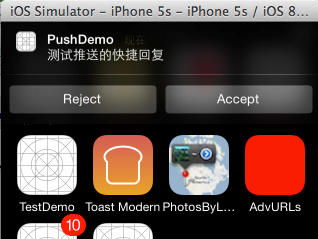
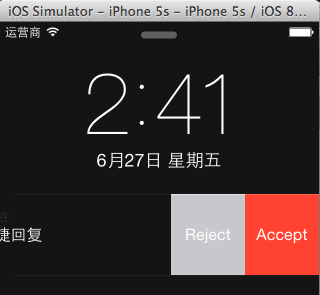
現在只是能讓消息中顯示出按鈕的形式,帶輸入框的還在研究中,如果大家研究出來了,也謝謝能分享一下啊,大家一起提高!
代碼:https://github.com/ios44first/PushDemo

相關文章
+