iOS開發之多表視圖滑動切換示例(仿頭條客戶端)
編輯:關於IOS
好長時間沒為大家帶來iOS開發干貨的東西了,今天給大家分享一個頭條新聞客戶端各個類別進行切換的一個示例。在Demo中對所需的組件進行的簡單封裝,在封裝的組件中使用的是純代碼的形式,如果想要在項目中進行使用,稍微進行修改即可。
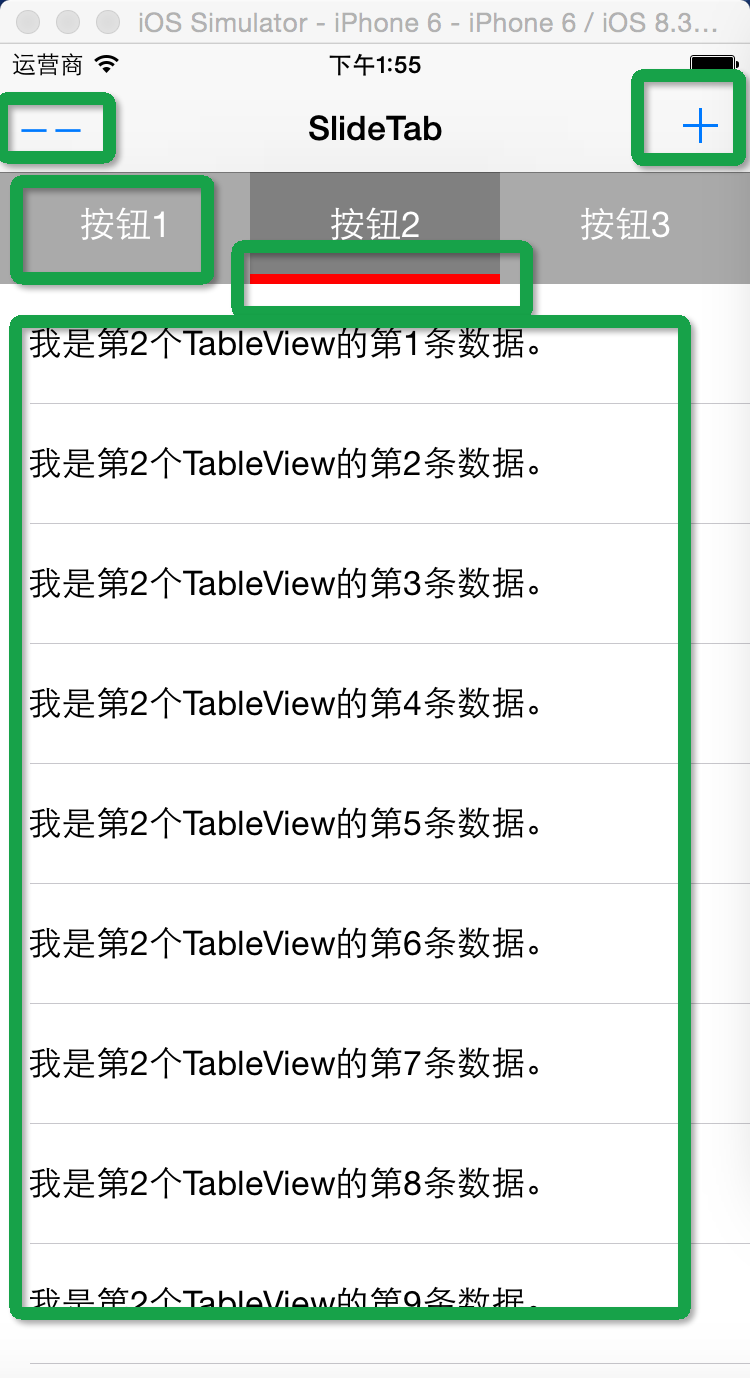
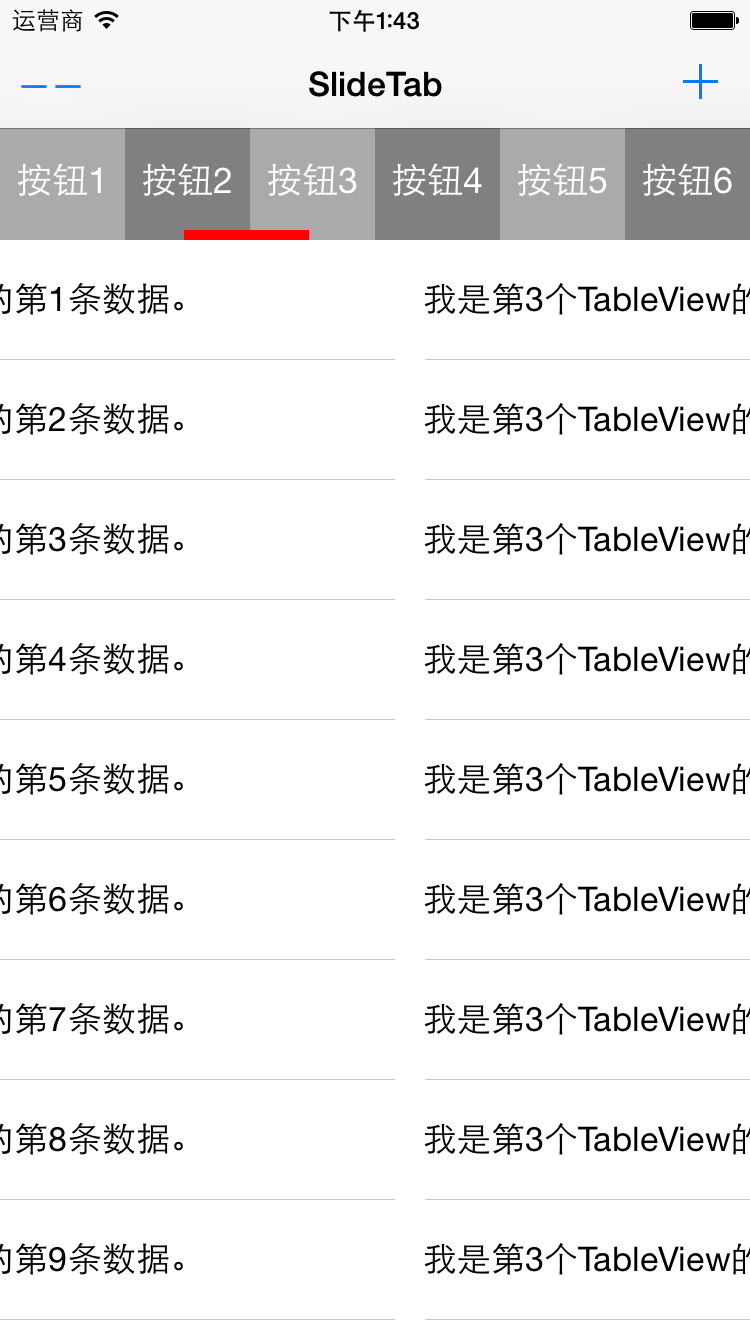
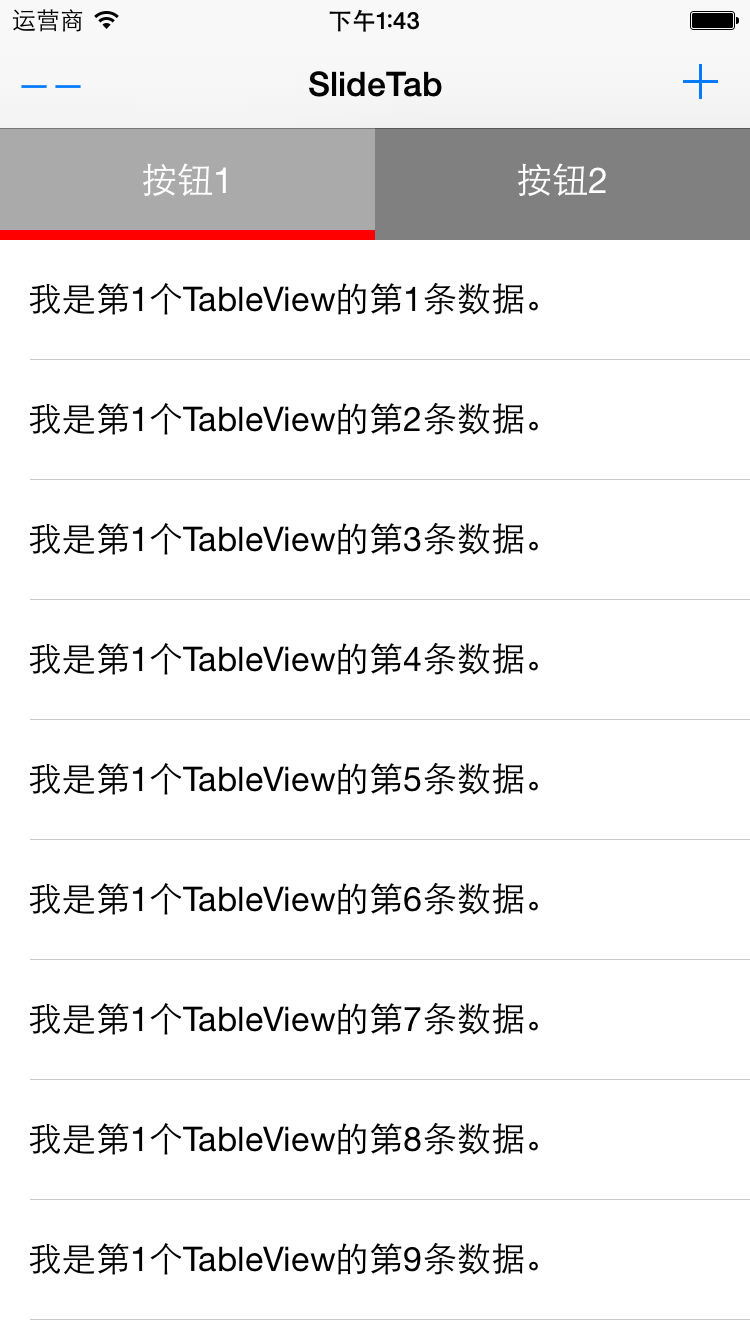
廢話少說,先介紹一下功能點,下圖是整個Demo的功能點,最上面左邊的TabBarButtonItem是用來減少條目的,比如下圖有三個按鈕,點擊減號會減少一個條目。右邊的為增加一個條目。點擊相應的按鈕是切換到對應的表視圖上,下方紅色的是滑動的指示器,同時支持手勢滑動。運行具體效果如下圖所示。
一:實現方案
最上方是一個View, View上面實例化了一些按鈕,平分屏幕的寬度,下方是一個ScrollView, ScrollView上面放了一些表視圖,點擊不同的Button, 滑動到對應的表示圖上。除了點擊按鈕,還可以進行滑動切換,切換時,紅色的指示器也會隨之滑動。
主要的技術點就是通過ScrollView的回調,通過事件的響應來改變ScrollView的ContentOffset的值。在回調中根據ContentOffset的值來計算紅色指示器的偏移量。
二:核心代碼
1.組件中的主要屬性

    把上面整個視圖進行了封裝,命名為SlideTabBarView,下面的代碼是主要屬性:

1 @interface SlideTabBarView()<UIScrollViewDelegate,UITableViewDataSource,UITableViewDelegate>
 2 ///@brife 整個視圖的大小
 3 @property (assign) CGRect mViewFrame;
 4
 5 ///@brife 下方的ScrollView
 6 @property (strong, nonatomic) UIScrollView *scrollView;
 7
 8 ///@brife 上方的按鈕數組
 9 @property (strong, nonatomic) NSMutableArray *topViews;
10
11 ///@brife 下方的表格數組
12 @property (strong, nonatomic) NSMutableArray *scrollTableViews;
13
14 ///@brife TableViews的數據源
15 @property (strong, nonatomic) NSMutableArray *dataSource;
16
17 ///@brife 當前選中頁數
18 @property (assign) NSInteger currentPage;
19
20 ///@brife 下面滑動的View
21 @property (strong, nonatomic) UIView *slideView;
22 @end

2.初始化方法如下,在調用初始化方法時需要傳入SlideTabBarView的frame和選項卡的個數,初始化函數會調用一系列的初始化方法對組件進行初始化,代碼如下:

 1 -(instancetype)initWithFrame:(CGRect)frame WithCount: (NSInteger) count{
 2     self = [super initWithFrame:frame];
 3
 4     if (self) {
 5         _mViewFrame = frame;
 6         _tabCount = count;
 7         _topViews = [[NSMutableArray alloc] init];
 8         _scrollTableViews = [[NSMutableArray alloc] init];
 9
10         [self initDataSource];
11
12         [self initScrollView];
13
14         [self initTopTabs];
15
16         [self initDownTables];
17
18         [self initDataSource];
19
20         [self initSlideView];
21
22     }
23
24     return self;
25 }


3.initDataSource方法主要負責模擬生成下方TableView要顯示的數據。代碼如下:

#pragma mark -- 初始化表格的數據源
-(void) initDataSource{
    _dataSource = [[NSMutableArray alloc] initWithCapacity:_tabCount];

    for (int i = 1; i <= _tabCount; i ++) {

        NSMutableArray *tempArray  = [[NSMutableArray alloc] initWithCapacity:20];

        for (int j = 1; j <= 20; j ++) {

            NSString *tempStr = [NSString stringWithFormat:@"我是第%d個TableView的第%d條數據。", i, j];
            [tempArray addObject:tempStr];
        }

        [_dataSource addObject:tempArray];
    }
}


4.紅色滑動指示器的初始化代碼如下所示:

#pragma mark -- 初始化滑動的指示View
-(void) initSlideView{
     CGFloat width = _mViewFrame.size.width / _tabCount;
    _slideView = [[UIView alloc] initWithFrame:CGRectMake(0, TOPHEIGHT - 5, width, 5)];
    [_slideView setBackgroundColor:[UIColor redColor]];
    [self addSubview:_slideView];
}


5.ScrollView的初始化代碼如下, 指定ScrollView的大小位置以及背景顏色,並且設置分頁可用並添加代理。

#pragma mark -- 實例化ScrollView
-(void) initScrollView{
    _scrollView = [[UIScrollView alloc] initWithFrame:CGRectMake(0, _mViewFrame.origin.y, _mViewFrame.size.width, _mViewFrame.size.height - TOPHEIGHT)];
    _scrollView.contentSize = CGSizeMake(_mViewFrame.size.width * _tabCount, _mViewFrame.size.height - 60);
    _scrollView.backgroundColor = [UIColor grayColor];

    _scrollView.pagingEnabled = YES;

    _scrollView.delegate = self;
    [self addSubview:_scrollView];
}


6.添加上方的按鈕,根據傳入的個數來實例化多個按鈕。

 1 #pragma mark -- 實例化頂部的tab
 2 -(void) initTopTabs{
 3     CGFloat width = _mViewFrame.size.width / _tabCount;
 4
 5     for (int i = 0; i < _tabCount; i ++) {
 6
 7         UIView *view = [[UIView alloc] initWithFrame:CGRectMake(i * width, 0, width, TOPHEIGHT)];
 8
 9         view.backgroundColor = [UIColor lightGrayColor];
10
11         if (i % 2) {
12             view.backgroundColor = [UIColor grayColor];
13         }
14
15         UIButton *button = [[UIButton alloc] initWithFrame:CGRectMake(0, 0, width, TOPHEIGHT)];
16         button.tag = i;
17          forState:UIControlStateNormal];
18         ;
19         [view addSubview:button];
20
21
22         [_topViews addObject:view];
23         [self addSubview:view];
24     }
25 }


7.點擊按鈕觸發的方法如下:

1 #pragma mark --點擊頂部的按鈕所觸發的方法
2 -(void) tabButton: (id) sender{
3     UIButton *button = sender;
4     [_scrollView setContentOffset:CGPointMake(button.tag * _mViewFrame.size.width, 0) animated:YES];
5 }


8.初始化下方的多個表視圖:實例化表視圖,並指定委托回調。

 1 #pragma mark --初始化下方的TableViews
 2 -(void) initDownTables{
 3
 4     for (int i = 0; i < _tabCount; i ++) {
 5
 6         UITableView *tableView = [[UITableView alloc] initWithFrame:CGRectMake(i * _mViewFrame.size.width, 0, _mViewFrame.size.width, _mViewFrame.size.height - TOPHEIGHT)];
 7         tableView.delegate = self;
 8         tableView.dataSource = self;
 9
10         [_scrollTableViews addObject:tableView];
11         [_scrollView addSubview:tableView];
12     }
13
14 }


9.ScrollView的回調方法如下,下面最後一個代理方法是根據ScrollView的偏移量來計算紅色指示器的偏移量,第二個是滑動到哪個tableView,然後進行哪個TableView的數據加載。

 1 #pragma mark -- scrollView的代理方法
 2 -(void)scrollViewDidEndScrollingAnimation:(UIScrollView *)scrollView{
 3     [self scrollViewDidEndDecelerating:scrollView];
 4 }
 5
 6 - (void)scrollViewDidEndDecelerating:(UIScrollView *)scrollView
 7
 8 {
 9     _currentPage = _scrollView.contentOffset.x/_mViewFrame.size.width;
10
11     UITableView *currentTable = _scrollTableViews[_currentPage];
12     [currentTable reloadData];
13
14 }
15
16 -(void)scrollViewDidScroll:(UIScrollView *)scrollView{
17     if ([_scrollView isEqual:scrollView]) {
18         CGRect frame = _slideView.frame;
19         frame.origin.x = scrollView.contentOffset.x/_tabCount;
20         _slideView.frame = frame;
21     }
22 }


10.TableView的代理方法如下,數據源就是我們剛才做的假數據,Cell是由Xib實現的,使用的時候注冊一下就可用了。

 1 #pragma mark -- talbeView的代理方法
 2 -(NSInteger)numberOfSectionsInTableView:(UITableView *)tableView{
 3     return 1;
 4 }
 5
 6 -(NSInteger) tableView:(UITableView *)tableView numberOfRowsInSection:(NSInteger)section{
 7     NSMutableArray *tempArray = _dataSource[_currentPage];
 8     return tempArray.count;
 9 }
10
11 -(CGFloat) tableView:(UITableView *)tableView heightForRowAtIndexPath:(NSIndexPath *)indexPath{
12     return 60;
13 }
14
15 -(UITableViewCell *)tableView:tableView cellForRowAtIndexPath:(NSIndexPath *)indexPath{
16
17     BOOL nibsRegistered=NO;
18     if (!nibsRegistered) {
19         UINib *nib=[UINib nibWithNibName:@"SlideBarCell" bundle:nil];
20         [tableView registerNib:nib forCellReuseIdentifier:@"SlideBarCell"];
21         nibsRegistered=YES;
22     }
23
24
25     SlideBarCell *cell = [tableView dequeueReusableCellWithIdentifier:@"SlideBarCell"];
26     if ([tableView isEqual:_scrollTableViews[_currentPage]]) {
27          cell.tipTitle.text = _dataSource[_currentPage][indexPath.row];
28     }
29
30     return cell;
31 }
Demo在GitHub上的分享地址:https://github.com/lizelu/SliderTabBar
- 上一頁:【C語言】宏定義
- 下一頁:【學習筆記】【C語言】typedef
相關文章
+