
iOS 多執行緒實戰:自定義 NSOperation 打造非同步圖片載入
編輯:iOS 開發綜合
一、先看一個會卡住的版本
要做的是一個 App 列表:每行顯示名稱、下載量與圖示。看起來平凡無奇,但 именно 是這種場景最能凸顯執行緒問題。
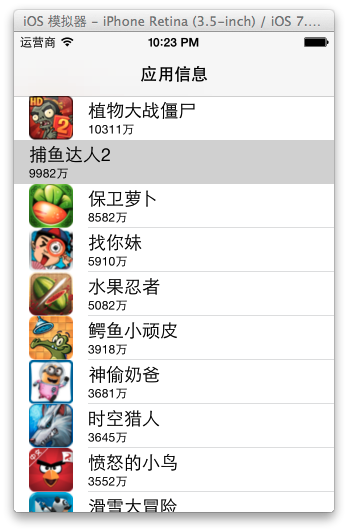
1. 讓控制器繼承 UITableViewController
#import <UIKit/UIKit.h>

@interface YYViewController : UITableViewController

@end
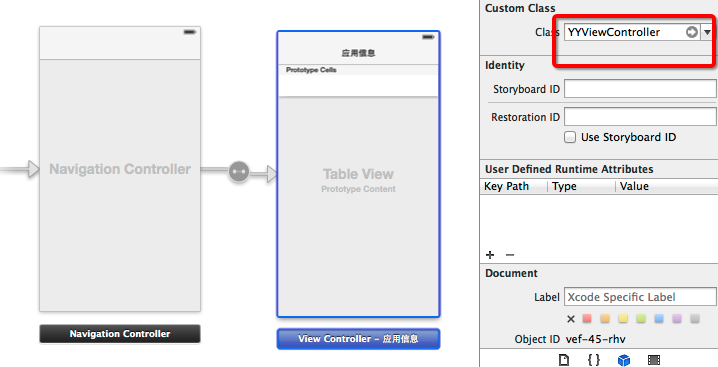
界面在 storyboard 裡稍作調整:
2. 建立資料模型
plist 裡存的是一堆字典,先寫個模型把它們轉成物件:
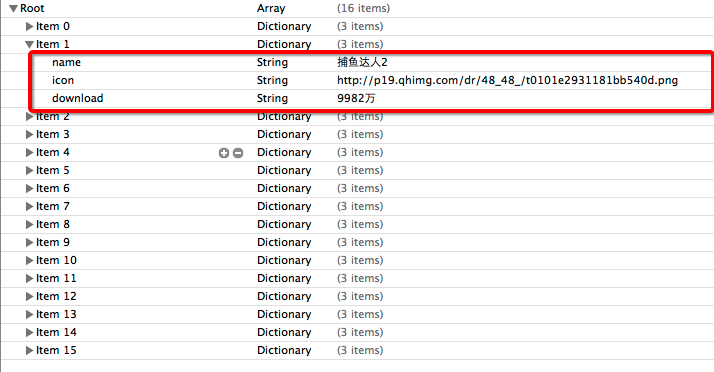
// YYappModel.h
@interface YYappModel : NSObject
/** 應用名稱 */
@property (nonatomic, copy) NSString *name;
/** 應用圖示 */
@property (nonatomic, copy) NSString *icon;
/** 下載量 */
@property (nonatomic, copy) NSString *download;

+ (instancetype)appModelWithDict:(NSDictionary *)dict;
- (instancetype)initWithDict:(NSDictionary *)dict;
@end
// YYappModel.m
@implementation YYappModel

- (instancetype)initWithDict:(NSDictionary *)dict {
    if (self = [super init]) {
        [self setValuesForKeysWithDictionary:dict];
    }
    return self;
}

// 工廠方法
+ (instancetype)appModelWithDict:(NSDictionary *)dict {
    return [[self alloc] initWithDict:dict];
}

@end
3. 主控制器:把下載寫在 cellForRow 裡
@implementation YYViewController

#pragma mark - 懶加載
- (NSArray *)apps {
    if (_apps == nil) {
        NSString *path = [[NSBundle mainBundle] pathForResource:@"apps.plist" ofType:nil];
        NSArray *tempArray = [NSArray arrayWithContentsOfFile:path];

        NSMutableArray *array = [NSMutableArray array];
        for (NSDictionary *dict in tempArray) {
            YYappModel *app = [YYappModel appModelWithDict:dict];
            [array addObject:app];
        }
        _apps = array;
    }
    return _apps;
}

#pragma mark - 資料源方法
- (NSInteger)tableView:(UITableView *)tableView numberOfRowsInSection:(NSInteger)section {
    return self.apps.count;
}

- (UITableViewCell *)tableView:(UITableView *)tableView cellForRowAtIndexPath:(NSIndexPath *)indexPath {
    static NSString *ID = @"ID";
    UITableViewCell *cell = [tableView dequeueReusableCellWithIdentifier:ID];
    if (cell == nil) {
        cell = [[UITableViewCell alloc] initWithStyle:UITableViewCellStyleSubtitle reuseIdentifier:ID];
    }

    YYappModel *app = self.apps[indexPath.row];
    cell.textLabel.text = app.name;
    cell.detailTextLabel.text = app.download;

    // 下載圖片數據——問題就在這幾行
    NSLog(@"加載圖片數據---%@", [NSThread currentThread]);
    NSURL *url = [NSURL URLWithString:app.icon];
    NSData *data = [NSData dataWithContentsOfURL:url];
    UIImage *image = [UIImage imageWithData:data];
    cell.imageView.image = image;
    NSLog(@"完成顯示");

    return cell;
}

@end
跑起來看日誌:

畫面卡得離譜。原因一目瞭然:dataWithContentsOfURL: 是同步網路請求,而它跑在主線程上。主線程還得負責畫面渲染,於是滑動時每進一個新 cell 就要等網路回來一次,UI 自然頓住。網路、檔案、解壓這類耗時任務,一律不能放在主線程。
二、自定義 NSOperation 把任務丟到背景
NSOperation 是 GCD 之上的物件導向封裝,相比直接寫 GCD,它天生自帶「可取消」、「可設定依賴」、「可用 KVO 觀察狀態」這些能力,很適合封裝成一個個具體任務類。
1. 用代理回傳結果
新增一個類,繼承自 NSOperation:
// YYdownLoadOperation.h
#pragma mark - 代理與代理方法
@class YYdownLoadOperation;

@protocol YYdownLoadOperationDelegate <NSObject>
- (void)downLoadOperation:(YYdownLoadOperation *)operation didFishedDownLoad:(UIImage *)image;
@end

@interface YYdownLoadOperation : NSOperation
@property (nonatomic, copy) NSString *url;
@property (nonatomic, strong) NSIndexPath *indexPath;
@property (nonatomic, strong) id<YYdownLoadOperationDelegate> delegate;
@end
注意這裡把 indexPath 一起帶著走——這樣下載完成後才知道該把圖片放回哪一行。
// YYdownLoadOperation.m
@implementation YYdownLoadOperation

- (void)main {
    NSURL *url = [NSURL URLWithString:self.url];
    NSData *data = [NSData dataWithContentsOfURL:url];
    UIImage *image = [UIImage imageWithData:data];

    NSLog(@"--%@--", [NSThread currentThread]);

    // 下載完成後通知代理
    if ([self.delegate respondsToSelector:@selector(downLoadOperation:didFishedDownLoad:)]) {
        dispatch_async(dispatch_get_main_queue(), ^{
            // 切回主線程,才能安全操作 UI
            [self.delegate downLoadOperation:self didFishedDownLoad:image];
        });
    }
}

@end
這裡有個關鍵細節:UI 只能在主線程操作。所以 main 方法在背景執行緒下載,但回呼代理時必須用 dispatch_async 切回主 queue。
2. 主控制器的改造
@interface YYViewController () <YYdownLoadOperationDelegate>
@property (nonatomic, strong) NSArray *apps;
@property (nonatomic, strong) NSOperationQueue *queue;
@end

@implementation YYViewController

#pragma mark - 懶加載 queue
- (NSOperationQueue *)queue {
    if (_queue == nil) {
        _queue = [[NSOperationQueue alloc] init];
        _queue.maxConcurrentOperationCount = 3;   // 最大併發數設為 3
    }
    return _queue;
}

- (UITableViewCell *)tableView:(UITableView *)tableView cellForRowAtIndexPath:(NSIndexPath *)indexPath {
    static NSString *ID = @"ID";
    UITableViewCell *cell = [tableView dequeueReusableCellWithIdentifier:ID];
    if (cell == nil) {
        cell = [[UITableViewCell alloc] initWithStyle:UITableViewCellStyleSubtitle reuseIdentifier:ID];
    }

    YYappModel *app = self.apps[indexPath.row];
    cell.textLabel.text = app.name;
    cell.detailTextLabel.text = app.download;

    // 建立 operation 並丟進佇列
    YYdownLoadOperation *operation = [[YYdownLoadOperation alloc] init];
    operation.url = app.icon;
    operation.indexPath = indexPath;
    operation.delegate = self;
    [self.queue addOperation:operation];

    return cell;
}

- (void)downLoadOperation:(YYdownLoadOperation *)operation didFishedDownLoad:(UIImage *)image {
    // 找出對應的 cell 並顯示圖片
    UITableViewCell *cell = [self.tableView cellForRowAtIndexPath:operation.indexPath];
    cell.imageView.image = image;
    [self.tableView reloadData];
}

@end
畫面確實順了,但打開日誌會發現三個嚴重的問題:
- 沒有保證一個 url 只對應一個 operation——同一行在滑動中反覆進入,就會建立大量重複任務。
- 下載完成後沒有移除 operation——任務對象只出不進,記憶體持續累積。
- 沒有保證一個 url 只對應一張 image——圖片每次都重新下載,完全沒有快取。
3. 用兩個字典補齊快取與去重
@interface YYViewController () <YYdownLoadOperationDelegate>
@property (nonatomic, strong) NSArray *apps;
@property (nonatomic, strong) NSOperationQueue *queue;
@property (nonatomic, strong) NSMutableDictionary *operations;   // url → 正在進行的任務
@property (nonatomic, strong) NSMutableDictionary *images;       // url → 已下載的圖片
@end
兩個字典的懶加載寫法相同,這裡省略。cellForRowAtIndexPath: 的邏輯改成三層判斷:
- (UITableViewCell *)tableView:(UITableView *)tableView cellForRowAtIndexPath:(NSIndexPath *)indexPath {
    static NSString *ID = @"ID";
    UITableViewCell *cell = [tableView dequeueReusableCellWithIdentifier:ID];
    if (cell == nil) {
        cell = [[UITableViewCell alloc] initWithStyle:UITableViewCellStyleSubtitle reuseIdentifier:ID];
    }

    YYappModel *app = self.apps[indexPath.row];
    cell.textLabel.text = app.name;
    cell.detailTextLabel.text = app.download;

    // 快取中已經有圖片,直接用
    UIImage *image = self.images[app.icon];
    if (image) {
        cell.imageView.image = image;
    } else {
        // 沒有圖片,先放一張佔位圖,避免白底閃現
        cell.imageView.image = [UIImage imageNamed:@"placeholder"];

        YYdownLoadOperation *operation = self.operations[app.icon];
        if (operation) {
            // 已在任務佇列中,什麼都不用做,等回呼即可
        } else {
            // 還沒開始下載,建立任務並異步執行
            operation = [[YYdownLoadOperation alloc] init];
            operation.url = app.icon;
            operation.indexPath = indexPath;
            operation.delegate = self;
            [self.queue addOperation:operation];
            self.operations[app.icon] = operation;
        }
    }

    return cell;
}

- (void)downLoadOperation:(YYdownLoadOperation *)operation didFishedDownLoad:(UIImage *)image {
    // 1. 移除已完成的任務
    [self.operations removeObjectForKey:operation.url];

    // 2. 存入快取
    self.images[operation.url] = image;

    // 3. 只刷新下載完成的那一行,避免整表重繪
    [self.tableView reloadRowsAtIndexPaths:@[operation.indexPath]
                          withRowAnimation:UITableViewRowAnimationAutomatic];
    NSLog(@"--%d--%@", operation.indexPath.row, [NSThread currentThread]);
}

@end
改完後的日誌:
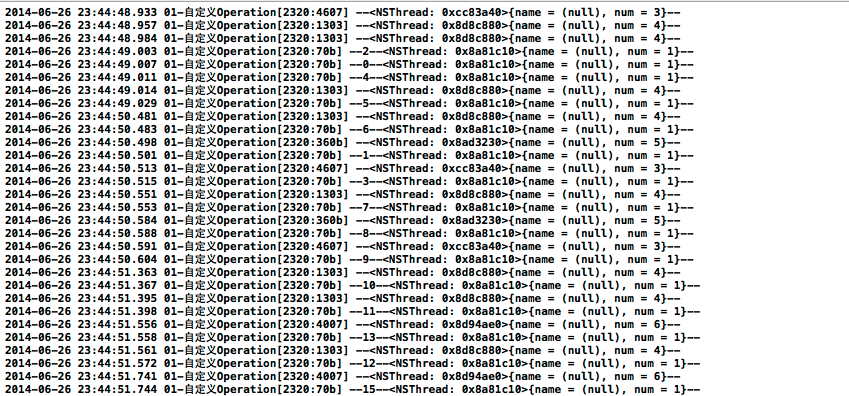
三個問題一次解決:operations 字典負責「同一個 url 不重複下載」,images 字典負責「下載過的不再下載」。這兩層機制合起來,就是所有圖片快取庫的最小骨架。
還可以再往下想的地方
這個 demo masih 有改進空間,列幾個方向供延伸:
- 把
reloadData換成reloadRowsAtIndexPaths:(已在最終版採用),減少不必要的重繪。 - cell 復用時,若圖片還沒下載完就滑走,回呼會把圖片設到錯誤的行上——需要在
prepareForReuse裡把 image 清空,或比對indexPath是否仍然有效。 images字典只增不減,長時間使用會吃掉大量記憶體,實務上會加上容量上限或改用NSCache自動淘汰。NSOperation支援cancel,滑走的 cell 對應的任務可以主動取消,節省頻寬。
自定義 NSOperation 的價值就在這裡:它把「一段耗時工作」變成一個有狀態、可管理、可取消的物件,而這些能力正好是同步寫法拿不到的。