
鍵盤彈出遮住輸入框怎麼辦:監聽鍵盤通知並平移整個視圖
編輯:iOS 開發綜合
登入頁、評論頁、任何有輸入框的畫面,幾乎都會遇到同一個問題:鍵盤彈出來,正好把輸入框擋住,使用者看不到自己在打什麼。解法是監聽鍵盤的顯示與隱藏通知,在鍵盤出現時把整個視圖往上推。
先看成果:
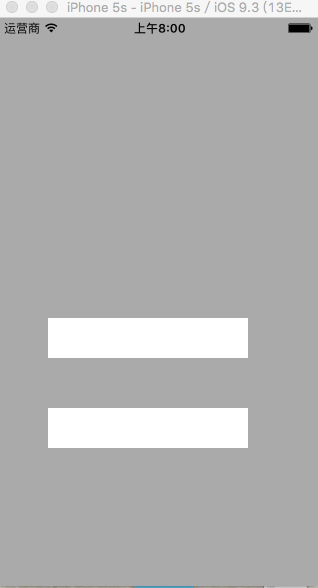
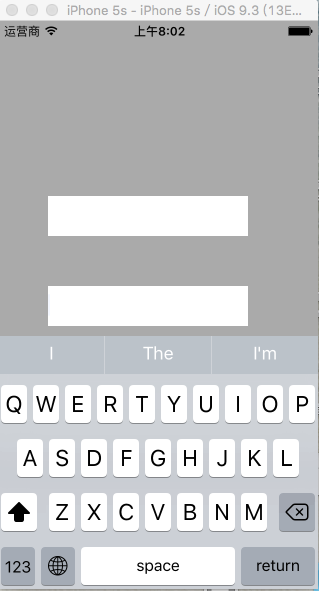
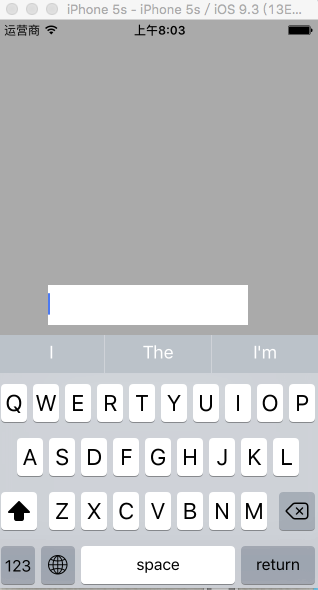
完整程式碼
#import "ViewController.h"
#import "UIView+FrameExtension.h"   // 自行封裝的 frame 便捷存取

#define kDeviceHeight [UIScreen mainScreen].bounds.size.height

@implementation ViewController

- (void)viewDidLoad {
    [super viewDidLoad];

    self.view.backgroundColor = [UIColor lightGrayColor];

    // 第一個輸入框
    UITextField *firstField = [[UITextField alloc] initWithFrame:CGRectMake(50, 300, 200, 40)];
    firstField.backgroundColor = [UIColor whiteColor];
    [self.view addSubview:firstField];

    // 第二個輸入框,位置依第一個推算
    UITextField *secondField = [[UITextField alloc] initWithFrame:CGRectMake(firstField.x,
                                                                            firstField.bottom + 50,
                                                                            firstField.width,
                                                                            firstField.height)];
    secondField.backgroundColor = [UIColor whiteColor];
    [self.view addSubview:secondField];

    // 註冊鍵盤顯示通知
    [[NSNotificationCenter defaultCenter] addObserver:self
                                            selector:@selector(showKeyboard:)
                                                name:UIKeyboardWillShowNotification
                                              object:nil];

    // 註冊鍵盤隱藏通知
    [[NSNotificationCenter defaultCenter] addObserver:self
                                            selector:@selector(hideKeyboard:)
                                                name:UIKeyboardWillHideNotification
                                              object:nil];
}

#pragma mark - 鍵盤彈出
- (void)showKeyboard:(NSNotification *)notification {
    // 找出目前正在編輯的輸入框
    UITextField *txtField;

    for (UIView *subView in self.view.subviews) {
        if ([subView isKindOfClass:[UITextField class]]) {
            UITextField *tempField = (UITextField *)subView;
            if (tempField.isEditing) {
                txtField = tempField;
                break;
            }
        }
    }

    // 從通知中取出鍵盤資訊
    NSDictionary *userInfoDict = notification.userInfo;
    NSValue *value = [userInfoDict objectForKey:UIKeyboardBoundsUserInfoKey];
    CGSize keyboardSize = [value CGRectValue].size;
    CGFloat keyboardHeight = keyboardSize.height;

    // 計算輸入框底部與鍵盤頂部的距離
    CGFloat offset = kDeviceHeight - keyboardHeight - txtField.bottom;

    if (offset < 0) {
        // 會被遮住,往上推(多留一點間距比較好看)
        offset = offset - 10;

        [UIView animateWithDuration:0.5 animations:^{
            self.view.transform = CGAffineTransformMakeTranslation(0, offset);
        }];
    }
}

#pragma mark - 鍵盤隱藏
- (void)hideKeyboard:(NSNotification *)notification {
    [UIView animateWithDuration:2 animations:^{
        self.view.transform = CGAffineTransformIdentity;
    }];
}

#pragma mark - 點空白處收起鍵盤
- (void)touchesBegan:(NSSet<UITouch *> *)touches withEvent:(UIEvent *)event {
    [self.view endEditing:YES];
}

@end
這段程式碼在做什麼
邏輯可以拆成三塊:
- 找出正在編輯的輸入框。遍歷 subviews,用 isKindOfClass 判型別,再用 isEditing 判斷哪一顆是目前的焦點所在。
- 從通知中取得鍵盤尺寸。userInfo 裡的 UIKeyboardBoundsUserInfoKey 存著鍵盤的 frame,取出高度即可。
- 計算並套用位移。用「螢幕高度 − 鍵盤高度 − 輸入框底部」得到剩餘可見空間。若為負數,代表會被遮住,就把整個 view 往上推那麼多。
隱藏時把 transform 還原成 CGAffineTransformIdentity,視圖就回到原位。
幾個值得修正的細節
這份範例能跑,但若要用在正式專案,有幾處建議調整:
- 動畫時間不一致。顯示用 0.5 秒、隱藏用 2 秒,鍵盤收起的動畫會慢得讓人覺得卡頓。更好的做法是直接取用通知裡的
UIKeyboardAnimationDurationUserInfoKey與UIKeyboardAnimationCurveUserInfoKey,讓視圖位移與鍵盤動畫完全同步。 - 鍵盤尺寸請用 frame 而非 bounds。鍵盤的 bounds 高度固定,但 frame 在連接管了外接鍵盤、或鍵盤上掛了 accessory view 時會不同。用 frame 取得的高度才是實際佔用的螢幕空間。
- 找到輸入框後要記得判空。若目前沒有任何輸入框在編輯(例如使用者已收手但通知仍觸發),txtField 會是 nil,接著取 bottom 就會得到 0,位移計算隨之出錯。
- 位移只該往上,不該往下。目前 offset 為正時不做事,這點是對的;但位移量本身建議加上下限保護,避免推到看不見頂部內容。
- 記得移除观察者。在 dealloc 或 viewDidDisappear 中呼叫
removeObserver:,避免通知殘留造成重複觸發。
更省事的做法
如果輸入框嵌在 UIScrollView 裡( UITableView 也適用),其實不必自己算位移。只要把 scrollView 的 contentInset.bottom 設為鍵盤高度,並把當前輸入框 scrollRectToVisible:animated:,系統就會自動處理捲動與邊界,比手動改 transform 穩健得多,也不會出現「視圖被推出螢幕外」的窘境。
若使用 Auto Layout,另一個常見策略是為頂部約束建立一個 IBOutlet,在鍵盤通知中更新 constant 並呼叫 layoutIfNeeded,同樣能達到平滑過渡的效果。
- 上一篇文章: iOS 關閉虛擬鍵盤的六種方法,哪一個才最適合你
- 下一篇文章: 支付寶 iOS 接入圖文教程:從 SDK 到支付回調的完整流程