
iOS 展開三級列表效果實作示例
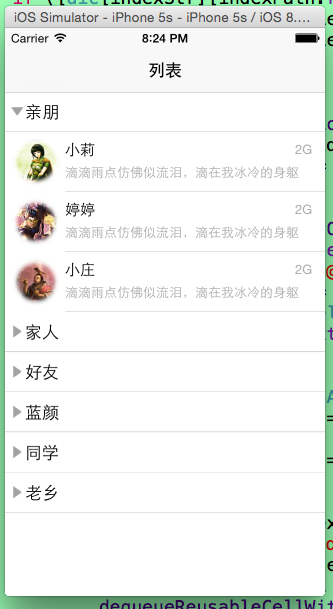
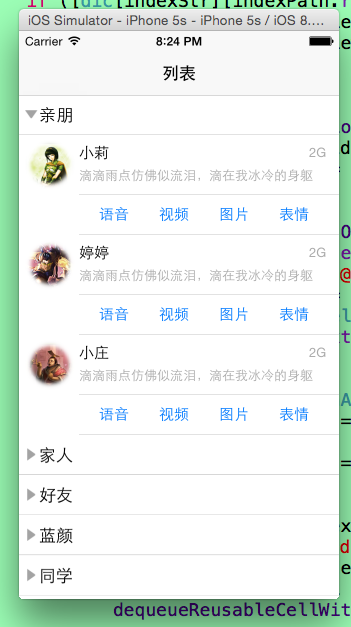
本文示範如何在 iOS 中實作可逐層展開的三級列表效果,第一層為分類表頭,展開後顯示第二層人員,點擊人員後再展開第三層的操作按鈕。
AppDelegate
建立窗體並以導覽控制器包覆 RootViewController:
- (BOOL)application:(UIApplication *)application didFinishLaunchingWithOptions:(NSDictionary *)launchOptions {
    self.window = [[UIWindow alloc] initWithFrame:[[UIScreen mainScreen] bounds]];
    self.window.backgroundColor = [UIColor whiteColor];
    RootViewController *root = [[RootViewController alloc] init];
    UINavigationController *navi = [[UINavigationController alloc] initWithRootViewController:root];
    self.window.rootViewController = navi;
    [self.window makeKeyAndVisible];
    return YES;
}
RootViewController 資料結構
使用多個 NSMutableArray 分別保存各分類下的人員資料,並以字典 dic 以「section 索引」為 key 對應到各組資料,另以 selectedArr 記錄各表頭的展開狀態:
{
    UITableView *_tableView;
    NSMutableDictionary *dic;        // 對應的數據
    NSMutableArray *selectedArr;     // 二級列表是否展開
    NSMutableArray *titleDataArray;  // 各表頭標題
    NSMutableArray *groupArr0;       // 各分類人員陣列
    // groupArr1 ~ groupArr5 同理
}
loadData 方法負責組裝各分類的人員資料,並以 key("0" ~ "5")存入 dic。每筆資料以小字典描述,包含 cell 類型、name 與 state(是否展開第三層)等欄位。
核心 Delegate 邏輯
numberOfSectionsInTableView 回傳表頭數量;numberOfRowsInSection 依對應表頭是否展開決定回傳 0 或該組人數;viewForHeaderInSection 則為每個表頭加上標題、箭頭圖示與可點擊的按鈕(透過 tag = 100 + section 辨識):
-(void)buttonAction:(UIButton *)sender {
    NSString *string = [NSString stringWithFormat:@"%d", (int)(sender.tag - 100)];
    if ([selectedArr containsObject:string]) {
        [selectedArr removeObject:string];
    } else {
        [selectedArr addObject:string];
    }
    [_tableView reloadData];
}
didSelectRowAtIndexPath 負責第三層的展開與收合:當點擊的是 MainCell 時,在其下方插入或刪除一個 AttachedCell(第三層操作列),並以 beginUpdates / insertRowsAtIndexPaths 或 deleteRowsAtIndexPaths 搭配 UITableViewRowAnimationMiddle 呈現動畫:
[_tableView beginUpdates];
[_tableView insertRowsAtIndexPaths:@[path] withRowAnimation:UITableViewRowAnimationMiddle];
[_tableView endUpdates];
自訂 Cell
MainCell 為第二層人員列,包含頭像、名稱、簡介、網路狀態與分割線;DetialTableViewCell 為第三層,內含「語音、視頻、圖片、表情」四個按鈕,透過 tag 區分並印出對應訊息:
- (void)btnAction:(UIButton *)sender {
    switch (sender.tag) {
        case 100: NSLog(@"~~~~語音~~~~"); break;
        case 200: NSLog(@"~~~~視頻~~~~"); break;
        case 300: NSLog(@"~~~~圖片~~~~"); break;
        case 400: NSLog(@"~~~~表情~~~~"); break;
        default: break;
    }
}
此外還封裝了 UIButton (initializer) 的分類,提供便利初始化方法,簡化按鈕建立流程。並在 pch 檔中定義 scaleX、scaleY 以達到不同螢幕尺寸的等比縮放:
#define scaleX [UIScreen mainScreen].bounds.size.width/320.0
#define scaleY [UIScreen mainScreen].bounds.size.height/568.0
小結
以上就是 iOS 展開三級列表效果的完整示例,透過多層陣列與 beginUpdates 動畫即可實現逐層展開的互動,希望對你的開發有所幫助。