
為 iOS 數字鍵盤加上自訂「搜尋」按鈕
編輯:iOS 開發綜合
問題描述
做一個以手機號碼搜尋使用者的功能,輸入框使用 UISearchBar。由於只允許輸入數字,鍵盤型別要限制為數字鍵盤:
self.searchBar.keyboardType = UIKeyboardTypeNumberPad;
若用的是 textField,寫法相同:
self.textField.keyboardType = UIKeyboardTypeNumberPad;
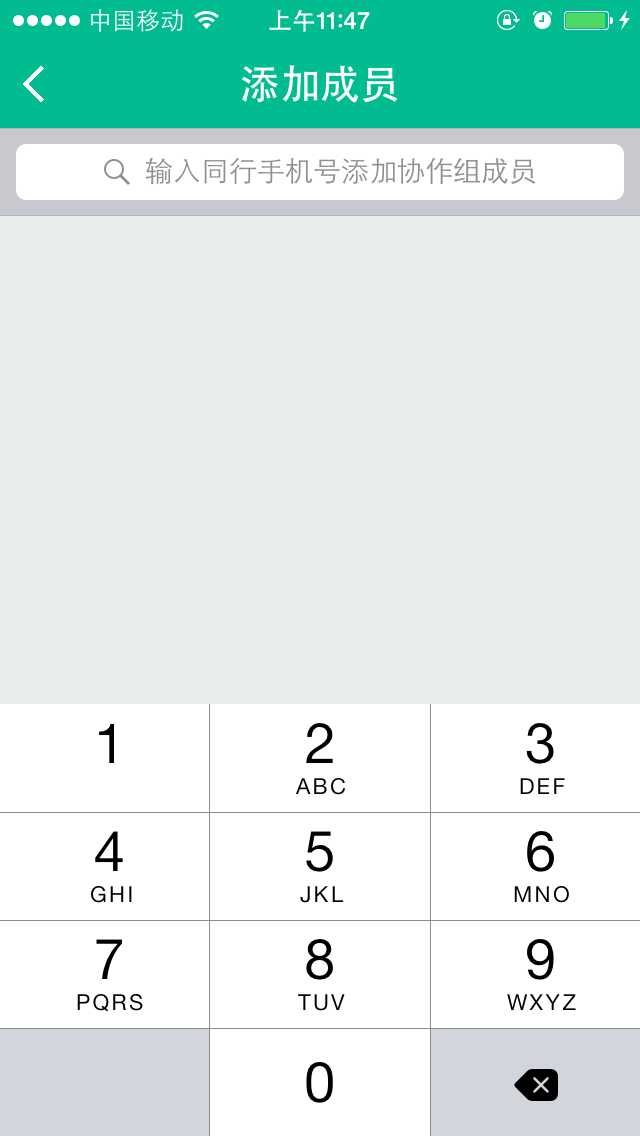
但 UIKeyboardTypeNumberPad 有個先天缺陷:它沒有 return/搜尋鍵。使用者輸完號碼後無從下手,只能先去點別的地方收鍵盤再點搜尋按鈕,體驗很差。因此我們要自己補一個搜尋按鈕到鍵盤上。
解決思路
- 自訂一個搜尋 button。
- 監聽鍵盤即將顯示的通知。
- 遍歷 App 的所有 UIWindow,找到鍵盤所在的 window。
- 再遍歷其子視圖,找出真正的鍵盤容器 view。
- 把自訂按鈕加到該容器上。
這裡有個現實問題:隨著 iOS SDK 演進,鍵盤的視圖層級與類別名稱一直變動(UITextEffectsWindow、UIInputSetContainerView、UIInputSetHostView 等)。如果下面的程式碼在你的系統版本上無效,請把 window 與 subview 的 description 印出來,重新確認實際的類別名稱。
步驟一:建立搜尋按鈕
// 搜尋按鈕
_searchButton = [UIButton buttonWithType:UIButtonTypeCustom];
_searchButton.frame = CGRectMake(0, 163, 106, 53);
[_searchButton setTitle:@"搜索" forState:UIControlStateNormal];
[_searchButton setTitleColor:[UIColor blackColor] forState:UIControlStateNormal];
[_searchButton addTarget:self action:@selector(SearchButtonDidTouch:)
        forControlEvents:UIControlEventTouchUpInside];
步驟二:監聽鍵盤顯示
[[NSNotificationCenter defaultCenter] addObserver:self
    selector:@selector(keyboardWillShowOnDelay:)
        name:UIKeyboardWillShowNotification object:nil];

- (void)keyboardWillShowOnDelay:(NSNotification *)notification {
    [self performSelector:@selector(keyboardWillShow:) withObject:nil afterDelay:0];
}
為什麼要延遲一輪?因為從 iOS 4 之後,鍵盤加入視窗的動作被排到下一個事件迴圈,若在通知回呼中立即遍歷,通常還找不到鍵盤視圖。
步驟三:遍歷視圖並掛上按鈕
- (void)keyboardWillShow:(NSNotification *)notification {
    UIView *foundKeyboard = nil;
    UIWindow *keyboardWindow = nil;

    // 1. 找出鍵盤所在的 window(其類別不是標準 UIWindow)
    for (UIWindow *testWindow in [[UIApplication sharedApplication] windows]) {
        if (![[testWindow class] isEqual:[UIWindow class]]) {
            keyboardWindow = testWindow;
            break;
        }
    }
    if (!keyboardWindow) return;

    // 2. 逐層找出鍵盤容器
    for (__strong UIView *possibleKeyboard in [keyboardWindow subviews]) {
        if ([[possibleKeyboard description] hasPrefix:@"<UIInputSetContainerView"]) {
            for (__strong UIView *possibleKeyboard_2 in possibleKeyboard.subviews) {
                if ([possibleKeyboard_2.description hasPrefix:@"<UIInputSetHostView"]) {
                    foundKeyboard = possibleKeyboard_2;
                }
            }
        }
    }

    // 3. 掛上按鈕(重複顯示時避免累加)
    if (foundKeyboard) {
        if ([[foundKeyboard subviews] indexOfObject:_searchButton] == NSNotFound) {
            [foundKeyboard addSubview:_searchButton];
        } else {
            [foundKeyboard bringSubviewToFront:_searchButton];
        }
    }
}

更穩健的替代方案
上述做法依賴私有視圖階層,屬於「能用但脆弱」的解法,系統一升版就可能失效,也有被審核質疑的風險。若專案允許,建議改用以下方式:
- 用 inputAccessoryView:為 textField 設定一個含「搜尋」按鈕的
inputAccessoryView,這是官方支援的做法,樣式與位置都可控。 - 改用 UIKeyboardTypeNumbersAndPunctuation 或 DecimalPad 以外的型別:若需求允許,
UIKeyboardTypePhonePad同樣沒有 return 鍵,但NumbersAndPunctuation有;權衡後選擇。 - 搭配 IQKeyboardManager 等成熟庫:它們已處理好 accessory 與收鍵盤的各項細節。
總結
本文示範了如何遍歷 window 找出鍵盤視圖並插入自訂按鈕,重點在「延遲一輪再查找」與「按鈕去重」。但更推薦使用 inputAccessoryView 這條官方路徑,穩定且無相容風險。若有疑問歡迎留言,我會盡快回覆。
- 上一篇文章: 全面解析 iOS 的同步請求、異步請求、GET 與 POST
- 下一篇文章: 限制 TextField 與 TextView 的輸入字數