iOS 頁面滑動與標題切換顏色漸變的聯動效果實例
話不多說,直接上圖,要實現類似如下效果。
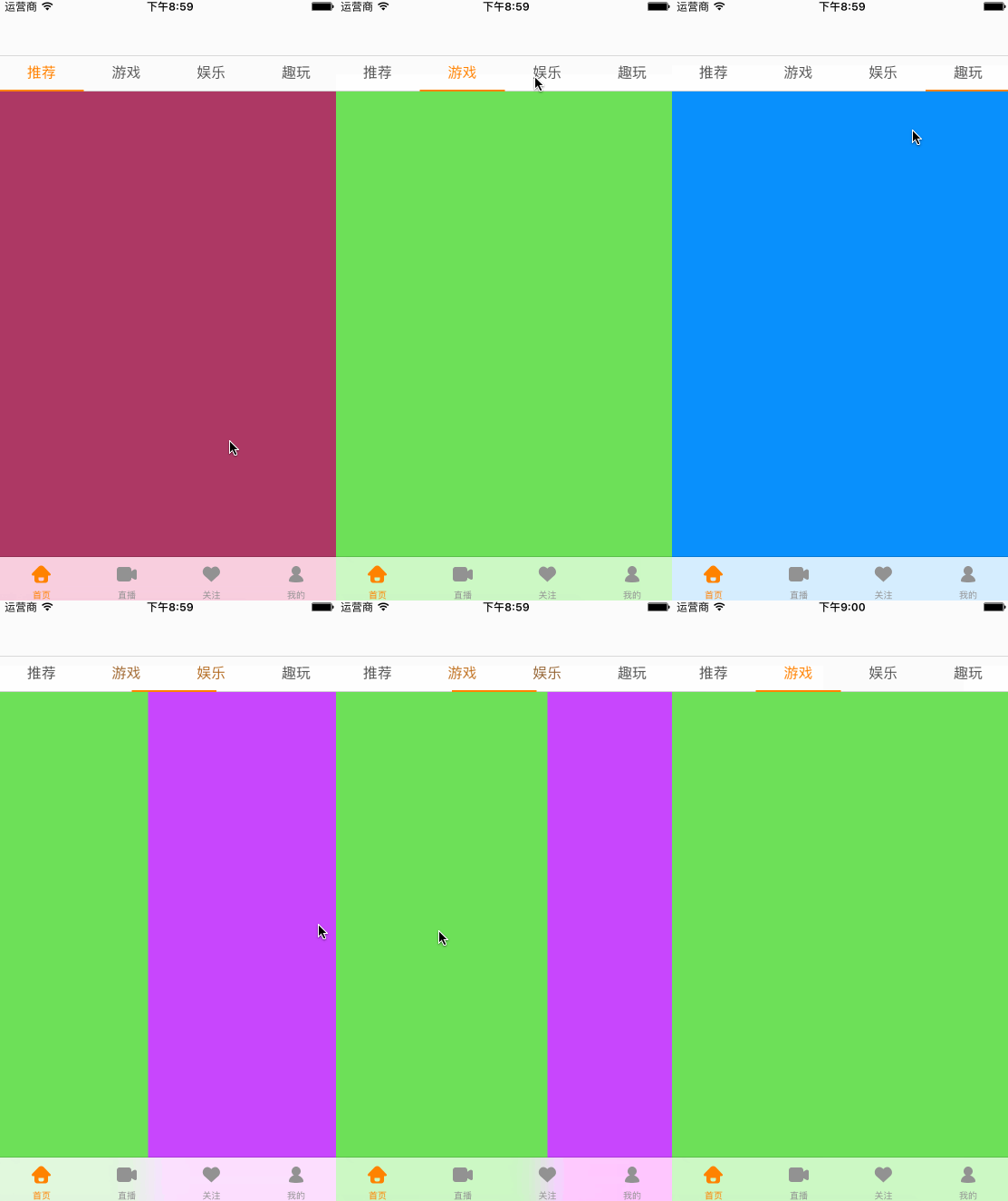
這個效果非常常見,這裡著重講講核心代碼
封裝頂部的PageTitleView
封裝構造函數
封裝構造函數,讓別人在創建對象時,就傳入其實需要顯示的內容 frame:創建對象時確定了
- frame就可以直接設置子控件的位置和尺寸
- isScrollEnable:是否可以滾動。某些地方該控件是可以滾動的。
- titles:顯示的所有標題
// MARK:- 構造函數
init(frame: CGRect, isScrollEnable : Bool, titles : [String]) {
selfisScrollEnable = isScrollEnable
selftitles = titles
superinit(frame: frame)
}
設置UI界面
設置UI界面
- 添加UIScrollView,如果標題過多,則可以滾動
- 初始化所有的Label,用於顯示標題。並且給label添加監聽手勢
- 添加頂部線和滑塊的View
實現相對來說比較簡單,這裡代碼從略
封裝底部的PageCotentView
封裝構造函數
封裝構造函數,讓別人在創建對象時,就傳入其實需要顯示的內容
- 所有用於顯示在UICollectionView的Cell的所有控制器
- 控制器的父控制器
// MARK:- 構造函數
init(frame: CGRect, childVcs : [UIViewController], parentViewController : UIViewController) {
selfchildVcs = childVcs
selfparentViewController = parentViewController

superinit(frame: frame)
}
設置UI界面內容
設置UI界面
- 將所有的子控制器添加到父控制器中
- 添加UICollectionView,用於展示內容
// MARK:- 懶加載屬性
private lazy var collectionView : UICollectionView = {
// 1.創建布局
let layout = UICollectionViewFlowLayout()
layout.itemSize = self.bounds.size
layout.minimumLineSpacing = 0
layout.minimumInteritemSpacing = 0
layout.scrollDirection = .Horizontal
// 2.創建collectionView
let collectionView = UICollectionView(frame: self.bounds, collectionViewLayout: layout)
collectionView.showsHorizontalScrollIndicator = false
collectionView.pagingEnabled = true
collectionView.bounces = false
collectionView.scrollsToTop = false
collectionView.dataSource = self
collectionView.delegate = self
collectionView.registerClass(UICollectionViewCell.self, forCellWithReuseIdentifier: kContentCellID)
return collectionView
}()
private func setupUI() {
// 1.添加所有的控制器
for childVc in childVcs {
parentViewController?.addChildViewController(childVc)
}
// 2.添加collectionView
addSubview(collectionView)
}
實現UICollectionView的數據源方法
- 在返回Cell的方法中,先將cell的contentView中的子控件都移除,防止循環引用
- 取出indexPath.item對應的控制器,將控制器的View添加到Cell的contentView中
// MARK:- 遵守UICollectionView的數據源
extension PageContentView : UICollectionViewDataSource {
func collectionView(collectionView: UICollectionView, numberOfItemsInSection section: Int) -> Int {
return childVcs.count
}
func collectionView(collectionView: UICollectionView, cellForItemAtIndexPath indexPath: NSIndexPath) -> UICollectionViewCell {
let cell = collectionView.dequeueReusableCellWithReuseIdentifier(kContentCellID, forIndexPath: indexPath)
// 移除之前的
for subview in cell.contentView.subviews {
subview.removeFromSuperview()
}
// 取出控制器
let childVc = childVcs[indexPath.item]
childVc.view.frame = cell.contentView.bounds
cell.contentView.addSubview(childVc.view)
return cell
}
}
PageTitleView點擊改變PageContentView
通過代理將PageTitleView的事件傳遞出去
/// 定義協議
protocol PageTitleViewDelegate : class {
func pageTitleView(pageTitleView : PageTitleView, didSelectedIndex index : Int)
}
@objc private func titleLabelClick(tapGes : UITapGestureRecognizer) {
// 1.獲取點擊的下標志
guard let view = tapGes.view else { return }
let index = view.tag
// 2.滾到正確的位置
scrollToIndex(index)
// 3.通知代理
delegate?.pageTitleView(self, didSelectedIndex: index)
}
內部調整
// 內容滾動
private func scrollToIndex(index : Int) {
// 1.獲取最新的label和之前的label
let newLabel = titleLabels[index]
let oldLabel = titleLabels[currentIndex]
// 2.設置label的顏色
newLabel.textColor = kSelectTitleColor
oldLabel.textColor = kNormalTitleColor
// 3.scrollLine滾到正確的位置
let scrollLineEndX = scrollLine.frame.width * CGFloat(index)
UIView.animateWithDuration(0.15) {
self.scrollLine.frame.origin.x = scrollLineEndX
}
// 4.記錄index
currentIndex = index
}
在PageContentView中設置當前應該滾動的位置
// MARK:- 對外暴露方法
extension PageContentView {
 func scrollToIndex(index : Int) {
let offset = CGPoint(x: CGFloat(index) * collectionViewboundswidth, y: 0)
 collectionViewsetContentOffset(offset, animated: false)
}
}
PageContentView滾動調整PageTitleView
通過觀察,我們發現:
1> 原來位置的Title顏色會逐漸變暗
2> 目標位置的Title顏色會逐漸變亮
3> 變化程度是和滾動的多少相關
由此得出結論:
我們一共需要獲取三個值
1> 起始位置下標值
2> 目標位置下標值
3> 當前滾動的進度
其實前2點可以由第3點計算而來,可以只需要將進度傳遞出去。
根據進度值處理標題顏色漸變及滑塊邏輯
。當前進度值唯一確定了標題的狀態,計算出需要發生顏色變化的兩相鄰標題索引
。注意:下標值需要防止越界問題,臨界點的處理
實現代碼
extension PageContentView : UICollectionViewDelegate {

func scrollViewWillBeginDragging(scrollView: UIScrollView) {

startOffsetX = scrollView.contentOffset.x

}

func scrollViewDidScroll(scrollView: UIScrollView) {

// 0.判斷是否是點擊事件

 if isForbidScrollDelegate { return }

// 1.定義獲取需要的數據

 var progress : CGFloat = 0

 let currentOffsetX = scrollView.contentOffset.x

 let scrollViewW = scrollView.bounds.width

  // 1.計算progress

  progress = currentOffsetX / scrollViewW

  // 3.將progress傳遞給titleView

 delegate?.pageContentView(self, progress: progress)

 }

}
根據滾動傳入的值,調整PageTitleView
兩種顏色必須使用RGB值設置(方便通過RGB實現漸變效果)
private let kNormalRGB : (CGFloat, CGFloat, CGFloat) = (85, 85, 85)

private let kSelectRGB : (CGFloat, CGFloat, CGFloat) = (255, 128, 0)

private let kDeltaRGB = (kSelectRGB.0 - kNormalRGB.0, kSelectRGB.1 - kNormalRGB.1, kSelectRGB.2 - kNormalRGB.2)

private let kNormalTitleColor = UIColor(red: 85/255.0, green: 85/255.0, blue: 85/255.0, alpha: 1.0)

private let kSelectTitleColor = UIColor(red: 255.0/255.0, green: 128/255.0, blue: 0/255.0, alpha: 1.0)
調整scrollLine及兩個Label顏色漸變
// MARK:- 對外暴露方法

extension PageTitleView

 func changeLabel(progress: CGFloat) {

// 開啟彈簧效果時的過濾處理
 var progress = progress > 0 ? progress : 0

  progress = progress <= CGFloat(titleLabels.count - 1) ? progress : CGFloat(titleLabels.count - 1)

 var leftLabelIndex = Int(floor(progress))

 let ratio = progress - CGFloat(leftLabelIndex)

 //獲取leftLabel和rightLabel

 let leftLabel = titleLabels[leftLabelIndex]

 if leftLabelIndex >= 3{

  leftLabelIndex = 3

 }

 print("leftLabelIndex = \(leftLabelIndex)")

 var rightIndex = leftLabelIndex + 1

 if rightIndex >= 3{

  rightIndex = 3

 }

 print("rightIndex = \(rightIndex)")

 let rightLabel = titleLabels[rightIndex]

 //滑塊的邏輯

 let moveTotalX = leftLabel.frame.width

 let moveX = moveTotalX * ratio

 scrollLine.frame.origin.x = leftLabel.frame.origin.x + moveX

 //3.Label顏色的漸變

 // 3.1.取出變化的范圍

 let colorDelta = (kSelectedColor.0 - kNormalColor.0, kSelectedColor.1 - kNormalColor.1, kSelectedColor.2 - kNormalColor.2)

 if leftLabelIndex != rightIndex {

 // 3.2.變化leftLabel

 leftLabel.textColor = UIColor(r: kSelectedColor.0 - colorDelta.0 * ratio, g: kSelectedColor.1 - colorDelta.1 * ratio, b: kSelectedColor.2 - colorDelta.2 * ratio)

 // 3.2.變化rightLabel

 rightLabel.textColor = UIColor(r: kNormalColor.0 + colorDelta.0 * ratio, g: kNormalColor.1 + colorDelta.1 * ratio, b: kNormalColor.2 + colorDelta.2 * ratio)

 }

 // 4.記錄最新的index

 currentIndex = leftLabelIndex
 }
}
以上就是本文的全部內容,希望對大家的學習有所幫助,也希望大家多多支持本站。