IOS UITableView和NavigationBar的常用設置詳解
編輯:IOS開發綜合
IOS UITableView和NavigationBar的常用設置詳解
TableView:
1.tableview常用基本設置
// 清除父類UIEdgeInsets
self.tableView.contentInset = UIEdgeInsetsMake(0, 0, 0,0);
//禁止滾動
self.tableView.scrollEnabled = NO;
// tableview頭部視圖設置
self.tableView.tableHeaderView =一個UIView;
//tableview尾部視圖設置,這樣用一個不占空間的UIView初始化可以清除尾部多余空格
self.tableView.tableFooterView = [[UIView alloc]initWithFrame:CGRectZero];
//表格背景色
self.tableView.backgroundColor = [UIColorgrayColor];
//取消垂直滾動條
self.tableView.showsVerticalScrollIndicator=NO;
//設置表格背景圖片
UIView *bgView= [[UIView alloc]initWithFrame:CGRectMake(0,20,SLApplicationW,SLApplicationH)];
UIImageView *bgImageView= [[UIImageView alloc]initWithFrame:CGRectMake(0,0,SLApplicationW,SLApplicationH)];
  [bgImageView setImage:[UIImageimageNamed:@"tree"]];
  [bgView addSubview:bgImageView];
self.tableView.backgroundView= bgView;
2.cell常用基本設置
//表格附件樣式,指示箭頭

  cell.accessoryType=UITableViewCellAccessoryDisclosureIndicator;
//禁止點擊變色

  cell.selectionStyle=UITableViewCellSelectionStyleNone;
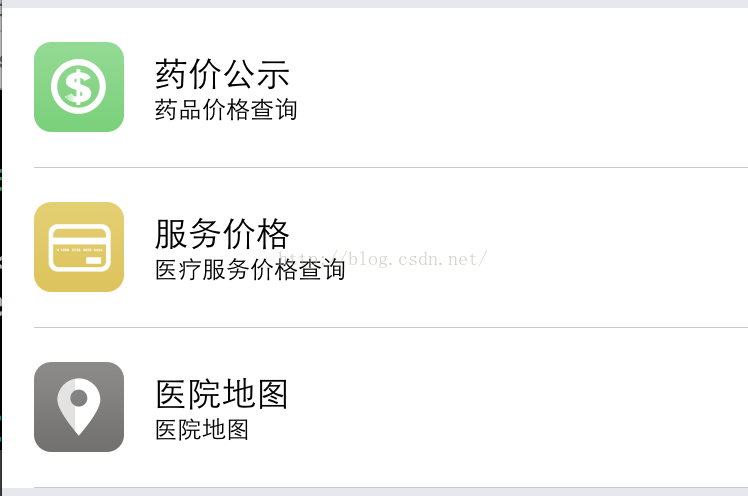
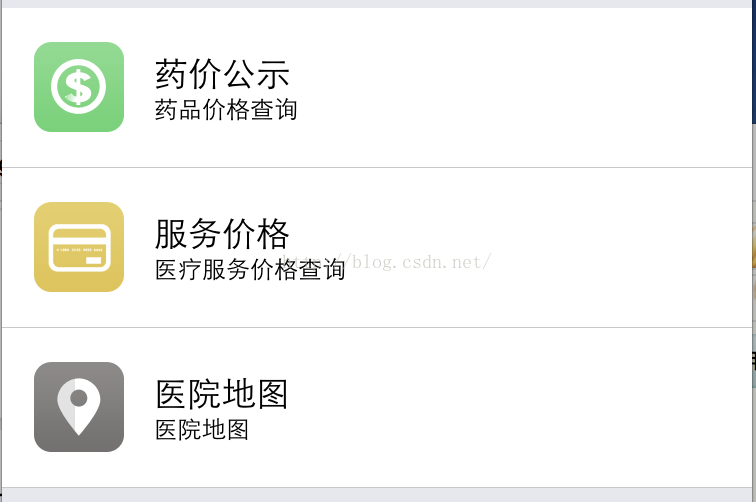
3.cell分割線左側空白清除
//分割線清偏移
  if ([cell respondsToSelector:@selector(setSeparatorInset:)]) {
    [cellsetSeparatorInset:UIEdgeInsetsZero];
  }
//分割線清邊界(沒啥變化)
  if ([cell respondsToSelector:@selector(setLayoutMargins:)]) {
    [cellsetLayoutMargins:UIEdgeInsetsZero];
  }
//清除父邊界
  if ([cell respondsToSelector:@selector(setPreservesSuperviewLayoutMargins:)]){
    [cellsetPreservesSuperviewLayoutMargins:NO];

  }
NavigationBar導航欄:
1.常用基本設置
self.title =@"標題";
// 導航欄顏色
self.navigationBar.barTintColor=[UIColor grayColor];
// 導航欄文字顏色
self.navigationBar.tintColor=[UIColor whiteColor];
// 導航欄標題顏色
NSMutableDictionary*textAttrs= [NSMutableDictionary dictionary];
 textAttrs[NSForegroundColorAttributeName] =[UIColor whiteColor];
self.navigationBarsetTitleTextAttributes:textAttrs];

//導航欄按鈕1
UIBarButtonItem*button1= [[UIBarButtonItem alloc]
             initWithBarButtonSystemItem:UIBarButtonSystemItemAddtarget:selfaction:@selector(function1)];
//導航欄按鈕2
UIBarButtonItem*button2= [[UIBarButtonItem alloc]
              initWithBarButtonSystemItem:UIBarButtonSystemItemSearchtarget:selfaction:@selector(function2)];
//將按鈕添加到導航欄右側(可以添加多個)

self.navigationItem.rightBarButtonItems=@[button1, button2];
2.系統自帶按鈕
枚舉定義及樣式解釋如下:
typedef NS_ENUM(NSInteger, UIBarButtonSystemItem) {
  UIBarButtonSystemItemDone,   //Done英文字符
  UIBarButtonSystemItemCancel,  //Cancel
  UIBarButtonSystemItemEdit,   //Edit
  UIBarButtonSystemItemSave,   //Save
  UIBarButtonSystemItemAdd,    //圖標1(加號圖標➕)
  UIBarButtonSystemItemFlexibleSpace, //?空白
  UIBarButtonSystemItemFixedSpace,   //?空白
  UIBarButtonSystemItemCompose,    //圖標2(寫字板上一支筆寫字的圖標)
  UIBarButtonSystemItemReply,     //圖標3
  UIBarButtonSystemItemAction,     //圖標4
  UIBarButtonSystemItemOrganize,    //圖標5
  UIBarButtonSystemItemBookmarks,   //<span >圖標6</span>
  UIBarButtonSystemItemSearch,     //<span >圖標7</span>
  UIBarButtonSystemItemRefresh,    //<span >圖標8</span>
  UIBarButtonSystemItemStop,      //圖標9
  UIBarButtonSystemItemCamera,     //圖標10
  UIBarButtonSystemItemTrash,     //圖標11
  UIBarButtonSystemItemPlay,      //圖標12
  UIBarButtonSystemItemPause,     //圖標13
  UIBarButtonSystemItemRewind,     //圖標14
  UIBarButtonSystemItemFastForward,  //圖標15
  UIBarButtonSystemItemUndo NS_ENUM_AVAILABLE_IOS(3_0),    //Redo
  UIBarButtonSystemItemRedo NS_ENUM_AVAILABLE_IOS(3_0),    //Undo
  UIBarButtonSystemItemPageCurl NS_ENUM_AVAILABLE_IOS(4_0),  //?空白
};
感謝閱讀,希望能幫助到大家,謝謝大家對本站的支持!
- 上一頁:IOS 調整內存中的圖片大小實例詳解
- 下一頁:IOS添加自定義字體實例詳解
相關文章
+