IOS自定義UIView
編輯:IOS開發綜合
IOS中一般會用到幾種方式自定義UIView
1、繼承之UIView的存代碼的自定義View
2、使用xib和代碼一起使用的自定義View
3、存xib的自定義View(不需要業務處理的那種)
本文主要就介紹下存代碼的自定義UIView和能夠在storeboard中實時顯示效果的自定義UIView
先上效果圖
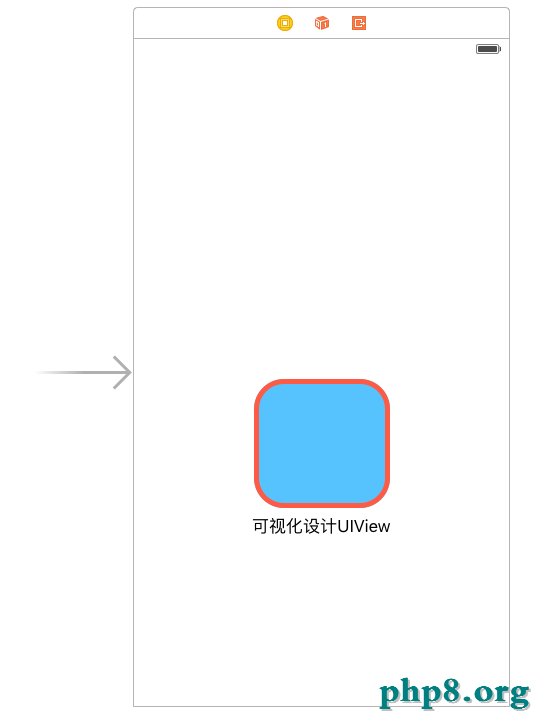
上面為設計界面,能夠直接顯示一個View的圓角與邊框線
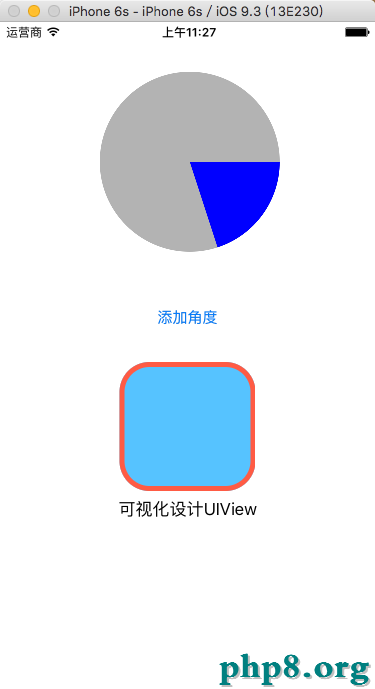
上面那個圓形餅圖是用純代碼自定義的
1.實現在storeboard中實時顯示效果的自定義UIView
1、創建MyView.h 繼承 UIView
#import <UIKit/UIKit.h>

// 設置類為可視化設計
IB_DESIGNABLE
@interface MyView : UIView

// IBInspectable 為可視化設計屬性

// 邊框寬度
@property (nonatomic,assign)IBInspectable float borderWidth;

// 邊框顏色
@property (nonatomic,retain)IBInspectable UIColor* borderColor;

// 圓角
@property (nonatomic,assign)IBInspectable float cornerRadius;
@end
這裡要注意的就是上面的兩個關鍵標簽
IB_DESIGNABLE :代表的是這個類可以在storeboard中顯示實時的效果
IBInspectable :代表把這個屬性能在storeboard中修改
2、MyView.m的實現
//
// MyView.m
// 01_CirProgress
//
// Created by xgao on 15/10/29.
// Copyright (c) 2015年 xgao. All rights reserved.
//
#import "MyView.h"
@implementation MyView
// 邊框寬度
- (void)setBorderWidth:(float)borderWidth{
 self.layer.borderWidth = borderWidth;
}
// 邊框顏色
- (void)setBorderColor:(UIColor *)borderColor{
 self.layer.borderColor = borderColor.CGColor;
}
// 圓角
- (void)setCornerRadius:(float)cornerRadius{
 self.layer.cornerRadius = cornerRadius;
}
@end
3、在storeboad中添加一個view,並且設置這個view的類為 我們剛才創建的 MyView
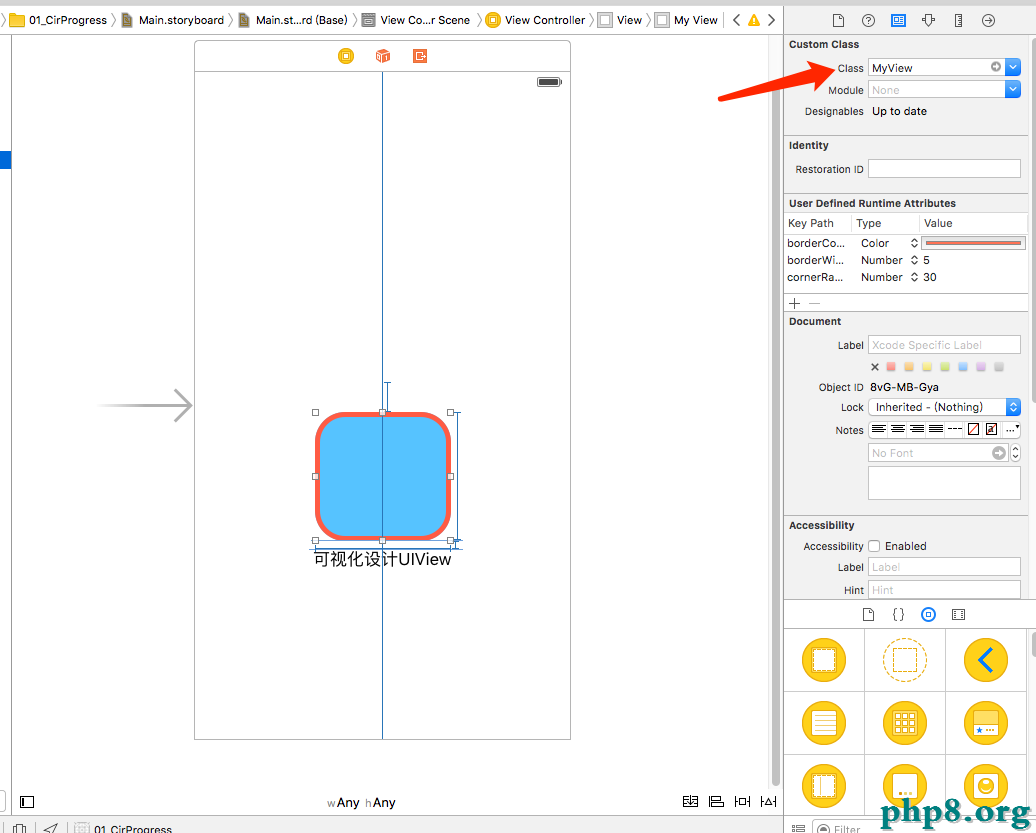
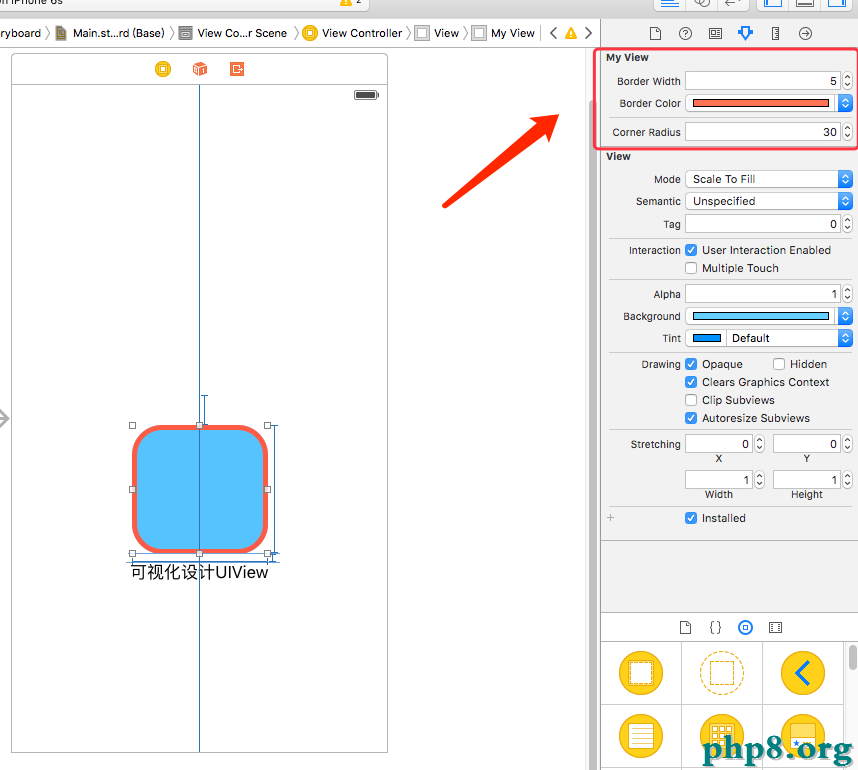
上圖裡面的那些屬性就是我們在.h文件裡面加了IBInspectable關鍵字的屬性,這裡就能實時修改看效果了。
2.實現純代碼的自定義View
1、創建一個繼承UIView的 MyProgress 類文件,MyProgress.h 如下:
#import <UIKit/UIKit.h>
@interface MyProgress : UIView
// 當時進度值
@property (nonatomic,assign) float progressValue;
@end
2、MyProgress.m 如下:
#import "MyProgress.h"
@implementation MyProgress
{
 float _proValue;
}
// 重寫初始化方法
- (id)initWithFrame:(CGRect)frame{
 self = [super initWithFrame:frame];
 if (self) {

  // 設置背影為透明色
  self.backgroundColor = [UIColor clearColor];
 }
 return self;
}
// 重設progressValue屬性
- (void)setProgressValue:(float)progressValue
{
 _progressValue = progressValue;
 // 重新畫UI
 [self setNeedsDisplay];
}
// 繪圖
- (void)drawRect:(CGRect)rect {
 // 獲取畫圖的上下文
 CGContextRef ctx = UIGraphicsGetCurrentContext();
 /**** 繪制圓形背景線 ****/
 // 圓的半徑
 float r = rect.size.width / 2.0;
 // 全圓
 CGFloat endAngle = M_PI * 2;
 // 畫圓形線
 CGContextAddArc(ctx, r, r, r, 0, endAngle, 0);
 // 背影顏色
 CGContextSetRGBFillColor(ctx, 0.7, 0.7,0.7, 1);
 // 完成繪制
 CGContextFillPath(ctx);
 /**** 繪制扇形區域 ****/
 // 計算結束角度
 endAngle = M_PI * 2 * _progressValue;
 /** 畫圓
  * 參數1:c   當前上下文
  * 參數2:x   圓的X坐標
  * 參數3:y   圓的Y坐標
  * 參數4:radius  圓的半徑
  * 參數5:startAngle 開始角度
  * 參數6:endAngle 結束角度
  * 參數7:clockwise 是否逆時針
  */
 CGContextAddArc(ctx, r, r, r, 0, endAngle, 0);
 // 連成線,成弧形
 CGContextAddL.netoPoint(ctx, r, r);
 // 其實就是在連接的那條線上加一個點,讓線條連接到那一個點,就像拉弓,可加多個點
// CGContextAddL.netoPoint(ctx, r + 20, r + 20);
 // 填充顏色
 CGContextSetRGBFillColor(ctx, 0, 0, 1, 1);
 // 完成繪制
 CGContextFillPath(ctx);
}
3、調用自定義的MyProgress類
#import "MyProgress.h"
@interface ViewController ()
{
 MyProgress* _myProView;
}
@end
@implementation ViewController
- (void)viewDidLoad {
 [super viewDidLoad];
 // 創建自定義控件
 _myProView = [[MyProgress alloc]initWithFrame:CGRectMake(100, 50, 180, 180)];
 // 默認進度
 _myProView.progressValue = 0.2;
 [self.view addSubview:_myProView];
}
以上就是本文的全部內容,希望本文的內容對大家的學習或者工作能帶來一定的幫助,同時也希望多多支持本站!
[db:作者簡介][db:原文翻譯及解析]【IOS自定義UIView】的相關資料介紹到這裡,希望對您有所幫助! 提示:不會對讀者因本文所帶來的任何損失負責。如果您支持就請把本站添加至收藏夾哦!
- 上一頁:iOS 圖片裁剪的實現方法
- 下一頁:iOS中設置圓角的幾種方法示例


相關文章
+