iOS實現類似微信和支付寶的密碼輸入框(UIKeyInput協議)
編輯:IOS開發綜合
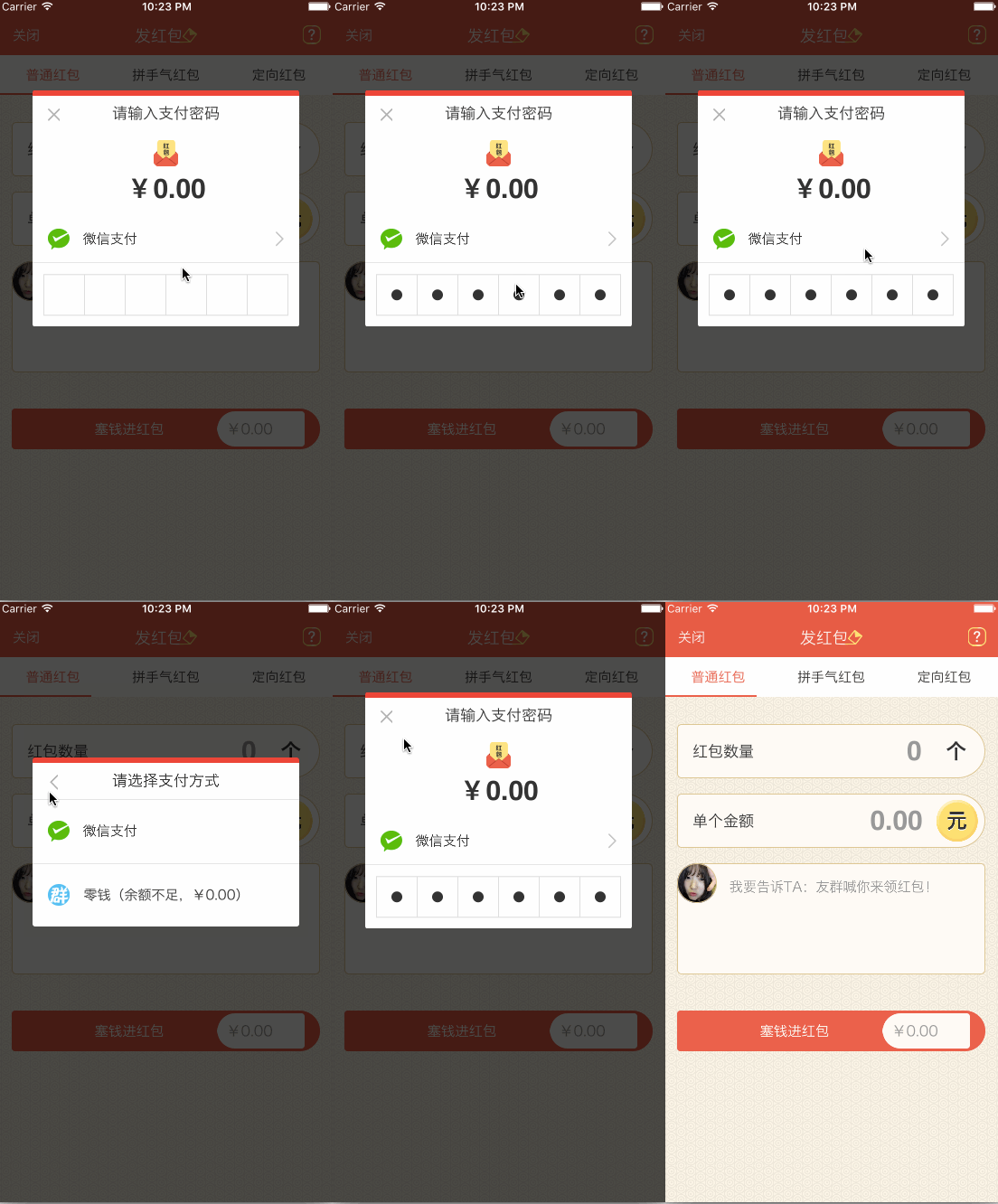
目前在項目中需要實現發紅包的功能,自己就寫了一個密碼輸入框的控件,主要用到了UIKeyInput協議和CoreGraphics框架,效果類似微信支付,感覺還行就把我的思路和制作過程寫下來給大家分享一下。
讓你的自定義View具備輸入的功能(UIKeyInput協議)
通過UIKeyInput協議可以為響應者提供簡單的鍵盤輸入的功能,讓需要鍵盤的responder成為第一響應者就行了。UIKeyInput協議必須實現的有三個方法,分別是以下方法:
#pragma mark - UIKeyInput
/**
 * 用於顯示的文本對象是否有任何文本
 */
- (BOOL)hasText {
  return self.textStore.length > 0;
}

/**
 * 插入文本
 */
- (void)insertText:(NSString *)text {
  if (self.textStore.length < self.passWordNum) {
    //判斷是否是數字
    NSCharacterSet *cs = [[NSCharacterSet characterSetWithCharactersInString:MONEYNUMBERS] invertedSet];
    NSString*filtered = [[text componentsSeparatedByCharactersInSet:cs] componentsJoinedByString:@""];
    BOOL basicTest = [text isEqualToString:filtered];
    if(basicTest) {
     if ([self.delegate respondsToSelector:@selector(passWordDidChange:)]) {
        [self.delegate passWordDidChange:self];
      }
      if (self.textStore.length == self.passWordNum) {
        if ([self.delegate respondsToSelector:@selector(passWordCompleteInput:)]) {
          [self.delegate passWordCompleteInput:self];
        }
      }
      [self.textStore appendString:text];
      [self setNeedsDisplay];
    }
  }
}

/**
 * 刪除文本
 */
- (void)deleteBackward {
  if (self.textStore.length > 0) {
    [self.textStore deleteCharactersInRange:NSMakeRange(self.textStore.length - 1, 1)];
   if ([self.delegate respondsToSelector:@selector(passWordDidChange:)]) {
      [self.delegate passWordDidChange:self];
    }
  }
  [self setNeedsDisplay];
}

/**
 * 是否能成為第一響應者
 */
- (BOOL)canBecomeFirstResponder {
  return YES;
}

/**
 * 點擊成為第一相應者
 */
- (void)touchesBegan:(NSSet<UITouch *> *)touches withEvent:(UIEvent *)event {
  if (![self isFirstResponder]) {
    [self becomeFirstResponder];
  }
}
通過CoreGraphics繪制出密碼輸入框
實現的思路是通過CoreGraphics框架繪制出密碼輸入框的外框和裡面的小黑點,然後通過從鍵盤上獲取到的字符串判斷輸入的位數,具體實現如下:
/**
 * 設置正方形的邊長
 */
- (void)setSquareWidth:(CGFloat)squareWidth {
  _squareWidth = squareWidth;
  [self setNeedsDisplay];
}

/**
 * 設置鍵盤的類型
 */
- (UIKeyboardType)keyboardType {
  return UIKeyboardTypeNumberPad;
}

/**
 * 設置密碼的位數
 */
- (void)setPassWordNum:(NSUInteger)passWordNum {
  _passWordNum = passWordNum;
  [self setNeedsDisplay];
}

/**
 * 繪制
 */
- (void)drawRect:(CGRect)rect {
  CGFloat height = rect.size.height;
  CGFloat width = rect.size.width;
  CGFloat x = (width - self.squareWidth*self.passWordNum)/2.0;
  CGFloat y = (height - self.squareWidth)/2.0;
  CGContextRef context = UIGraphicsGetCurrentContext();
  //畫外框
  CGContextAddRect(context, CGRectMake( x, y, self.squareWidth*self.passWordNum, self.squareWidth));
  CGContextSetLineWidth(context, 1);
  CGContextSetStrokeColorWithColor(context, self.rectColor.CGColor);
  CGContextSetFillColorWithColor(context, [UIColor whiteColor].CGColor);
  //畫豎條
  for (int i = 1; i <= self.passWordNum; i++) {
    CGContextMoveToPoint(context, x+i*self.squareWidth, y);
    CGContextAddLineToPoint(context, x+i*self.squareWidth, y+self.squareWidth);
     CGContextClosePath(context);
  }
  CGContextDrawPath(context, kCGPathFillStroke);
  CGContextSetFillColorWithColor(context, self.pointColor.CGColor);
  //畫黑點
  for (int i = 1; i <= self.textStore.length; i++) {
    CGContextAddArc(context, x+i*self.squareWidth - self.squareWidth/2.0, y+self.squareWidth/2, self.pointRadius, 0, M_PI*2, YES);
    CGContextDrawPath(context, kCGPathFill);
  }
}
源碼下載:https://github.com/631106979/WCLPassWordView
以上就是本文的全部內容,希望對大家的學習有所幫助,也希望大家多多支持本站。

相關文章
+