
iOS 開發(7)之 UINavigationController 導航控制器入門
編輯:iOS 開發綜合
1 前言
UINavigationController 幾乎是所有 iOS App 都會用到的容器,它讓使用者能夠在一層又一層的頁面之間有條理地深入與返回,頂部那條帶著返回箭頭的導航欄就是它的標誌。本文從 AppDelegate 開始,示範如何建立導航控制器、設定根視圖,並用 push 與 pop 完成一次完整的頁面往返。
2 UINavigation 簡介
首先是 AppDelegate 的宣告部分。
.h 文件:
#import <UIKit/UIKit.h>
#import "ZYRootViewController.h"

@interface ZYAppDelegate : UIResponder <UIApplicationDelegate>

@property (strong, nonatomic) UIWindow *window;
@property(nonatomic,strong) ZYRootViewController *zYRootViewController;
@property(nonatomic,strong) UINavigationController *navigationController;

@end
.m 文件:把根視圖包進導航控制器,再指定給 window 的 rootViewController。
@synthesize navigationController;
@synthesize zYRootViewController;

- (BOOL)application:(UIApplication *)application didFinishLaunchingWithOptions:(NSDictionary *)launchOptions
{
    self.window = [[UIWindow alloc] initWithFrame:[[UIScreen mainScreen] bounds]];
    self.window.backgroundColor = [UIColor whiteColor];
    [self.window makeKeyAndVisible];

    self.zYRootViewController = [[ZYRootViewController alloc] initWithNibName:nil bundle:nil];

    // 以根視圖建立導航控制器
    self.navigationController =
        [[UINavigationController alloc] initWithRootViewController:self.zYRootViewController];

    // 把導航控制器設為 window 的根視圖
    self.window.rootViewController = self.navigationController;
    // [self.window addSubview:self.navigationController.view];

    return YES;
}
ZYRootViewController 的 .m 文件:延遲三秒後自動 push 下一個頁面。
- (void)viewDidLoad
{
    [super viewDidLoad];
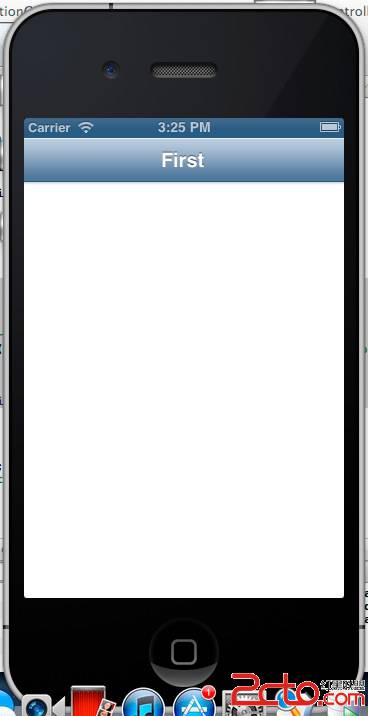
    self.title = @"First";   // 設定標題,會顯示在導航欄中央
    [self performSelector:@selector(pushSecondController) withObject:nil afterDelay:3.0f];
}

-(void)pushSecondController{
    ZYSecondViewController *zYSecondViewController =
        [[ZYSecondViewController alloc] initWithNibName:nil bundle:nil];
    // 把新視圖推入堆疊
    [self.navigationController pushViewController:zYSecondViewController animated:YES];
}
ZYSecondViewController 的 .m 文件:同樣延遲三秒後把自己彈出堆疊。
- (void)viewDidLoad
{
    [super viewDidLoad];
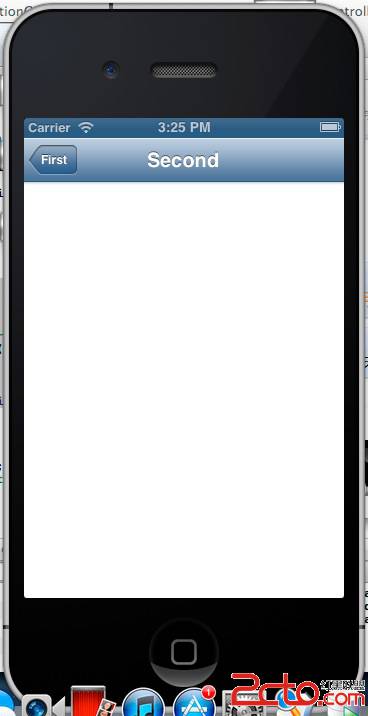
    self.title = @"Second";
    [self performSelector:@selector(goBack) withObject:nil afterDelay:3.0f];
}

-(void)goBack{
    // 將自身視圖彈出導航欄堆疊
    [self.navigationController popViewControllerAnimated:YES];
}
push 與 pop 是這套機制的核心動詞:push 把新頁面疊上去並播放推入動畫,pop 則把目前頁面移除並回到上一層。兩者都接受 animated 參數,關閉動畫可讓頁面瞬間切換,適合特殊的流程需求。
運行結果
啟動時的初始畫面:
三秒後自動跳轉到第二個視圖:
再過三秒,第二個視圖被彈出,畫面回到初始頁面: