
iOS 開發筆記 9:徹底搞懂 UIPasteboard 剪貼板
有時候我們需要讓使用者複製 UILabel 上的文字,或 UIImageView 裡的圖片。但這兩個元件預設不接收觸碰事件,自然也就無法複製。要達到目的,得自己動手做一個可複製的版本。
一、可複製的 UILabel
新增一個類別繼承 UILabel:
@interface UICopyLabel : UILabel
@end

@implementation UICopyLabel
@end
要成為第一響應者(first responder)才能收到選單相關事件,所以覆寫:
-(BOOL)canBecomeFirstResponder {
    return YES;
}
接著決定「哪些動作可以執行」以及「複製時做什麼」:
-(BOOL)canPerformAction:(SEL)action withSender:(id)sender {
    return (action == @selector(copy:));
}

-(void)copy:(id)sender {
    UIPasteboard *pboard = [UIPasteboard generalPasteboard];
    pboard.string = self.text;
}
然後要讓它真的能收到點擊。UILabel 預設關掉使用者互動,所以手動開啟並掛一個手勢:
-(void)attachTapHandler {
    self.userInteractionEnabled = YES;   // 使用者互動總開關
    UITapGestureRecognizer *touch = [[UITapGestureRecognizer alloc]
                                        initWithTarget:self action:@selector(handleTap:)];
    touch.numberOfTapsRequired = 2;      // 設為雙擊才觸發
    [self addGestureRecognizer:touch];
    [touch release];
}

- (id)initWithFrame:(CGRect)frame {
    self = [super initWithFrame:frame];
    if (self) { [self attachTapHandler]; }
    return self;
}

-(void)awakeFromNib {
    [super awakeFromNib];
    [self attachTapHandler];
}
最後在點擊時成為第一響應者並彈出選單:
-(void)handleTap:(UIGestureRecognizer *)recognizer {
    [self becomeFirstResponder];
    UIMenuController *menu = [UIMenuController sharedMenuController];
    [menu setTargetRect:self.frame inView:self.superview];
    [menu setMenuVisible:YES animated:YES];
}
到這裡,一個能接收點擊、能彈出選單、能複製文字的 UILabel 就完成了。
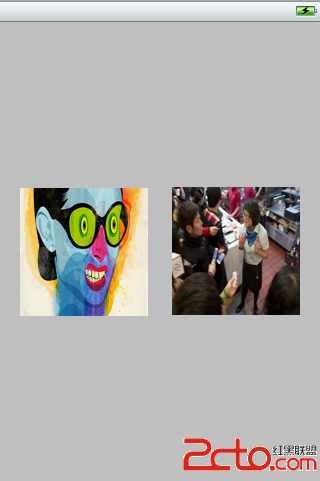
二、可複製、可貼上的 UIImageView
做法幾乎一樣,只要改三處:允許 copy 與 paste 兩個動作,並把操作對象從 text 換成 image。
-(BOOL)canPerformAction:(SEL)action withSender:(id)sender {
    return (action == @selector(copy:) || action == @selector(paste:));
}

-(void)copy:(id)sender {
    UIPasteboard *pboard = [UIPasteboard generalPasteboard];
    pboard.image = self.image;
}

-(void)paste:(id)sender {
    UIPasteboard *pboard = [UIPasteboard generalPasteboard];
    self.image = pboard.image;
}
三、跨 App 溝通
UIPasteboard 不只在同一個 App 內傳遞資料,也能在 App 之間溝通——複製一個網址、打開 Safari 貼到網址列,靠的就是它。也就是說,兩個 App 可以「私下」共享資料。
所謂「私下」,指的是其他 App 不知道,但系統是允許的。若你只希望自己的幾個 App 互通,就不要用系統的通用剪貼板,而是自建一個:


// 取一個專用剪貼板;名稱建議用反寫網域,第二個參數表示不存在時是否建立
UIPasteboard *pb = [UIPasteboard pasteboardWithName:@"testBoard" create:YES];
常用型別都已經包成屬性(string、image、URL 等),直接用即可:

如果是能轉成 plist 的型別(NSString、NSArray、NSDictionary、NSDate、NSNumber、NSURL),可以用 setValue:forPasteboardType:;其他型別則用 setData:forPasteboardType:(plist 型別也能用這個):
// 寫入
NSDictionary *dict = [NSDictionary dictionaryWithObject:textField.text forKey:@"content"];
NSData *dictData = [NSKeyedArchiver archivedDataWithRootObject:dict];
[pb setData:dictData forPasteboardType:@"myType"];

// 讀取
UIPasteboard *pb = [UIPasteboard pasteboardWithName:@"testBoard" create:YES];
NSDictionary *dict = [NSKeyedUnarchiver unarchiveObjectWithData:[pb dataForPasteboardType:@"myType"]];
caption.text = [dict objectForKey:@"content"];
這裡的 PasteboardType 其實就是 UTI(Uniform Type Identifier),用來標示資料種類,讓 App 知道哪些剪貼板內容是自己能處理的——只能吃文字的 App 拿到 UIImage 是沒有意義的。你可以用系統公用的 UTI,也可以自訂;Apple 建議用「反寫網域 + 型別名」,例如 com.myCompany.myApp.myType。
自訂剪貼板只在你的 App 群組之間溝通,用得好能讓使用者體驗更順,微信早期就是靠這招在不同 App 之間傳資料。