
iOS UITableView 入門(三):系統自帶的增刪與排序編輯功能
編輯:iOS 開發綜合
UITableView 本身內建了編輯模式,包括新增、刪除與拖曳排序。善用這套機制,可以省下大量自製按鈕與手勢的工時。
一、進入編輯狀態
[self.tableView setEditing:!self.tableView.editing animated:YES];
只要切換 editing 屬性,每一列左側就會出現控制用的圖示。至於出現的是「紅色減號」還是「綠色加號」,由代理方法決定。
二、決定是新增還是刪除
- (UITableViewCellEditingStyle)tableView:(UITableView *)tableView
           editingStyleForRowAtIndexPath:(NSIndexPath *)indexPath {
    if (tableView.tag == EDIT_MOVE) {
        return UITableViewCellEditingStyleDelete;
    }
    return UITableViewCellEditingStyleInsert;
}
這裡用 tableView 的 tag 來區分目前是「刪除模式」還是「新增模式」,因為同一個頁面可能同時提供兩種操作,而使用者一次只能處於其中一種狀態。
三、點擊確認後的處理
- (void)tableView:(UITableView *)tableView
commitEditingStyle:(UITableViewCellEditingStyle)editingStyle
 forRowAtIndexPath:(NSIndexPath *)indexPath {
    if (tableView.tag == EDIT_MOVE) {
        [self.arr removeObjectAtIndex:indexPath.row];
        [tableView deleteRowsAtIndexPaths:@[indexPath]
                       withRowAnimation:UITableViewRowAnimationLeft];
    } else {
        [self.arr insertObject:@"new row..." atIndex:indexPath.row + 1];
        NSIndexPath *indexNew = [NSIndexPath indexPathForRow:indexPath.row + 1 inSection:0];
        [tableView insertRowsAtIndexPaths:@[indexNew]
                       withRowAnimation:UITableViewRowAnimationRight];
    }
}
務必注意順序:先改動資料陣列,再呼叫 delete 或 insert 動畫。若顛倒過來,UITableView 在查詢 numberOfRowsInSection 時會發現數量兜不攏,直接丟出 exception。
四、拖曳排序
- (void)tableView:(UITableView *)tableView
moveRowAtIndexPath:(NSIndexPath *)sourceIndexPath
      toIndexPath:(NSIndexPath *)destinationIndexPath {
    NSString *currStr = self.arr[sourceIndexPath.row];
    [self.arr removeObjectAtIndex:sourceIndexPath.row];
    [self.arr insertObject:currStr atIndex:destinationIndexPath.row];
    [tableView reloadData];
}
這個方法存在的目的,是讓「編輯模式下調整過的順序」能真正寫回資料來源。少了它,畫面上看起來排序成功,一離開編輯模式就會打回原樣。這裡因為牽涉多筆位置變動,直接 reloadData 是合理選擇。
五、觸發切換
- (IBAction)trashClick:(id)sender {
    self.tableView.tag = EDIT_MOVE;
    [self.tableView setEditing:!self.tableView.editing animated:YES];
}

- (IBAction)addClick:(id)sender {
    self.tableView.tag = EDIT_ADD;
    [self.tableView setEditing:!self.tableView.editing animated:YES];
}
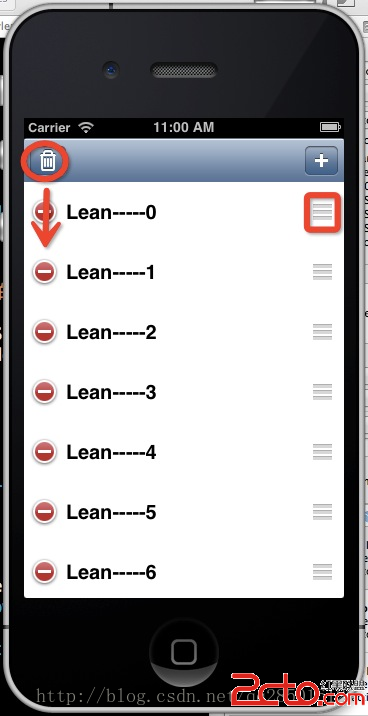
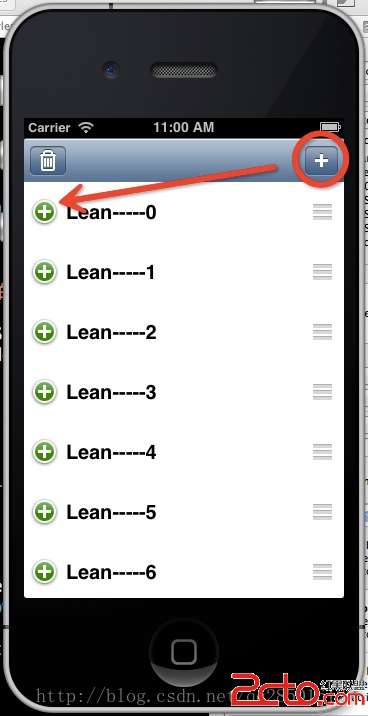
最後補充一個實務觀念: UITableView 的編輯模式預設只會顯示刪除鈕。若你希望「新增」出現在每一列上,記得在 editingStyleForRowAtIndexPath 回傳 Insert,並確認 shouldIndentWhileEditing 的設定符合預期,否則內容會被不明原因地往右推縮。